

When Windows takes forever to boot, the visible culprits in Task Manager are only the beginning — Autoruns from Microsoft’s Sysinternals suite exposes every autostart location Windows checks and gives you the control to disable, audit, and triage the exact items that are adding seconds (or minutes) to startup.
Autoruns is a portable, lightweight utility written and maintained by the Sysinternals team and distributed by Microsoft. It lists everything Windows will try to launch at system boot, at user logon, or when specific components start, including Run and RunOnce registry keys, scheduled tasks, device drivers, services, Explorer shell extensions, Winsock providers, codecs, and more. The official Sysinternals page describes Autoruns as “the most comprehensive knowledge of auto-starting locations of any startup monitor,” and the tool’s package includes both a GUI (Autoruns.exe / Autoruns64.exe) and a command-line equivalent (Autorunsc). Why this matters: most users prune the Task Manager → Startup list and assume the job is done. That’s only the surface layer. Many persistent launch points — scheduled tasks, shell extensions injected into Explorer, driver-level hooks, and legacy autostart mechanisms — don’t appear there. Autoruns pulls those hidden entries into a single view so you can make evidence-based decisions about what to disable or remove. Practical walkthroughs and community guides highlight Autoruns as the missing step after Task Manager cleanup when boot remains slow.
Autoruns doesn’t make promises; it gives you the evidence. Use it with measurement, patience, and backup, and it will usually point directly to what’s wasting your boot seconds.
Source: MakeUseOf This free tool finds out exactly what’s slowing down your Windows boot
 Background
Autoruns is a portable, lightweight utility written and maintained by the Sysinternals team and distributed by Microsoft. It lists everything Windows will try to launch at system boot, at user logon, or when specific components start, including Run and RunOnce registry keys, scheduled tasks, device drivers, services, Explorer shell extensions, Winsock providers, codecs, and more. The official Sysinternals page describes Autoruns as “the most comprehensive knowledge of auto-starting locations of any startup monitor,” and the tool’s package includes both a GUI (Autoruns.exe / Autoruns64.exe) and a command-line equivalent (Autorunsc). Why this matters: most users prune the Task Manager → Startup list and assume the job is done. That’s only the surface layer. Many persistent launch points — scheduled tasks, shell extensions injected into Explorer, driver-level hooks, and legacy autostart mechanisms — don’t appear there. Autoruns pulls those hidden entries into a single view so you can make evidence-based decisions about what to disable or remove. Practical walkthroughs and community guides highlight Autoruns as the missing step after Task Manager cleanup when boot remains slow.Overview: What Autoruns shows (and why it’s different)
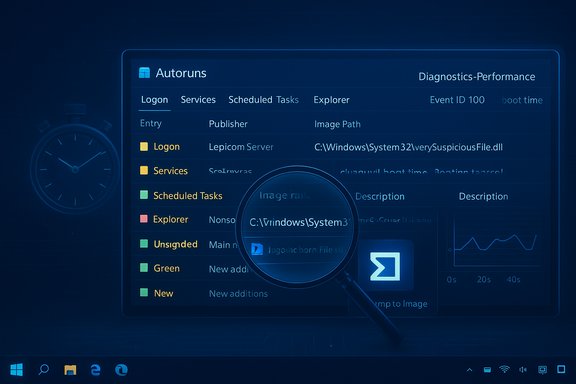
Autoruns organizes its findings into tabs that map to Windows’ autostart mechanisms:- Logon — user-level autostarts (closest to Task Manager’s Startup).
- Services — Windows services set to start automatically.
- Scheduled Tasks — tasks configured in Task Scheduler that run at startup, at login, or on schedules.
- Explorer — shell extensions and context-menu handlers that hook into Explorer’s UI.
- Drivers / Boot Execute — items that load as part of kernel/driver initialization.
- Winsock / Codecs / AppInit / Internet Explorer add-ons — specialized persistence or extension points.
Key differences vs Task Manager
- Task Manager only surfaces the standard user startup entries. Autoruns enumerates every autostart location Windows supports.
- Autoruns reveals both user and system-wide entries, plus non-obvious launch points such as AppInit DLLs, Winlogon notification entries, and Winsock Layered Service Providers.
- Autoruns integrates file-signature verification and VirusTotal lookup to help triage suspicious items, whereas Task Manager shows only a basic “Startup impact” heuristic.
Navigating Autoruns: the practical way to avoid overwhelm
Autoruns is dense — it’s designed for power users and technicians who want full visibility, not for a casual “one-click optimize” experience. The interface uses color coding and filters to help you focus:- Yellow lines generally indicate an entry pointing to a missing file (the registry key or scheduled task exists but the target file is not present). These are often leftovers from incomplete uninstallers and are usually safe to delete after verifying.
- Pink/Red highlights indicate unsigned files or items with missing publisher metadata; they’re not automatically malicious, but they warrant closer inspection (run VirusTotal, check file path and parent product). Enabling the signature verification option removes color for verified entries.
- Green appears when comparing scans and shows entries that are newly added since the last comparison. Use this to spot recent changes after an update or install.
- Hide Windows entries — removes built-in Windows autostarts to reduce noise.
- Hide Microsoft entries — hides additional Microsoft-signed components (OneDrive, Office add-ins) so third-party items stand out.
- Use the built-in search box to find a particular filename, company name, or registry key.
Step‑by‑step: Use Autoruns to find and fix slow boot points
- Measure baseline boot time
- Record Windows’ Event Viewer Diagnostics-Performance Event ID 100 (BootDuration) and use a user-facing timer (BootRacer or a stopwatch) for perceived time to usable desktop. Collect three cold-boot samples and use the median. This gives you objective data to compare before/after changes.
- Run Autoruns as Administrator
- Extract the Sysinternals Autoruns ZIP, run the correct executable for your architecture (Autoruns64.exe on 64-bit Windows), and let it populate. Running as admin is essential to see drivers and system-wide entries.
- Clean low-risk items first
- Use Task Manager → Startup to disable obvious, reversible items (cloud sync clients, chat apps, vendor updaters). These are low-hanging fruit with minimal risk. Then use Autoruns’ Logon tab to find anything Task Manager missed.
- Triage suspicious entries
- For unknown items: right-click → Properties or Jump to Image to inspect file location. Use the VirusTotal integration to check reputation or the “Search Online” option. If the file is missing (yellow), it’s usually safe to delete the registry entry. If it’s unsigned (pink), do the extra research before disabling critical drivers or security agents.
- Disable vs Delete
- Unchecking the box disables an autostart entry without removing the configuration — this is reversible and preferred for testing. Delete is permanent and should be used only after you’re certain. The author and documentation stress disabling for diagnostics.
- Reboot and re-measure
- After disabling an item, reboot and compare Event ID 100/BootRacer times to see the impact. Re-enable if the change causes regressions. Only proceed to delete entries you’ve validated as unnecessary.
- Repeat in small steps
- Change one or two items at a time and log results. This controlled approach prevents accidental breakage and helps you track which change made the difference.
Real-world examples and what to look for
- Explorer context-menu lag: slow right-click menus are commonly caused by shell extensions (Explorer tab in Autoruns). Disabling unused PDF, cloud-storage, or image-editor context handlers often restores snappy menus. Community reports and hands-on testing show clear perceptual improvements after pruning Explorer extensions.
- Hidden updaters and telemetry: some vendor updaters and monitoring tools hide as scheduled tasks or services and reappear if reinstalled or updated. The Scheduled Tasks and Services tabs in Autoruns expose these items so you can disable or reschedule them.
- Orphaned entries after uninstall: a residual Run key pointing to a nonexistent executable will show yellow in Autoruns. Deleting these leftover keys reduces clutter and avoids small errors during sign-in.
Advanced troubleshooting: beyond Autoruns
If Autoruns doesn’t find the bottleneck, the delay might be in firmware, kernel initialization, or a misbehaving driver during the kernel session. For those scenarios:- Use Windows Performance Recorder (WPR) to capture a boot trace and analyze it in Windows Performance Analyzer (WPA) to identify drivers or services causing long holds.
- Check firmware/UEFI: move the boot drive to the top of boot order, enable vendor Fast Boot where appropriate, and minimize device enumeration to save POST time.
- Measure storage health and TRIM status: an aging HDD or a misconfigured SSD can slow boot dramatically; investigate free space and firmware updates.
Safety, risks, and what not to touch
Autoruns’ power is also its hazard: indiscriminate deletions can break drivers, security agents, or login behavior. Follow these safety rules:- Disable, don’t delete, while testing. The checkbox is reversible; deletion is not.
- Never disable or remove security software entries (antivirus, endpoint protection) unless you have a tested replacement.
- Be cautious with drivers and Winlogon entries — these influence kernel loading and authentication.
- If in doubt, search the exact registry key or file name online (Autoruns’ Search Online is convenient) and verify before changing it.
Autoruns’ trust model: signatures, VirusTotal, and false positives
Autoruns supports code signature verification and can query VirusTotal from inside the UI. This lets you triage unsigned or suspicious items quickly instead of manually uploading binaries. Official Sysinternals documentation explains how to enable signature verification and the VirusTotal options (note: VirusTotal has its own terms and limits; uploaded files may be visible to premium workflows). Authoritative guidance recommends using VirusTotal for initial triage but corroborating with local AV scans and manual inspection before taking irreversible actions. Important nuance: even signed software may be undesirable at startup (legitimate updaters, telemetry). Conversely, an unsigned file is not automatically malicious — many legitimate small utilities and legacy components lack proper code signing. Treat signatures as an indicator, not a verdict.Alternatives and complementary tools
Autoruns is not a one-stop performance fixer; use it alongside these utilities:- Task Manager / Settings → Apps → Startup — for quick, low-risk toggles.
- Event Viewer (Diagnostics-Performance) — objective boot metrics via Event ID 100.
- BootRacer — user-facing boot time measurement.
- Windows Performance Recorder / Windows Performance Analyzer — deep, definitive traces for advanced diagnostics.
- LatencyMon — for DPC/ISR timing issues tied to drivers (audio glitches and micro-stutters).
- Disk tools (CrystalDiskInfo, vendor SSD utilities) — storage health and firmware updates.
A conservative, five-step Autoruns checklist for enthusiasts
- Backup and create a System Restore point.
- Collect three cold-boot baseline measurements (Event ID 100 + BootRacer).
- Run Autoruns64.exe as Administrator; enable Hide Windows and Hide Microsoft entries.
- Uncheck (disable) one or two obvious third-party logon/scheduled-task entries; reboot and re-measure.
- If stable and beneficial, either keep disabled or delete only after confirming the entry is orphaned or unnecessary.
Critical analysis: strengths, weaknesses, and who should use Autoruns
Strengths- Comprehensiveness: Autoruns enumerates more autostart locations than any built-in Windows UI, making it uniquely suited for deep persistence and boot-time analysis.
- Control: The ability to disable entries immediately and jump to image/registry locations accelerates diagnostic workflows.
- Reputation tools: Signature verification and VirusTotal integration reduce guesswork when triaging unknown items.
- Intimidating UI: The Everything view is overwhelming for novices and invites dangerous deletions if used without discipline.
- Not automatic: Autoruns doesn’t “optimize” automatically; it gives visibility and leaves decisions to you. That’s a feature for power users but a limitation for those wanting a safe one-click fix.
- Potential for false positives in reputation checks: A legitimate Sysinternals download has occasionally triggered a single-engine false positive on VirusTotal; always cross-check with the official Sysinternals/Microsoft distribution and signature verification.
- Enthusiasts, technicians, and IT pros who need full diagnostic visibility.
- Users comfortable with measured changes and willing to back up before deleting entries.
- Anyone who has already pruned Task Manager startup items but still sees sluggish boot or delayed Explorer behavior.
Final verdict: how Autoruns fits into a responsible maintenance toolkit
Autoruns is one of those rare utilities that grants both visibility and control in equal measure. It neither promises instant fixes nor hides complexity — it lays out the entire auto-start surface so you can make informed decisions. When combined with objective measurement (Event Viewer, BootRacer) and a staged, reversible workflow (disable → test → delete only when safe), Autoruns often reveals hidden bottlenecks that Task Manager misses. That diagnostic depth is why it belongs in the toolbox of anyone who manages Windows performance seriously. Caveat: results vary by hardware and configuration. Autoruns will show you what’s launching, but the time savings you gain depend on whether those items actually consume significant CPU/I/O during boot. If boot time remains stubborn after careful Autoruns pruning, escalate to driver and firmware tracing with WPR/WPA or consult vendor support — the root cause may be outside autostart items entirely.Autoruns doesn’t make promises; it gives you the evidence. Use it with measurement, patience, and backup, and it will usually point directly to what’s wasting your boot seconds.
Source: MakeUseOf This free tool finds out exactly what’s slowing down your Windows boot
