

If you’ve ever been stranded without a webcam — whether for an urgent video call, a last-minute stream, or a multi-camera OBS setup — that old Android phone gathering dust in a drawer can be a surprisingly good rescue. Reincubate’s Camo Studio and its companion Camo Camera Android app let you repurpose a spare smartphone as a full-featured webcam for Windows 10 or Windows 11, and integrate it cleanly into software like OBS Studio. This guide walks you through everything from first-time installation to advanced tuning, practical troubleshooting, and safer long-term use so your repurposed phone performs reliably as an “Android webcam for Windows.”
Smartphone cameras have overtaken many standalone webcams in image quality for years, and apps that bridge phones to PCs turn that advantage into an accessible productivity and streaming tool. Camo Studio has emerged as a polished, freemium solution that supports both wired and wireless (Wi‑Fi) connections, a broad feature set for image control, and compatibility with popular capture and conferencing software.
Why this matters right now: many users need a fast webcam alternative without buying new hardware, and streamers often want extra angles for OBS. Camo’s Windows client, plus the Android app, makes that possible with minimal technical friction — while offering pro-level features if you choose to upgrade.
Risks and limitations to beware of:
Conclusion
Turning an Android smartphone into a webcam with Camo Studio is one of the fastest, most flexible ways to upgrade your video quality without buying new hardware. Whether you’re rescuing a last‑minute meeting or expanding your OBS production with a second angle, Camo provides a clean, professional workflow when installed and configured correctly. Keep power and heat in mind, test connections ahead of time, and consider a USB connection for mission‑critical work — do that, and your spare phone will be camera-ready, stable, and surprisingly capable.
Source: Tom's Hardware How to setup an Android smartphone as a webcam — Camo Studio unlocks new uses for old smartphones in Windows 10 or 11 and OBS software
 Background
Smartphone cameras have overtaken many standalone webcams in image quality for years, and apps that bridge phones to PCs turn that advantage into an accessible productivity and streaming tool. Camo Studio has emerged as a polished, freemium solution that supports both wired and wireless (Wi‑Fi) connections, a broad feature set for image control, and compatibility with popular capture and conferencing software.Why this matters right now: many users need a fast webcam alternative without buying new hardware, and streamers often want extra angles for OBS. Camo’s Windows client, plus the Android app, makes that possible with minimal technical friction — while offering pro-level features if you choose to upgrade.
Overview: What Camo Studio Does and who it serves
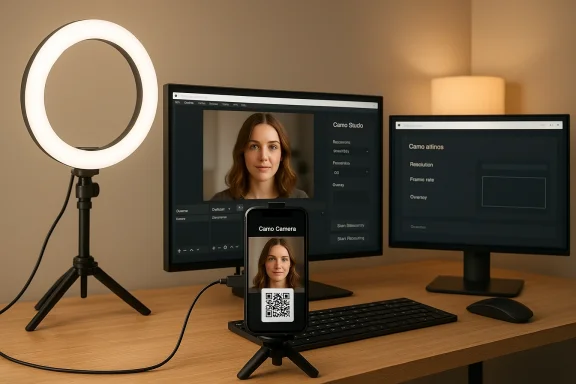
Camo acts as a bridge between your smartphone camera and Windows apps by creating a virtual camera device your OS and applications see like any other webcam. Key capabilities include:- High-quality video input using your phone’s rear or front cameras.
- On-the-fly image adjustments: exposure, white balance, contrast, temperature, tint, and more.
- Built-in filters, templates, and simple overlays for presentation readiness.
- Support for connecting over Wi‑Fi (paired via QR code) or USB, depending on your needs.
- Use as a video source in conferencing apps and capture software such as OBS Studio.
- Optional paid tier (Camo Pro) for higher resolution/advanced modes and capabilities.
What you’ll need
Before you begin, make sure you have:- A Windows PC running Windows 10 or Windows 11.
- An Android smartphone (any reasonably modern Android will work; a recent midrange or better model will give the best results).
- A standard USB cable if you plan to use a wired connection, or both devices on the same Wi‑Fi network for wireless pairing.
- External power for the phone if you plan long sessions — video streaming can drain a battery quickly.
- OBS Studio (optional) if you intend to integrate the phone feed into a streaming or recording workflow.
Installing Camo Studio on Windows
Camo Studio installation is simple and flexible; you can use either the Microsoft Store or the standalone installer that triggers a standard install flow.- Download and run the Camo Studio installer for Windows or install from the Microsoft Store.
- Follow the installer prompts; the Microsoft Store option can make the install admin-less and better integrated into Windows.
- Launch Camo Studio — it will look for available camera devices and offer the interface you’ll use to control the phone feed.
Installing Camo Camera on Android
- Open Google Play on your Android device.
- Search for and install the Camo Camera app.
- Grant the minimum permissions the app requests (camera and microphone). These are required for the app to stream video and optionally provide audio.
Pairing and connecting: Wi‑Fi vs USB
Camo supports both Wi‑Fi pairing and USB connections. Each has advantages.- Wi‑Fi (recommended for convenience): Pair via QR code from Camo Studio’s “Pair a device” command and the Camo Camera app’s wireless connect function. This allows more flexible camera placement and multiple‑angle setups without cable clutter.
- USB (recommended for best stability and lowest latency): Connect the phone to the PC with a USB cable. On Android you may have to enable USB debugging depending on the model and Windows platform. A wired connection reduces latency and avoids Wi‑Fi interference or network policy problems.
First run: what you’ll see in Camo Studio
Camo Studio organizes its window into intuitive panels:- Device: pick the connected phone or any camera device. Your Android phone should appear here once paired.
- Device Settings: choose rear or front lens, select resolution and frame rate (subject to device limits), and toggle focus or exposure modes.
- Main preview: what the camera is seeing, with real-time changes.
- Filters & Templates: quick presets for background, frames, overlays, and look. Templates include simple overlays such as “Meet & Greet” and watermarks.
Tweak the image: practical settings you should try
Getting a good webcam look from a phone isn’t just about the camera hardware — it’s about the settings. Try these adjustments:- Switch to the rear camera for better optics, unless you need a front-facing angle.
- Lock focus and exposure once framing is correct to avoid constant shifts.
- Use background blur or Portrait-like modes when you want subject separation (note: advanced background replace/AR features may be limited on some Android devices).
- Adjust temperature and tint to match your room lighting — neutralize tungsten or overly cool LED lighting.
- Try contrast and vibrance sparingly; saturation boosts can clip highlights with phone sensors.
Using the phone mic and audio sync
Camo can present the phone’s microphone as an audio source to your PC, which is handy if you want the phone to supply audio synchronized with its video. For most conferencing and streaming setups, however, you’ll get better results with a dedicated microphone. If you do use the phone mic:- Confirm the conferencing or streaming app is set to Camo’s audio device (if Camo supplies audio), or to your microphone of choice.
- Test for latency and echo: in multi-device setups make sure you aren’t feeding the same audio back into itself.
Integrating Camo with OBS Studio
You can use Camo as a source in OBS Studio the same way you add any webcam:- Open OBS and create a new Scene (or use an existing one).
- Add a Source: choose Video Capture Device.
- Create a new source and select Camo Camera (or the Camo device name shown by the app) as the device.
- Resize and position the feed within your layout. You can combine Camo with other webcams, capture cards, or screen captures for a multi-camera broadcast.
- Swap scenes during your stream to change camera angles. OBS sees Camo like any other webcam, so you can use all standard filters and transitions.
Mounting, framing, and optical considerations
- Use a small tripod, gooseneck mount, or phone clamp for steady framing. A shaky phone makes the feed look unprofessional.
- For a natural perspective, position the phone so the lens is at eye level or slightly above. Rear cameras often sit off-center; test your framing before the call.
- Use the phone’s highest-resolution rear lens for the cleanest image. Avoid digital zoom when possible.
- Consider a simple LED panel or ring light to raise image quality dramatically in low-light rooms.
Power, heat, and long sessions
Streaming video is resource-intensive: phones can heat up and batteries drain rapidly. For reliable sessions:- Keep the phone plugged into power. Use a short, high-quality cable to prevent disconnections.
- Remove any heavy background apps on the phone to reduce CPU load.
- If the phone gets hot, pause and cool it down; thermal throttling will lower image quality and may trigger disconnects.
- For extended streams consider a powered mount or charging solution that keeps the phone upright and charged.
Security and privacy considerations
When you give an app camera and microphone access, treat it like any other permission-sensitive tool:- Only download the official Camo Camera app from the Play Store and Camo Studio from the official installer or Microsoft Store.
- On shared networks, prefer USB or an isolated Wi‑Fi network to avoid exposing your device pairing to other clients.
- If you stop using Camo permanently, uninstall the mobile and desktop apps and revoke any persistent network permissions you granted.
- Be aware that Camo creates a virtual camera device on Windows; if you uninstall and later experience camera errors in other apps, check Device Manager and remove leftover virtual devices or drivers, then reboot.
Common problems and troubleshooting
Problem: Camo device doesn’t appear in Camo Studio or OBS.- Ensure the phone and PC are on the same Wi‑Fi network for wireless pairing. Restart both apps if needed.
- Try the USB option if network pairing is flaky. On Android, enabling USB debugging may be required.
- Check firewall or antivirus settings that might block the pairing process.
- Check whether the conferencing/streaming app is set to the correct audio device. Sometimes local system audio takes precedence.
- Prefer a dedicated mic for best latency and clarity; use the phone mic only for convenience.
- Move both devices closer to the router or use a wired Ethernet connection for the PC.
- Switch to USB to eliminate network latency.
- Ensure no heavy network traffic is saturating your Wi‑Fi.
- Open Device Manager, expand Imaging devices or Cameras, and look for virtual Camo devices. Uninstall and reboot.
- If problems persist, reinstall Camo and then use the proper uninstaller to remove it cleanly.
Feature limits and platform caveats
Camo’s Android support is robust, but not all desktop features map perfectly to every Android phone. Important caveats:- Some high-frame-rate modes (e.g., 60 fps) depend on device manufacturer restrictions and may be limited to certain models.
- Advanced image enhancements (some portrait or AR features) might be unavailable or limited on Android compared with iOS or connected DSLR workflows.
- Stabilization, auto-framing with zoom, and certain advanced filters may be restricted by device protocol support.
- If you rely on a feature that a particular Android model doesn’t support, test before any critical session.
Alternatives and when to choose them
Camo is one of several ways to use a phone as a webcam. Alternatives can be cheaper or have different trade-offs:- Free/Lightweight: DroidCam — widely used for simple webcam needs but with a different UI and capability set.
- For streaming-focused users: VDO.Ninja (now often rebranded) — offers superb low-latency peer-to-peer browser-based connections and advanced routing for multi-phone setups, but requires a steeper learning curve.
- iOS users: Apple’s Continuity Camera provides a seamless, built-in experience on recent macOS versions (not a Windows option).
- Paid competitors and niche tools may offer specialized features such as direct RTMP output or multi-camera wireless sync.
When to upgrade to Camo Pro
Camo’s free tier is generous and fine for most users, but Camo Pro adds value if you need:- Higher resolutions or unlocked maximum capture quality.
- Additional pro-grade overlays, templates, or advanced framing tools.
- Priority access to AI-based features and newer editing or enhancement modes as they are rolled out.
Practical checklist for a reliable Android webcam setup
- Install Camo Studio on Windows (Store or installer).
- Install Camo Camera on Android and grant camera/microphone permission.
- Pair via QR code over the same Wi‑Fi or connect via USB (enable USB debugging if needed).
- Mount the phone securely and connect it to power for long sessions.
- In Camo Studio, choose the rear lens, lock focus/exposure, and tune white balance.
- In OBS or your conferencing app, select the Camo virtual camera and test audio/video sync.
- Run a brief recording to validate look, latency, and audio before the live call or stream.
- If problems occur, try USB mode, check firewall settings, and uninstall/reinstall as a last resort.
Verdict: strengths, risks, and final recommendations
Camo Studio is a compelling option to turn an Android phone into a powerful webcam for Windows 10 and 11, especially for users who want more control over image quality than most cheap webcams provide. Its strengths include an intuitive interface, useful image adjustments, support for wired and wireless connections, and smooth integration with OBS Studio.Risks and limitations to beware of:
- Platform differences mean some advanced features are not available on all Android models; test your exact phone.
- Wireless connections can introduce latency and occasional instability; switch to USB for critical work.
- Long sessions require power management; phone heating and battery drain are real concerns.
- Virtual camera drivers can sometimes leave artifacts after uninstall — be ready to clean up Device Manager entries if needed.
Conclusion
Turning an Android smartphone into a webcam with Camo Studio is one of the fastest, most flexible ways to upgrade your video quality without buying new hardware. Whether you’re rescuing a last‑minute meeting or expanding your OBS production with a second angle, Camo provides a clean, professional workflow when installed and configured correctly. Keep power and heat in mind, test connections ahead of time, and consider a USB connection for mission‑critical work — do that, and your spare phone will be camera-ready, stable, and surprisingly capable.
Source: Tom's Hardware How to setup an Android smartphone as a webcam — Camo Studio unlocks new uses for old smartphones in Windows 10 or 11 and OBS software
