

A spare Android phone or iPhone can be turned into a Windows PC webcam today by pairing it with apps such as DroidCam, Camo, Iriun, iVCam, or EpocCam, while Windows 11 also offers a Microsoft-supported Android route through Phone Link and Link to Windows. The trick is not new, but it has become newly useful because laptop webcams remain a stubborn weak point in otherwise capable PCs. The larger story is that the best camera many Windows users already own is sitting unused in a drawer. For home workers, streamers, students, and IT departments trying to stretch hardware budgets, that changes the webcam purchase from an obvious add-on into a question worth challenging.
The average old smartphone has aged better as a camera than as a phone. Its battery may be tired, its storage may be cramped, and its operating system may no longer feel exciting, but the sensor and lens stack are often still better than the tiny webcam module wedged into a laptop display bezel.
That mismatch is the whole opportunity. Laptop makers have spent years selling thin lids, narrow bezels, and longer battery life, and the webcam has often been the component asked to compromise. Even after the remote-work boom embarrassed the industry into paying more attention, many built-in cameras still struggle with low light, muddy exposure, weak dynamic range, and the unflattering angle of a screen tilted back on a desk.
Smartphones, meanwhile, were shaped by a different arms race. Autofocus, HDR, computational exposure, multi-lens camera systems, portrait effects, and better low-light processing became selling points even on midrange devices. A phone that feels obsolete for daily use can still produce a cleaner, sharper, more adaptable video feed than a webcam bought as an afterthought.
That is why the TweakTown guide lands on a practical point that deserves more attention from Windows users: this is not merely a hobbyist workaround. It is a small act of hardware arbitrage. You are taking the strongest remaining part of an old device and assigning it to a job where Windows PCs are still uneven.
This approach works because Windows applications mostly do not care whether the camera is built into the laptop lid, connected by USB, exposed through a virtual driver, or streamed from a phone. Once the client presents “DroidCam Video” or a similar device to the system, Zoom, Teams, OBS, Discord, Google Meet in a browser, and most recording tools can treat it like any other webcam.
That abstraction is powerful, but it is also where the messiness lives. The phone app, PC client, drivers, network permissions, firewall behavior, USB mode, and camera selection all have to line up. When they do, the setup feels almost magical. When they do not, users are left refreshing device lists, toggling permissions, restarting clients, and wondering whether their cable is secretly charge-only.
The TweakTown walkthrough captures the tradeoff well: Wi-Fi is convenient, USB is usually the more reliable choice. Wireless webcam streaming is good enough for casual calls on a strong home network, but it adds one more variable to a chain already full of them. USB removes much of the network uncertainty and often reduces latency, though it may require developer options, USB debugging, or a data-capable cable depending on the app and phone.
That is the Windows way in miniature. The ecosystem gives users options, and those options are valuable. But the price of flexibility is configuration.
Microsoft’s path is not identical to DroidCam’s. It is tied to Android, Windows 11, and the company’s broader cross-device framework. The user links the phone to the PC, enables the mobile device camera option, grants permissions, and then selects the phone camera inside a video app. In theory, it is exactly the kind of native integration Windows should have had years ago.
The catch is that “native” does not always mean universal. iPhone users are still better served by third-party apps on Windows, because Apple’s smoothest Continuity Camera experience is designed for the Mac ecosystem. Some Android devices and vendor builds may expose different USB behavior, and the Phone Link route depends on Microsoft’s supported configuration rather than the anything-goes character of a standalone app.
Still, Microsoft’s involvement changes the center of gravity. When a feature ships through Windows settings rather than a forum workaround, IT departments are more likely to consider it, mainstream users are more likely to trust it, and support guides can point to a sanctioned path. It also signals that Microsoft understands a simple truth: the PC is no longer the only computer in the room.
But Microsoft cannot abolish optics, bandwidth, lighting, or mounting with a settings toggle. A phone camera still needs to be positioned well. A wireless feed still depends on a stable local network. A great sensor still looks bad if it is pointed up from a desk in a dim room. The native route reduces friction, not physics.
The rear camera is usually the right choice because it is typically the phone’s best imaging hardware. That immediately creates a practical problem, because the screen is then facing away from the user. A tripod, clamp, MagSafe-style mount, or cheap desk stand becomes less of an accessory and more of the thing that turns the experiment into a repeatable setup.
Eye level matters as much as resolution. A 4K-capable phone placed low on a desk can still produce the classic nostril-cam effect that built-in laptop webcams made famous. A modest phone at eye height, with a lamp or window in front of the user, will usually look more professional than a technically superior sensor in the wrong place.
Power is the other unglamorous requirement. Camera streaming drains a phone quickly, and an old device may already have degraded battery health. For a dedicated setup, keeping the phone plugged in is not optional; it is what makes the system dependable enough for back-to-back calls.
Audio should be separated from video whenever possible. A phone microphone may work, and some apps can expose it to Windows, but it is rarely the best choice. A headset, USB microphone, or dedicated conference mic will usually do more for perceived call quality than squeezing another notch of sharpness from the video feed.
For an individual user, that tradeoff may be trivial. Ten minutes with DroidCam and a spare phone can deliver better video than a $30 webcam. If the phone stays mounted, the setup can become invisible in daily use. If it has to be assembled and disassembled before every call, enthusiasm fades quickly.
For IT administrators, the calculus is more complicated. A sanctioned Microsoft route through Windows 11 and Link to Windows is easier to explain than a patchwork of third-party webcam apps. But even then, support teams have to think about device ownership, account linking, permissions, OS versions, app versions, privacy controls, and what happens when a user’s “webcam” is also a personal phone receiving notifications.
There is also a security dimension that casual guides tend to underplay. Any app that turns a phone camera into a PC camera sits at a sensitive boundary: it touches the camera, the network, the Windows driver model, and often the microphone. That does not make such apps inherently unsafe, but it does make vendor choice important. Users should install from official app stores and developer sites, keep the software updated, and avoid obscure clones promising premium features for free.
The enterprise version of this concern is policy. Some organizations do not want unmanaged personal devices acting as peripherals on corporate PCs, especially in regulated environments. Others may welcome the idea for hot desks, remote workers, training rooms, or temporary setups where buying and shipping webcams is wasteful. The difference is not the camera; it is governance.
But the native Windows story is clearly moving through Windows 11. Microsoft’s cross-device work increasingly lives in the Mobile devices settings surface, Phone Link, Link to Windows, and the Cross Device Experience Host. That architecture is not just about cameras. It is about a future where the phone becomes a file source, notification bridge, app companion, authentication helper, camera, and sometimes a remote-control surface for the PC.
That direction makes sense for Microsoft. Windows lost the smartphone platform war, but it did not lose the user’s desk. The company’s best move is to make Windows the place where Android devices become more useful, rather than pretending the phone does not exist. The phone-as-webcam feature is one of the clearest examples because it solves a visible, everyday annoyance.
For Windows 10 users, the third-party route may be enough for years. Windows 10 remains widely deployed, and a stable webcam app does not suddenly stop being useful because Microsoft’s newest integration is elsewhere. But the strategic signal is unmistakable: the deeper, more polished integrations are being built for Windows 11 and whatever follows it.
That leaves a familiar split in the Windows community. Enthusiasts can choose the tool that fits the hardware they already own. Enterprises have to decide whether the convenience is worth standardizing. Microsoft gets to make Windows 11 look more modern without manufacturing a single camera module.
If the feed lags, the weak link is usually bandwidth, latency, or processing overhead. Wi-Fi makes the setup feel untethered, but video is not a trivial stream. A congested network, weak signal, overloaded phone, or old router can turn a theoretically better camera into a worse meeting experience.
If the video looks bad, the answer is not always to chase settings. Bitrate, resolution, and app quality matter, but lighting and placement often matter more. A phone’s computational photography can rescue a lot, but live video has different constraints than still images, and video conferencing apps may compress the feed heavily anyway.
If nothing appears in the meeting app, the issue may be the final handoff to Windows. The virtual camera driver may not be selected, the wrong device may be chosen, the app may need restarting, or another program may be holding the camera. This is one reason a test call before an important meeting is not optional advice; it is operational hygiene.
These weak links do not make the idea fragile. They make it ordinary. Webcams fail, USB devices misbehave, Teams forgets settings, browsers cache permissions, and Windows sometimes needs a restart to believe what changed. The phone version simply adds a second operating system to the ritual.
A daily phone introduces interruptions. Calls arrive, notifications appear, the battery is needed elsewhere, and the device walks away when the user leaves the desk. Even if the app suppresses some distractions, the setup has to be rebuilt too often. The friction is small each time and large in aggregate.
A retired phone has fewer competing duties. It can stay in airplane mode with Wi-Fi enabled, or operate on a local network without a SIM. It can be stripped of unnecessary apps, set not to sleep aggressively, and left attached to a stand. It becomes, functionally, a webcam with a touchscreen and a better camera module.
There is an environmental angle here that should not be overstated but should not be ignored. Extending the useful life of a phone is better than letting it become e-waste in a drawer. The device may no longer deserve a place in your pocket, but it may still earn a place above your monitor.
The same logic applies to small offices and schools. A box of aging phones is not automatically a webcam fleet, but in the right hands it can solve immediate video needs without procurement delays. The limiting factor is not camera quality; it is whether someone is willing to standardize the mounts, power, software, and support notes.
A phone webcam that occasionally freezes is worse than a mediocre built-in camera that always works. A beautiful image paired with hollow, distant audio still feels amateur. A clever setup that requires five minutes of fiddling before every meeting will eventually be abandoned for the ugly camera that is always available.
That is why the best advice is conservative. Use USB when reliability matters. Use a stand instead of balancing the phone against a mug. Use the rear camera when quality matters, but test the framing because you may not be able to see yourself. Use a real microphone if the call matters. Disable notifications, background apps, and anything else that can interrupt the session.
The goal is not to win a spec-sheet contest. The goal is to look and sound better with fewer surprises. If the old phone helps achieve that, it is the right tool. If it becomes another fragile dependency, a conventional webcam may still be the more professional choice.
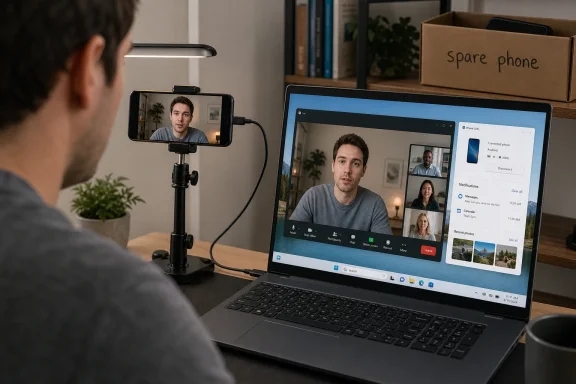 The Webcam Upgrade Was Hiding in the Junk Drawer
The average old smartphone has aged better as a camera than as a phone. Its battery may be tired, its storage may be cramped, and its operating system may no longer feel exciting, but the sensor and lens stack are often still better than the tiny webcam module wedged into a laptop display bezel.That mismatch is the whole opportunity. Laptop makers have spent years selling thin lids, narrow bezels, and longer battery life, and the webcam has often been the component asked to compromise. Even after the remote-work boom embarrassed the industry into paying more attention, many built-in cameras still struggle with low light, muddy exposure, weak dynamic range, and the unflattering angle of a screen tilted back on a desk.
Smartphones, meanwhile, were shaped by a different arms race. Autofocus, HDR, computational exposure, multi-lens camera systems, portrait effects, and better low-light processing became selling points even on midrange devices. A phone that feels obsolete for daily use can still produce a cleaner, sharper, more adaptable video feed than a webcam bought as an afterthought.
That is why the TweakTown guide lands on a practical point that deserves more attention from Windows users: this is not merely a hobbyist workaround. It is a small act of hardware arbitrage. You are taking the strongest remaining part of an old device and assigning it to a job where Windows PCs are still uneven.
Third-Party Apps Still Own the Cross-Platform Reality
The simplest path remains the one Windows users have leaned on for years: install a companion app on the phone, install the matching client on the PC, and let the software present the phone camera as a webcam device. DroidCam is the familiar example, but it sits in a crowded category with Camo, Iriun, iVCam, EpocCam, and others.This approach works because Windows applications mostly do not care whether the camera is built into the laptop lid, connected by USB, exposed through a virtual driver, or streamed from a phone. Once the client presents “DroidCam Video” or a similar device to the system, Zoom, Teams, OBS, Discord, Google Meet in a browser, and most recording tools can treat it like any other webcam.
That abstraction is powerful, but it is also where the messiness lives. The phone app, PC client, drivers, network permissions, firewall behavior, USB mode, and camera selection all have to line up. When they do, the setup feels almost magical. When they do not, users are left refreshing device lists, toggling permissions, restarting clients, and wondering whether their cable is secretly charge-only.
The TweakTown walkthrough captures the tradeoff well: Wi-Fi is convenient, USB is usually the more reliable choice. Wireless webcam streaming is good enough for casual calls on a strong home network, but it adds one more variable to a chain already full of them. USB removes much of the network uncertainty and often reduces latency, though it may require developer options, USB debugging, or a data-capable cable depending on the app and phone.
That is the Windows way in miniature. The ecosystem gives users options, and those options are valuable. But the price of flexibility is configuration.
Microsoft’s Native Route Changes the Politics, Not the Physics
The more interesting development is Microsoft’s own Android integration. Windows 11 can now use a linked Android device’s camera as a webcam through the Mobile devices settings flow, Phone Link, and the Link to Windows app. That matters because it moves the idea from “clever third-party utility” toward “recognized Windows feature.”Microsoft’s path is not identical to DroidCam’s. It is tied to Android, Windows 11, and the company’s broader cross-device framework. The user links the phone to the PC, enables the mobile device camera option, grants permissions, and then selects the phone camera inside a video app. In theory, it is exactly the kind of native integration Windows should have had years ago.
The catch is that “native” does not always mean universal. iPhone users are still better served by third-party apps on Windows, because Apple’s smoothest Continuity Camera experience is designed for the Mac ecosystem. Some Android devices and vendor builds may expose different USB behavior, and the Phone Link route depends on Microsoft’s supported configuration rather than the anything-goes character of a standalone app.
Still, Microsoft’s involvement changes the center of gravity. When a feature ships through Windows settings rather than a forum workaround, IT departments are more likely to consider it, mainstream users are more likely to trust it, and support guides can point to a sanctioned path. It also signals that Microsoft understands a simple truth: the PC is no longer the only computer in the room.
But Microsoft cannot abolish optics, bandwidth, lighting, or mounting with a settings toggle. A phone camera still needs to be positioned well. A wireless feed still depends on a stable local network. A great sensor still looks bad if it is pointed up from a desk in a dim room. The native route reduces friction, not physics.
The Best Setup Is Usually the Least Romantic One
There is a temptation to treat the phone-as-webcam trick as a software story. Install an app, pair the devices, select the camera, and call it done. In practice, the quality jump comes from a more boring discipline: mounting, lighting, power, and audio.The rear camera is usually the right choice because it is typically the phone’s best imaging hardware. That immediately creates a practical problem, because the screen is then facing away from the user. A tripod, clamp, MagSafe-style mount, or cheap desk stand becomes less of an accessory and more of the thing that turns the experiment into a repeatable setup.
Eye level matters as much as resolution. A 4K-capable phone placed low on a desk can still produce the classic nostril-cam effect that built-in laptop webcams made famous. A modest phone at eye height, with a lamp or window in front of the user, will usually look more professional than a technically superior sensor in the wrong place.
Power is the other unglamorous requirement. Camera streaming drains a phone quickly, and an old device may already have degraded battery health. For a dedicated setup, keeping the phone plugged in is not optional; it is what makes the system dependable enough for back-to-back calls.
Audio should be separated from video whenever possible. A phone microphone may work, and some apps can expose it to Windows, but it is rarely the best choice. A headset, USB microphone, or dedicated conference mic will usually do more for perceived call quality than squeezing another notch of sharpness from the video feed.
The Free Webcam Is Not Quite Free
Repurposing old hardware sounds like a pure win, and often it is. But “free” in this context means there is no new webcam purchase, not that there is no cost. The cost is paid in setup time, desk clutter, cable management, battery wear, software trust, and support complexity.For an individual user, that tradeoff may be trivial. Ten minutes with DroidCam and a spare phone can deliver better video than a $30 webcam. If the phone stays mounted, the setup can become invisible in daily use. If it has to be assembled and disassembled before every call, enthusiasm fades quickly.
For IT administrators, the calculus is more complicated. A sanctioned Microsoft route through Windows 11 and Link to Windows is easier to explain than a patchwork of third-party webcam apps. But even then, support teams have to think about device ownership, account linking, permissions, OS versions, app versions, privacy controls, and what happens when a user’s “webcam” is also a personal phone receiving notifications.
There is also a security dimension that casual guides tend to underplay. Any app that turns a phone camera into a PC camera sits at a sensitive boundary: it touches the camera, the network, the Windows driver model, and often the microphone. That does not make such apps inherently unsafe, but it does make vendor choice important. Users should install from official app stores and developer sites, keep the software updated, and avoid obscure clones promising premium features for free.
The enterprise version of this concern is policy. Some organizations do not want unmanaged personal devices acting as peripherals on corporate PCs, especially in regulated environments. Others may welcome the idea for hot desks, remote workers, training rooms, or temporary setups where buying and shipping webcams is wasteful. The difference is not the camera; it is governance.
Windows 10 Users Get the Utility, Windows 11 Users Get the Direction of Travel
The TweakTown guide appropriately includes Windows 10 and Windows 11 when discussing third-party apps. That remains one of the strengths of tools like DroidCam: they give older Windows installations access to a capability that Microsoft is emphasizing more heavily in Windows 11.But the native Windows story is clearly moving through Windows 11. Microsoft’s cross-device work increasingly lives in the Mobile devices settings surface, Phone Link, Link to Windows, and the Cross Device Experience Host. That architecture is not just about cameras. It is about a future where the phone becomes a file source, notification bridge, app companion, authentication helper, camera, and sometimes a remote-control surface for the PC.
That direction makes sense for Microsoft. Windows lost the smartphone platform war, but it did not lose the user’s desk. The company’s best move is to make Windows the place where Android devices become more useful, rather than pretending the phone does not exist. The phone-as-webcam feature is one of the clearest examples because it solves a visible, everyday annoyance.
For Windows 10 users, the third-party route may be enough for years. Windows 10 remains widely deployed, and a stable webcam app does not suddenly stop being useful because Microsoft’s newest integration is elsewhere. But the strategic signal is unmistakable: the deeper, more polished integrations are being built for Windows 11 and whatever follows it.
That leaves a familiar split in the Windows community. Enthusiasts can choose the tool that fits the hardware they already own. Enterprises have to decide whether the convenience is worth standardizing. Microsoft gets to make Windows 11 look more modern without manufacturing a single camera module.
The Troubleshooting Tells You Where the Weak Links Are
The common failure modes are revealing. If a phone does not appear in a desktop client, the problem is usually discovery: the devices are not on the same network, the app lacks permission, the firewall is blocking something, the router is unfriendly to local discovery, or the USB path is not actually carrying data.If the feed lags, the weak link is usually bandwidth, latency, or processing overhead. Wi-Fi makes the setup feel untethered, but video is not a trivial stream. A congested network, weak signal, overloaded phone, or old router can turn a theoretically better camera into a worse meeting experience.
If the video looks bad, the answer is not always to chase settings. Bitrate, resolution, and app quality matter, but lighting and placement often matter more. A phone’s computational photography can rescue a lot, but live video has different constraints than still images, and video conferencing apps may compress the feed heavily anyway.
If nothing appears in the meeting app, the issue may be the final handoff to Windows. The virtual camera driver may not be selected, the wrong device may be chosen, the app may need restarting, or another program may be holding the camera. This is one reason a test call before an important meeting is not optional advice; it is operational hygiene.
These weak links do not make the idea fragile. They make it ordinary. Webcams fail, USB devices misbehave, Teams forgets settings, browsers cache permissions, and Windows sometimes needs a restart to believe what changed. The phone version simply adds a second operating system to the ritual.
The Dedicated Spare Phone Is the Sweet Spot
The best version of this setup is not using your daily phone. It is using a spare phone that can remain configured, mounted, charged, silenced, and pointed in the right direction. That is what turns a clever workaround into a piece of desk infrastructure.A daily phone introduces interruptions. Calls arrive, notifications appear, the battery is needed elsewhere, and the device walks away when the user leaves the desk. Even if the app suppresses some distractions, the setup has to be rebuilt too often. The friction is small each time and large in aggregate.
A retired phone has fewer competing duties. It can stay in airplane mode with Wi-Fi enabled, or operate on a local network without a SIM. It can be stripped of unnecessary apps, set not to sleep aggressively, and left attached to a stand. It becomes, functionally, a webcam with a touchscreen and a better camera module.
There is an environmental angle here that should not be overstated but should not be ignored. Extending the useful life of a phone is better than letting it become e-waste in a drawer. The device may no longer deserve a place in your pocket, but it may still earn a place above your monitor.
The same logic applies to small offices and schools. A box of aging phones is not automatically a webcam fleet, but in the right hands it can solve immediate video needs without procurement delays. The limiting factor is not camera quality; it is whether someone is willing to standardize the mounts, power, software, and support notes.
The Camera Is Only Half the Meeting
Video quality is seductive because it is visible. People notice when a face is sharp, well lit, and framed properly. But the perceived professionalism of a call depends just as much on sound, stability, and predictability.A phone webcam that occasionally freezes is worse than a mediocre built-in camera that always works. A beautiful image paired with hollow, distant audio still feels amateur. A clever setup that requires five minutes of fiddling before every meeting will eventually be abandoned for the ugly camera that is always available.
That is why the best advice is conservative. Use USB when reliability matters. Use a stand instead of balancing the phone against a mug. Use the rear camera when quality matters, but test the framing because you may not be able to see yourself. Use a real microphone if the call matters. Disable notifications, background apps, and anything else that can interrupt the session.
The goal is not to win a spec-sheet contest. The goal is to look and sound better with fewer surprises. If the old phone helps achieve that, it is the right tool. If it becomes another fragile dependency, a conventional webcam may still be the more professional choice.
The Webcam Drawer Now Has a Windows Upgrade Path
The practical lesson is that Windows users now have two credible paths: the flexible third-party app route that works across more devices and the Microsoft-backed Android route that fits better with Windows 11’s direction. Neither is perfect, and neither eliminates the need for decent lighting, mounting, power, and audio. But both make the same point: buying a webcam should no longer be the default reflex if a capable old phone is already available.- A spare smartphone can often outperform a laptop webcam because phone camera hardware and image processing have advanced faster than many PC camera modules.
- USB is usually the better connection for important calls because it reduces the network instability and latency that can affect Wi-Fi webcam streaming.
- Windows 11’s Phone Link and Link to Windows integration gives Android users a more native route, while iPhone users on Windows will generally still depend on third-party tools.
- A dedicated mounted spare phone is more practical than using a daily phone that must be disconnected, answered, carried away, and reconfigured.
- Audio, lighting, and camera position matter as much as resolution, so a phone webcam should be treated as a small production setup rather than a magic software switch.
- Organizations should evaluate privacy, support, and device-management implications before encouraging personal phones to act as corporate webcams.
References
- Primary source: TweakTown
Published: Fri, 22 May 2026 21:54:06 GMT
Turn Your Old Smartphone Into a Dedicated Webcam for Your Windows PC
Here's how to turn your old smartphone into a dedicated Windows PC webcam and upgrade your video quality for free with a simple setup. www.tweaktown.com
- Official source: support.microsoft.com
Use your mobile device's camera - Microsoft Support
 support.microsoft.com
- Related coverage: tomshardware.com
How to use your Android phone as a webcam in Windows 11 | Tom's Hardware
You can use your phone's cameras for conferencing, photos and more.www.tomshardware.com - Related coverage: techspot.com
You can now use your Android device as a webcam in Windows 11 | TechSpot
On Thursday, Redmond announced mobile device camera support for Windows 11 computers via the Link to Windows app. The feature works with any video application – Skype,...www.techspot.com - Related coverage: androidcentral.com
Using your Android phone as a webcam is going to be hassle-free | Android Central
Microsoft is currently rolling out the ability to Windows 11 Insiders.www.androidcentral.com - Related coverage: droidcam.net
DroidCam - Webcam for Pc - Download
DroidCam is a powerful app that transforms your phone or tablet into a webcam for your computer. This means you can use it during video calls on platforms like Zoom, MS Teams, and Skype. Instead of relying on your computer's built-in camera.www.droidcam.net
- Related coverage: makeuseof.com
How to Use Your Android Phone as a Webcam on Windows 11
Don't have a webcam for your Windows 11 PC? If you've got an Android phone, you've got a webcam, it just takes a little bit of setup. www.makeuseof.com
- Related coverage: windowscentral.com
How to use your Android phone as a webcam on Windows | Windows Central
If you have an Android phone, you likely have a better webcam than the disappointing lens built into your laptop.www.windowscentral.com - Related coverage: pureinfotech.com
How to use Android phone camera as webcam on Windows 11 - Pureinfotech
To connect Android phone camera to Windows 11, turn on "Mobile devices," connect using "Link to Windows," and turn on "Use a connected camera" pureinfotech.com
- Related coverage: techradar.com
Microsoft stops breaking Windows 11 – instead it just made Phone Link even better with Android apps | TechRadar
Fed up of Android apps running in tiny windows? A solution is now inboundwww.techradar.com - Related coverage: cse6040.gatech.edu
Microsoft Word - android_windows_sideview_camera_instructions_20250106.docx
PDF documentcse6040.gatech.edu

