

Turning off Windows Security on a modern PC is something that should trigger more caution than curiosity: for most people in 2026 it remains a risky move, useful only in very narrow, controlled scenarios and never as a casual performance tweak or "clean" troubleshooting shortcut.
Windows Security — the app interface that exposes Microsoft Defender Antivirus, Firewall, SmartScreen, and other protections — has evolved from a lightweight defender into a broad, first-party security suite. Today it provides:
That evolution matters: Defender is no longer a "basic" virus scanner; it functions as a full first-layer defense, and in many environments it works together with cloud telemetry and endpoint services to provide detection and response capabilities.
The correct approach for most users is pragmatic restraint: use the UI to pause protection briefly when there’s a verified need, add targeted exclusions instead of wholesale shutdowns, and use supported administrative methods when a permanent change is required. When in doubt, assume that Defender is protecting you for a reason — and that the safer path is to work around specific blocks rather than remove the guard entirely.
Source: ZDNET Is turning off Windows Security a bad idea in 2026? A PC expert's bottom line
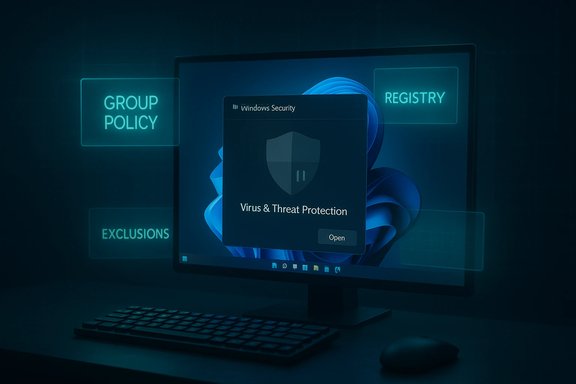 Background: what Windows Security (Microsoft Defender) actually is
Windows Security — the app interface that exposes Microsoft Defender Antivirus, Firewall, SmartScreen, and other protections — has evolved from a lightweight defender into a broad, first-party security suite. Today it provides:- Real-time protection that scans files and processes as they are accessed or executed.
- Cloud-delivered protection (fast reputation checks and threat intelligence) that helps identify new threats before signature updates arrive.
- On-access scanning, scheduled scans, and automatic updates through Windows Update.
- Integration with the Windows Security Center, which acts as a broker that shows which antivirus product is active and coordinates protection state.
That evolution matters: Defender is no longer a "basic" virus scanner; it functions as a full first-layer defense, and in many environments it works together with cloud telemetry and endpoint services to provide detection and response capabilities.
The short answer: is turning it off a bad idea?
- For most users: yes, it’s a bad idea. Turning off Windows Security increases your exposure to viruses, ransomware, spyware, trojans, and phishing-based attacks unless you replace it immediately with a reputable, fully functional third‑party solution.
- For short, controlled tasks (installing a program that’s being falsely flagged, testing, or running a trusted installer): temporary disablement is acceptable if you follow safety steps (disconnect from the network, create a restore point or backup, and re-enable protection ASAP).
- For professionals and IT admins: permanent removal or replacement is sometimes appropriate — but it should be done via the supported administrative channels (Group Policy, enterprise MDM, or during imaging and deployment) and not via ad‑hoc registry hacks on production endpoints.
Why people consider turning it off (and where that reasoning fails)
Common reasons people disable Windows Security
- A downloaded program (often open-source builds, installers from GitHub, or niche utilities) is flagged as malware due to a false positive.
- An older game or mod is quarantined during installation, stopping the install or launch process.
- A user believes that Defender causes performance problems and wants "fewer background processes."
- Administrators want to replace Defender with a commercial AV solution, consolidate EDR agents, or customize server configurations.
Why those reasons are often weak
- False positives can frequently be handled by adding an exclusion for a specific file/folder or temporarily pausing real‑time protection while installing — both safer than disabling the whole suite.
- Modern Defender is designed to go into a passive mode automatically when a reputable third‑party AV is installed and running, preventing resource conflicts and leaving the system protected by a single active engine.
- Performance problems commonly have other root causes; disabling antivirus globally trades security for an oft-negligible CPU savings.
- Unsanctioned permanent changes (registry edits or unknown utilities) can be persistent and exploitable by malware.
How to temporarily disable Windows Security (safe, reversible)
If you only need to pause protection briefly, use the Windows Security UI — this is the safe, supported method:- Open the Windows Security app (search from Start).
- Go to Virus & threat protection → Manage settings under Virus & threat protection settings.
- Toggle Real‑time protection off. Accept the User Account Control prompt if asked.
- Microsoft’s design will usually re-enable real‑time protection automatically after a short time or after a reboot. That behavior is deliberate to stop prolonged unprotected windows.
- If Windows blocks an installer, consider adding an exclusion for that specific file or folder rather than turning off all protection.
- Do not download or run unknown binaries while protection is disabled. If possible, disconnect the PC from the network while performing the install and re-enable protection immediately after.
How to permanently disable Windows Security — what the options are and the pitfalls
Permanently disabling Defender can be done via Group Policy (Windows Pro/Enterprise), or by registry changes (Home or where Group Policy isn’t available). But there are important caveats.Group Policy (Windows 11 Pro / Enterprise)
- Open Run → type
gpedit.msc→ Navigate to:
Computer Configuration > Administrative Templates > Windows Components > Microsoft Defender Antivirus - Enable the policy Turn off Microsoft Defender Antivirus → Apply → Restart.
Registry edit (Windows 11 Home or where GPEDIT is not available)
A commonly published registry method is to set:- Path:
HKEY_LOCAL_MACHINE\SOFTWARE\Policies\Microsoft\Windows Defender - Value: create a
DWORD (32-bit)namedDisableAntiSpywareand set it to1, then reboot.
- These registry keys are legacy and Microsoft has repeatedly documented that certain
DisableAntiSpyware/DisableAntivirussettings were intended for OEMs and deployment scenarios and may be ignored on modern platform versions or when devices are onboarded to certain Defender endpoint services. - Tamper Protection can block registry-based attempts. Microsoft added Tamper Protection to help prevent malware from disabling Defender itself.
- Enterprise endpoint management or Defender for Endpoint onboarding may override or ignore registry changes to maintain a secure posture across managed fleets.
Real-world abuse: why turning off Defender can be weaponized
Turning Defender off isn't just an administrative risk — it’s an attack surface. Recent incidents around the practice illustrate real-world exploitation:- Security researchers and press coverage in 2024–2025 documented tools and campaigns where attackers used legitimate-but-vulnerable drivers or undocumented broker APIs to make the OS believe another antivirus was present, thereby forcing Defender into a disabled state without user consent.
- Proof-of-concept tools have shown how a fake antivirus registration can be used to silence Defender; researchers demonstrated such techniques to highlight Windows Security Center weaknesses, and malware authors have mirrored those techniques in real attacks.
- A documented ransomware campaign abused a legitimate Intel driver to gain kernel access and then modified Defender-related registry settings to weaken protections before delivering payloads.
If you must disable — step-by-step safety checklist
Use this checklist to minimize risk if disabling Windows Security is unavoidable:- 1. Create a full backup or at minimum a System Restore point. Use the System Protection tool: Search → “Create a restore point” → System Protection → Create.
- 2. Make a bootable Windows recovery drive or confirm you have reliable recovery media available (recommended for registry edits).
- 3. Disable Tamper Protection only when required and only temporarily. (Settings → Privacy & security → Windows Security → Virus & threat protection → Manage settings → Tamper Protection).
- 4. If installing software that’s being blocked, prefer adding an exclusion for the specific file or folder instead of turning the whole engine off.
- 5. If you must perform a registry edit, document the exact change and how to reverse it. Don’t use poorly sourced scripts from forums.
- 6. Disconnect from the internet if possible during the unprotected operation.
- 7. Re-enable protection immediately after the task and run a full scan.
- 8. If replacing Defender with a third‑party AV, use a reputable vendor and confirm it registers properly with the Windows Security Center to avoid leaving the system in an "unprotected" state.
Creating a System Restore point — the safest undo step
If you plan to make registry edits or policy changes yourself, a restore point is a lightweight safety net:- Open Windows Search and type “Create a restore point.”
- On the System Protection tab click Create.
- Enter a short, descriptive name (e.g., “Pre-DisableDefender”).
- Wait until the process completes, then perform your change.
- If something goes wrong: open the same System Protection dialog → System Restore → pick the restore point → Next → Finish.
Alternatives to turning Windows Security off
Before you flip the global switch, consider these safer alternatives:- Add a targeted exclusion for the single executable or folder being blocked.
- Run the installer or app in an isolated environment (VM, sandbox, or a disposable test machine).
- Use Windows’ built-in “Scan with Microsoft Defender” on a downloaded file to confirm or re-scan after download.
- Install a trustworthy third‑party antivirus if you want a different primary engine; a well-behaved third‑party AV will register with Security Center and cause Defender to go passive automatically.
- For developers distributing builds: sign releases and follow packaging best practices (code signing, clear checksums) to reduce false positive risk.
Enterprise and IT considerations
- In managed environments, don’t rely on local registry hacks. Use Group Policy, Intune/MDM profiles, or deployment-time imaging settings to control Defender behaviors.
- Microsoft’s platform updates and Defender for Endpoint can enforce or ignore some legacy registry values. Enterprises should follow supported configuration paths to keep consistent security posture.
- Endpoint detection and response (EDR) capabilities are increasingly tied to centralized services. Permanently disabling Defender without replacing equivalent enterprise controls can create significant compliance and security gaps.
The expert bottom line (practical, actionable guidance)
- Temporary disablement is acceptable for a short, well-documented task, but it should be brief, network-isolated where possible, and followed by an immediate re‑enable and full system scan.
- Permanent disablement is defensible only when you have a replacement plan (a reputable third‑party AV or enterprise endpoint solution) and you apply changes via supported administrative methods.
- Registry hacks and third‑party tools that spoof antivirus registration are dangerous and in many cases are already being detected and weaponized by attackers; do not rely on undocumented tricks.
- Always have recovery options: restore points, recovery drives, or disk images before making low-level changes.
- If you’re not an advanced user or sysadmin, do not permanently disable Windows Security — instead, seek a temporary exclusion or use other safer alternatives.
Final thoughts: balancing control and protection in 2026
Windows Security in 2026 is more than a checkbox; it’s a living part of the platform’s defensive posture, tied to cloud intelligence, system health monitoring, and endpoint services. That integration brings both convenience and responsibility: it can protect automatically, but it also means that simplistic deactivation can open wide, long-lasting windows of vulnerability.The correct approach for most users is pragmatic restraint: use the UI to pause protection briefly when there’s a verified need, add targeted exclusions instead of wholesale shutdowns, and use supported administrative methods when a permanent change is required. When in doubt, assume that Defender is protecting you for a reason — and that the safer path is to work around specific blocks rather than remove the guard entirely.
Source: ZDNET Is turning off Windows Security a bad idea in 2026? A PC expert's bottom line
