

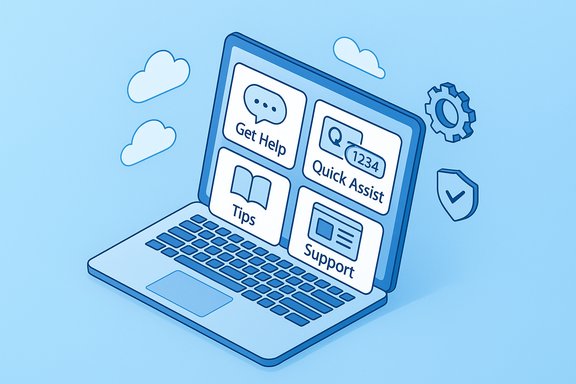
Windows 11 packs more built‑in ways to get help than most users notice at first glance — from the chat‑first Get Help app and the teachable Tips surface to the modern Quick Assist remote‑support flow and the web‑based Microsoft Support library — and understanding when to use each one will save time, reduce frustration, and protect your privacy when things go wrong.
Windows support has shifted dramatically over the past few years from device‑local troubleshooters toward cloud‑updated, assistant‑style support experiences. Microsoft now centralizes many diagnostic and escalation flows through the Get Help app, while shipping remote assistance as a Store‑updated app (Quick Assist) and steering users to the online Support site for deeper articles. This transition speeds fixes for widespread issues but also increases reliance on online services and the Microsoft Store for full functionality. The rest of this feature breaks each major help option down into what it can do, how to use it, when it’s appropriate, and what both home users and IT teams should watch for — including concrete steps to reinstall or recover help tools if they are missing and security guidance for remote sessions.
This approach balances convenience and security: use built‑in tools as your default, verify any third‑party suggestions, and keep simple records (chat transcripts, error codes) to reduce back‑and‑forth when you escalate an issue. The shift to cloud‑first diagnostics speeds fixes — but it also changes the rules for offline environments and managed estates, so treat the Get Help/Quick Assist flow as the front line and keep robust fallbacks ready for everything else.
Source: MSPoweruser How To Get Help In Windows 11: A Comprehensive Guide For Users
 Background
Windows support has shifted dramatically over the past few years from device‑local troubleshooters toward cloud‑updated, assistant‑style support experiences. Microsoft now centralizes many diagnostic and escalation flows through the Get Help app, while shipping remote assistance as a Store‑updated app (Quick Assist) and steering users to the online Support site for deeper articles. This transition speeds fixes for widespread issues but also increases reliance on online services and the Microsoft Store for full functionality. The rest of this feature breaks each major help option down into what it can do, how to use it, when it’s appropriate, and what both home users and IT teams should watch for — including concrete steps to reinstall or recover help tools if they are missing and security guidance for remote sessions.Overview: The Primary Help Channels in Windows 11
- Get Help (built‑in app) — Chat‑first intake, automated troubleshooters, and escalation to Microsoft agents. Best as a first stop for activation, sign‑in, peripheral problems and other common issues.
- Tips app — Bite‑sized lessons and walkthroughs for features. Historically useful for learning workflows, but its future is uncertain as Microsoft has deprecated the app in recent guidance. Treat it as a helpful reference while it remains installed.
- Quick Assist — Secure, built‑in remote assistance for ad‑hoc help between trusted people; signed helper generates a time‑limited code for the sharer to enter. Ideal for one‑off hands‑on help.
- Settings contextual help & troubleshooters — In‑context links from Settings (System > Troubleshoot > Other troubleshooters) that deep‑link into Get Help or local troubleshooters. Useful for focused problems where Settings offer a “Learn more” link.
- Microsoft Support website — The canonical, in‑depth article library and contact hub for issues that need step‑by‑step guides or escalation beyond the app flows.
Get Help: Windows’ Centralized Support Intake
What Get Help does well
Get Help is now the primary consumer‑facing intake point for many Windows problems. It accepts a short problem description, runs intent detection, proposes targeted actions and Settings deep‑links, and — when automation can’t fix the issue — offers a path to chat with a Microsoft agent. This centralized approach simplifies first contact and allows Microsoft to update diagnostic logic in the cloud without needing OS updates. Key capabilities:- Automated diagnosers and cloud‑hosted troubleshooters that can be updated server‑side.
- Guided steps and direct deep‑links to the exact Settings page you need.
- Chat escalation with transcript capture for follow‑ups and ticketing.
- A central history of automated fixes and actions (where available), useful for escalation and audit.
How to open and use Get Help (quick steps)
- Press Start and type “Get Help”; open the Get Help app.
- Type a concise description (e.g., “Bluetooth not connecting”); review suggested fixes.
- Run recommended steps. If unresolved, choose the Contact Support option to chat with Microsoft.
Limits and practical caveats
- Cloud dependency: Many troubleshooters now require internet access; disconnected or air‑gapped systems lose features. Administrators should keep offline tools for such environments.
- Store and policy friction: If the Microsoft Store is blocked in a managed tenant, some flows or app reinstalls may fail; IT should maintain a fallback plan and a local package for reinstalling Get Help.
- Privacy & telemetry: Automated diagnostics collect telemetry. Read and configure consent settings before allowing automated fixes in sensitive environments.
Quick Assist: Remote Help That’s Built In
What Quick Assist offers
Quick Assist is Microsoft’s supported ad‑hoc remote assistance tool. The helper signs in with a Microsoft account and generates a short, time‑limited code; the user on the receiving end enters that code to share their screen and optionally grant control. The app includes annotation tools, a laser pointer, and a chat pane to guide users without full control immediately. It is updated via the Microsoft Store and depends on the WebView2 runtime in modern versions.How to start a Quick Assist session
- Open Start and search “Quick Assist” or press Ctrl + Windows + Q.
- Helper: Sign in → Help someone → share the generated code.
- Sharer: Open Quick Assist → Get assistance → enter code → Allow or Deny the screen‑sharing request.
Security best practices
- Only accept Quick Assist sessions from trusted people. Scams frequently use social engineering to trick users into granting remote access.
- The helper must sign in; the sharer typically does not — this provides accountability for the assisting identity. If a sharer is unexpectedly prompted to sign in, treat that as suspicious and verify policies or product changes.
- End sessions immediately if the helper begins unexpected actions, and keep a record of the helper’s account if you need to report abuse.
When Quick Assist is not enough
- It’s designed for casual, interactive troubleshooting. For unattended management, mass remediation, or scripted admin work, use enterprise tools (Intune, SCCM/ConfigMgr, Remote Desktop/managed remote tools).
Tips App: Learnability, Deprecation, and Alternatives
The Tips app historically offered short guides and walkthroughs for new Windows features. Microsoft recently listed Tips as deprecated; coverage indicates the app will be removed in a future update, and Microsoft is steering users toward integrated help surfaces and Get Help. Until it’s removed, Tips remains useful for learning gestures, Snap Layouts, and other productivity features, but users should save or transition important content elsewhere. Alternatives:- Use the Settings app’s contextual “Learn more” links for topic‑specific guidance.
- Bookmark the Microsoft Support pages for feature tutorials and step‑by‑step articles.
- Explore curated, trusted third‑party tutorials (make sure to vet them for accuracy).
Settings App & Built‑in Troubleshooters
Settings > System > Troubleshoot > Other troubleshooters is the immediate place to run targeted diagnosers (Audio, Bluetooth, Network, etc.. Some of these troubleshooters now route into Get Help and the cloud‑hosted diagnostic flow, which means they benefit from more frequent updates but may require network connectivity to be fully effective. Use these troubleshooters as the first local step — they frequently fix common hardware and driver issues quickly. Practical tips:- Run a troubleshooter for the specific subsystem (e.g., Audio) before escalating to Get Help.
- If a troubleshooter reports “redirected to Get Help,” use the Get Help transcript when you contact support to speed escalation.
Reinstalling Missing Help Apps: Practical Recovery Steps
If Get Help or Quick Assist is missing after a repair or a fresh install, Microsoft’s guidance is to reinstall from the Microsoft Store. When the Store is unavailable or blocked, community and Microsoft Q&A threads document using the Windows Package Manager to restore the app:- Common community‑verified command: winget install --id Microsoft.GetHelp -e
This command instructs winget to install the exact package ID from Microsoft’s package sources; it has been confirmed in Microsoft Q&A threads and community posts. If winget is missing, install App Installer (the Store/winget runtime) first. Use caution: winget behaviors vary in managed environments and may require the Store or App Installer to be present.
- Consider an in‑place repair (repair install) which restores system app packages.
- Keep a local repository of approved offline troubleshooters and vendor tools for controlled environments.
Troubleshooting the Troubleshooters: F1, HelpPane, and OEM Variations
Historically, F1 invoked HelpPane.exe; on modern Windows systems it often opens a help surface in Edge or routes to Get Help. Behavior varies by OEM and system configuration. If the F1 key is disruptive (for example, launching Edge during games), you can remap or disable it using safe registry edits or AutoHotkey — but back up the registry first and test changes carefully.Enterprise Considerations: Admin Playbook for Help in Managed Fleets
IT teams should treat Get Help and cloud‑hosted troubleshooters as the front line for end‑user self‑help, but must also plan for:- Store policy exceptions: If the Store is blocked, maintain a local package for reinstalling Get Help and Quick Assist, and document offline alternatives.
- Network audits: Ensure required Microsoft endpoints are reachable for relay and diagnostic services; blocked outbound access can break Quick Assist or cloud troubleshooters.
- Privacy/compliance: Document telemetry consent and maintain local logs when compliance demands restricted flows.
- Fallback tooling: Preserve MSDT or vendor utilities while transitioning away from deprecated local troubleshooters.
- Instruct users to run Get Help first for consumer‑grade problems.
- If Get Help fails or the environment blocks cloud diagnostics, escalate to IT with the saved chat transcript and local logs.
- Use Intune/ConfigMgr to deploy offline packages and scripts for mass remediation.
Security and Privacy: What to Watch For
- Never accept remote assistance from unknown callers. Scammers mimic “Microsoft Support” and ask to install remote‑access tools; Quick Assist and Get Help will not force you into a session — you must explicitly consent.
- Review data‑collection prompts before running automated diagnostics; disable automatic uploads if your policy prohibits it.
- Save chat transcripts from Get Help sessions when you escalate to internal IT or open a support ticket — they speed resolution and preserve context.
Third‑Party Repair Tools: Benefits and Cautions
Tech sites and storefront articles occasionally promote third‑party “repair” packages that claim to fix missing files, registry issues, or driver problems quickly. While some tools provide convenience, treat them with caution:- Benefits: They can automate multiple checks, clean junk files, and surface missing system files.
- Risks: They may over‑modify the registry, remove components needed by specific apps, or include bundled offers. Always research the vendor, read independent reviews, and prefer manual, documented steps (or vendor‑provided utilities) for critical systems.
Practical Checklist: Getting Help Quickly and Safely
- Be specific when describing the issue — include error codes, what changed recently, and any recent updates.
- Try local troubleshooters (Settings > System > Troubleshoot) first.
- If unresolved, open Get Help and copy the transcript for records.
- For hands‑on help from a friend, use Quick Assist and verify the helper’s identity before granting control.
- If a help app is missing, attempt reinstall from the Store; if blocked, consider winget with the exact id Microsoft.GetHelp as a community‑proven workaround.
FAQs (Short, Actionable Answers)
- How do I open Get Help?
Press Start, type “Get Help,” and open the app; you can also use Settings > System > Troubleshoot to find help links. - Can Quick Assist be used without a Microsoft account?
The helper must sign in with a Microsoft account; the sharer generally does not. Use only with trusted helpers. - Tips app disappeared — is it gone for good?
Microsoft has deprecated the Tips app; its removal is planned in a future update, so migrate important guidance to bookmarks or the Support site. Verify status on Microsoft’s help pages before making critical decisions. - Get Help missing — how to reinstall?
Reinstall from the Microsoft Store. If that’s unavailable, community and Microsoft Q&A threads document using: winget install --id Microsoft.GetHelp -e (requires winget/App Installer). Test in a lab environment before mass deployment.
Conclusion
Windows 11’s modern help ecosystem aims to make problem resolution faster and more discoverable by centralizing intake and moving diagnostics to cloud‑updated services. For everyday users, the best sequence is straightforward: run a targeted troubleshooter from Settings, open Get Help if the problem persists, and use Quick Assist only with trusted people for remote hands‑on help. Administrators must plan for Store and network policy impacts, preserve offline fallbacks, and document consent and telemetry handling for compliance.This approach balances convenience and security: use built‑in tools as your default, verify any third‑party suggestions, and keep simple records (chat transcripts, error codes) to reduce back‑and‑forth when you escalate an issue. The shift to cloud‑first diagnostics speeds fixes — but it also changes the rules for offline environments and managed estates, so treat the Get Help/Quick Assist flow as the front line and keep robust fallbacks ready for everything else.
Source: MSPoweruser How To Get Help In Windows 11: A Comprehensive Guide For Users
