

Windows 11 gives you more ways to get help than most users realize — from a fast, taskbar search and automated troubleshooters to live Microsoft chat, secure remote sessions with Quick Assist, and full repair or reset options when nothing else works. This guide distills those options into a practical, step‑by‑step playbook you can follow the moment a problem appears, explains what each tool actually does, flags trade‑offs (privacy, cloud dependency, enterprise policy impacts), and shows safe escalation paths for home users and IT teams alike.
Windows support has shifted from many device‑local utilities to a small set of centralized, cloud‑updated experiences. Microsoft’s Get Help app is now the primary intake for consumer support, running automated diagnostics and routing unresolved issues to live agents. Built‑in troubleshooters, the Get Started app, and the Quick Assist remote‑help tool complement this central model, while legacy on‑device tools (msdt troubleshooters) are increasingly redirected or updated via cloud services. That transition speeds fixes but increases reliance on the Microsoft Store and internet connectivity.
Why this matters: understanding which tool to use first saves time, reduces risk (e.g., avoiding unnecessary resets), and gives you a predictable escalation path — essential for non‑technical users and IT admins managing multiple machines.
How to open it:
How to start:
WinRE gives you:
In‑place upgrade (mount a Windows 11 ISO and run setup.exe) repairs the system while keeping apps and files; it’s a lower‑risk alternative to a full clean install when you want to preserve software state.
Practical checklist before Reset/In‑place:
Windows 11 supplies a modern, layered help ecosystem that — when used in the right order — gets most users back to work quickly and safely. Start with the Search Box and built‑in troubleshooters, escalate to Get Help or Quick Assist for real‑time assistance, and reserve DISM/SFC, WinRE, or Reset for persistent or boot‑level problems. Administrators should prepare offline fallbacks and clear policies for telemetry and Store access so support remains reliable across every device they manage. Applying this playbook turns a frustrating error into a manageable sequence of steps — fast, safe, and auditable.
Source: TechloMedia How to Get Help in Windows 11: Complete Step-by-Step Guide
 Background / Overview
Windows support has shifted from many device‑local utilities to a small set of centralized, cloud‑updated experiences. Microsoft’s Get Help app is now the primary intake for consumer support, running automated diagnostics and routing unresolved issues to live agents. Built‑in troubleshooters, the Get Started app, and the Quick Assist remote‑help tool complement this central model, while legacy on‑device tools (msdt troubleshooters) are increasingly redirected or updated via cloud services. That transition speeds fixes but increases reliance on the Microsoft Store and internet connectivity.Why this matters: understanding which tool to use first saves time, reduces risk (e.g., avoiding unnecessary resets), and gives you a predictable escalation path — essential for non‑technical users and IT admins managing multiple machines.
Where to Start: Quick, Low‑Risk Options
1. Use the Search Box (Win + S) — fastest first step
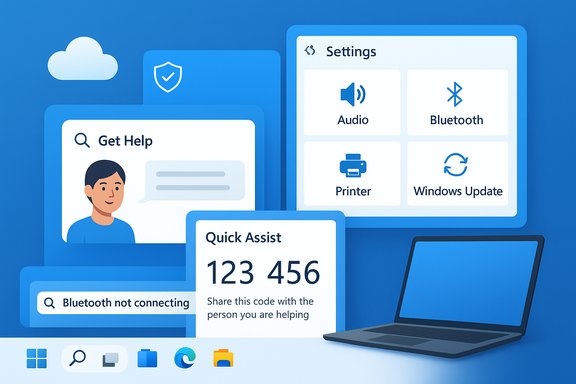
The taskbar Search Box is the quickest way to find help for many problems. Type a concise query such as “Bluetooth not connecting,” “printer offline,” or “Windows update error” and Windows will show matching Settings pages, built‑in troubleshooters, app suggestions, and links to official support content.- Best for: quick settings changes, opening the correct Settings page, running a recommended troubleshooter.
- Why it works: Search surfaces both local results and Microsoft’s help content so you don’t need to navigate menus manually.
2. Try the Get Help app — automated triage and live chat
Get Help is the centralized, chat‑first support app that walks you through diagnostics and offers escalation to a live Microsoft agent when automation fails.How to open it:
- Press Win, type Get Help, press Enter.
- In Settings you can reach Get Help via System > Troubleshoot > Other troubleshooters (links in Settings often deep‑link here).
- Accepts a plain‑language problem description, runs intent detection, and proposes fixes.
- Runs cloud‑hosted troubleshooters that Microsoft can update centrally.
- Offers contact options (chat; sometimes call‑back) and saves transcripts for escalation.
Built‑in Tools for Hands‑On Troubleshooting
3. Settings Troubleshooters — automated, safe, non‑destructive
Windows 11 exposes targeted troubleshooters under Settings > System > Troubleshoot > Other troubleshooters. They are fast, safe, and should be your first in‑OS repair step.- Common options: Audio, Bluetooth, Printer, Windows Update, Network Adapter, Display.
- How to use: select the relevant troubleshooter and follow on‑screen instructions. Troubleshooters often apply fixes automatically or walk you through simple corrective steps.
4. Quick Assist — secure, time‑limited remote help
Quick Assist lets a trusted helper view or control your PC after you accept a time‑limited code. It’s built for ad‑hoc remote troubleshooting with annotation tools and request/allow controls.How to start:
- Open Quick Assist from Start or press Ctrl + Win + Q.
- Helper selects “Help someone” and signs in to generate a 6‑digit code.
- Sharer enters the code, allows screen sharing, and optionally grants control.
- Only accept sessions from people you trust.
- Microsoft will not call you unsolicited asking to connect.
- Quick Assist uses TLS over port 443 and requires the Remote Assistance service endpoints to be reachable.
5. Repair system files: DISM and SFC (the essential duo)
When Windows components or apps fail due to corruption, use DISM and SFC in this order:- Open an elevated Command Prompt or Windows Terminal as Administrator.
- Run:
- DISM /Online /Cleanup-Image /CheckHealth
- DISM /Online /Cleanup-Image /ScanHealth
- DISM /Online /Cleanup-Image /RestoreHealth
- sfc /scannow
Advanced Recovery Options: When to Repair or Reset
6. Advanced Startup / WinRE — safe recovery environment
Use WinRE (Windows Recovery Environment) when the desktop won’t load. Access it via Settings > System > Recovery > Advanced startup, or from the sign‑in screen hold Shift and choose Restart.WinRE gives you:
- Startup Repair
- System Restore (if enabled)
- Uninstall updates
- Command Prompt (for bootrec, chkdsk, offline DISM/SFC)
- Reset this PC (works within WinRE as well)
7. Reset this PC & In‑place Upgrade (repair install)
Reset this PC (Settings > System > Recovery) offers two main outcomes:- Keep my files — reinstalls Windows and preserves personal data while removing apps and settings.
- Remove everything — full wipe and reinstall.
In‑place upgrade (mount a Windows 11 ISO and run setup.exe) repairs the system while keeping apps and files; it’s a lower‑risk alternative to a full clean install when you want to preserve software state.
Practical checklist before Reset/In‑place:
- Back up important files (external or cloud).
- Export license keys and sign‑in credentials.
- Have BitLocker recovery key available if drive encryption is enabled.
- Ensure power and a stable network for Cloud download.
Where to Find Official Guides and Community Help
Microsoft’s official support pages
Microsoft publishes canonical guidance for Get Help, Quick Assist, troubleshooters, DISM/SFC, and Reset flows. These pages state the supported commands, requirements (e.g., WebView2 for Quick Assist), and organizational controls for deploying or blocking certain tools. Use Microsoft docs for exact command syntax and enterprise deployment notes.Community forums and tech sites
Community resources (Microsoft Answers, Reddit, Tech Community) and reputable tech outlets (Lifewire, How‑To Geek, GeeksDigit) provide practical step‑by‑step fixes, real‑world workarounds, and troubleshooting anecdotes that often complement official docs. They are useful for unusual or device‑specific issues, but verify suggested changes (especially registry edits or third‑party utilities) against Microsoft guidance first. Caveat: community posts are valuable but not always vetted; treat them as suggestions and cross‑check before applying potentially destructive steps.Step‑by‑Step Playbook: From Quick Fix to Full Repair
Follow this ordered approach when troubleshooting — it minimizes risk and often resolves problems without data loss:- Quick triage (2–10 minutes)
- Reboot, disconnect external devices, and verify the error message or code.
- Try Safe Mode to determine whether third‑party drivers/services cause the issue.
- Run targeted troubleshooters (2–10 minutes)
- Settings > System > Troubleshoot > Other troubleshooters. Run the matching troubleshooter.
- Use Get Help for guided steps and potential live chat (10–30 minutes)
- Describe the issue, run suggested actions, and save transcript if you escalate.
- Repair component store and system files (15–60 minutes)
- DISM /Online /Cleanup-Image /RestoreHealth then sfc /scannow.
- Use WinRE Startup Repair or System Restore (15–45 minutes)
- Enter WinRE via Shift‑Restart or automatic repair loops.
- In‑place upgrade (30–90 minutes)
- Mount matching ISO and run Setup to repair without losing apps and files.
- Reset this PC (last resort; 30 minutes to several hours)
- Use Keep my files first; Remove everything only when necessary. Choose Cloud download for a fresh image if internet is reliable.
Security, Privacy, and Practical Warnings
- Remote assistance safety: Never accept unsolicited remote help. Quick Assist sessions require explicit permission and produce an auditable identity for the helper (they sign in). Microsoft’s docs and community guidance strongly emphasize verifying the helper and disconnecting immediately if anything looks suspicious.
- Telemetry and cloud diagnostics: Many modern troubleshooting flows are cloud‑backed and may send diagnostic data to Microsoft with your consent. Review Settings > Privacy & security and the Get Help permission prompts before allowing automatic troubleshooting on sensitive systems. If you manage enterprise devices, plan offline fallback tools because some older MSDT troubleshooters are being redirected to cloud services.
- Third‑party “repair” utilities: Use caution. Some tools automate repairs but can over‑modify the registry or remove components your applications need. Prefer documented Microsoft steps or vendor utilities for critical systems.
- Blocking the Store can break flows: If you block the Microsoft Store in managed environments, users may be unable to reinstall or update Get Help and Quick Assist, because Microsoft moved several help components to Store‑updated apps. Maintain an IT‑approved offline package or Intune deployment for enterprise scenarios.
Reinstalling or Restoring Missing Help Apps
If a help app is missing after a reinstall or OEM image, these approaches work:- Reinstall from Microsoft Store (preferred).
- If Store is blocked, use winget: winget install --id Microsoft.GetHelp -e (community‑documented pattern; verify organizational governance before using). Note: the app Store ID is reported in community posts as 9PKDZBMV1H3T but this may vary and in some admin portals the app is discoverable only by ID — treat community IDs as heuristics and validate in your tenant before automation.
Enterprise Considerations and Admin Playbook
- Plan offline fallbacks: keep copies of legacy troubleshooters (msdt) and deployment packages for Get Help / Quick Assist where Store access is limited.
- Policy impacts: blocking endpoints or the Store can break cloud troubleshooting. If you must restrict access for compliance, document approved remediation paths and provide help desk scripts for manual support.
- Logging and escalation: ask users to save Get Help chat transcripts and collect troubleshooting history (Settings > System > Troubleshoot > Recommended troubleshooting history) when escalating to IT to speed diagnosis.
Common Pitfalls and How to Avoid Them
- Tackling the wrong problem: don’t jump to Reset if a targeted troubleshooter or DISM+SFC can fix the issue.
- Ignoring backups: “Keep my files” can still remove app data and settings. Always back up before Reset or in‑place repairs.
- Blindly following community scripts: registry edits and third‑party tools can create worse problems. Cross‑check with Microsoft documentation first.
- Forgetting BitLocker keys: Reset and recovery flows may require BitLocker recovery keys — store them in your Microsoft account or enterprise key vault beforehand.
Quick Reference: Tools and When to Use Them
- Search Box (Win + S) — quick settings, links, and simple fixes.
- Get Help — automated triage, cloud troubleshooters, live chat.
- Get Started / Tips — guided tutorials and feature walkthroughs for new users.
- Quick Assist (Ctrl + Win + Q) — trusted remote support with time‑limited codes.
- Troubleshooters (Settings > System > Troubleshoot) — targeted, non‑destructive fixes.
- DISM + SFC — component store and system file repairs from elevated CMD.
- WinRE / Advanced Startup — Startup Repair, System Restore, offline tools.
- Reset this PC / In‑place upgrade — last‑resort repair options that reinstall Windows.
Final Analysis: Strengths, Risks, and Best Practices
Strengths- The centralized Get Help model improves discoverability and lets Microsoft update diagnostic logic frequently without OS patches, raising first‑contact resolution rates for common faults.
- Built‑in non‑destructive tools (troubleshooters, Quick Assist, DISM/SFC) resolve the majority of common issues quickly.
- Cloud‑backed flow plus live chat simplifies escalation and captures context (transcripts) for faster resolution.
- Increased cloud dependency: offline or air‑gapped systems lose functionality as some legacy troubleshooters move server‑side. Plan offline fallbacks for enterprise or remote locations.
- Policy friction: blocking the Store or endpoints may prevent reinstalling or updating Get Help/Quick Assist; administrators must provide alternative deployment methods.
- Privacy/telemetry considerations: automated diagnostics may collect logs; sensitive environments should configure consent and data handling policies accordingly.
- Follow the escalation order: Troubleshooters → Get Help → DISM/SFC → WinRE → In‑place repair → Reset.
- Back up consistently and store BitLocker/activation keys before major repairs.
- Use Quick Assist only with verified, trusted helpers and prefer official Microsoft or vetted enterprise remote tools for managed devices.
- For admins: maintain offline packages and documented remediation scripts for environments that restrict Store access.
Windows 11 supplies a modern, layered help ecosystem that — when used in the right order — gets most users back to work quickly and safely. Start with the Search Box and built‑in troubleshooters, escalate to Get Help or Quick Assist for real‑time assistance, and reserve DISM/SFC, WinRE, or Reset for persistent or boot‑level problems. Administrators should prepare offline fallbacks and clear policies for telemetry and Store access so support remains reliable across every device they manage. Applying this playbook turns a frustrating error into a manageable sequence of steps — fast, safe, and auditable.
Source: TechloMedia How to Get Help in Windows 11: Complete Step-by-Step Guide
