

If you’ve ever stared at a bulging “Updates available” list and promised yourself you’d get to it later—only to forget until something breaks—UniGetUI is the kind of tool that makes that promise obsolete. Rather than opening installer pages one by one, or wrestling with a command-line session every time, UniGetUI gives Windows users a single, polished graphical interface that aggregates multiple package managers and lets you discover, install, and update software in bulk. In practice it can turn the chore of “keeping a PC current” into a five‑minute task, but that convenience comes with real trade‑offs you should understand before putting it on every machine in your home or fleet.
Windows has a built‑in package manager, WinGet, which can already upgrade many apps with a single command—
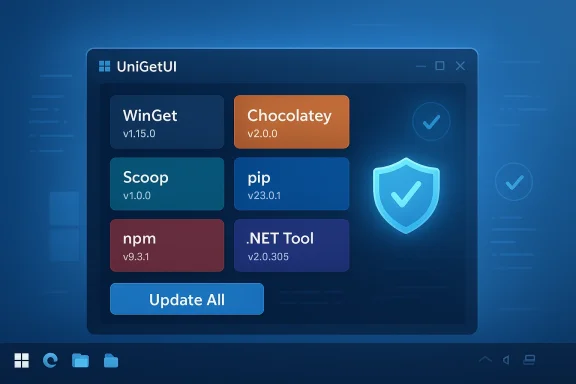
UniGetUI (formerly WingetUI) was created to bridge that gap: it’s a community‑driven, open‑source GUI front‑end that aggregates packages and metadata from multiple ecosystems—WinGet, Chocolatey, Scoop, pip, npm, .NET Tool, and the PowerShell Gallery—and exposes bulk operations through a friendlier visual interface. The project is authored by Martí Climent and is actively maintained on GitHub (high star count and frequent commits). The README lists supported package managers and installation options, and it explicitly warns against third‑party fake websites, which is an immediate red flag for users downloading binaries. (github.com)
UniGetUI isn’t a replacement for WinGet; it’s a user interface that calls these package managers under the hood and tries to make common flows—discovering new software, updating installed packages, and uninstalling old ones—accessible to non‑technical users. Multiple independent reviews and tests confirm that UniGetUI reliably surfaces updates and makes bulk updates simple, but also document edge cases and failures that matter in day‑to‑day use.
However, if you manage an enterprise fleet with strict update approval processes, use specialized vendor utilities, or rely on endpoint protection with tight controls, treat UniGetUI as a tool to test and validate rather than an immediate full‑scale deployment. The balance between automation and control is where you’ll most likely need to iterate: start small, log everything, and expand once the behavior meets your stabquirements. GitHub’s project page and multiple press reviews make it clear this tool is mature and well‑maintained—but maturity doesn’t eliminate the need for operational caution. (github.com)
Source: MakeUseOf I stopped updating my Windows apps one by one — this tool does them all in a click
 Background / Overview
Windows has a built‑in package manager, WinGet, which can already upgrade many apps with a single command—winget upgrade --all—but many people find the command line intimidating or inconvenient for day‑to‑day maintenance. The Windows Package Manager documentation explains the upgrade command and its options, including --all, --include-unknown, and --uninstall-previous, which are useful when you want to automate broad updates.UniGetUI (formerly WingetUI) was created to bridge that gap: it’s a community‑driven, open‑source GUI front‑end that aggregates packages and metadata from multiple ecosystems—WinGet, Chocolatey, Scoop, pip, npm, .NET Tool, and the PowerShell Gallery—and exposes bulk operations through a friendlier visual interface. The project is authored by Martí Climent and is actively maintained on GitHub (high star count and frequent commits). The README lists supported package managers and installation options, and it explicitly warns against third‑party fake websites, which is an immediate red flag for users downloading binaries. (github.com)
UniGetUI isn’t a replacement for WinGet; it’s a user interface that calls these package managers under the hood and tries to make common flows—discovering new software, updating installed packages, and uninstalling old ones—accessible to non‑technical users. Multiple independent reviews and tests confirm that UniGetUI reliably surfaces updates and makes bulk updates simple, but also document edge cases and failures that matter in day‑to‑day use.
How UniGetUI works: the mechanics behind the one‑click update promise
A graphical wrapper for existing package managers
UniGetUI does not invent a new package database; it queries existing sources and presents the combined results. That architecture delivers two immediate benefits:- You get coverage across several ecosystems in one place, so apps that are available via Chocolatey or pip appear alongside WinGet packages.
- You avoid manually typing and remembering package identifiers—the GUI shows names, versions, sources, and metadata.
Background processes, notifications, and UAC behavior
UniGetUI can be configured to run at startup and notify you of available updates. When you accept an update, it frequently needs administrative privileges to run installers—so you will often see User Account Control (UAC) prompts. If you’re updating dozens of apps at once, that can mean dozens of UAC prompts unless you run UniGetUI elevated or tweak settings to allow WinGet operations to proceed automatically (with the usual security tradeoffs). Reviewers and users have noted that running the bulk update while doing other focused work can be disruptive because UAC dialogs steal focus.What it can and cannot update
- UniGetUI can update anything that a supported package manager can update. That includes many mainstream apps—but not everything.
- Microsoft Store apps often require the Store for updates and may not be fully manageable through third‑party package managers.
- Some third‑party installers use custom or legacy mechanisms, or do not expose version metadata, and those may not be updated automatically unless you use
--include-unknownor take other manual steps. The Windows Package Manager documentation describes these limitations and flags such packages as “unknown” if version information is missing.
Real‑world experience: benefits that matter
Time saved and fewer security gaps
The most obvious win is saving time. Instead of hunting down dozens of apps, UniGetUI scans installed software, flags updates, and lets you select all and update. For users who routinely forget to update, the built‑in notification and automated update options are a real improvement over a manual regimen. Multiple outlets and testers report that UniGetUI surfaces updates for apps installed outside of its own UI (such as hand‑installed open‑source tools) when they’re available in a package repository.Single pane for bulk operations
Bulk install, bulk update, and bulk uninstall are central features. For power users provisioning new machines or reinstalling a PC, UniGetUI’s discovery and multi‑select install can save hours compared with clicking downloaded installers. Reviews from PCWorld and other publications show that the “Installed Packages” and “Software Updates” panes make it easy to audit and act on the state of a machine.Helpful metadata and safer installs
UniGetUI shows package metadata—publisher, download size, direct URLs, and the package manager source—so you can prefer official repositories (WinGet or MS Store) and avoid shady sources. That visibility is one of its strengths compared with manual web installs where verifying signatures and origins is left to the user. (github.com)The risks and limits: what can go wrong
No utility is risk‑free. UniGetUI’s convenience trades on automation and trust in package repositories and upstream installers—and those are the vectors where trouble shows up.1) Endpoint protection and binary reputation flags
There are community reports of endpoint security systems flagging UniGetUI, particularly after the executable name changed from WinGetUI to UniGetUI. CrowdStrike users, for example, reported detection-and-block behavior where an environment needed an IOA exclusion to run the program, and users called this out on forums. This isn’t a proof the tool is malicious, but it is a real operational friction that system administrators must consider. If you run UniGetUI in a corporate environment, validate the binary (hashes, signatures) and coordinate with your security team before wide deployment.2) Unintended installs or bundled extras from vendor updaters
UniGetUI ultimately triggers the vendors’ installers. Some vendor updaters—especially motherboard utilities and OEM control centers—may launch their own multi‑step installers or store frontends and attempt to install third‑party extras. Examples exist where updating a motherboard utility silently invoked the vendor’s own cascade installers and attempted to install unwanted software. To avoid that, update sensitive drivers and vendor software manually or monitor the install process interactively. A Reddit thread on Gigabyte’s Control Center shows this exact scenario: a background update started vendor downloads and attempted to push Norton and other apps. That can be alarming if you expect UniGetUI to be “safe” by default.3) Partial success, hangs, and mismatched installers
WinGet (and therefore UniGetUI) will sometimes refuse to upgrade because the newer package uses a different installer technology or because the package manifest no longer matches what’s installed. When that happens, WinGet typically returns a message recommending uninstall/reinstall or manual intervention. Users have reported UniGetUI hanging or failing to update some packages (for example, LibreOffice or browser packages) and having to add apps to an ignore list. Those failures can be intermittent and are often traceable to the underlying package manager rather than the GUI itself.4) Privacy and supply‑chain trust
Because UniGetUI downloads packages and may keep local copies for caching, you’re trusting the package repositories and the underlying installers. Although many packages come directly from developers and reputable repositories, supply‑chain risk exists. GitHub’s README for UniGetUI includes a careful disclaimer: the project is unofficial and the developer is not responsible for the downloaded software; it also warns against fake third‑party websites posing as the official homepage. That’s an important signal: treat the tool as powerful—and treat it like you would any software that automates remote code execution. (github.com)Practical guide: installing, configuring, and using UniGetUI safely
Below is a pragmatic checklist to get UniGetUI working for you while minimizing risk.Step 1 — Install from a trusted source
- Prefer the Microsoft Store package or install via WinGet to reduce risk of fake installers. Example WinGet command to install UniGetUI:
winget install --exact --id MartiCliment.UniGetUI --source winget. GitHub’s README and the official repo list these options. (github.com)
Step 2 — Initial configuration and preferences
- Open Settings > Package Managers to enable or disable the sources you trust (e.g., keep WinGet on, deselect obscure third‑party sources).
- In Updates preferences, decide whether to run updates automatically or to be notified. If you choose automation, consider enabling the “Update as administrator” option so UAC prompts are reduced—but only on machines you fully control. Reviewers note the app can delete desktop shortcuts created during installs if you enable that setting.
Step 3 — Run a discovery and audit
- Use the Installed Packages tab to scan the machine.
- Uncheck or pin any packages you don’t want updated automatically (drivers, OEM utilities, or bespoke enterprise apps).
Step 4 — Updating: prefer interactive mode for tricky packages
- For routine updates, select “Update selected packages” and let UniGetUI run while you’re idle.
- For vendor tools, select interactive update or update manually from the vendor’s site.
Step 5 — Scheduling and automation (optional)
- If you want automated maintenance, use Task Scheduler to run UniGetUI with appropriate arguments on a regular cadence, or enable the built‑in auto‑update and notification features. If you do this in a business environment, ensure you coordinate with IT change windows and backup policies. Documentation and community guides discuss scheduling WinGet tasks and similar automation considerations.
Enterprise and power‑user considerations
- Policy and approval: In managed environments, run a pilot and collect logs. UniGetUI’s operations generate installer windows and may interact poorly with formal deployment tools (Intune, SCCM) unless carefully coordinated.
- Endpoint controls: Add UniGetUI’s binary to allowlists only after verifying the binary signature. If your security vendor flags it, don’t simply blanket‑approve; verify the file hash against the author’s published releases and follow your vendor’s secure exception processes. Community reports show this is a common stumbling block.
- Separation of roles: Consider running UniGetUI in “auditor” mode on test machines first. Don’t let it run auto‑updates on critical servers or partitioned systems where unexpected installs can break stateful services.
- Logging and rollback: Keep logs and a restore plan. UniGetUI itself surfaces install logs and you can combine that with Windows restore points or image backups for quick rollback if an update causes problems. Reviews suggest this is a prudent general practice.
Where UniGetUI shines — and where you should be cautious
Strengths
- Saves time: Bulk updates and multi‑source discovery drastically reduce maintenance time.
- Visibility: Metadata and source columns let you prioritize trusted repositories.
- Open source: Active GitHub development, many contributors, and transparent code increase auditability compared with closed commercial updaters. (github.com)
Weaknesses / caveats
- Not magic: If WinGet or Chocolatey can’t update something, UniGetUI can’t either.
- Installer behavior: Vendor updaters can do unexpected things (bundled offers, cascading downloads).
- Security operations: Endpoint detection tools and corporate policies may treat the tool with suspicion; coordinate with security teams.
- Inconsistencies: Users report occasional hangs or failures that require manual intervention or reinstallation with WinGet.
Quick troubleshooting tips
- If an update hangs: try updating the app manually with the underlying package manager (e.g.,
winget upgrade --id <package>or uninstall + reinstall). - If UAC prompts are disruptive: run UniGetUI elevated for a session, or schedule updates during idle time.
- If endpoint protection blocks UniGetUI: verify the binary’s checksum with the GitHub release; use a controlled exemption process and do not blindly accept an exception.
- If installs are going to default directories (not your customized paths): many package managers and installers ignore custom paths unless the package manifest supports them—this is more a limitation of the installer than UniGetUI.
Verdict: who should install UniGetUI?
UniGetUI is a powerful productivity tool for home users, power users, and small shop admins who need a practical way to manage application updates without memorizing package IDs or writing scripts. If you run a handful of personal machines, use mostly mainstream apps, and want to reduce the security risk from unpatched software, UniGetUI offers a strong net benefit.However, if you manage an enterprise fleet with strict update approval processes, use specialized vendor utilities, or rely on endpoint protection with tight controls, treat UniGetUI as a tool to test and validate rather than an immediate full‑scale deployment. The balance between automation and control is where you’ll most likely need to iterate: start small, log everything, and expand once the behavior meets your stabquirements. GitHub’s project page and multiple press reviews make it clear this tool is mature and well‑maintained—but maturity doesn’t eliminate the need for operational caution. (github.com)
Final thoughts and practical checklist
UniGetUI makes the hard job of keeping Windows apps current far easier—but convenience and automation are not substitutes for awareness. Before you press the big “Update all” button, do the following:- Verify the UniGetUI binary from a trusted source and confirm checksums on the release page. (github.com)
- Exclude or pin mission‑critical apps that must not be changed without testing.
- Prefer interactive updates for vendor tools and drivers.
- Run updates during downtime to avoid disruptive UAC prompts and unexpected restarts.
- Coordinate with security and backup processes in managed environments.
Source: MakeUseOf I stopped updating my Windows apps one by one — this tool does them all in a click
