

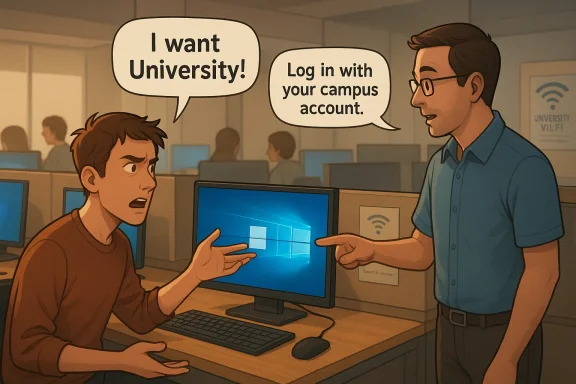
The university IT lab story lands because it captures a very specific kind of workplace absurdity: a user demanding help while rejecting every explanation of what the system is doing. In this case, the confused student kept insisting she wanted “University,” even as staff tried to guide her through a normal login screen, a browser, and then the campus homepage. What should have been a routine support interaction turned into a small comedy of contradictions, and it’s easy to see why the post has become the sort of tale people love sharing online.
At first glance, this reads like a classic “customer versus computer” anecdote, but there’s a useful layer of context underneath the humor. University computer labs are designed around a fairly simple premise: students authenticate with their campus credentials, and everything else follows from that identity. In modern campus environments, the login is not just a gate; it is the key that links devices, services, cloud storage, printing, and course software into one account-based ecosystem.
That system, however, only works if the user understands the difference between the machine they are sitting at and the account they are using. The story’s central confusion seems to revolve around the idea that the computer itself should somehow be the university. That misunderstanding is funny on the surface, but it also highlights how abstract computing has become for many people: websites, local apps, roaming profiles, cloud storage, and browser-based portals can all blur together into one vague expectation that “the computer should just know.”
The timing matters too. The story takes place in a lab that had recently been upgraded to Windows 10, and that detail is not incidental. Microsoft’s lifecycle pages show that Windows 10 reached end of support on October 14, 2025, while Windows 7 ended support years earlier, on January 14, 2020. Even in 2026, many institutions are still dealing with the aftereffects of those transitions, which means campus IT teams are often balancing old user habits with newer interfaces and security expectations.
The result is a story that is entertaining precisely because it is plausible. It is not a far-fetched movie scene. It is the kind of interaction that can happen when someone knows just enough to be dangerous, but not enough to describe the problem clearly. And for IT workers, that combination can be more difficult than a genuinely inexperienced user, because confidence can make confusion louder.
In a computer lab, that pressure gets multiplied. Lab machines are shared resources, so they are usually locked down more tightly than personal laptops. Accounts are often tied to the university identity system, files are stored centrally, and software is preinstalled for academic needs. That means the support staff are not only troubleshooting problems; they are also explaining the institutional logic of the environment. The same can be true in managed enterprise settings, where users expect a “normal computer” but are really sitting at a controlled endpoint.
The story also depends on a familiar support dynamic: the user assumes the issue is the machine, while the technician suspects the issue is the mental model. That gap is common in IT because many users interact with interfaces by analogy rather than by understanding structure. They may recognize icons, browsers, and login boxes, but not distinguish among an operating system, a portal, a web app, and a network account. When those layers are flattened in the user’s mind, requests can sound bizarre even when they are sincere.
There is also a social component that makes the encounter more uncomfortable. The narrator notes that the woman repeatedly ignored two female coworkers and directed everything toward him. Whether that was bias, habit, or simple tunnel vision, it shaped the interaction. In support work, being the only person a difficult user will acknowledge can intensify the encounter, because it removes the possibility of diffusing tension across the room.
Finally, the background helps explain why the “Windows 10 versus Windows 7” detail matters so much. Microsoft’s official lifecycle information confirms that Windows 10’s mainstream support ended on October 14, 2025, and Windows 7’s support ended on January 14, 2020. Those dates matter to institutions because campus labs often lag behind consumer devices, but they still need to stay within support windows for security and compatibility reasons.
This is where IT work becomes part technical support and part translation. The helper has to map one person’s words to another person’s architecture. If the user says “I want the university,” the staff member has to guess whether they mean a portal, a browser homepage, a course management system, a student account, or even a desktop shortcut.
The irony is that she may have been asking for less exposure without understanding that the account system was already built for that purpose. A guest account would likely have offered less personalization and, in many labs, less security or fewer permissions. Her request was not only unnecessary; it was probably counterproductive.
A few practical truths stand out here:
In this story, the woman’s irritation seems to have started before any actual technical issue existed. The interface itself became the problem in her mind. Once that happens, the support worker is no longer debugging software; he is trying to calm a user who believes the software is already wrong.
That’s why interface changes are more disruptive than they look. Even when the underlying system is fine, the perception of change can make a routine login feel like a threat.
That matters because campus labs are not just convenience spaces; they are shared infrastructure. They often run specialized software for physics, math, engineering, design, or media production. A system image has to balance availability with security, and that means upgrades are often visible to users even when the change is behind the scenes.
But the staff’s explanation was that her files were not stored on the individual PC. They lived on the server, bound to her university credentials. That is a critical distinction, because it means the machine itself is not the vault; the account is. If the user logs out properly, the next person is not browsing through her personal data.
The issue is that explaining architecture to a distressed user rarely works if the user is already convinced the local desktop is somehow unsafe. At that point, technical accuracy is not enough. The explanation must also feel reassuring.
That is why the staff member’s repeated refusal made sense. A guest account would not solve the underlying problem, because the student needed the authenticated university environment. The conflict was not about privacy alone; it was about access versus misunderstanding.
Her repeated use of “I want University” suggests that her mind had attached the word to a thing she expected to see, not a service she was already using. Once that idea hardened, every correction sounded dismissive to her. Meanwhile, from the staff’s perspective, she was refusing the most basic explanation possible.
Tone matters in support because it can either de-escalate or cement resistance. Calm explanations help when the user is merely lost. But once a user feels challenged, even simple guidance can be heard as confrontation.
In a lab, that dynamic is especially awkward because the staff are often managing multiple users at once. If one person monopolizes the conversation while ignoring the rest of the team, everyone else loses time. The result is not only inefficiency but a kind of social friction that can make the whole room tense.
That public element is part of why these stories spread. They are not merely technical failures; they are little theater pieces about status, confusion, and patience under observation. The audience changes the emotional stakes.
But the joke also points to something broader: platform habits can make otherwise intelligent users seem irrational. Someone may know how to do several tasks on their own machine and still be lost the moment the interface changes. That does not mean they are incapable; it means their competence is tightly tied to context.
In the story, the woman clearly could type and interact with the keyboard. So she was not computer illiterate in a broad sense. She was, perhaps, deeply unfamiliar with the specific environment she was in. That mismatch is often more confusing than outright inexperience.
Humor also helps convert frustration into something shareable. Once the emotional temperature drops, the story becomes a cautionary tale: always assume users may not understand the distinction between the machine, the portal, and the account. That lesson is practical, even if the punchline is exaggerated.
At the same time, the institution has to enforce policies that protect privacy and security. That makes the lab environment less flexible than a home PC. The system cannot behave like a personal machine because it has to serve many people safely.
That role is often invisible until something goes wrong. Then the staff member becomes the person who has to explain the obvious again and again. The story feels funny because the user keeps asking for impossible things, but it also reveals how much invisible labor keeps campus computing functional.
The next challenge for universities is not simply upgrading hardware or replacing operating systems. It is designing support experiences that anticipate confusion before it hardens into conflict. Microsoft’s lifecycle guidance makes clear that Windows versions age out on fixed schedules, and institutions have to keep moving with those cycles whether users are ready or not. The practical question is how to make those transitions feel less like surprise and more like routine.
Source: TwistedSifter Student Wanted To Log Into Her Student Account On Her University Portal, But Kept Yelling At The IT Employee For Fixing Her Computer
 Overview
At first glance, this reads like a classic “customer versus computer” anecdote, but there’s a useful layer of context underneath the humor. University computer labs are designed around a fairly simple premise: students authenticate with their campus credentials, and everything else follows from that identity. In modern campus environments, the login is not just a gate; it is the key that links devices, services, cloud storage, printing, and course software into one account-based ecosystem.That system, however, only works if the user understands the difference between the machine they are sitting at and the account they are using. The story’s central confusion seems to revolve around the idea that the computer itself should somehow be the university. That misunderstanding is funny on the surface, but it also highlights how abstract computing has become for many people: websites, local apps, roaming profiles, cloud storage, and browser-based portals can all blur together into one vague expectation that “the computer should just know.”
The timing matters too. The story takes place in a lab that had recently been upgraded to Windows 10, and that detail is not incidental. Microsoft’s lifecycle pages show that Windows 10 reached end of support on October 14, 2025, while Windows 7 ended support years earlier, on January 14, 2020. Even in 2026, many institutions are still dealing with the aftereffects of those transitions, which means campus IT teams are often balancing old user habits with newer interfaces and security expectations.
The result is a story that is entertaining precisely because it is plausible. It is not a far-fetched movie scene. It is the kind of interaction that can happen when someone knows just enough to be dangerous, but not enough to describe the problem clearly. And for IT workers, that combination can be more difficult than a genuinely inexperienced user, because confidence can make confusion louder.
Background
University IT support has always occupied a strange middle ground between consumer tech support and enterprise administration. Unlike a help desk for a single company, campus support teams serve a mixed audience of freshmen, graduate students, staff, faculty, visiting researchers, and sometimes even outside guests. Each group brings different expectations, and each assumes the system should behave the way their previous machine behaved.In a computer lab, that pressure gets multiplied. Lab machines are shared resources, so they are usually locked down more tightly than personal laptops. Accounts are often tied to the university identity system, files are stored centrally, and software is preinstalled for academic needs. That means the support staff are not only troubleshooting problems; they are also explaining the institutional logic of the environment. The same can be true in managed enterprise settings, where users expect a “normal computer” but are really sitting at a controlled endpoint.
The story also depends on a familiar support dynamic: the user assumes the issue is the machine, while the technician suspects the issue is the mental model. That gap is common in IT because many users interact with interfaces by analogy rather than by understanding structure. They may recognize icons, browsers, and login boxes, but not distinguish among an operating system, a portal, a web app, and a network account. When those layers are flattened in the user’s mind, requests can sound bizarre even when they are sincere.
There is also a social component that makes the encounter more uncomfortable. The narrator notes that the woman repeatedly ignored two female coworkers and directed everything toward him. Whether that was bias, habit, or simple tunnel vision, it shaped the interaction. In support work, being the only person a difficult user will acknowledge can intensify the encounter, because it removes the possibility of diffusing tension across the room.
Finally, the background helps explain why the “Windows 10 versus Windows 7” detail matters so much. Microsoft’s official lifecycle information confirms that Windows 10’s mainstream support ended on October 14, 2025, and Windows 7’s support ended on January 14, 2020. Those dates matter to institutions because campus labs often lag behind consumer devices, but they still need to stay within support windows for security and compatibility reasons.
Why the Story Is So Frustrating
The core frustration is that the student appeared to want help while refusing to engage with basic explanations. She asked for “University” as if it were a program, a desktop theme, or a button the staff simply had not opened yet. That kind of request makes a support worker’s job unusually hard because the problem cannot be solved until the vocabulary is aligned.When a User’s Mental Model Is Wrong
The narrator did the right thing by starting from the login screen and explaining that the credentials were the same ones used for campus Wi-Fi and other services. That is exactly how a centralized identity system should work. But the user’s repeated objection suggests she was searching for a different object entirely, not understanding that the portal or homepage was just the entry point to the university environment.This is where IT work becomes part technical support and part translation. The helper has to map one person’s words to another person’s architecture. If the user says “I want the university,” the staff member has to guess whether they mean a portal, a browser homepage, a course management system, a student account, or even a desktop shortcut.
- The request is vague.
- The interface is already open.
- The user rejects the obvious next step.
- The helper is forced to infer intent.
- The problem gets worse because everyone starts talking past one another.
The Difference Between a Computer and an Account
The woman’s insistence on a guest account shows that she was, at least partly, thinking in terms of privacy rather than access. She worried that someone else might see her information, even though the staff explained that files were tied to her account on a server. In a managed university environment, that is a standard and usually secure setup: the machine is merely the terminal, while the identity and storage live elsewhere.The irony is that she may have been asking for less exposure without understanding that the account system was already built for that purpose. A guest account would likely have offered less personalization and, in many labs, less security or fewer permissions. Her request was not only unnecessary; it was probably counterproductive.
A few practical truths stand out here:
- Shared computers are usually designed to keep user data separated.
- Campus accounts often roam or sync through centralized storage.
- Browsers and portals are not the same as the underlying operating system.
- A “guest” session is not automatically more private than a proper login.
- Help-desk language must be simple enough to survive panic.
The Windows 10 Layer
The upgrade to Windows 10 is more than a background detail. It likely changed the look of the lab computers just enough to trigger uncertainty, especially if the student had used a different interface before. Microsoft’s lifecycle pages show that Windows 10 version 22H2 is the final version of Windows 10, and support for the mainstream editions ended on October 14, 2025. That gives us a concrete reminder of how fast “new” becomes “old” in IT terms.Interface Changes Can Feel Like Broken Systems
A lot of users interpret visual change as functional failure. If a login box looks different, they assume the system is not the same machine or that something has gone wrong. That reaction is especially common in shared environments where users do not have the benefit of familiarity built through daily use.In this story, the woman’s irritation seems to have started before any actual technical issue existed. The interface itself became the problem in her mind. Once that happens, the support worker is no longer debugging software; he is trying to calm a user who believes the software is already wrong.
That’s why interface changes are more disruptive than they look. Even when the underlying system is fine, the perception of change can make a routine login feel like a threat.
Why Schools Care About Support Lifecycles
Universities cannot leave lab machines indefinitely on legacy systems. Microsoft’s lifecycle pages are clear that Windows 7 is fully out of support, and Windows 10 reached end of support on October 14, 2025. Institutions rely on those dates to plan imaging, software compatibility, security patching, and procurement cycles.That matters because campus labs are not just convenience spaces; they are shared infrastructure. They often run specialized software for physics, math, engineering, design, or media production. A system image has to balance availability with security, and that means upgrades are often visible to users even when the change is behind the scenes.
- Lab upgrades affect comfort and habit.
- Security requirements drive replacement schedules.
- Academic software can constrain OS choice.
- Help desks inherit the user-facing fallout.
- Familiarity is often mistaken for correctness.
The Guest Account Misunderstanding
The request for a guest account is probably the clearest window into the user’s confusion. On the surface, it sounds like a privacy request. Underneath, it appears to be a misunderstanding of how accounts, storage, and access actually work in a campus environment.Privacy Anxiety Without Technical Vocabulary
The student seemed worried that someone else might see her phone number or files if they used the same computer later. That concern is not irrational. Shared computers do create understandable anxiety for people who do not know what data is stored locally and what data is tied to the account.But the staff’s explanation was that her files were not stored on the individual PC. They lived on the server, bound to her university credentials. That is a critical distinction, because it means the machine itself is not the vault; the account is. If the user logs out properly, the next person is not browsing through her personal data.
The issue is that explaining architecture to a distressed user rarely works if the user is already convinced the local desktop is somehow unsafe. At that point, technical accuracy is not enough. The explanation must also feel reassuring.
Why “Guest” Is Not Always the Safer Option
In a shared campus environment, a guest session may have fewer personalized settings, but it also may not give access to the campus services the student actually needs. In other words, the request sounds safer but may not be functionally useful. If the goal is to access the university portal, submit work, print, or sync files, the university account is the point.That is why the staff member’s repeated refusal made sense. A guest account would not solve the underlying problem, because the student needed the authenticated university environment. The conflict was not about privacy alone; it was about access versus misunderstanding.
- Guest accounts are usually temporary.
- Guest accounts may have limited permissions.
- Guest accounts do not replace authenticated university access.
- Proper logoff usually protects personal data.
- Centralized accounts are designed for this exact use case.
Communication Breakdown in Support Work
This story is funny, but it is also a good example of how support work can fail when communication becomes adversarial. Once the student began huffing, interrupting, and rejecting each answer, the interaction stopped being collaborative. The IT worker could no longer investigate; he had to defend basic facts.The Cost of Confident Confusion
One of the most exhausting things in support is not ignorance, but certainty without comprehension. A user who says “I don’t understand” can usually be helped. A user who says “That’s wrong” when the system is behaving normally is much harder to handle. The woman in this story appears to have reached that stage quickly.Her repeated use of “I want University” suggests that her mind had attached the word to a thing she expected to see, not a service she was already using. Once that idea hardened, every correction sounded dismissive to her. Meanwhile, from the staff’s perspective, she was refusing the most basic explanation possible.
The Role of Body Language and Tone
The post makes clear that she escalated physically as well as verbally, including the moment where she “plopped herself on the counter” to plead for the guest account. That detail matters because it transforms a confusing help session into a spectacle. The narrator’s coworkers were laughing, which means the situation had shifted from problem-solving to social theater.Tone matters in support because it can either de-escalate or cement resistance. Calm explanations help when the user is merely lost. But once a user feels challenged, even simple guidance can be heard as confrontation.
- Questions become accusations.
- Explanations become objections.
- Corrections become insults.
- The helper becomes the enemy.
- The actual problem gets buried.
The Gender and Attention Dynamic
The narrator’s aside that the woman kept directing her questions at him, while ignoring two female coworkers, adds another layer to the incident. It suggests either a deliberate preference or an unconscious bias toward speaking only to a male employee. Either way, it made the encounter more frustrating for everyone in the room.Why Selective Attention Matters
Selective attention in help interactions can be a real problem because it undermines the team structure. A user may unconsciously decide that only one employee counts as the authority, even when the others are equally or more knowledgeable. That creates bottlenecks and can even make a simple issue look more difficult than it is.In a lab, that dynamic is especially awkward because the staff are often managing multiple users at once. If one person monopolizes the conversation while ignoring the rest of the team, everyone else loses time. The result is not only inefficiency but a kind of social friction that can make the whole room tense.
Why It Feels Worse in Shared Spaces
Unlike a private support call, a lab help desk is public. That means the user’s behavior is visible to everyone nearby, including other students and staff. When someone is loudly and persistently wrong in public, the embarrassment factor rises quickly, and so does the pressure on the person trying to help.That public element is part of why these stories spread. They are not merely technical failures; they are little theater pieces about status, confusion, and patience under observation. The audience changes the emotional stakes.
- Public settings amplify embarrassment.
- Multiple staff members can create a perceived hierarchy.
- Bias or preference can skew the interaction.
- Bystanders often make the situation feel more absurd.
- The support worker becomes both helper and performer.
Why the “Mac User?” Joke Works
The narrator’s final guess—that the student might be a Mac user—is funny because it captures a common cultural shorthand. It is not a serious diagnosis, but it works as a punchline because it plays on the stereotype that some users are deeply unfamiliar with the Windows environment.Operating System Familiarity Shapes Expectations
People who spend most of their time on one platform often assume their habits are universal. A Mac user may expect a different menu structure, different window controls, and different terminology. That can make a Windows lab feel alien even when it is functioning normally.But the joke also points to something broader: platform habits can make otherwise intelligent users seem irrational. Someone may know how to do several tasks on their own machine and still be lost the moment the interface changes. That does not mean they are incapable; it means their competence is tightly tied to context.
In the story, the woman clearly could type and interact with the keyboard. So she was not computer illiterate in a broad sense. She was, perhaps, deeply unfamiliar with the specific environment she was in. That mismatch is often more confusing than outright inexperience.
Humour as Coping Mechanism
IT workers often use humor after the fact to process interactions that were stressful in the moment. A joke about Mac versus Windows is a socially acceptable way to say, “I still don’t understand what happened, and I need a laugh to move on.” That does not make the story less real. If anything, it makes it more believable.Humor also helps convert frustration into something shareable. Once the emotional temperature drops, the story becomes a cautionary tale: always assume users may not understand the distinction between the machine, the portal, and the account. That lesson is practical, even if the punchline is exaggerated.
The Broader Campus IT Reality
This story is specific, but the pattern is universal. University IT teams are constantly translating between systems designed for efficiency and users who are often stressed, distracted, or under time pressure. The campus environment adds the extra complication of mixed skill levels and a rotating cast of temporary users.Shared Devices, Shared Confusion
Campus labs are exposed to every kind of user behavior. Some students arrive with detailed knowledge of software and printers; others barely know how to find a browser. The staff need to be equally ready for both, and that means creating systems that are intuitive even when the user is not.At the same time, the institution has to enforce policies that protect privacy and security. That makes the lab environment less flexible than a home PC. The system cannot behave like a personal machine because it has to serve many people safely.
Support Staff as Institutional Memory
Another hidden theme in the story is how much the support worker is doing without recognition. He knows the login system, the account structure, the software installed on the machines, the policy on guest access, and the differences between lab versions. He is not just fixing a computer; he is acting as the local memory of how the university works.That role is often invisible until something goes wrong. Then the staff member becomes the person who has to explain the obvious again and again. The story feels funny because the user keeps asking for impossible things, but it also reveals how much invisible labor keeps campus computing functional.
- Support staff explain systems users never see.
- Lab policies exist to protect shared resources.
- Identity systems reduce risk and centralize access.
- Specialized software makes lab imaging harder.
- Every request can become a policy conversation.
Strengths and Opportunities
The biggest strength of this story is that it captures a real workplace pattern with enough detail to feel authentic. It also highlights the educational role of IT support, which is often overlooked in favor of the more glamorous image of “fixing computers.” Beyond the humor, there is a useful lesson here for institutions that want fewer escalations and better user satisfaction.- Clear identity systems reduce confusion by tying access to one account.
- Centralized file storage helps protect student work from local machine problems.
- Visible login cues can guide users who are nervous or unfamiliar.
- Well-labeled lab policies can prevent false assumptions about guest access.
- Staff training in de-escalation can keep small problems from becoming scenes.
- Consistent desktop imaging makes version changes less disorienting.
- Simple signage can bridge the gap between technical reality and user expectation.
Risks and Concerns
The story is funny, but it points to real risks in campus support environments. When users are confused and embarrassed, they can become defensive fast. That can waste staff time, create friction, and even introduce access or privacy misunderstandings that become more serious later.- Miscommunication can turn a simple login issue into an argument.
- Privacy fears can make users distrust legitimate systems.
- Outdated mental models can cause users to reject correct explanations.
- Bias or selective attention can exclude qualified staff from helping.
- Shared labs can magnify small mistakes into public embarrassment.
- Poor user education can increase repeated support requests.
- Interface changes can be mistaken for system failure.
Looking Ahead
Stories like this are not going away, because the underlying conditions are not going away. Campus computing is only becoming more layered, with more portals, more cloud services, and more identity checks. The more abstract the backend becomes, the more important it is that the front end feels obvious to ordinary users.The next challenge for universities is not simply upgrading hardware or replacing operating systems. It is designing support experiences that anticipate confusion before it hardens into conflict. Microsoft’s lifecycle guidance makes clear that Windows versions age out on fixed schedules, and institutions have to keep moving with those cycles whether users are ready or not. The practical question is how to make those transitions feel less like surprise and more like routine.
- Better onboarding for lab logins.
- Simpler signage at the point of use.
- Short explanations of what data is stored locally versus centrally.
- More visible self-service help for common portal questions.
- Staff scripts for de-escalating confused users.
- Clearer communication when lab interfaces change.
Source: TwistedSifter Student Wanted To Log Into Her Student Account On Her University Portal, But Kept Yelling At The IT Employee For Fixing Her Computer
