

Upgrading from Windows 10 to Windows 11 while keeping a local account is straightforward — and entirely possible — but it deserves a careful, step‑by‑step approach so you don’t lose data, tied cloud artifacts, or important recovery keys.
Microsoft ended mainstream support for Windows 10 on October 14, 2025; after that date Windows 10 no longer receives routine security updates, feature updates, or free technical support. Microsoft itself recommends moving eligible devices to Windows 11, and offers upgrade paths and tools to help with the transition. For many users the single biggest question about moving to Windows 11 is whether Microsoft forces a Microsoft Account (MSA) during the upgrade. The short, practical answer is: if your machine already uses a local account in Windows 10, the upgrade preserves that account type; if you currently use an MSA, you can switch to a local account first or use several well‑known installer workarounds to reach the desktop without creating or keeping an MSA. Community tools and installer options (including Microsoft’s own Installation Assistant and third‑party media creators such as Rufus) can preserve or preconfigure a local account during the upgrade. This guide explains the safe, supported paths and the community workarounds, verifies key claims, and highlights the risks and recommended precautions.
Steps (high level):
Steps:
Above all, back up before you touch the installer, export BitLocker keys, and verify the post‑upgrade system thoroughly. The upgrade itself will generally preserve your apps, settings, files, and account type if you follow the supported in‑place path or prepare appropriately beforehand.
In case of uncertainty about a specific machine, the following short rule delivers the best mix of safety and convenience: if the device already uses a local account, upgrade in place; if it uses an MSA and you don’t want to keep it, convert to a local account first — then upgrade. This preserves recoverability, avoids brittle OOBE hacks, and gives you the cleanest path forward.
Source: Windows Central How to upgrade Windows 10 to 11 using a local account — A step-by-step guide to skipping the Microsoft account requirement
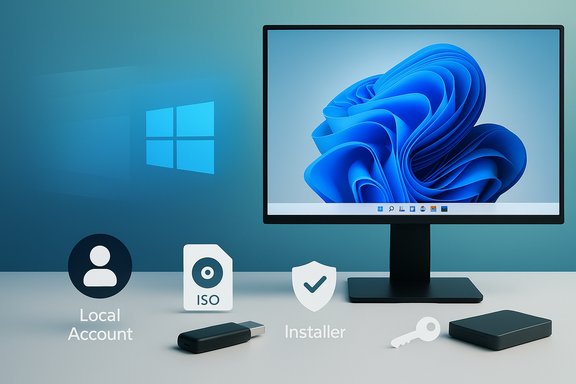 Background
Microsoft ended mainstream support for Windows 10 on October 14, 2025; after that date Windows 10 no longer receives routine security updates, feature updates, or free technical support. Microsoft itself recommends moving eligible devices to Windows 11, and offers upgrade paths and tools to help with the transition. For many users the single biggest question about moving to Windows 11 is whether Microsoft forces a Microsoft Account (MSA) during the upgrade. The short, practical answer is: if your machine already uses a local account in Windows 10, the upgrade preserves that account type; if you currently use an MSA, you can switch to a local account first or use several well‑known installer workarounds to reach the desktop without creating or keeping an MSA. Community tools and installer options (including Microsoft’s own Installation Assistant and third‑party media creators such as Rufus) can preserve or preconfigure a local account during the upgrade. This guide explains the safe, supported paths and the community workarounds, verifies key claims, and highlights the risks and recommended precautions.Overview — what this article covers
- Why you should plan the upgrade (Windows 10 EOL and security)
- What happens to local vs. Microsoft accounts during upgrade
- Supported, recommended methods (switch to local first; use Microsoft Installation Assistant; in‑place upgrade via ISO)
- Community tools and workarounds (Rufus custom media, OOBE command tricks) — what works now and what’s fragile
- A step‑by‑step checklist you can follow (backups, BitLocker notes, post‑upgrade checks)
- Risks, edge cases, and final recommendations
Why upgrade now (short technical justification)
Windows 10 reached end of support on October 14, 2025. After that date Microsoft stops shipping security updates and technical support for Windows 10; remaining on an unsupported OS increases exposure to new vulnerabilities and software compatibility problems. Microsoft’s lifecycle pages and support articles explicitly list these consequences and recommend upgrading eligible devices to Windows 11. If your hardware meets Windows 11 minimums, upgrading is the recommended route to keep receiving patches and feature improvements. If your device cannot meet Windows 11 requirements, Microsoft offers a Consumer Extended Security Updates (ESU) program as a temporary bridge — note that ESU enrollment and conditions changed after EOL, including enrollment requirements. Verify eligibility and terms on Microsoft’s official pages before relying on ESU.Accounts and the upgrade: what actually happens
- If your Windows 10 account is a local account, an upgrade to Windows 11 will generally preserve that local account. Your sign‑in method (local vs. Microsoft account), user profile, apps, and files remain intact for an in‑place upgrade. This is the simplest, most reliable path.
- If your Windows 10 account is a Microsoft account, the upgrade will keep it as an MSA unless you convert or create a local account beforehand. You can convert an MSA to a local account on Windows 10 before upgrading, or add a local account and switch to it after upgrading. Microsoft’s account‑switch flow exists in Settings → Accounts → Your info as “Sign in with a local account instead” (Windows 10) or the reverse on Windows 11.
- When performing a clean install, Windows 11’s Out‑Of‑Box Experience (OOBE) emphasizes an MSA and an internet connection for Home/Pro, but there are documented offline/local account pathways and installer options that still create or preserve local accounts — see the supported and community approaches below.
Supported / recommended approaches (safe, repeatable)
1) If you already use a local account on Windows 10 — upgrade in place (recommended)
This is the simplest route and the most predictable: run Windows Update or the Windows 11 Installation Assistant from within Windows 10 while signed in to your local account as an administrator.Steps (high level):
- Back up your PC (full image recommended).
- Confirm your account is local: Settings → Accounts → Your info.
- Open Settings → Update & Security → Windows Update → Check for updates; if the Windows 11 upgrade is offered, follow the prompts and choose to keep personal files and apps.
- Alternatively download and run Microsoft’s Windows 11 Installation Assistant to run an in‑place upgrade; it preserves apps, files, and the account type.
2) If you use an MSA today — switch to a local account first (clean and safe)
If you prefer to keep your machine completely local after upgrade, convert to a local account on Windows 10 before you start.Steps:
- Open Settings → Accounts → Your info.
- Click “Sign in with a local account instead”.
- Follow the prompts: enter your current MSA password to verify, choose a local username and password, and complete the switch.
- Verify you can sign in locally and that files and settings are intact.
- Proceed with the upgrade (Windows Update or Installation Assistant) while signed into the local account.
3) Use Microsoft’s Windows 11 Installation Assistant (supported, preserves local account)
Microsoft’s official Installation Assistant downloads and upgrades consumers’ devices to Windows 11 while preserving settings and account configuration when performed as an in‑place upgrade. It does not force you to convert or create an MSA if you’re already local. Use the Installation Assistant if Windows Update doesn’t offer the upgrade automatically.Community tools and workarounds (what works now, and what’s fragile)
Several community techniques let you reach a local account on Windows 11 even when OOBE tries to force an MSA. These include:- Rufus custom install media: Rufus offers options when building a Windows 11 USB to remove requirements (TPM/Secure Boot/4GB RAM) and to remove the online Microsoft account requirement or predefine a local username. This approach produces repeatable installation media that exposes an offline/local OOBE path. Many technicians and refurbishers use this for multiple machines because it’s deterministic and avoids one‑off command tricks.
- Disconnecting network during OOBE: unplug Ethernet or don’t connect Wi‑Fi at the “Let’s connect you to a network” screen. Historically the setup provides an “I don’t have internet” path that leads to “limited setup” and a local account creation dialog. This is the simplest consumer trick but newer builds sometimes hide or remove the offline branch, so it’s less reliable than before.
- In‑OOBE command prompt tricks: pressing Shift+F10 in OOBE to open Command Prompt and running commands such as oobe\bypassnro or start ms-cxh:localonly can re‑expose a local account flow in some builds. These are now fragile and Microsoft has been patching or disabling the specific handlers that made them work in earlier releases. Treat them as temporary hacks, not long‑term solutions.
- Autounattend.xml / enterprise provisioning: For deterministic, supported results across fleets, use autounattend.xml, Windows ADK, MDT, SCCM, or Intune/Autopilot approaches to preseed local accounts during image creation. This is the enterprise‑grade method and survives UI changes.
Step‑by‑step: safe consumer upgrade (local account preserved)
Follow these numbered steps to upgrade a Windows 10 PC to Windows 11 while keeping a local account:- Backup first (mandatory)
- Create a complete disk image using Macrium, Acronis, or built‑in tools. Export important files to external storage or cloud. Verify backups restore on another machine or image mount.
- If BitLocker is enabled, back up the recovery key to a secure location that is independent of your Microsoft account.
- Verify system readiness
- Check Settings → Update & Security → Windows Update or use the PC Health Check / Get Windows 11 flow to confirm eligibility. If your PC doesn’t meet minimums, decide if you’ll accept unsupported install risks or buy/upgrade hardware.
- Confirm your account type in Windows 10
- Settings → Accounts → Your info: confirm you’re using a local account. If not, follow the “Sign in with a local account instead” flow and create a local admin account. Reboot and sign in locally.
- Choose your upgrade method
- Windows Update (if offered): choose to download and install.
- Microsoft Windows 11 Installation Assistant (recommended when Update doesn’t offer it): download and run the assistant from Microsoft and follow the in‑place upgrade steps. This preserves apps, files, and the local account.
- Complete upgrade and verify
- Let the PC reboot as needed. Once at the Windows 11 desktop sign in with your local account and verify that apps, files, and settings are present.
- Post‑upgrade checks
- Device Manager: check for missing drivers.
- Sign‑in options: ensure Windows Hello / PIN settings are configured if desired.
- BitLocker: if previously enabled, confirm recovery keys and policy. Avoid enabling BitLocker on a local account without secure off‑device key storage.
If Windows Update doesn’t offer the upgrade — alternatives and how to use them
- Use Microsoft’s Windows 11 Installation Assistant for an in‑place upgrade; it is an official Microsoft tool and preserves profiles (local vs MSA) when used from inside Windows 10.
- Mount or burn the official Windows 11 ISO and run Setup.exe from inside Windows 10. This in‑place approach can preserve apps, files, and your account type; you may need to accept warnings on unsupported hardware or registry bypasses if required.
- Create Rufus custom media (repeatable installer): Rufus offers options that can remove the forced MSA and hardware checks when building the USB installer. Use this for refurbishing multiple PCs or when you need repeatable deterministic media. Always test and verify the USB on a non‑critical machine first.
The fragile tricks — useful but unsupported
- Shift + F10 → oobe\bypassnro or start ms‑cxh:localonly: these commands can expose a local account path in OOBE on some ISOs. They have been progressively patched and may return “command not found” on recent builds. Use only as a last resort, and prefer supported approaches for repeatable work.
- Disconnecting the network during OOBE: simple and often effective, but modern builds sometimes hide the offline path. If disconnecting fails, try official installation media or prepare Rufus media.
Risks, trade‑offs, and what you lose with a local account
- No automatic OneDrive settings sync or cloud backup. If you avoid an MSA you must implement your own backup/restore workflows.
- BitLocker recovery key handling: with an MSA, Microsoft can escrow recovery keys in the cloud (convenient but tied to Microsoft); with a local account you must store recovery keys securely yourself. Failing to do so risks permanent data loss.
- Some Microsoft Store apps and services require an MSA for purchases or full functionality. You can still use Windows without an MSA, but certain features (Store purchases, synced themes, Microsoft password vault) will be limited.
- Unsupported hardware installs: bypassing TPM/Secure Boot or other checks lets Windows 11 install on unsupported hardware, but Microsoft may limit future update delivery for such devices, and some device drivers might not be available. Expect an ongoing maintenance burden on such systems.
- ESU / extended support caveats: if you plan to stay on Windows 10 using Microsoft’s Consumer ESU program, note that Microsoft changed enrollment rules and in some scenarios linking to an MSA may be required for certain consumer‑targeted ESU conditions. Verify ESU terms if you plan to use it as a bridge.
Troubleshooting quick hits
- Setup stuck during install/upgrade: wait at least 2 hours on large upgrades; if truly stuck, try a safe reboot and reset the media. Community forums report occasional stalls near 99%; check logs in Windows\Panther after reboot.
- Shift+F10 doesn’t open Command Prompt in OOBE: try an external USB keyboard or confirm that function‑key lock (Fn) isn’t blocking it. Some vendors intercept function keys in firmware.
- Rufus USB doesn’t show expected options: ensure you used the latest Rufus release and clicked Start — the extended options dialog appears after ISO selection and pressing Start; some older Rufus versions lack newer customization options. Always test on a spare device before deploying widely.
Practical checklist before you start (copy/paste friendly)
- [ ] Full disk image + verify restore
- [ ] Export BitLocker recovery key to secure offline location
- [ ] Note any installed Microsoft Store apps you purchased (associate with MSA if needed)
- [ ] If switching from MSA → local account, unlink OneDrive and export any cloud files you want local copy of
- [ ] Download official Windows 11 ISO (if you plan to create media) and latest Rufus (if used) and verify hashes if you care about integrity
- [ ] Test bootable media on a non‑critical machine first if using Rufus/custom media
Final assessment and recommendation
Upgrading Windows 10 to Windows 11 while keeping or creating a local account is fully achievable and — when done using supported methods — safe and straightforward. The most reliable, supportable approach is to either:- Convert your account to a local account on Windows 10 before upgrading, then use Windows Update or Microsoft’s Installation Assistant to perform an in‑place upgrade; or
- Use official media (ISO) and run Setup.exe from inside Windows 10 while signed in as a local administrator.
Above all, back up before you touch the installer, export BitLocker keys, and verify the post‑upgrade system thoroughly. The upgrade itself will generally preserve your apps, settings, files, and account type if you follow the supported in‑place path or prepare appropriately beforehand.
In case of uncertainty about a specific machine, the following short rule delivers the best mix of safety and convenience: if the device already uses a local account, upgrade in place; if it uses an MSA and you don’t want to keep it, convert to a local account first — then upgrade. This preserves recoverability, avoids brittle OOBE hacks, and gives you the cleanest path forward.
Source: Windows Central How to upgrade Windows 10 to 11 using a local account — A step-by-step guide to skipping the Microsoft account requirement
