

If your PC tells you “This device can’t run Windows 11,” don’t panic — you still have options. Microsoft’s official upgrade paths remain the safest route, but practical workarounds exist that let many older Windows 10 machines run Windows 11 today. This feature walks through the supported methods, the unofficial but widely used workarounds (registry override and Rufus-built media), the real risks involved, and a clear decision checklist so you can choose the right path for your needs and risk tolerance.
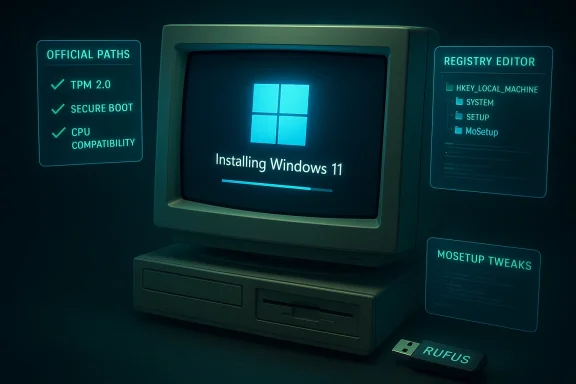
Windows 11 tightened the platform’s minimum hardware requirements compared with Windows 10, centering on three security-backed checks: TPM 2.0, UEFI with Secure Boot, and a supported CPU family. Those gates are intended to enable modern security features — virtualization-based protections, hardware-backed key storage, BitLocker, and other defenses — but they also left a substantial installed base of still-functional Windows 10 PCs labeled “incompatible.”
Compounding urgency: Microsoft ended mainstream support for most consumer Windows 10 editions on October 14, 2025. For users who need more time, Microsoft’s consumer Extended Security Updates (ESU) program offers a one‑year bridge that provides critical security updates through October 13, 2026, via one of three enrollment paths (details below). That timeline forces a choice for many: upgrade hardware, enroll in ESU, migrate OS, or accept an unsupported Windows 11 install.
This article verifies the practical upgrade options, explains how the registry and Rufus workarounds operate, highlights the technical limits you cannot circumvent, and weighs security, reliability, and support tradeoffs so you can make an informed decision.
Security risks:
Source: PCMag Yes, You Can Upgrade Your PC to Windows 11, Even If It's Incompatible. Here's How
 Background / Overview
Windows 11 tightened the platform’s minimum hardware requirements compared with Windows 10, centering on three security-backed checks: TPM 2.0, UEFI with Secure Boot, and a supported CPU family. Those gates are intended to enable modern security features — virtualization-based protections, hardware-backed key storage, BitLocker, and other defenses — but they also left a substantial installed base of still-functional Windows 10 PCs labeled “incompatible.”Compounding urgency: Microsoft ended mainstream support for most consumer Windows 10 editions on October 14, 2025. For users who need more time, Microsoft’s consumer Extended Security Updates (ESU) program offers a one‑year bridge that provides critical security updates through October 13, 2026, via one of three enrollment paths (details below). That timeline forces a choice for many: upgrade hardware, enroll in ESU, migrate OS, or accept an unsupported Windows 11 install.
This article verifies the practical upgrade options, explains how the registry and Rufus workarounds operate, highlights the technical limits you cannot circumvent, and weighs security, reliability, and support tradeoffs so you can make an informed decision.
Microsoft’s supported upgrade paths — what they are and why they matter
If your PC meets the Windows 11 baseline, use the supported channels. They preserve update entitlement, minimize risk, and keep your device eligible for Microsoft and OEM support.Official upgrade options
- Windows Update (the simplest route): Settings → Update & Security → Windows Update → Check for updates. If Microsoft’s staged rollout has reached your device, the upgrade will appear there and install as a normal update.
- Windows 11 Installation Assistant: A guided in-place upgrade tool you run on the PC you want to upgrade; it downloads and upgrades while keeping apps and files if you choose.
- Media Creation Tool and ISO-based install: Create a bootable USB or an ISO (can be used for clean installs or to upgrade multiple machines); choose whether to keep files/apps or perform a fresh install.
- Preserves update entitlement. Supported installs keep your Windows Update path intact.
- Vendor support remains valid. OEM drivers, firmware updates, and warranty support are tied to supported configurations.
- Lower risk of driver or stability problems. Microsoft’s staged rollout also protects devices impacted by known issues; supported installs are less likely to hit a compatibility snag.
Why many PCs are “incompatible” — and when the fix is simple
A surprising number of “incompatible” results are caused by settings and firmware toggles — not missing silicon. Before trying any bypass, check and fix these:- TPM present but disabled: Many modern boards have firmware TPM (fTPM) or Intel PTT that can be enabled in UEFI.
- Secure Boot disabled or machine running legacy BIOS/MBR: Switch to UEFI and enable Secure Boot; you may need to convert your system disk from MBR to GPT.
- Older CPU not listed: If the CPU simply isn’t on Microsoft’s supported list, that’s harder; sometimes a BIOS update or CPU microcode update helps, but the CPU list is ultimately Microsoft’s compatibility policy.
Two widely used workarounds for “incompatible” machines
If your device still fails the checks after firmware and BIOS fixes, there are two prevalent community-backed ways to install Windows 11 on an older PC: a registry override for in-place upgrades and a Rufus-built installer that automates bypasses for devices lacking TPM/Secure Boot. Both have been used successfully by many users — but they are explicitly unsupported by Microsoft and carry tradeoffs.1) The registry override (MoSetup) — what it does and when to use it
Overview:- This method sets a Windows registry flag that instructs Setup to ignore some preflight CPU and TPM checks during an in-place upgrade.
- It’s generally used when the device already has UEFI and most hardware features but is blocked only by Microsoft’s CPU whitelist or a TPM check.
- Back up everything and create a full disk image.
- In Windows 10, open Registry Editor and navigate to: HKEY_LOCAL_MACHINE\SYSTEM\Setup\MoSetup.
- Create a new DWORD (32-bit) value named AllowUpgradesWithUnsupportedTPMOrCPU and set it to 1.
- Mount the official Windows 11 ISO or run the Windows 11 Installation Assistant and launch setup.exe from within Windows 10.
- Proceed with the in-place upgrade option (choose to keep personal files/apps if desired).
- Can preserve apps, settings, and activation.
- Simpler for users who prefer an in-place upgrade experience.
- Microsoft’s guidance is clear that installing Windows 11 on unsupported hardware is not recommended; the install is unsupported and may affect future update entitlement.
- You may still face driver or feature gaps; hardware-anchored protections (like VBS/HVCI) may not function fully.
- Microsoft has edited its documentation over time and explicitly warns that problems from registry edits can require OS reinstallation.
- You have UEFI and TPM (or fTPM) and the only blocker is CPU-family listing or similar policy items.
- The machine is a non-critical, personal device and you accept the maintenance burden.
2) Rufus-built installer — when you need a relaxed USB image
Overview:- Rufus (a popular third-party utility for creating bootable Windows USB media) includes an option to build Windows 11 installation media that removes the pre-installation checks for TPM 2.0, Secure Boot, and minimum RAM.
- The tool can create media usable for both clean installs (booting from USB) and in-place upgrades (running Setup.exe from within Windows).
- Download the official Windows 11 ISO from Microsoft and install Rufus on a working PC.
- Insert a USB drive (8 GB or larger); Rufus will reformat it.
- In Rufus, pick the Windows 11 ISO as the source. Choose the Standard Windows installation option, then when prompted select the option to “Remove requirement for 4GB+ RAM, Secure Boot, and TPM 2.0” (wording varies by Rufus version).
- Click Start and let Rufus build the USB drive.
- On the target machine, either boot from the Rufus USB for a clean install or open the USB in File Explorer and run setup.exe to attempt an in-place upgrade.
- Automates otherwise fiddly installer changes; avoids manual editing of the ISO.
- Supports legacy BIOS/MBR systems through different partition/target system options.
- Often the go-to for machines that lack TPM or run in legacy boot mode.
- Rufus cannot add missing CPU instruction support. If your CPU lacks SSE4.2 or the POPCNT instruction required by newer Windows 11 servicing (notably later feature updates), installer builds may fail to boot entirely.
- Microsoft considers installs on unsupported hardware to be unsupported; update entitlement and device coverage are uncertain.
- OEM drivers might never be available; expect more manual driver work and possible stability issues.
- Your machine lacks TPM or Secure Boot and cannot be made compliant via firmware, or it uses legacy BIOS.
- You’re prepared for a clean install and a hands-on driver‑fixing process, or you need a short-term extension for a secondary device.
The hard limits — what you cannot bypass
A critical reality: some technical requirements cannot be emulated or patched away.- CPU instruction requirements (SSE4.2 / POPCNT): Some recent Windows 11 feature‑update builds check for instruction‑set support. If your CPU lacks those instructions, no installer hack will add them; the system may fail to boot after certain updates.
- Missing hardware anchors: If your board has no TPM and no firmware TPM (fTPM) option, you cannot produce true hardware‑backed keys or enable some hardware isolation features.
- Driver incompatibility: Older chipsets may never get updated drivers compatible with new Windows 11 kernels, causing audio, GPU, or power-management problems.
- Update entitlement is not guaranteed: Microsoft has stated that devices upgraded outside normal supported paths are not guaranteed to receive Windows updates. That policy can be enforced at any time.
Security and support tradeoffs — be explicit about the risks
Upgrading an unsupported PC to Windows 11 can be attractive — but it shifts the long-term risk onto the owner.Security risks:
- Unsupported installs may not receive all updates; if Microsoft blocks cumulative or security updates for unsupported configurations later, your machine could become vulnerable.
- Hardware‑anchored protections (which require TPM/Secure Boot/CPU features) may be weak or absent; this reduces protection against firmware-level attacks and advanced threat techniques.
- Manufacturers may refuse warranty or support for systems in unsupported configurations.
- Future feature updates could break the machine, requiring a rollback, clean reinstall, or hardware replacement.
- Some update-related bugs have historically caused significant issues for users; unsupported installs limit your ability to get official help.
- For business or compliance‑sensitive environments, unsupported installs are strongly contraindicated. You need predictable security updates and vendor support.
Windows 10 Extended Security Updates (ESU) — a one‑year bridge
If you’re not ready to upgrade your hardware or risk an unsupported install, Microsoft offered a consumer ESU program as a migration aid. Key facts you must know:- Windows 10 mainstream support ended on October 14, 2025.
- Consumer ESU coverage runs through October 13, 2026.
- Enrollment routes (equivalent across options) to receive ESU updates through Oct 13, 2026:
- Free option (cloud-backed): Sign in with a Microsoft Account on the device and enable Windows Backup/Settings sync (this ties the ESU entitlement to the Microsoft account).
- Redeem 1,000 Microsoft Rewards points to enroll for one year.
- One-time paid purchase (roughly $30 USD, local tax may apply) to buy a one‑year ESU entitlement tied to your Microsoft Account.
- Devices must be running Windows 10, version 22H2 and have the latest servicing prerequisites installed before enrolling.
- The free cloud-backed option ties enrollment to a Microsoft account and the device’s enrollment behavior; if the account is not used to sign in or check in periodically, ESU updates could stop until re-enrollment.
- In the European Economic Area (EEA) Microsoft relaxed some enrollment conditions to address regulatory concerns, but local rules apply.
A practical, safe upgrade checklist (step‑by‑step)
Before you touch the registry or create custom media, follow this checklist:- Back up everything — full disk image and file backup.
- Verify Windows 10 version: update to Windows 10 version 22H2 and install all latest cumulative updates (prerequisite for ESU and for some upgrade paths).
- Run PC Health Check and note specific blocks (TPM, Secure Boot, CPU).
- Update firmware/BIOS to latest vendor release.
- Enable TPM/PTT and Secure Boot if hardware supports them; convert MBR to GPT if needed (use Microsoft’s recommended tools).
- If the machine becomes eligible, use Windows Update or the Windows 11 Installation Assistant.
- If it remains ineligible:
- Consider ESU enrollment to buy time (if you qualify and want to avoid unsupported installs).
- If you accept risk for a personal/secondary machine, decide: registry override (in-place) vs. Rufus-built USB (clean install for legacy boards).
- After any upgrade, verify drivers, check Windows Update repeatedly, and create a fresh system image when satisfied.
Step‑by‑step walkthroughs (concise how‑tos)
Supported install (recommended)
- Back up and image the disk.
- Run PC Health Check — ensure green results or enable firmware features.
- Use Windows Update or Windows 11 Installation Assistant.
- After upgrade, open Windows Update and install all recommended drivers and updates.
- Create a new system image as a restore point.
Registry override (in‑place)
- Full backup and image.
- In Windows 10, run regedit and create HKEY_LOCAL_MACHINE\SYSTEM\Setup\MoSetup\AllowUpgradesWithUnsupportedTPMOrCPU (DWORD) = 1.
- Mount official Windows 11 ISO and run setup.exe; choose to keep files and apps.
- Monitor Windows Update behavior after upgrade.
Rufus-built USB (clean or in-place)
- Full backup and image.
- Download the official Windows 11 ISO from Microsoft.
- Install Rufus on a working PC. Insert an 8 GB+ USB flash drive.
- In Rufus, select the ISO and choose the option to remove TPM/Secure Boot/RAM checks when prompted.
- Build the USB and either boot from it for a clean install or run setup.exe from Windows for an in-place upgrade.
- After install, manually reinstall drivers if needed and test stability.
Troubleshooting and post‑install tips
- If a post-upgrade device fails to boot after a feature update, have your image and rollback plan ready.
- If drivers are missing, use the OEM support pages and, if needed, community driver packages for legacy chipsets.
- If Windows Update refuses to offer patches, consider staying on the ESU stream (if enrolled) or plan a hardware refresh.
- Consider using virtual machines to test an unsupported configuration before applying it to a production device.
When to choose which path — a concise decision guide
- Device is supported (PC Health Check passes) → use Windows Update / Installation Assistant.
- Device is not supported due to firmware toggles (TPM disabled, Secure Boot off) → enable toggles and re-check; if green, use official paths.
- Device is not supported because CPU is not on list but hardware otherwise fine → registry override may be acceptable for a personal, non-critical machine; expect monitoring and potential update gaps.
- Device lacks TPM or is legacy BIOS → Rufus-built media for a clean install may work; choose this only for secondary systems or if you accept the manual maintenance burden.
- Device is critical, business, or subject to compliance → do not use unsupported hacks; enroll in ESU or replace hardware.
Final analysis — strengths, benefits, and the real costs
Why these workarounds are compelling:- They extend the usable life of well‑built hardware and delay replacement cost.
- Many users report perfectly usable Windows 11 experiences on older machines for everyday tasks.
- Tools like Rufus make the technical steps accessible even to intermediate users.
- Unsupported installs transfer long-term security and reliability risk to the owner.
- Some blockers (missing instruction sets, absent fTPM, or driver gaps) are non‑negotiable and will create persistent problems.
- Microsoft’s policy and installer behavior have evolved; what works today may be blocked by a future update.
Quick reference: what to do next
- Run PC Health Check now. If it passes, upgrade via Windows Update.
- If it fails, update firmware and enable TPM/PTT and Secure Boot. Re-run the check.
- If it still fails and you need time, enroll in ESU by Oct 13, 2026, or redeem 1,000 Rewards points or pay the one‑time ESU fee if eligible.
- If you decide to risk an unsupported install, back up, image, and follow either the registry or Rufus route on a non‑critical machine — and schedule a hardware plan within 12 months.
Source: PCMag Yes, You Can Upgrade Your PC to Windows 11, Even If It's Incompatible. Here's How
