

On October 14, 2025 Microsoft stopped issuing regular security and feature updates for Windows 10 — and that deadline has forced many users with otherwise serviceable PCs to choose between buying new hardware, enrolling in a one‑year Extended Security Updates (ESU) bridge, or using community workarounds to install Windows 11 on “incompatible” machines. The practical reality is straightforward: for most PCs built in the last decade there are reliable, well‑tested ways to run Windows 11 even when Windows Update refuses the upgrade, but each path carries trade‑offs you must understand before you proceed.
Microsoft’s published system requirements for Windows 11 place a premium on modern platform security: UEFI firmware with Secure Boot capability, a Trusted Platform Module (TPM) 2.0 (discrete or firmware/fTPM), and a supported 64‑bit CPU family, plus baseline RAM and storage minimums. Those checks are enforced in the official upgrade flows and are the reason an otherwise healthy Windows 10 PC can be reported as “incompatible.” If your device truly meets the requirements, the supported, free upgrade paths (Windows Update, Windows 11 Installation Assistant, or an ISO‑mounted in‑place upgrade) are the safest routes and preserve update entitlement. At the same time, Microsoft’s guidance and the Windows setup code have shifted over time. A previously documented Microsoft registry workaround that let users bypass certain CPU/TPM checks was quietly removed from Microsoft’s support pages after the Windows 11 24H2 changes; community resources continue to document the procedure and many users have reported successful in‑place upgrades using the same approach, or by using third‑party tools such as Rufus to build modified installation media. These community routes work in many real‑world scenarios, but they are explicitly unsupported by Microsoft and come with important caveats.
Important preconditions (must be true for Option 1 to be viable):
Upgrading an “incompatible” Windows 10 PC to Windows 11 is technically feasible for many systems, but it requires a clear-eyed assessment of the machine’s firmware, TPM status, and CPU features — especially the SSE4.2/POPCNT requirement introduced with 24H2. The registry method and Rufus both remain effective options for legitimate, non‑critical users who accept the security and update trade‑offs; for business‑critical machines, the safest course is to use Microsoft’s supported upgrade paths or purchase hardware that ships with Windows 11. If you proceed with a workaround, make comprehensive backups, test on spare hardware where possible, and verify system behavior thoroughly after the upgrade.
Source: Bahia Verdade How to upgrade your 'incompatible' Windows 10 PC to Windows 11 - for free - Bahia Verdade
 Background / Overview
Microsoft’s published system requirements for Windows 11 place a premium on modern platform security: UEFI firmware with Secure Boot capability, a Trusted Platform Module (TPM) 2.0 (discrete or firmware/fTPM), and a supported 64‑bit CPU family, plus baseline RAM and storage minimums. Those checks are enforced in the official upgrade flows and are the reason an otherwise healthy Windows 10 PC can be reported as “incompatible.” If your device truly meets the requirements, the supported, free upgrade paths (Windows Update, Windows 11 Installation Assistant, or an ISO‑mounted in‑place upgrade) are the safest routes and preserve update entitlement. At the same time, Microsoft’s guidance and the Windows setup code have shifted over time. A previously documented Microsoft registry workaround that let users bypass certain CPU/TPM checks was quietly removed from Microsoft’s support pages after the Windows 11 24H2 changes; community resources continue to document the procedure and many users have reported successful in‑place upgrades using the same approach, or by using third‑party tools such as Rufus to build modified installation media. These community routes work in many real‑world scenarios, but they are explicitly unsupported by Microsoft and come with important caveats. What Microsoft actually requires (the compatibility checklist)
Before attempting any workaround, confirm whether your PC is truly incompatible. The following items are the primary checks Setup enforces:- CPU: a supported 64‑bit processor family and model listed by Microsoft (some later updates require specific instruction set support described below).
- TPM: TPM 2.0 is Microsoft’s stated requirement for Windows 11; some community workarounds accept TPM 1.2 for upgrades, but TPM‑less systems require extra measures.
- UEFI/ Secure Boot: Windows 11 expects UEFI firmware; Secure Boot should be supported (it doesn’t always need to be enabled, but enabling it improves security).
- Memory & storage: nominal minimums are 4 GB RAM and 64 GB storage (practical in‑place upgrades usually need 25–30 GB free, but 64 GB is the documented baseline).
- Graphics/Display: DirectX 12 / WDDM 2.x support and a minimum display spec.
New technical barrier: SSE4.2 and POPCNT (Windows 11 24H2 and later)
Windows 11 version 24H2 introduced a narrower CPU requirement: the installer now requires CPUs that support the SSE4.2 instruction set and the POPCNT instruction. In practice this affects only very old processors (pre‑2007/2008 era) or oddly emulated virtual CPUs; most Intel CPUs from 2009 onward and AMD CPUs from roughly 2013 onward meet the requirement. If your CPU lacks SSE4.2/POPCNT, no registry tweak or Rufus trick can reliably make 24H2 boot — those chips are effectively retired for modern Windows 11 builds. Verify your CPU’s supported instructions with CPU‑Z or Microsoft Sysinternals coreinfo.Two practical upgrade options (which to choose)
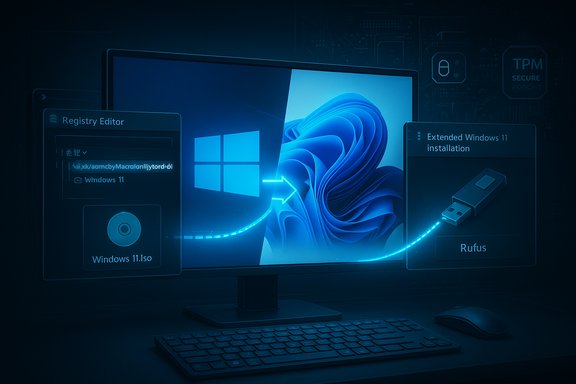
This guide covers two widely used, practical methods:- Option 1: Registry override + ISO mount — a simple registry edit that allows an in‑place upgrade from within Windows 10. Best for systems that are UEFI‑based, support Secure Boot (recommended), and have a TPM (even TPM 1.2 may work with this tweak).
- Option 2: Rufus “Extended Windows 11 installation” — use Rufus to create a USB installer that removes or relaxes the TPM, Secure Boot and RAM checks so you can run Setup on machines that lack TPM or run Legacy BIOS/MBR. This is the route for older or unusually configured PCs.
Option 1 — Registry edit to bypass CPU/TPM checks (in‑place upgrade)
This approach is the least invasive and can preserve apps, settings and files if you run Setup from your current Windows session.Important preconditions (must be true for Option 1 to be viable):
- Your system boots in UEFI mode (not Legacy BIOS). Verify in Msinfo32.exe (BIOS Mode).
- Secure Boot supported; it does not absolutely need to be enabled to run this upgrade, but enabling it afterward is strongly recommended.
- A TPM is present and enabled — TPM 1.2 has worked historically with this tweak but systems with no TPM at all cannot use this method.
- Sufficient free disk space (aim for 30–64 GB free depending on what you have installed).
- Backup everything. Create a full disk image and copy critical files to external media or cloud storage. This is not optional.
- Open the Registry Editor (Regedit.exe) as Administrator.
- Navigate to: HKEY_LOCAL_MACHINE\SYSTEM\Setup. If the MoSetup key does not exist, create it: right‑click Setup → New → Key → name it MoSetup.
- Within MoSetup create a new DWORD (32‑bit) value exactly named: AllowUpgradesWithUnsupportedTPMOrCPU and set its value to 1. Spelling and type are exact — mistakes will fail Setup.
- Restart the PC.
- Download the official Windows 11 ISO from Microsoft’s Download Windows 11 page (choose the x64 Disk Image option). Save the ISO locally.
- In File Explorer, double‑click the ISO to mount it as a virtual DVD. If you get an Autorun.dll error because of a third‑party compression tool, right‑click → Open With → Windows Explorer.
- From the mounted ISO run Setup.exe and follow the prompts. You’ll see a compatibility warning; accept it and continue. Early in setup click Change how setup downloads updates and select Not right now if you encounter download‑time failures (this is a common fix for errors seen with recent installers).
- Choose whether to keep apps and files or perform a clean install. Let Setup run and reboot the PC as instructed. After the upgrade, check Device Manager and Windows Update for driver and patch availability.
- Windows Setup’s compatibility checks are implemented in an “appraiser” routine. The registry value tells Setup to bypass certain CPU family and TPM version checks for in‑place upgrades. Microsoft documented the method previously, then removed it from their support pages; it continues to work on many systems but is no longer formally published by Microsoft. Use caution.
Option 2 — Use Rufus to create a modified installer that relaxes hardware checks
When your PC lacks TPM, uses Legacy BIOS, or the registry method fails, Rufus can automate the tweaks required to bypass Setup’s checks. Rufus exposes an Extended Windows 11 installation mode that can remove TPM, Secure Boot, RAM and (in some cases) CPU family checks from the installation flow. Because Microsoft changed its installer internals with 24H2, you must use a Rufus release that supports the new behavior (Rufus 4.6 or later introduced key changes; community testers continue to update guidance). Always download Rufus from the official developer site or the Microsoft Store. Preflight checklist for Rufus- Download the official Microsoft Windows 11 ISO and save it to the system drive (do not store the ISO on the USB you’ll format).
- Use a blank USB drive (16 GB+ recommended). Back up any data on the drive — it will be reformatted.
- Have a working Windows PC to run Rufus and create the installer (avoid running Rufus inside limited or emulated VMs where ISO scanning can fail).
- Install or run the official Rufus executable (latest stable release).
- Insert the USB drive and choose it in Rufus. Under Boot selection click SELECT and pick the Windows 11 ISO you downloaded.
- After Rufus reads the ISO, look for the Image options or Image dropdown and choose Extended Windows 11 installation (no TPM/no Secure Boot) or the similarly named option for your Rufus version. Confirm the partition scheme (GPT for UEFI targets, MBR for older Legacy BIOS systems).
- Click Start. Rufus will show a dialog listing the hardware checks you can remove (TPM 2.0, Secure Boot, 4 GB RAM, CPU family checks). Check the boxes that match your needs and confirm.
- When Rufus finishes, open the USB in File Explorer on the target PC and double‑click Setup.exe to run an in‑place upgrade. Do not boot from the USB if your goal is a non‑destructive in‑place upgrade; running Setup from within the current Windows session preserves apps and files. Early in Setup, if you see Change how setup downloads updates, choose Not right now to avoid a common early‑failure path.
- Rufus can’t add CPU features that don’t exist (SSE4.2/POPCNT). If your CPU lacks these instructions, 24H2 may refuse to boot and Rufus won’t help.
- Rufus automates changes many enthusiasts used to apply manually (editing Appraiser files or replacing specific installer DLLs). That convenience is powerful but also makes the install flow less “standard.” Treat Rufus‑created installs as community‑level, unsupported modifications.
Pre‑flight checklist (always do this)
- Full disk image backup plus file‑level backups to external media or cloud. Validate your backups by restoring a few files.
- Create a recovery USB or ensure you can access Windows’ Advanced Startup options.
- Export important application keys and license information (some software requires reactivation after OS changes).
- Update BIOS/UEFI and firmware where vendor updates are available. Enable fTPM/PTT in firmware if present.
- Run PC Health Check and Tpm.msc to document the machine’s baseline behavior before you start.
- If converting from MBR to GPT to enable UEFI boot, use Microsoft’s MBR2GPT tool and follow vendor guidance — test on a noncritical machine first.
Troubleshooting common errors and fixes
- “An unsupported operation was attempted” or Setup quits early: restart Setup and in the first dialogs choose Change how setup downloads updates → Not right now. This simple change has fixed this specific premature quit for many users.
- Autorun.dll or ISO mount errors when double‑clicking the ISO: if you have a third‑party archive tool, right‑click the ISO and choose Open With → Windows Explorer to mount it. Alternatively, burn ISO to USB via Rufus and mount from that system for the in‑place upgrade.
- Setup won’t let you keep apps/data and forces a clean install: some users reported language/locale mismatches (for example, English UK vs English US) leading to unexpected behavior. If the installer forces a clean install, back out, download the ISO in the alternate English flavor, and try again.
- Post‑upgrade device driver problems: check your PC vendor’s support site for Windows 11 drivers; if unavailable, try Vendor’s universal chipset drivers or Windows Update. Keep a copy of your device’s older drivers in case you need to roll back.
Security, update entitlement and long‑term risks (what Microsoft actually warns)
Microsoft’s messaging is explicit: devices installed with relaxed checks may not be guaranteed to receive future updates, and Microsoft reserves the right to withhold updates or block feature releases for unsupported devices. Although many community‑installed unsupported systems continue to receive at least some cumulative updates, that behavior is variable and can change at Microsoft’s discretion. That risk is the principal reason Microsoft removed its registry‑based procedure from formal support documentation and is emphasizing hardware replacements and ESU options as the long‑term path. If you use a workaround, treat the result as a hobbyist or stopgap solution, not a production or business strategy. The consumer ESU program provides a measured, time‑limited bridge (through October 13, 2026 for typical consumer enrollments) for devices that cannot be upgraded immediately; ESU mechanics and availability vary by region and often require a Microsoft account and device registration. ESU gives you security‑only updates for a limited period and is not a permanent substitute for moving to supported hardware.Post‑upgrade checklist (first 24–72 hours)
- Confirm Windows activation and link the digital license to your Microsoft account if desired.
- Run Windows Update and install drivers from the OEM support site.
- Create a fresh system restore point and capture a new image backup of the upgraded system.
- Monitor Event Viewer and Device Manager for driver or kernel errors. Be prepared to roll back if you see repeated boot or stability faults.
- If you used Rufus’ extended installer, consider re‑enabling TPM and Secure Boot in firmware (if the hardware supports it) and revisit Microsoft Update behavior — some components may require firmware re‑enablement for maximum security.
Critical analysis: strengths, trade‑offs and when to replace hardware
Why the community tricks work- Windows Setup is a software routine that enforces checks early in the flow. In many cases a registry flag or edited installer can neutralize that logic and allow the OS files to deploy. That’s why Rufus and other tools can consistently produce working installations.
- Registry in‑place upgrade preserves installed apps, settings and user data when the only blocker is Microsoft’s CPU/TPM check and the machine otherwise meets Windows 11 infrastructure expectations. It’s the least invasive path.
- Rufus extended installer supports more varied hardware topologies (Legacy BIOS, no TPM), automates otherwise fiddly manual edits to setup, and works where the registry method cannot.
- Update uncertainty: unsupported installs may be blocked from future cumulative or feature updates at Microsoft’s discretion, potentially exposing the device long‑term.
- Security posture: bypassing TPM/Secure Boot removes platform protections that modern Windows leverages (BitLocker, Windows Hello, virtualization‑based security). That may materially increase risk on machines used for sensitive tasks.
- Driver and stability problems: older hardware vendors may never ship drivers optimized for Windows 11, and some hardware components (Wi‑Fi, fingerprint readers) may behave poorly or not at all.
- Complex recovery: if the upgrade fails mid‑process, recovery may require a full clean install or restoring a disk image — hence the insistence on robust backups.
- If your CPU lacks SSE4.2/POPCNT (24H2+ requirement), if you rely on a laptop with closed firmware that cannot enable TPM/UEFI, or if the machine runs critical business software that must remain fully supported, replacing the device is the pragmatic long‑term choice. Microsoft and vendors are offering trade‑in and recycling channels to ease this transition.
Final practical recommendations
- Run PC Health Check and Tpm.msc. If the PC passes or only the CPU family check blocks you, try the registry override and an in‑place upgrade from a mounted ISO first.
- If the machine is Legacy BIOS or lacks TPM, use Rufus (4.6+) to build a USB installer with the Extended Windows 11 Installation option and run Setup.exe from within Windows to preserve apps and files. Always choose Not right now for “Change how setup downloads updates” if the installer stalls.
- For machines older than 2008 (no SSE4.2/POPCNT), accept that Windows 11 24H2 and later will likely not boot — plan replacement or ESU enrollment.
- Keep full backups, image the disk before upgrading, and treat any unsupported install as temporary: plan to replace or migrate critical systems to supported hardware within the ESU window.
Upgrading an “incompatible” Windows 10 PC to Windows 11 is technically feasible for many systems, but it requires a clear-eyed assessment of the machine’s firmware, TPM status, and CPU features — especially the SSE4.2/POPCNT requirement introduced with 24H2. The registry method and Rufus both remain effective options for legitimate, non‑critical users who accept the security and update trade‑offs; for business‑critical machines, the safest course is to use Microsoft’s supported upgrade paths or purchase hardware that ships with Windows 11. If you proceed with a workaround, make comprehensive backups, test on spare hardware where possible, and verify system behavior thoroughly after the upgrade.
Source: Bahia Verdade How to upgrade your 'incompatible' Windows 10 PC to Windows 11 - for free - Bahia Verdade
