

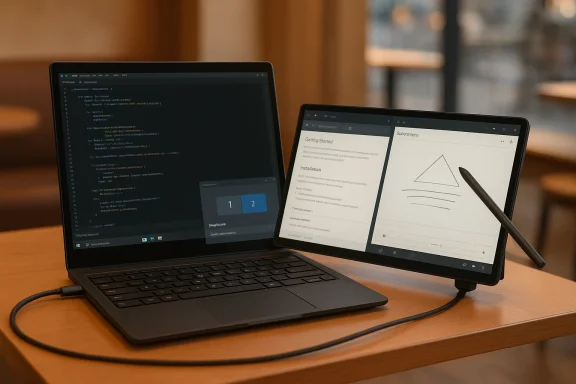
If you’ve ever wished your laptop had just a little more screen real estate while traveling, there’s a cheap, practical trick that might already be waiting in a drawer: use your Android tablet as a portable USB monitor. A lightweight app called SuperDisplay pairs with a small Windows driver to turn many Android tablets into an extended display for Windows 10/11 machines — often with impressively low latency and native touch/pen input — for a one‑time purchase that’s a fraction of the cost of a standalone portable monitor. The idea is simple, the setup is modest, and the payoff for road warriors, creatives, and multitaskers can be big: more workspace, fewer app switches, and a second screen that fits in a backpack.
Android‑to‑Windows second‑screen apps have been around for years, but SuperDisplay stands out for its focus on USB performance and graphics tablet features. The official SuperDisplay site describes the product as a way to “turn your Android device into a portable USB display for your Windows 10 PC,” combining a small Windows driver with an Android client to present the tablet to Windows as an external monitor.
This lightweight approach is especially attractive for people who already own an Android tablet — even older models. SuperDisplay’s public listings and package metadata show compatibility with Android API 21 and up (Android 5.0+), so devices several years old can still be repurposed as a functional second monitor. That matches the practical advice you see across community forums and repurposing guides that encourage using older tablets for extension tasks rather than daily compute work.
Before you try this, be aware of two important realities:
That said, it’s not a guaranteed miracle: the experience depends heavily on your specific hardware, USB cable, and tolerance for occasional troubleshooting. If you’re comfortable trying a short trial and doing a couple of configuration steps (enable Developer Options, install the driver), you can test whether your particular laptop/tablet combo provides the performance you need.
If you’re cost‑sensitive or want a no‑install free option, test spacedesk and scrcpy first to compare latency and feature sets for your workflow. And if your tablet is especially old, temper expectations: it may be perfectly fine for a chat window and reference docs but less ideal for ultra‑smooth inking or high‑frame‑rate video work.
In short: turning an Android tablet into a portable monitor is a practical, inexpensive trick that can materially improve productivity for travelers, creatives, and multitaskers. SuperDisplay brings a polished, pen‑friendly extended desktop solution to the table; spacedesk and scrcpy offer strong free alternatives depending on whether your priority is an extended monitor or ultra‑low‑latency mirroring. Try the trial, verify performance on your hardware, and you may find that the extra screen you’ve been missing was already in your bag.
Source: bgr.com Turn Your Android Tablet Into A Portable Monitor With This Simple USB Trick - BGR
 Background / Overview
Android‑to‑Windows second‑screen apps have been around for years, but SuperDisplay stands out for its focus on USB performance and graphics tablet features. The official SuperDisplay site describes the product as a way to “turn your Android device into a portable USB display for your Windows 10 PC,” combining a small Windows driver with an Android client to present the tablet to Windows as an external monitor.This lightweight approach is especially attractive for people who already own an Android tablet — even older models. SuperDisplay’s public listings and package metadata show compatibility with Android API 21 and up (Android 5.0+), so devices several years old can still be repurposed as a functional second monitor. That matches the practical advice you see across community forums and repurposing guides that encourage using older tablets for extension tasks rather than daily compute work.
Before you try this, be aware of two important realities:
- The experience depends on a combination of your tablet’s hardware, the quality of your USB cable/port, and the Windows host’s GPU/drivers. SuperDisplay bridges those gaps with software, but expectations should be realistic for very old hardware.
- Pricing, feature sets, and platform compatibility can change. The app has been offered as a paid one‑time purchase on Android with a trial, and users have seen regional price variations and occasional Play Store quirks. Treat any stated price as provisional and verify at purchase.
How SuperDisplay actually works
The two‑piece model: Android client + Windows driver
SuperDisplay uses a small Windows driver to present a virtual display adapter to Windows. The Android app streams the tablet’s screen content (or accepts Windows frames) over a USB link (or, optionally, over Wi‑Fi), and the Windows driver decodes and routes that stream as an extra monitor. This means the tablet appears to Windows the same way a regular monitor would, letting you use the standard Extend display mode and drag windows onto it. The SuperDisplay help pages describe the architecture and note that USB connections are common, with Wi‑Fi supported as a fall‑back.Why USB matters (and how it’s implemented)
Not all USB ports are equal. SuperDisplay often uses Android’s debugging/data channel (ADB/USB debugging) to ferry display frames when the device doesn’t expose a native DisplayPort Alt Mode over USB‑C. The developer acknowledges this workaround because Android doesn’t provide a standardized USB streaming API for external apps — so they “get creative” to move pixels across the cable. USB tends to deliver lower latency and more consistent frame rates than wireless, which is why many users prefer the wired route for productivity or drawing.Touch, stylus, and graphics tablet features
A huge selling point for artists and digital note‑takers is that SuperDisplay can forward touch and pen input from the tablet back to Windows — turning the tablet into a graphics tablet with Windows drawing apps. That capability is what elevates SuperDisplay above a simple screen‑mirror: it’s useful for inking, Photoshop, Clip Studio, or any app that benefits from pressure/tilt input (where supported by the hardware). The official documentation and press materials highlight these graphics tablet features.Step‑by‑step: Setting up an Android tablet as a portable monitor
The exact steps vary slightly by device and Windows version, but the general flow below is what most users report and is what the SuperDisplay documentation recommends.- On Windows: download and install the SuperDisplay driver/desktop server. The installer places a virtual display driver and a small server app on your PC.
- On Android: install SuperDisplay from the Play Store and grant the permissions it requests. The app includes a short trial so you can test compatibility before buying.
- Prepare the tablet: enable Developer Options on the tablet (Settings → About → tap Build number), then enable USB debugging if required for your device and the wired workflow. Many devices connect over USB without explicit developer options for Wi‑Fi or DisplayPort Alt Mode, but enabling USB debugging solves many USB‑connection issues.
- Connect the tablet to your PC with a good USB‑C or USB‑A-to‑C cable (data‑capable, not just charge). Launch the Windows SuperDisplay server, then open the Android SuperDisplay app. The tablet should show the Windows desktop as an extended display.
- In Windows Display Settings, configure orientation and scaling to taste; you can choose to extend the desktop, set resolution, and position the tablet relative to your main monitor.
- Use a short, high‑quality USB 3.x cable to minimize signal loss and latency.
- If a wired connection fails, try the Wi‑Fi fallback — but expect higher latency and possible stutters. Many users note that Wi‑Fi is good for casual tasks but USB is best for drawing or video.
Performance: what to expect (latency, resolution, framerate)
Performance is the most important factor in whether the tablet becomes a useful second monitor or a frustrating novelty.- Latency: Over a good USB connection, well‑engineered mirror/streaming tools can achieve perceptible latencies in the tens of milliseconds. Open‑source tools like scrcpy routinely report ~30–70 ms over USB in real‑world tests, and SuperDisplay is engineered for similar low‑latency use when running over USB. That’s low enough for most productivity tasks and many drawing workflows, though hardcore gamers will still prefer a native monitor.
- Resolution and framerate: SuperDisplay supports common tablet resolutions and can target high refresh rates on capable devices. However, pushing very high resolutions or 120 Hz modes will increase CPU/GPU load and may increase latency. If you need crisp, lag‑free drawing, you may need to reduce the tablet’s resolution in the app or Windows display settings.
- CPU/GPU load: The Windows host does some encoding/decoding work; older laptops may see higher processor usage when driving high‑resolution streams. Likewise, the tablet must decode and display the stream, so very old slates may drop frames. Community reports show a range of experiences depending on hardware — from buttery smooth to choppy — so testing the three‑day trial is a sensible step.
Security, privacy, and safety considerations
Turning on Developer Options and USB debugging is convenient but not risk‑free. USB debugging gives the connected PC a broad level of control over the device; a malicious host could potentially access files or send commands.- Best practice: enable USB debugging only when you’re actually connecting to the trusted Windows laptop running SuperDisplay, and disable it when you’re done.
- Driver installation: the SuperDisplay Windows driver requires administrative privileges. Only install drivers from sources you trust and verify the download from the official site before running it. The SuperDisplay site hosts the driver packages, and users commonly download the Windows installer from there.
- Network and Wi‑Fi mode: if you use the Wi‑Fi fallback, remember that some implementations send unencrypted frames across the local network by default. For sensitive work, prefer wired USB or ensure your local network is trusted. Spacedesk and other free alternatives explicitly document how traffic is transmitted, which helps evaluate network risk.
Troubleshooting: common problems and fixes
When dozens of community threads are analyzed, a few recurring problems (and solutions) stand out.- Connection fails or displays “Please wait…”: often a driver issue on Windows. Reinstall the SuperDisplay Windows driver as administrator, reboot, and retry. Some users needed to install USB debugging drivers specific to their phone vendor (e.g., Samsung/Qualcomm drivers) to enable a stable USB channel.
- Tablet shows “Not connected to Wi‑Fi network” when trying wireless: many users found Wi‑Fi is finicky; the simplest fix is to use USB or create a hotspot from the host PC so both devices are on the same, stable network.
- Pen or touch input isn’t recognized: ensure the SuperDisplay app version on Android and the driver version on Windows match or are compatible (beta vs stable mismatch can break input). Try the beta versions if issues persist, but expect occasional instability.
- Pricing/purchase confusion on Play Store: users have reported regional price changes and occasional trial‑purchase bugs. If the trial or purchase process fails, reach out to SuperDisplay support or use the Windows help/redeem flow described on the developer’s site.
Alternatives: pick the right tool for your needs
There’s no single “best” way to convert a tablet into a second screen — choices depend on budget, platform, and priorities.- SuperDisplay: Best if you want a real extended Windows monitor with touch/stylus support and a one‑time paid app model. It targets USB first and offers a trial so you can verify your hardware. Official docs and releases are the primary reference for installation steps.
- Spacedesk: A free option that runs a Windows server and Android viewer; supports wired and wireless connections and claims broad OS compatibility. It’s popular for inexpensive setups and supports many simultaneous viewers, though users sometimes report network instability or driver quirks. If your priority is a free solution and you’re primarily using the tablet for extra workspace (rather than drawing), spacedesk is worth testing.
- scrcpy: Open source, free, and extremely low‑latency over USB. Ideal for screen mirroring and control, not for creating a separate Windows monitor. For tasks like remote debugging, fast screen capture, or control of an Android device from Windows, scrcpy is excellent.
- Duet Display and others: Historically iPad‑focused solutions like Duet and Luna Display are paid alternatives, often with subscription or one‑time fees, and they can be compelling if you already use iPad hardware. Their Android support is more variable and often involves subscriptions. Community discussion shows shifting pricing models across these vendors, so check current terms before buying.
- Need pen input and a true Windows extended display → SuperDisplay
- Want free, flexible second screen via network → spacedesk
- Need ultra‑low latency mirroring/control (no extended desktop) → scrcpy
- Use iPad and willing to pay a premium → Duet/Luna
Practical workflows and use cases
- Travel productivity: plug your laptop into your tablet on a plane or coffee shop table and use it for email, reference docs, or chat windows while coding or writing on the main screen. The tablet’s battery and built‑in stand make it convenient.
- Creative work on the go: use a tablet with an active stylus and SuperDisplay to run Photoshop, Krita, or Clip Studio on the Windows host while drawing directly on the tablet surface. This converts the tablet into a portable graphics tablet with exposed Windows apps.
- Extended dashboards: throw monitoring windows, Slack, or Zoom on the tablet while the main display stays focused on work. This keeps context visible without switching windows.
Risks, limitations, and gotchas
- Driver and OS compatibility: SuperDisplay officially targets Windows 10/11; Windows 8.x and earlier are unsupported or limited. If you rely on a legacy OS, test carefully.
- App support and maintenance: SuperDisplay has active community discussion with occasional reports of breaking updates or beta issues. If you depend on this as a primary tool, keep local backups of working APKs and the Windows driver installers, and be prepared to roll back or switch to alternatives if an update disrupts your workflow.
- Pricing volatility: user reports suggest price changes or regional variations. The app has historically been a modest one‑time purchase with a trial, but don’t assume a fixed price without checking the Play Store at purchase time.
- Security trade‑offs: enabling USB debugging and installing drivers has legitimate security implications. Only connect to trusted hosts and disable debugging when not in use.
Advanced tips to squeeze the best experience
- Limit the tablet resolution in Windows display settings or within the SuperDisplay app to reduce decoding load and improve framerate.
- Use a powered USB port on the laptop; some tablets draw enough power that a passive hub or low‑power port causes instability.
- If you plan to draw, test whether the tablet and stylus forward pressure/tilt correctly in your chosen Windows application before relying on it for paid work.
- Keep both the tablet and Windows driver updated, but maintain a fallback installer in case a new update introduces issues; community forums often host timely advice about which versions are currently stable.
Final verdict: is it worth doing?
For most Windows laptop users who already own an Android tablet, using it as a portable second monitor is one of the highest‑value productivity upgrades you can make. The cost (often a low one‑time purchase) and baggage (a single cable and small driver) are small compared to buying a dedicated portable monitor. SuperDisplay is particularly compelling when you want a real extended Windows monitor with pen/touch support and low USB latency.That said, it’s not a guaranteed miracle: the experience depends heavily on your specific hardware, USB cable, and tolerance for occasional troubleshooting. If you’re comfortable trying a short trial and doing a couple of configuration steps (enable Developer Options, install the driver), you can test whether your particular laptop/tablet combo provides the performance you need.
If you’re cost‑sensitive or want a no‑install free option, test spacedesk and scrcpy first to compare latency and feature sets for your workflow. And if your tablet is especially old, temper expectations: it may be perfectly fine for a chat window and reference docs but less ideal for ultra‑smooth inking or high‑frame‑rate video work.
In short: turning an Android tablet into a portable monitor is a practical, inexpensive trick that can materially improve productivity for travelers, creatives, and multitaskers. SuperDisplay brings a polished, pen‑friendly extended desktop solution to the table; spacedesk and scrcpy offer strong free alternatives depending on whether your priority is an extended monitor or ultra‑low‑latency mirroring. Try the trial, verify performance on your hardware, and you may find that the extra screen you’ve been missing was already in your bag.
Source: bgr.com Turn Your Android Tablet Into A Portable Monitor With This Simple USB Trick - BGR
