

 Use Android and Windows Together With These 4 Practical Tools
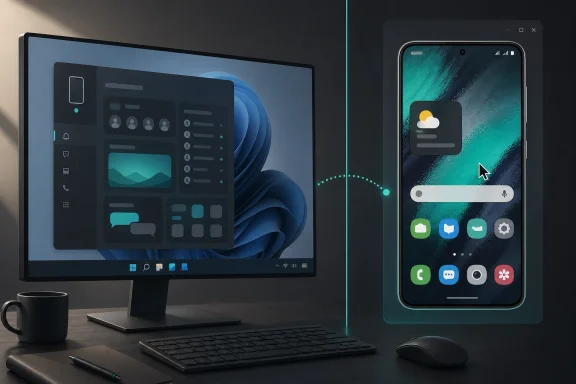
Android and Windows may come from different ecosystems, but they are no longer isolated islands. If you use an Android phone and a Windows 10 or Windows 11 PC, you can reply to messages from your desktop, view phone notifications, move photos, mirror your screen, run Android apps, test mobile software, or even boot a full Android-style environment in a virtual machine.The trick is choosing the right method. Some options connect your real phone to your PC. Others create a separate Android environment on Windows. Some are simple enough for everyday users, while others are better suited to developers, power users, or anyone who enjoys experimenting.
Here are four useful ways to combine Android and Windows, along with what each one does best, where it falls short, and when you should use it.
1. Use Phone Link for the Easiest Android-to-Windows Experience
For most people, Microsoft Phone Link is the best place to start. It is built into most modern Windows PCs and is designed specifically to make your Android phone feel like part of your desktop workflow.Phone Link is not an emulator. It does not create a separate Android device on your PC. Instead, it links your real phone to Windows through Microsoft’s Phone Link app on the PC and the Link to Windows app on Android.
Once paired, your phone and PC can share several common features, including messages, notifications, calls, recent photos, and in some cases Android app streaming or full phone screen control.
What Phone Link Can Do
Phone Link is especially useful if your goal is convenience rather than gaming or app testing. Once it is working, you can leave your phone on your desk and handle many basic tasks from your PC.You can:
- Read and reply to text messages from Windows.
- View and manage phone notifications.
- Make and receive calls from your PC when Bluetooth calling is configured.
The most advanced features are not universal. Samsung devices usually get the best Phone Link support, and many HONOR, OPPO, ASUS, vivo, OnePlus, Xiaomi, and Surface Duo devices support different levels of integration depending on model, region, Android version, and whether Link to Windows is preinstalled.
What You Need for Phone Link
For Android pairing, you generally need a Windows 10 PC with the October 2022 Update or later, or a Windows 11 PC. The Android phone should be running Android 10 or later, and both devices should be nearby and connected to the same Wi-Fi network.You will also need a Microsoft account. Phone Link relies heavily on that account to associate your phone with your Windows PC. If you use a work profile or multiple Android profiles, be aware that Phone Link may not support every profile configuration.
On many Windows PCs, Phone Link is already installed. If it is missing, you can enable or install it through Windows Settings or the Microsoft Store. On some Android phones, Link to Windows is preinstalled. If it is not, you can install it from the Google Play Store or Samsung Galaxy Store.
How to Set Up Phone Link
The setup process is straightforward:- Open Phone Link on your Windows PC.
- Choose Android as the device type.
- Open Link to Windows on your Android phone and follow the pairing prompts.
Those permissions matter. If you want notifications, messages, calls, photos, or app features to work, Android has to allow Link to Windows to access the relevant data. On newer Android versions, notification permission may need to be approved separately.
After pairing, open Phone Link on Windows and check the settings. You can choose which features are enabled, such as messages, calls, notifications, and photos. If you do not want a certain type of content to sync, turn that feature off.
Where Phone Link Falls Short
Phone Link is convenient, but it is not the same experience for every Android owner. A Samsung Galaxy S or Z series phone may support screen mirroring and app streaming, while another Android device may only support messages, calls, and notifications.It also depends on your network. Phone Link works best when the phone and PC are on the same reliable Wi-Fi network. If battery saver, aggressive background app restrictions, VPN software, or corporate security policies interfere, you may see delayed notifications or failed pairing.
There is also a privacy angle. Phone Link can display sensitive information from your phone on your PC, including messages, notifications, and possibly two-factor authentication codes. If you share your Windows account or leave your PC unlocked, treat Phone Link as an extension of your phone.
Best Use Case for Phone Link
Phone Link is ideal if you want your Android phone and Windows PC to cooperate in normal daily use. It is best for messaging, calls, notifications, photos, and lightweight app access on supported devices.It is not the best choice if you want to run Android games at high performance, test apps across multiple Android versions, or create a separate Android environment. For those situations, the next options are better.
2. Mirror and Control Your Android Screen With Scrcpy or Similar Tools
If Phone Link does not support screen mirroring on your device, or if you want a more direct and flexible option, screen mirroring tools are a great alternative.One of the most popular options is Scrcpy. It is a free, open-source tool that mirrors your Android phone’s display to your Windows PC and lets you control it with your mouse and keyboard. Unlike many commercial mirroring apps, Scrcpy does not require a user account, does not install a permanent app on your phone, and does not need internet access for normal local use.
Other tools, such as AirDroid and ApowerMirror, are also available, but Scrcpy is a favorite among power users because it is lightweight, fast, and highly configurable.
Why Scrcpy Is So Useful
Scrcpy is different from Phone Link because it focuses on real-time display and control. It does not try to become a full phone management suite. Instead, it does one thing very well: it shows your Android screen on your PC and lets you interact with it.That makes it useful for:
- Demonstrating mobile apps during meetings or recordings.
- Controlling a phone with a broken or inconvenient screen.
- Typing into Android apps using your PC keyboard.
What You Need Before Using Scrcpy
The main requirement is USB debugging. To enable it, you first unlock Developer options on your Android phone. This usually involves opening Settings, going to About phone, and tapping the build number several times until Android confirms developer mode is enabled.Then go into Developer options and turn on USB debugging. When you connect the phone to your PC, Android will ask whether you want to allow USB debugging from that computer. Approve the prompt.
On Windows, download Scrcpy only from its official project repository. This matters because third-party download sites may bundle outdated builds, fake installers, or unwanted software. Scrcpy’s own documentation warns users not to download it from random websites.
Basic Scrcpy Workflow
Once you have Scrcpy downloaded and extracted on Windows, the basic workflow is simple:- Connect your Android phone to the PC with a USB cable.
- Allow USB debugging on the phone when prompted.
- Run Scrcpy from the extracted folder.
Scrcpy can also work wirelessly over TCP/IP, but USB is easier and more reliable for first-time setup. Wireless mirroring is useful once everything is configured, especially if you want the phone charging elsewhere or do not want a cable on your desk.
Where Scrcpy Is Better Than Phone Link
Scrcpy is often better when you want screen control without worrying about device eligibility lists. It does not care whether your phone is a Samsung flagship or a budget Android model, as long as Android debugging works.It is also excellent for low-latency mirroring. If you are presenting, recording, or using a phone app from the desktop, Scrcpy often feels faster and cleaner than feature-heavy phone companion suites.
Scrcpy also gives advanced users many tuning options. You can reduce resolution to improve performance, limit frame rate, record the display, mirror the camera on supported devices, control audio behavior, and use virtual display features in newer versions.
Where Scrcpy Falls Short
Scrcpy is not as beginner-friendly as Phone Link. Enabling Developer options and USB debugging can be intimidating for non-technical users. Some Android brands also hide extra security toggles behind their own developer settings. Xiaomi devices, for example, may require an additional USB debugging security option before keyboard and mouse control works properly.It also does not replace your phone’s messaging, photo, or call integration the way Phone Link does. Scrcpy shows and controls the phone screen. If you want integrated notifications, call handling, and message syncing in Windows, Phone Link is still the simpler solution.
Security is another consideration. USB debugging gives your PC a powerful connection to your Android device. Only enable it on computers you trust, and disable it when you no longer need it.
Best Use Case for Screen Mirroring
Use Scrcpy or a similar mirroring tool when you want to control your actual Android phone from Windows, especially if Phone Link does not support screen mirroring on your model.It is perfect for demonstrations, troubleshooting, quick app control, typing into mobile apps, or managing a phone from a larger screen.
3. Run Android Apps on Windows With an Emulator
If your goal is to run Android apps on Windows without depending on your physical phone, an Android emulator may be the right tool.An emulator creates a virtual Android device on your PC. Instead of showing your real phone’s screen, it runs a separate Android environment in software. You can install apps, test Android versions, sign in to Google services if supported, and use Android apps directly on your desktop.
This is the closest option to “running Android apps on Windows,” especially now that Microsoft’s Windows Subsystem for Android is no longer the official path it once was. Microsoft ended support for Windows Subsystem for Android and the Amazon Appstore on Windows on March 5, 2025, so users looking for Android apps on Windows now generally need Phone Link app streaming, an emulator, or a virtual machine.
Popular Android Emulator Options
There are several kinds of emulators, and they are not all aimed at the same audience.BlueStacks is one of the most recognizable options for general users and gamers. It is designed to make Android games and apps easier to run on Windows, with keyboard mapping, game controls, and a consumer-friendly interface.
Google’s Android Emulator, included with Android Studio, is aimed primarily at developers. It is designed for testing apps across Android versions, screen sizes, hardware profiles, and API levels.
Other emulators, such as NoxPlayer and similar tools, also focus heavily on gaming and app compatibility, though users should always download from official sources and be careful with bundled software.
What an Emulator Does Well
The biggest advantage of an emulator is that it does not require your physical phone. You can run Android apps in a separate environment while your phone stays in your pocket.An emulator is good for:
- Playing Android games on a bigger screen.
- Testing apps without risking your personal phone data.
- Running a separate Android instance for experimentation.
Hardware Requirements Matter
Emulators can be demanding. They need CPU virtualization support, enough RAM, and enough disk space. Google recommends a 64-bit operating system and at least 16 GB of RAM and 16 GB of disk space for a good Android Emulator experience, though larger devices and newer Android versions may require more.If your PC has limited RAM, an older CPU, or slow storage, emulators may feel sluggish. They can take time to boot, consume noticeable system resources, and perform worse than a real Android device.
For gaming, performance varies widely. A powerful desktop PC may handle Android games smoothly, while a low-end laptop may struggle even with basic apps.
Emulator Limitations
An emulator is not your phone. It will not automatically show your real photos, messages, call logs, installed apps, or notifications unless you manually sign in, sync data, or install the same services.Some apps also detect virtual environments and may refuse to run. Banking apps, streaming apps, payment apps, and games with strict anti-cheat systems may block emulators or behave unpredictably.
There are also privacy and account considerations. If you sign into a Google account inside an emulator, treat that emulator as another Android device. Keep it updated, install apps only from trusted sources, and avoid using sketchy emulator builds.
Best Use Case for Emulators
Use an Android emulator when you want a separate Android environment on Windows. It is best for games, app testing, and experimentation.If your goal is to manage your real phone, use Phone Link or Scrcpy instead. If your goal is Android development, use Android Studio’s official emulator. If your goal is mobile gaming, a gaming-focused emulator may be more comfortable.
4. Run Android in a Virtual Machine
A virtual machine is another way to run Android-like systems on a Windows PC. Instead of using an app emulator, you create a VM using software such as VirtualBox, VMware Workstation, or Hyper-V-compatible solutions, then install an Android-based operating system such as Bliss OS or Android-x86.This approach is more advanced than Phone Link, Scrcpy, or a consumer emulator. It can be powerful, but it also requires more setup and more patience.
How an Android VM Works
A virtual machine simulates an entire computer. You allocate CPU cores, RAM, storage, display settings, and input devices. Then you install an operating system inside it.With Android-based PC operating systems, the goal is to run Android in a desktop-friendly environment. Some builds are based on the Android Open Source Project and include features designed for mouse, keyboard, resizable windows, and traditional PC hardware.
In theory, this gives you a full Android-style OS on your Windows desktop. In practice, results vary depending on your PC hardware, VM software, Android build, graphics support, and the apps you want to run.
Why Use a VM Instead of an Emulator?
The VM route appeals to users who want more control. You can treat the Android environment almost like a separate computer. You can snapshot it, isolate it, test software, and experiment without touching your main Windows installation.It is also useful for people who want to try Android-based desktop operating systems. Bliss OS, Android-x86, and similar projects can be interesting for testing how Android behaves on PC hardware.
A VM may also offer better separation than some emulators. If you are experimenting with APK files, testing settings, or learning Android internals, a VM can keep that activity away from your main Windows environment.
The Downsides of Android VMs
The main downside is complexity. Android is not designed for every generic virtual PC configuration. You may run into issues with graphics acceleration, audio, networking, screen resolution, Google Play services, mouse capture, sleep behavior, or app compatibility.Performance can also be uneven. A VM adds overhead, and Android builds for PC hardware may not behave like a polished commercial desktop operating system. Some apps expect phone sensors, mobile GPUs, ARM instruction sets, or Google certification. Those apps may crash, refuse to install, or run poorly.
You also need to be careful with where you download Android-based ISO files. Use official project pages, verify builds where possible, and avoid random repackaged images.
Best Use Case for Android VMs
An Android VM is best for enthusiasts, testers, and users who want a sandboxed Android-style operating system on Windows.It is not the easiest way to reply to messages, mirror your phone, or play a quick mobile game. It is better for experimentation, lab work, and learning.
Phone Link vs Scrcpy vs Emulator vs VM
Each method solves a different problem. The mistake many users make is assuming all Android-on-Windows tools do the same thing.Phone Link connects your real phone to Windows. Scrcpy mirrors and controls your real phone. An emulator creates a virtual Android device. A VM runs a fuller Android-based operating system in a sandbox.
Choose Phone Link If You Want Daily Convenience
Phone Link is the best default recommendation for everyday users. It is built around normal phone tasks: notifications, messages, calls, photos, and supported app experiences.Choose Phone Link if:
- You want official Microsoft integration.
- You mostly need messages, calls, photos, and notifications.
- You have a Samsung or other supported device with advanced features.
Choose Scrcpy If You Want Reliable Screen Control
Scrcpy is the better option when you want to see and control the actual phone screen from Windows. It is fast, lightweight, and supports many Android devices.Choose Scrcpy if:
- Phone Link screen mirroring is unavailable on your device.
- You want low-latency control over USB or local network.
- You are comfortable enabling USB debugging.
Choose an Emulator If You Want Android Apps Without Your Phone
An emulator is the right choice when you want Android apps running separately on Windows. It is not a mirror of your phone, but a separate Android instance.Choose an emulator if:
- You want to run Android games on a PC.
- You are testing Android apps.
- You do not need access to your real phone’s local data.
Choose a VM If You Want a Full Experimental Android Environment
A virtual machine is the most advanced option. It gives you the most control, but also the most troubleshooting.Choose a VM if:
- You want to experiment with Android-based desktop operating systems.
- You need a sandboxed environment.
- You are comfortable solving compatibility and driver issues.
A Few Safety Tips Before You Start
No matter which method you choose, take security seriously. Android-to-Windows integration can expose personal data, and unofficial tools can be risky if downloaded from the wrong place.Only download apps from official sources. For Phone Link, use Microsoft’s app and the official Link to Windows app. For Scrcpy, use the official project repository. For emulators or Android VM images, use the vendor or project’s official download page.
Be careful with permissions. If an app requests access to notifications, messages, contacts, phone calls, files, or location, make sure you understand why. Phone companion apps need permissions to work, but you should still disable features you do not use.
Also be cautious with APK sideloading. Installing random APK files inside an emulator or VM can still put your accounts and data at risk, especially if you sign in with a real Google account.
Troubleshooting Common Problems
If Phone Link will not pair, make sure both devices are on the same Wi-Fi network, signed into the correct Microsoft account, and close enough for any Bluetooth-based features. Restarting both devices often helps. You may also need to remove the phone from Phone Link and Link to Windows, then pair again from scratch.If notifications do not appear, check Android’s app notification permission for Link to Windows. On Android 13 and newer, notification access must be explicitly approved. Also check battery optimization settings, since some Android phones aggressively stop background apps.
If Scrcpy cannot see your phone, confirm that USB debugging is enabled and that you approved the computer’s debugging key on the phone. Try a different USB cable, because some cables are charge-only and do not carry data.
If an emulator is slow, check whether virtualization is enabled in your BIOS or UEFI settings. Close memory-heavy apps, reduce the virtual device resolution, and avoid running multiple emulators at once.
If an Android VM will not boot or has poor graphics performance, try a different Android build, change the virtual graphics controller, adjust allocated RAM, or use a different VM platform. Android VMs can be sensitive to hardware and driver combinations.
The Best Setup for Most Windows Users
For most people, the best Android and Windows setup is a combination of Phone Link and Scrcpy.Phone Link handles everyday integration: calls, texts, photos, and notifications. Scrcpy handles screen mirroring and direct control when Phone Link does not support your phone’s screen or when you want a faster, simpler mirror.
Emulators and virtual machines are still useful, but they serve different goals. Use an emulator when you want Android apps running independently on Windows. Use a VM when you want to experiment with Android as a full operating system.
Android and Windows may not be part of the same ecosystem, but with the right tool, they can work together surprisingly well.
Source: How-To Geek Use Android and Windows? Combine them with these 4 cool tools
