

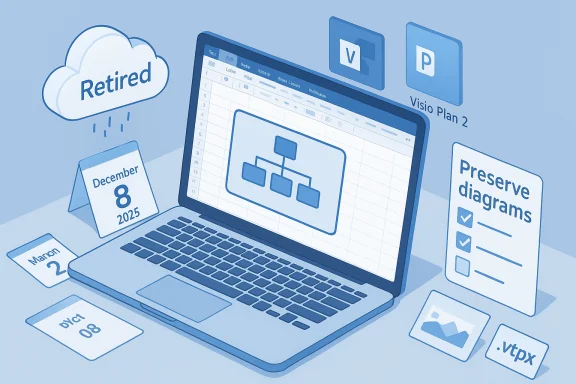
Microsoft has confirmed that the Visio Data Visualizer add‑in for Excel will be retired: it will be removed from the Excel add‑in store on December 8, 2025, and the cloud service that powers the add‑in will be shut down on March 2, 2026, after which embedded Data Visualizer diagrams in Excel will no longer load.
The Visio Data Visualizer add‑in launched as an accessible way to turn structured spreadsheet rows into flowcharts, cross‑functional flowcharts, and organization charts directly inside Excel, without requiring a Visio desktop license. It became a popular productivity shortcut for Microsoft 365 subscribers and casual Excel users who wanted automated diagram generation from tabular data.
Microsoft’s retirement notice gives users calendar time to preserve work created with the add‑in, but also makes clear the running service that renders and refreshes those diagrams will cease to exist on March 2, 2026. Until that shutdown date the add‑in will work as before; after it, the visuals will fail to load even though the Excel worksheets that hold their source data remain unaffected.
Key strengths of Microsoft’s move:
For most organizations the practical path is to inventory affected files, export editable Visio (.vsdx) or template packages (.vtpx) for key diagrams, and re‑architect any mission‑critical automation around supported tooling (Visio Plan 2, Visio for the web, or a third‑party diagram service). The underlying Excel data will remain untouched, but the visual layer will require proactive preservation and migration planning if you want to avoid losing access to embedded diagrams.
Take action now to avoid a last‑minute scramble when the retirement window closes.
Source: Windows Report Microsoft to Retire Visio Data Visualizer Add-in for Excel in March 2026
 Background
The Visio Data Visualizer add‑in launched as an accessible way to turn structured spreadsheet rows into flowcharts, cross‑functional flowcharts, and organization charts directly inside Excel, without requiring a Visio desktop license. It became a popular productivity shortcut for Microsoft 365 subscribers and casual Excel users who wanted automated diagram generation from tabular data.Microsoft’s retirement notice gives users calendar time to preserve work created with the add‑in, but also makes clear the running service that renders and refreshes those diagrams will cease to exist on March 2, 2026. Until that shutdown date the add‑in will work as before; after it, the visuals will fail to load even though the Excel worksheets that hold their source data remain unaffected.
What the Visio Data Visualizer did — a quick technical recap
- The add‑in converted a well‑structured Excel table into a Visio diagram container embedded in the workbook.
- It supported multiple diagram types (flowchart, cross‑functional flowchart, org chart) and linked shapes back to table rows so diagrams could refresh when source data changed.
- For Microsoft 365 subscribers the add‑in offered a pathway to open a generated diagram in Visio for the web or to edit with Visio desktop (two‑way sync available when using Visio Plan 2).
- Consumer users without Visio licences could still create visuals inside Excel, but those visuals relied on the cloud service to render and refresh.
The exact timeline you need to know
- December 8, 2025 — The Visio Data Visualizer add‑in and related Excel templates will be removed from the Excel add‑in store (AppSource) and will be removed from the Excel ribbon. After this date new diagrams cannot be created using the add‑in.
- March 2, 2026 — The backend service that renders Data Visualizer diagrams will be shut down and the add‑in will be fully retired. At this point embedded diagrams will no longer load in Excel; the underlying data tables will remain in place.
What you must do now — step‑by‑step preservation actions
Time is the most important variable here. The single best practical strategy is: inventory, export, verify.1) Inventory: find every workbook that contains a Data Visualizer diagram
- Search your OneDrive, SharePoint sites, shared network drives and local folders for Excel files that include the Data Visualizer container.
- Prioritize files used in reporting, automation, training materials, SOPs, or governance artefacts — those have the highest business value.
- Document owners and the diagram purpose (reporting, operational automation, org chart, etc. so you can decide whether to convert the diagram to an editable Visio file or a static image.
2) For Microsoft 365 subscribers: export diagrams to Visio (.vsdx) or a template package (.vtpx)
- Use the add‑in’s “Open in web” flow to create a Visio (.vsdx) file that you can store in OneDrive or open with Visio for the web. This preserves an editable Visio representation separate from the Excel container. Confirm the file opens in Visio for the web after you export.
- If you need to preserve the diagram plus the mapping and workbook as a reusable template, export a Visio template package (.vtpx) which bundles the diagram, Excel workbook, and mapping for reuse. The Visio desktop app can install and use .vtpx packages.
- Note: after March 2, 2026 the data link/refresh capability will not work even if you open the exported Visio file; the file will open for viewing and editing but the automatic data‑linked refresh will be broken because the add‑in service is retired. Plan ahead for re‑establishing any dynamic connections in Visio or another tool.
- Open the Excel workbook with the Data Visualizer diagram.
- In the diagram container select the ellipses (…) and choose Open in web.
- Sign in if prompted; a Visio file will be created in your OneDrive or in the location you choose.
- Download and store the .vsdx in a managed repository or keep it in your Microsoft 365 storage so it’s accessible in Visio for the web or Visio desktop.
3) For consumer (non‑Microsoft 365) users: convert diagrams to static images
- Use the add‑in option Show as Saved Image (or simply copy the diagram as an image) and paste it into the same workbook or into an archival location (PNG, JPEG, PDF).
- Save the Excel workbook and maintain a copy of the static image in versioned storage. This preserves a visual reference even though interactivity and data sync are lost.
4) Validate preserved files
- Open each exported .vsdx in Visio for the web or desktop and confirm the diagram appears and that metadata you expect (shape names, labels) survived export.
- For .vtpx packages, test installation on at least one machine to confirm the package installs and the included Excel template opens correctly.
Technical caveats and limits you must verify
- Saving a diagram as .vsdx preserves a discrete Visio file, but any live data linking that relied on the Data Visualizer cloud service will no longer refresh after March 2, 2026. Treat exported diagrams as snapshots unless you migrate them to a platform or workflow that supports re‑linking.
- Visio for the web can view many Visio files, but certain data‑connected drawings and specialized shapes have editing limitations in the web experience. If your workflows relied on advanced two‑way sync, the Visio desktop app (Visio Plan 2) is the supported editing surface.
- The Excel worksheets that contained the diagram data are not deleted by the retirement; they remain intact. The risk is loss of the visual representation — not loss of the underlying rows and columns. That makes the export step lower‑risk if you keep the workbook data.
Alternatives and migration options
Organizations and power users have several practical migration paths depending on budget, lock‑in tolerance, and requirements for dynamic diagramming.Recommended: Visio Plan 2 (desktop)
- What it gives you: Full Visio desktop experience, advanced Data Visualizer templates, two‑way sync between Excel and Visio when used correctly, ability to export/import .vtpx, and richer diagram automation.
- When to pick it: If your environment requires ongoing, editable data‑linked diagrams and you can license the desktop software for diagram owners and maintainers. Microsoft explicitly suggests Visio Plan 2 for users who need diagram automation capabilities moving forward.
Lightweight: Visio for the web + .vsdx archival
- What it gives you: View and minor edits in browser for exported .vsdx files; good for archival and occasional edits. Does not fully replace the add‑in’s data‑link functionality in every scenario, and certain advanced edits require the desktop app.
Third‑party diagramming tools
- Tools such as draw.io (diagrams.net), Lucidchart, or enterprise diagram platforms may be suitable substitutes if you can rework the data flow. These tools often import Visio files or can recreate diagrams from CSV/Excel exports, though fidelity varies.
- Evaluate import fidelity, long‑term licensing cost, and integration with your document management (SharePoint, Confluence) before committing.
Programmatic export or rebuild
- For high‑volume or automation scenarios, consider programmatically extracting the Excel tables and using an automated diagram builder (PowerShell, Power Automate flows that call APIs, or a headless diagram engine) to rebuild visuals outside the retired service.
- This is heavier upfront work but decouples you from Visio’s cloud render dependency.
Enterprise and governance implications — critical analysis
The retirement exposes an important pattern: lightweight, cloud‑backed add‑ins can hide runtime dependencies that make content fragile when the service is retired.Key strengths of Microsoft’s move:
- It gives a measured wind‑down with concrete dates and export paths, allowing organizations time to prepare.
- Microsoft points users toward supported, high‑capability alternatives (Visio Plan 2 and Visio for the web), which can be a path to more robust, enterprise‑grade diagram management.
- Embedded diagrams created by the add‑in will become inaccessible after March 2, 2026 even if the Excel file remains usable. That’s a specific form of content fragility — files look intact but lose critical rendering.
- Organizations that used the add‑in as part of automation, documentation or auditing workflows may face non‑trivial remediation costs to re‑establish live diagram workflows (licensing, rebuilds, or third‑party replacements).
- There’s potential for data governance confusion: exported .vsdx files may live outside original document retention or discovery scopes unless IT updates policies and retention rules.
- Compliance and records: diagrams used as part of standard operating procedures, compliance evidence or audit trails must be exported and versioned into the record retention system.
- Automation and integrations: any process that programmatically consumed embedded diagrams or relied on diagram refresh must be audited and re‑designed.
- Training and documentation: screenshots, manuals, and training decks that included live diagrams must be updated with exported images or new Visio files.
Recommended checklist for IT teams and power users
- Inventory all Excel workbooks with Data Visualizer diagrams and record owners.
- Prioritize by business impact: regulatory artifacts, automated reports, and shared org charts first.
- Export prioritized diagrams to .vsdx; where necessary, export .vtpx packages for reuse.
- For consumer or non‑licensed users, capture high‑resolution static images and store them in versioned document repositories.
- Test Visio for the web and Visio desktop workflows to confirm exported files open and meet editability requirements.
- Update retention and discovery policies to include exported Visio files and static images, and ensure they are covered by backups and records management.
- If automation depends on diagrams, start re‑engineering flows now; don’t wait until the retirement window compresses timelines.
Frequently encountered edge cases
- My exported .vsdx doesn’t preserve the dynamic data link: That’s expected. The .vsdx is a file snapshot and, following the add‑in retirement, the add‑in’s cloud linkage that enabled refresh will no longer be available. Use Visio desktop (Plan 2) to re‑establish new data connections if required.
- Can I still use Data Visualizer after December 8, 2025? You can create/edit existing diagrams until the service shuts down on March 2, 2026, but the add‑in will be removed from the add‑in store on December 8, 2025; after that date it will no longer be available for new installs.
- Will my Excel data be deleted? No — the underlying Excel tables remain intact. The retirement affects the rendering and refresh of embedded diagrams, not the data rows themselves.
Longer‑term lessons for organizations
- Treat cloud‑rendered add‑ins as services that may be retired; maintain canonical copies of any content they produce.
- Use vendor‑neutral export formats where possible (.vsdx is Visio’s standard but many third‑party tools can import it); when using proprietary cloud features, ensure a documented exit strategy.
- Apply the same lifecycle governance we use for applications to add‑ins: inventory, owner, retention rules, replacement plan.
- Where dynamic diagrams are business‑critical, allocate budget for desktop or enterprise licences (Visio Plan 2 or equivalent) to reduce single‑service fragility.
Conclusion
Microsoft’s decision to retire the Visio Data Visualizer add‑in for Excel is disruptive but manageable if acted upon with urgency: export your diagrams, verify them, and update governance and automation that relied on the add‑in. The product retirement is explicit and dated — remove from store on December 8, 2025 and service shutdown on March 2, 2026 — which gives users and IT teams a fixed window to prepare.For most organizations the practical path is to inventory affected files, export editable Visio (.vsdx) or template packages (.vtpx) for key diagrams, and re‑architect any mission‑critical automation around supported tooling (Visio Plan 2, Visio for the web, or a third‑party diagram service). The underlying Excel data will remain untouched, but the visual layer will require proactive preservation and migration planning if you want to avoid losing access to embedded diagrams.
Take action now to avoid a last‑minute scramble when the retirement window closes.
Source: Windows Report Microsoft to Retire Visio Data Visualizer Add-in for Excel in March 2026
