

Microphones failing inside a VMware virtual machine are rarely mystical hardware failures — in most cases the problem lives in configuration, permissions, or driver integration between the host, VMware, and the guest OS. This article walks through a practical, prioritized troubleshooting path that fixes the vast majority of microphone problems in VMware Workstation and VMware Player, explains why each step matters, and points out the riskier changes to avoid. Follow these steps in order and you’ll usually be back to clear audio in minutes.
Virtual machines add an extra layer between your physical hardware and the operating system that’s trying to use it. That layer is powerful — it isolates, snapshots, and moves whole systems — but it also creates typical failure points for peripherals such as microphones:
Caveat: some advanced host audio setups (virtual mixers, USB audio interfaces used exclusively by the host) can still block the guest. If you use a dedicated USB audio interface, consider USB passthrough as described later.
Windows guest checklist:
Caution: if your host uses an older or very new VMware Workstation version, match VMware Tools to the VMware release — normally the bundled Tools match the host version automatically when you select Install/Reinstall.
Windows guest steps:
Steps (Windows guest):
Windows guest driver checklist:
Steps (Windows guest):
Conclusion: Microphone failures in VMware are usually configuration or integration problems — not dead hardware. Work through the checklist, escalate carefully, and use USB passthrough when you need a bulletproof solution.
Source: Guiding Tech How to Fix Malfunctioning Microphone in VMWare
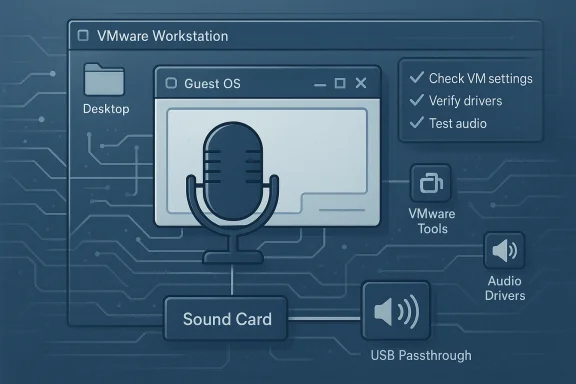 Background
Virtual machines add an extra layer between your physical hardware and the operating system that’s trying to use it. That layer is powerful — it isolates, snapshots, and moves whole systems — but it also creates typical failure points for peripherals such as microphones:- The VM may not be configured to expose any audio input to the guest.
- The host can hold exclusive access to the microphone, preventing pass-through.
- The guest OS may block microphone access for privacy reasons or may be using the wrong input device.
- Device drivers and VMware Tools (the integration layer) can be missing or out of date.
- Audio services inside the guest can be stopped, hung, or misconfigured.
Overview: The troubleshooting roadmap
- Confirm the VM is configured to present an audio input device.
- Check the guest operating system’s sound input selection and privacy settings.
- Reinstall or update VMware Tools to restore integration (including audio pass-through).
- Restart audio services and check device drivers inside the guest.
- Verify no host-side application or exclusive mode is blocking the mic.
- Use USB passthrough or a direct USB microphone as a reliable workaround if passthrough over the host sound card fails.
Why VMware Tools matters
VMware Tools is the integration package that improves device handling, mouse/keyboard sync, display drivers, and — importantly here — audio device integration between host and guest. A broken or missing VMware Tools install commonly results in missing guest drivers or missing virtual device entries that the guest OS expects. Reinstalling VMware Tools refreshes the integration layer and often restores audio input capability without touching drivers or host settings. Reinstalling or updating VMware Tools is therefore a high-reward first step when a mic is not available in the guest.Fix 1 — Verify and enable the VM’s sound card (VMware settings)
Before you change anything inside the guest, ensure VMware is actually configured to present a sound device.- Power off the virtual machine (do not suspend).
- Open VMware Workstation / Player and select the VM.
- Open Edit virtual machine settings (or Settings).
- In the hardware list, locate the Sound Card entry.
- Make sure Connect at power on is checked.
- Prefer Use default host sound card (this routes the host’s audio devices to the guest); alternatively choose a specific host device if VMware shows one.
- Save and power the VM on.
Caveat: some advanced host audio setups (virtual mixers, USB audio interfaces used exclusively by the host) can still block the guest. If you use a dedicated USB audio interface, consider USB passthrough as described later.
Fix 2 — Check internal sound settings inside the guest OS
Once the VM is presenting a sound device, the guest OS (Windows or Linux) still needs to pick the right input and allow access.Windows guest checklist:
- Right‑click the speaker icon → Open Sound settings (or Settings > System > Sound).
- Under Input / Recording, make sure the expected device is selected (often listed as Microphone Array, Internal Mic, or the name of your USB headset).
- Raise the input volume slider and perform a quick test using the built-in test meter. If the meter doesn’t move, the guest isn’t receiving any audio from the virtual sound card.
- Open the legacy Control Panel sound dialog (More sound settings) → Recording tab → select device → Properties → Levels and ensure it’s not muted and volume is adequate.
Fix 3 — Reinstall / update VMware Tools
If the guest still shows no usable microphone, reinstall VMware Tools:- Power on the VM and log into the guest.
- From the VMware menu bar choose VM → Install VMware Tools (or Reinstall VMware Tools if presented).
- Inside the guest, run the installer; accept defaults unless you have custom integration reasons.
- Reboot the guest after installation completes.
Caution: if your host uses an older or very new VMware Workstation version, match VMware Tools to the VMware release — normally the bundled Tools match the host version automatically when you select Install/Reinstall.
Fix 4 — Enable microphone permissions in the guest OS (privacy)
Modern guest OS builds (Windows 10/11) include privacy blocking for microphone access. Even if a device is present and drivers are fine, microphone access might be disabled.Windows guest steps:
- Open Settings → Privacy (or Privacy & security).
- Select Microphone.
- Ensure Microphone access for this device is On.
- Turn on Allow apps to access your microphone and enable access for specific applications (Zoom, Teams, browsers, etc.). Also turn on Let desktop apps access your microphone if needed.
- Re-launch the app after changing permissions (apps read permissions at startup).
Fix 5 — Restart Windows audio services inside the guest
Audio services sometimes hang or fail to initialize. Restarting them is low risk and often effective.Steps (Windows guest):
- Press Win + R, type services.msc and press Enter.
- Find Windows Audio, right‑click → Restart.
- Find Windows Audio Endpoint Builder, right‑click → Restart.
- Optionally restart Multimedia Class Scheduler (MMCSS) if present.
Fix 6 — Update or reinstall audio drivers inside the guest
If the guest OS shows the microphone but audio is one-way or inconsistent, drivers could be the culprit.Windows guest driver checklist:
- Open Device Manager → Audio inputs and outputs.
- Right‑click the microphone device → Update driver → Search automatically.
- If problems started after a driver update, use Roll Back Driver where available.
- As a stronger step, uninstall the audio device and reboot the VM — Windows will re-detect and reinstall a driver.
- If the guest uses a vendor-specific virtual driver (e.g., Intel Smart Sound, Realtek), consider installing the vendor’s driver package if the default driver fails.
Fix 7 — Disable exclusive mode and audio enhancements
Some apps take exclusive control of audio devices; this can prevent other apps or the VM from receiving input.Steps (Windows guest):
- Control Panel → Sound → Recording tab → select your mic → Properties → Advanced tab.
- Uncheck Allow applications to take exclusive control of this device.
- On Enhancements (if present), try Disable all enhancements.
- Apply and test.
Fix 8 — Verify host-side conflicts and close competing apps
If the host has an application actively using the microphone, VMware may not be able to route that device into the VM. On the host:- Close conferencing apps (Zoom, Teams, Skype), browser tabs with active mic permissions, voice-recording software, and any virtual audio apps (Voicemeeter, NVIDIA Broadcast, Camo, etc.).
- If you use a Bluetooth headset, ensure the host isn’t using it in “Hands-Free” mode for a call (that profile can lock the microphone).
- If necessary, reboot the host to clear any exclusive handles.
Workaround — Use USB passthrough for USB microphones/headsets
If host sound card passthrough is unreliable or you use a dedicated USB microphone, use VMware’s USB passthrough:- Connect the USB microphone to the host.
- In the VM’s removable devices menu (while powered on), select the USB mic and choose Connect (Disconnect from host).
- The guest should enumerate the mic as a native USB audio device; install drivers inside the guest if prompted.
Advanced diagnostics and last-resort steps
If the above steps fail, escalate carefully:- Run the guest OS built-in troubleshooters: Settings → Troubleshoot → Other troubleshooters → Recording Audio (Windows). These automated tools sometimes detect misconfigurations missed manually.
- Test with a different microphone (USB or external) to rule out hardware failure. If an external mic works in the guest, the internal mic or its routing is suspect.
- Boot the guest to Safe Mode or a Linux live ISO to test whether audio works under a different OS image; persistent failure across OSes suggests host-side or VMware settings problems.
- If you suspect corrupted OS components inside the guest, run SFC and DISM: sfc /scannow and DISM /Online /Cleanup-Image /RestoreHealth. These fix underlying system corruption that occasionally affects audio.
- As a last resort, consider creating a fresh VM with a clean OS install to determine whether the issue is specific to that particular VM configuration.
Common pitfalls and risks
- Don’t delete host drivers unless you have a fallback: removing drivers on the host can leave your host system temporarily without sound and complicate recovery.
- When using USB passthrough, remember that the device becomes inaccessible to the host while connected to the VM — this may disrupt meetings or recordings if you forget.
- Disabling exclusive mode and enhancements may change how certain audio suites behave; if you rely on vendor-specific audio enhancements, you may need to restore settings after testing.
- Reinstalling VMware Tools is safe, but if your VMware Workstation build is very old or very new relative to the guest, check release notes: in rare cases mismatched Tools can introduce new issues.
- Some virtual audio drivers and third-party audio routing tools (Voicemeeter, virtual cable drivers) can interact poorly with VM audio; disable them when testing.
Practical checklist (quick reference)
- Power off VM → Edit settings → Sound Card → Connect at power on + Use default host sound card.
- Power on VM → verify guest sees mic in Sound settings → set correct input and raise level.
- Reinstall VMware Tools → reboot guest.
- Guest: Settings → Privacy → Microphone → enable device and apps.
- Guest: services.msc → restart Windows Audio and Windows Audio Endpoint Builder.
- Guest: Device Manager → update or reinstall audio drivers.
- Disable exclusive mode / disable enhancements.
- Host: close apps that might hold mic (Zoom, Teams, browser tabs, virtual audio apps).
- If needed: use USB passthrough for direct device handoff to guest.
Why this sequence works (technical explanation)
VMware exposes a virtual sound card to the guest; that virtual device depends on two things working correctly:- The host must allow VMware to access the physical audio path or hand off a USB device.
- The guest must be able to enumerate, trust, and permit use of the virtual device.
When to call it: hardware or host-level failures
You should suspect real hardware or host-wide issues when:- The microphone fails in the host OS as well as the guest.
- Different VMs and clean installs also fail to see the mic.
- USB passthrough also fails to present the device to the guest (indicating host USB stack problem).
- Host diagnostics or BIOS/UEFI show audio disabled.
Final thoughts and best practices
- Keep VMware Tools up to date and reboot the guest after major host or guest OS updates.
- Use dedicated USB microphones for critical audio work; passthrough is simpler and less prone to conflicts than sound‑card sharing.
- When troubleshooting, eliminate variables: test with the least number of software layers (simple recorder app in the guest), then add conferencing apps and virtual audio tools back in.
- Maintain a basic checklist (VM settings → guest input → VMware Tools → permissions → services → drivers) to methodically rule out causes.
Conclusion: Microphone failures in VMware are usually configuration or integration problems — not dead hardware. Work through the checklist, escalate carefully, and use USB passthrough when you need a bulletproof solution.
Source: Guiding Tech How to Fix Malfunctioning Microphone in VMWare
