

If you want to buy a cheap Bluetooth microphone for use with a Windows 10 PC and — crucially — hear your mic live through your speakers, you need more than a shopping link: you need to understand Bluetooth audio profiles, Windows audio endpoints, the built‑in monitoring tools Windows provides, and the realistic trade‑offs (latency, fidelity, and driver quirks) that govern whether the setup will actually work the way you expect.
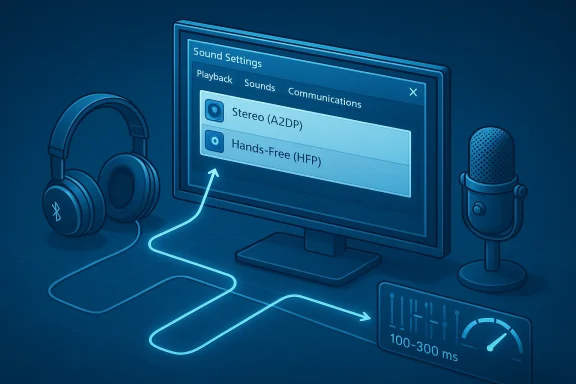
Bluetooth headsets and standalone Bluetooth microphones are attractive because they remove cables and are widely available at bargain prices. But Windows treats Bluetooth audio differently from wired audio: it exposes separate playback endpoints for high‑quality stereo audio (A2DP) and a low‑bandwidth hands‑free/call profile (HFP/HSP) that enables the microphone. That handshake is the reason many users see good music quality until the mic is activated — then sound quality collapses because Windows switches profiles to give the microphone functionality. This is a longstanding Windows 10 behavior and the single biggest practical limitation for cheap Bluetooth headsets used for PC calls.
There are three practical ways to approach the problem:
Plan purchases around those trade‑offs, test quickly in the return window, and use headphones for monitoring to avoid feedback. For many Windows 10 users, spending a little more on a small USB microphone yields far greater real‑world improvements to call clarity than spending the same money on a Bluetooth headset alone.
Source: Born2Invest https://born2invest.com/?b=style-328814312/
 Background / Overview
Bluetooth headsets and standalone Bluetooth microphones are attractive because they remove cables and are widely available at bargain prices. But Windows treats Bluetooth audio differently from wired audio: it exposes separate playback endpoints for high‑quality stereo audio (A2DP) and a low‑bandwidth hands‑free/call profile (HFP/HSP) that enables the microphone. That handshake is the reason many users see good music quality until the mic is activated — then sound quality collapses because Windows switches profiles to give the microphone functionality. This is a longstanding Windows 10 behavior and the single biggest practical limitation for cheap Bluetooth headsets used for PC calls.There are three practical ways to approach the problem:
- Accept the Bluetooth trade‑off and tolerate lower playback quality when the mic is active (typical for inexpensive Bluetooth headsets).
- Use the headset for stereo playback (A2DP) and use a separate mic (built‑in, USB, or a dedicated USB lavalier) for voice — the most reliable route for good sound on both ends.
- Route audio inside Windows so the microphone input is monitored locally (sent to speakers) using Windows’ built‑in monitor features or virtual audio routing tools. This lets you hear the mic live but introduces echo/latency risks, especially with Bluetooth.
What to look for when shopping for a cheap Bluetooth microphone
Buying cheap hardware is about managing expectations. Here are the practical points to check before you click Buy.Core compatibility and profile support
- HFP/HSP support — ensure the headset explicitly supports Hands‑Free Profile (HFP) or Headset Profile (HSP) if you plan to use the mic for calls on Windows. Cheap models often support it, but implementation quality varies. Windows will create both a Stereo endpoint and a Hands‑Free endpoint for most headsets — know which you need for which purpose.
- A2DP for media — A2DP provides good stereo playback but does not carry the mic signal. If you require high‑fidelity playback while talking, a Bluetooth headset alone can’t give you both simultaneously on Windows 10 without compromises.
Microphone type and placement
- Built‑in boom mics or multi‑mic arrays perform better for voice than tiny in‑ear mics. Budget picks will still be mediocre in noisy environments.
- For conference calls, a separate USB microphone (even a cheap USB mic) often produces better clarity than most sub‑$50 Bluetooth earbuds.
Battery life and charging
- Cheap Bluetooth mics vary wildly in battery performance; check realistic user reports. If you use the mic for long remote calls, battery life matters as much as signal quality. Community guides and reviews often call out inconsistent battery claims on low‑cost models.
Return policy and seller reputation
- Marketplace knockoffs and clones are common in budget segments. Prefer sellers with clear return and warranty policies so you can test the mic and return if it behaves poorly with Windows 10.
Practical buying checklist (short)
- Confirm HFP/HSP support in product text or specs.
- Check for separate stereo and hands‑free endpoints in product pages or user feedback.
- Prefer models with wired fallback (3.5mm cable) if possible.
- Accept that for PC conferencing, a separate USB mic is often the better purchase decision.
How Windows 10 handles Bluetooth audio — the important technical bits
Understanding these details is essential to getting the mic to output to your speakers reliably.- Windows typically registers two endpoints for a Bluetooth headset: a Stereo (A2DP) endpoint for high‑quality playback, and a Hands‑Free (HFP/HSP) endpoint that exposes the headset microphone but reduces playback quality. Apps and Windows settings may present both; you choose the one appropriate to the task.
- If you enable the headset microphone as your input device, Windows may use the Hands‑Free endpoint for audio and degrade playback fidelity — many community guides and practical tests have documented this behavior. If you need both good playback and a mic, using separate devices is the recommended workaround.
- Disabling the Hands‑Free Telephony service for the device in Devices and Printers will force the stereo endpoint for playback but will also disable the headset microphone for that PC. Use this only if you don’t need the mic on that machine.
Method A — The simplest built‑in route: Windows "Listen to this device"
If your goal is to monitor (hear) your microphone through speakers or headphones, Windows has a built‑in, no‑cost option.When to use this
- You want a local, simple method to hear your mic for testing, streaming cues, or quick monitoring.
- You are using a wired mic or USB mic, or you accept that Bluetooth introduces extra latency and echo.
Step‑by‑step: enable "Listen to this device"
- Right‑click the speaker icon on the taskbar and choose Sounds (or press Windows key, type "Sound settings", open it, then click "Sound Control Panel").
- In the Sound dialog, go to the Recording tab.
- Locate the microphone you want to monitor, right‑click it and choose Properties.
- Select the Listen tab.
- Check Listen to this device.
- From the dropdown Playback through this device, choose the speaker or headset you want the mic audio sent to.
- Click Apply and OK.
Important caveats
- If the monitored mic is a Bluetooth device, Expect latency — Bluetooth adds buffering that can cause a noticeable delay between speaking and hearing yourself. This is especially true for cheap Bluetooth gear and the hands‑free profile.
- If you monitor through the same speakers that are near the microphone, you’ll get immediate feedback/echo. Reduce speaker volume or monitor through headphones to avoid feedback loops.
- For Bluetooth headsets specifically: because of endpoint switching and profile limitations, you may see stuttering or dropped audio when the system switches between Stereo and Hands‑Free endpoints.
Method B — Use Stereo Mix (if available) to route mic to speakers
Stereo Mix is a legacy Windows device that can mix inputs (microphones) with playback. Some systems hide or disable it, but enabling it can be a quick route to live monitoring.When to use this
- Your sound driver exposes Stereo Mix.
- You’re comfortable enabling hidden devices and adjusting default endpoints.
Steps: enable and use Stereo Mix
- Right‑click the speaker icon → Sounds → Recording tab. Right‑click the blank area and make sure Show Disabled Devices is checked.
- If Stereo Mix appears, right‑click and Enable it.
- Select Stereo Mix → Properties → Listen tab → check Listen to this device and choose the speakers/headphones.
- Optionally, set Stereo Mix as the default recording device so apps pick it up automatically.
Troubleshooting
- Many modern laptops or minimal drivers omit Stereo Mix. If it’s missing, you can sometimes get it by installing a fuller driver package from the audio chipset vendor (Realtek) or using third‑party virtual audio drivers.
- Stereo Mix routes all system audio and inputs, so control levels carefully to avoid loud loops or feedback.
Method C — Virtual audio routing (VB‑Audio / VoiceMeeter) — flexible and powerful
For more reliable routing, lower latency control, and advanced mixing (multiple mics, per‑app routing), use virtual audio cables and mixers. This is the recommended path for streamers and power users.Why use it
- Virtual audio tools let you create a virtual cable that maps microphone input to a virtual playback device, and then to your real speakers — with fine control of buffering, gain, and routing.
- They reduce reliance on the limited Windows “Stereo vs Hands‑Free” behavior because you can explicitly route endpoints to different devices.
Typical setup (conceptual)
- Install a virtual audio driver (for example: virtual audio cable or a mixer like VoiceMeeter).
- Set the physical mic (or Bluetooth mic) as the input in VoiceMeeter.
- Route VoiceMeeter output to your speaker device. Optionally set VoiceMeeter’s virtual output as the default playback for applications you want monitored.
- Use VoiceMeeter’s panels to control monitoring, mute, and levels.
Pros and cons
- Pros: precise routing, multiple inputs, lower latencies than raw Bluetooth monitoring (depending on configuration), mixing capabilities.
- Cons: setup complexity; third‑party software; tuning required. Bluetooth mic latency still applies: routing can’t remove the underlying wireless delay entirely.
Bluetooth‑specific troubleshooting and tips
Bluetooth introduces several real‑world headaches you must plan for.Common Windows 10 Bluetooth gotchas
- Windows often creates the two endpoints for each headset: Stereo for rich playback and Hands‑Free for calls. If your application selects Hands‑Free to use the mic, playback degrades.
- If you want stereo music quality and also want to use a mic, the practical workaround is to use a separate mic for the PC (USB or built‑in) while leaving the headset on Stereo. Many community guides recommend this approach for better call fidelity.
- You can force the stereo path by disabling the Hands‑Free Telephony service for that device in Devices and Printers → Properties → Services, but this prevents the headset mic from working on that PC. Use it only when you don’t need the mic on that machine.
Latency, echo and feedback
- Bluetooth monitoring of the mic often has 100–300+ ms of round‑trip latency on budget devices. That delay is audible and often disorienting if you monitor yourself while speaking.
- To avoid feedback loops, monitor on headphones, not speakers. If speakers are the only option, reduce mic sensitivity and speaker volume.
If your Bluetooth mic won't appear as an input
- Check Settings → Privacy → Microphone and make sure apps are allowed microphone access. Windows privacy settings commonly block apps from seeing mics.
- Make sure the headset’s Hands‑Free endpoint is the one selected under Settings → System → Sound → Input. If no Hands‑Free endpoint exists, the headset may be audio‑only when paired (some models route mic via wired cable only).
Practical workflows and recommended configurations
Below are a few real‑world setups for common use cases, with steps and tradeoffs.1) Quick monitoring for testing (lowest effort)
- Use a wired or USB mic if possible.
- Enable Listen to this device for that input and monitor through headphones to avoid feedback.
- Expect minor latency; use this strictly for testing, not live streaming to an audience.
2) Bluetooth headset for calls but with good playback
- Keep your Bluetooth headset paired and set the Stereo endpoint as default playback.
- Use a separate cheap USB microphone (even an inexpensive one) for input. Select the USB mic as the input device in Windows and conferencing apps.
- This preserves high‑quality audio on playback while maintaining acceptable mic quality with minimal Bluetooth tradeoffs.
3) Live monitoring plus mixing (streamers / podcasters)
- Install a virtual audio mixer (VoiceMeeter or VB‑Audio) and a virtual cable.
- Route your mic into the mixer and route the virtual output to your speakers/headphones.
- Use dedicated hardware or a second USB mic if you need stable low latency and consistent quality.
Troubleshooting checklist — common fixes
- Mic muted or not detected: Check Windows Sound settings (Settings → System → Sound → Input) and Windows Privacy → Microphone.
- Stereo disappears when mic used: This is normal — Windows switches to Hands‑Free for mic; use a separate mic or accept degraded playback.
- Distorted or low mic level: In Control Panel → Sound → Recording → Properties → Levels, adjust gain and Microphone Boost carefully; cheap mics may require more boost and introduce noise.
- Device not pairing or multiple endpoints confuse apps: Remove device, re‑pair, and explicitly select the intended input/output endpoints in Sound settings. Consider uninstalling and reinstalling Bluetooth drivers if the device misbehaves.
Security and privacy considerations
- Any microphone can record audio; Windows’ microphone privacy controls should be audited when you add new devices. Ensure you understand what apps have microphone access and revoke permission where appropriate. Windows exposes these controls in Settings → Privacy → Microphone.
- Cheap Bluetooth devices sometimes come with companion apps or cloud features that request additional permissions. Read privacy policies before installing such software.
Verdict — what to buy and when
- If your priority is wireless convenience and occasional calls: a cheap Bluetooth headset or earbuds will work, but accept lower call quality on Windows 10 and manage expectations about playback fidelity when the mic is active. Test in the return window and keep receipts.
- If you need both decent playback and decent mic quality on a PC for conferencing, streaming, or recording: buy a cheap USB microphone and pair it with your Bluetooth headphones for comfortable monitoring. This is the most pragmatic, low‑risk configuration for Windows 10.
- If you’re technically inclined and want flexible routing (monitoring, mixing, per‑app routing), invest a little time learning VoiceMeeter or similar virtual audio tools. They solve many routing problems but add complexity.
Quick reference: step‑by‑step summary for monitoring mic to speakers on Windows 10
- For a wired/USB mic:
- Open Control Panel → Sound → Recording.
- Select mic → Properties → Listen → check Listen to this device → choose playback device → Apply.
- For Stereo Mix (if present):
- Show disabled devices in Recording tab.
- Enable Stereo Mix → Properties → Listen → choose playback device.
- For Bluetooth mic with better overall sound:
- Use Bluetooth headset for playback (Stereo) and set a USB mic as Windows Input for calls.
- In Devices and Printers you may disable Hands‑Free Telephony to force stereo playback — but this disables the headset mic on that PC. Use with caution.
- For professional routing:
- Install virtual audio software (VoiceMeeter / VB‑Audio).
- Route mic → virtual mixer → output to speakers/headphones; configure apps to use virtual outputs as needed.
Conclusion
Cheap Bluetooth microphones offer undeniable convenience, but Windows 10’s handling of Bluetooth audio profiles means the experience can be a compromise: either decent playback or a usable mic — rarely both at the same time on a single Bluetooth headset. For practical Windows use, the most reliable patterns are (a) use a separate USB mic for call quality while keeping Bluetooth for playback, or (b) accept the hands‑free profile limitations and use Windows’ built‑in monitoring features for quick tests. If you need advanced routing, virtual audio mixers like VoiceMeeter give you the control you need at the cost of setup time.Plan purchases around those trade‑offs, test quickly in the return window, and use headphones for monitoring to avoid feedback. For many Windows 10 users, spending a little more on a small USB microphone yields far greater real‑world improvements to call clarity than spending the same money on a Bluetooth headset alone.
Source: Born2Invest https://born2invest.com/?b=style-328814312/
