

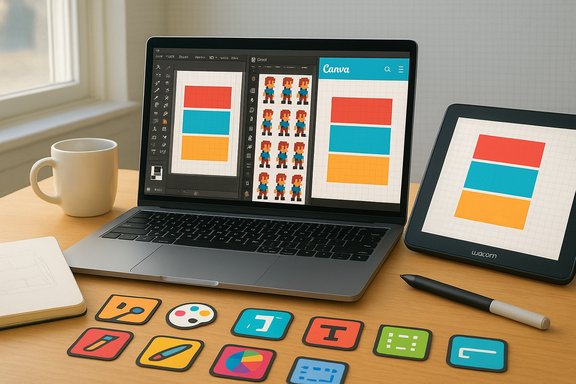
Photoshop and Illustrator still dominate professional workflows, but if you want to start designing, editing, or creating pixel art on Windows this weekend without paying Adobe’s subscription fees, there are excellent free and low-cost alternatives that cover almost every creative need — from full raster editing to sprite sheets and template-driven social assets. Try GIMP for Photoshop‑style image work, Piskel for fast pixel art and sprites, and Canva for template-driven design and quick social or print outputs; pair any of them with an entry-level pen display like the Wacom One 13 to turn mouse‑based tinkering into a proper drawing setup.
The barrier to entry for graphics design has historically been price and complexity. Adobe’s single-app Photoshop plans typically start around $20–$23 per month, which is ideal for professionals but overkill for hobbyists, students, or casual creators. At the same time, the open‑source and browser‑based ecosystems have matured: full-featured raster editors run on modest hardware, specialized tools for pixel art run in any modern browser, and template-first web apps let non‑designers produce polished output in minutes. The three apps covered here — GIMP, Piskel, and Canva — each occupy distinct parts of that spectrum and are excellent weekend projects for Windows users who want to experiment without spending money.
GIMP, Piskel, and Canva are all safe, practical starting points for Windows creators who want to experiment this weekend without expensive subscriptions — and with a small hardware upgrade like the Wacom One, you can make the jump from tinkering to serious creation quickly.
Source: How-To Geek 3 Graphics Design Apps for Windows to Try This Weekend (Oct. 31 - Nov. 2)
 Background / Overview
The barrier to entry for graphics design has historically been price and complexity. Adobe’s single-app Photoshop plans typically start around $20–$23 per month, which is ideal for professionals but overkill for hobbyists, students, or casual creators. At the same time, the open‑source and browser‑based ecosystems have matured: full-featured raster editors run on modest hardware, specialized tools for pixel art run in any modern browser, and template-first web apps let non‑designers produce polished output in minutes. The three apps covered here — GIMP, Piskel, and Canva — each occupy distinct parts of that spectrum and are excellent weekend projects for Windows users who want to experiment without spending money.- GIMP: A full raster image editor with layers, masks, filters, and a plugin ecosystem that extends capabilities (including community AI integrations).
- Piskel: A lightweight, open‑source pixel art and sprite editor that works in the browser and as a downloadable desktop app.
- Canva: A template-driven online design suite focused on quick, polished results for social, print, and marketing assets; offers powerful AI helpers behind a freemium model.
GIMP — The free Photoshop alternative (but different in philosophy)
What GIMP brings to Windows creators
GIMP (GNU Image Manipulation Program) is a mature, free, open‑source raster editor that supports:- Layers, masks, and channel operations for compositing complex images.
- A broad set of brushes, filters, and color tools for photo retouching and digital painting.
- A plugin architecture and scripting (Python, Script‑Fu) so the community can extend the app with new filters and automation.
- Official Windows builds and installers (including AppImage/Universal packages and store builds).
AI features in GIMP: community‑built, not native
Unlike commercial editors that bake generative or assistive AI into the core product, GIMP’s AI capabilities come largely from the community. Multiple projects and plugins integrate popular models (Stable Diffusion, upscalers, denoisers, and specialized tools) into GIMP workflows:- GIMP‑ML and similar plugin collections offer text‑to‑image, inpainting, super‑resolution, deblurring and colorization using deep‑learning models. These plugins usually require separate model files and sometimes a local runtime or a small server instance.
- There are workflows that call system tools (for example, REMBG for background removal, Automatic1111/Stable Diffusion instances, or local Python utilities) from within GIMP via plugin wrappers. That means you can get background removal and image generation features, but setup may be technical and involve installing model runtimes or third‑party services.
Strengths — why use GIMP
- No cost, no subscriptions. Full production‑grade editing without monthly fees.
- Customizability. Plugins and scripts let you tailor GIMP to many niche pipelines.
- Lightweight footprint for simple tasks. On modest hardware, GIMP performs well for common edits. Recent releases continue to improve performance and platform support.
Weaknesses & risks
- Learning curve. GIMP’s interface and workflows are powerful but require time to learn for Photoshop veterans and newcomers alike.
- Plugin security/quality. Community plugins vary in quality and security; vet plugins before installing, especially those that require external API keys or elevated permissions.
- AI convenience gap. Native, polished AI features (one‑click background removal, integrated text‑to‑image generators) are not part of core GIMP the way they are in some paid products; replicating that convenience means extra setup.
Practical tips for Windows users
- Download official builds from GIMP.org and prefer the Windows installer or Microsoft Store packages to avoid altered third‑party installers.
- Install only plugins from reputable repositories; check GitHub activity, recent commits, and issues.
- If you plan to use AI plugins, consider a local model runtime (Stable Diffusion with Automatic1111 or a managed cloud provider) and understand the privacy implications of cloud APIs.
Piskel — Pixel art and sprite editing in minutes
What Piskel is good for
Piskel is a focused tool for creating retro‑style pixel art, animations, and sprite sheets. It shines because it’s:- Extremely light and fast — tailored UI for pixel placement, onion skinning, frame preview, and export to spritesheets or animated GIFs.
- Platform‑agnostic. Use it directly in a desktop browser or download an offline desktop bundle for Windows, macOS, or Linux. The project is open source with code on GitHub.
Strengths
- Fast iteration for sprites and small animated assets.
- Exports suited for game engines (sprite sheets, GIFs, PNG sequences).
- Great for novices and hobbyists who want to produce recognizable art under tight pixel constraints.
Limitations
- Not suitable for photo editing or high‑resolution compositing.
- No advanced vector or raster brushes — it’s intentionally minimal.
- Mobile/tablet support is limited; it’s primarily desktop/browser‑first.
Quick workflow for Windows users
- Use the browser version to test ideas instantly (works well with Chrome, Edge, or Firefox).
- When you want offline work or integration into your game pipeline, download the desktop version from the Piskel site or build from the GitHub releases.
- Export spritesheets at the resolution and padding your engine expects (Unity, Godot, and others typically accept PNG sheets).
Canva — Templates, quick outputs, and the template‑first workflow
What makes Canva different
Canva is not a pixel editor; it’s a template and layout engine designed to get polished assets out fast. If your goal is social posts, posters, presentation slides, or simple brand materials, Canva gives:- Thousands of professionally designed templates for web and print.
- Drag‑and‑drop editing, stock photos, fonts, and layout systems tuned for non‑designers.
- AI‑powered aids (text generation, background removal, image generation) in its Magic Studio feature set behind freemium tiers.
Strengths
- Speed and low friction. Templates eliminate layout guesswork.
- Collaboration. Real‑time teamwork and sharing tools built into the platform.
- Cross‑platform cloud storage and export. Download as PDF, PNG, JPEG, or send to print through Canva Print.
Weaknesses & policy considerations
- Pro feature gating. Advanced assets, generous stock libraries, and some AI tools are behind the Pro/Teams tiers; pricing has trended upward as Canva adds new AI features. Evaluate whether free templates and assets meet your needs before committing.
- Cloud and IP considerations. Designs stored in the cloud and AI‑generated outputs can raise questions about ownership, rights, and privacy; read terms for commercial uses.
- Less granular editing. Canva is great for layout and quick edits but lacks Photoshop‑style pixel manipulation when you need precise cleanup or composite work.
How to use it on Windows this weekend
- Start with a template that matches your project type (Print → Posters, Social Media → Instagram Post, etc..
- Use Canva’s library to drag placeholder images and text into the design.
- Export in the format and size you need, or use Canva Print for real‑world outputs.
Wacom One 13 — affordable pen display that pairs well with these apps
Key specs and what they mean
The Wacom One 13 (13.3‑inch) pen display is an entry‑level creative display that brings pressure sensitivity and direct screen drawing to Windows users without the cost of pro‑grade Cintiqs. Important confirmed specs:- Display: 13.3‑inch Full HD (1920×1080) with an active area of about 11.6 x 6.5 inches.
- Pen: Battery‑free EMR pen with 4,096 pressure levels and tilt support.
- Connectivity: USB‑C video/data; works with Windows, macOS, and some Android devices.
Practical considerations
- The Wacom One is plug‑and‑play for most modern laptops with DisplayPort Alt Mode over USB‑C, but you may need adapter cables for HDMI. Confirm ports before buying.
- For color‑critical work, the color gamut is more limited than pro devices (typical NTSC/sRGB coverage is lower than pro Cintiqs); expect accurate results for hobby and web work, not high‑end print proofing.
Side‑by‑side: Which tool to pick for common tasks
- Photo retouching / advanced compositing: GIMP (layers, masks, filters) — use GIMP’s full toolset; add plugins for specialized AI tasks if needed.
- Pixel art / game sprites: Piskel — fastest route for frames and sprite sheets; export for engines.
- Social graphics, posters, quick layouts: Canva — template‑first approach for speed and consistent output.
Risks, privacy, and the AI angle — what to watch for
- Plugin and model safety (GIMP): community AI plugins can be powerful, but they may require model downloads or send images to cloud services. Evaluate privacy implications, and prefer local model setups if confidentiality matters.
- Cloud storage and IP (Canva): designs live in your Canva account; while collaboration is convenient, check commercial licensing for stock assets and understand the terms if you plan to resell designs or use AI‑generated imagery.
- Updates and compatibility: free apps and community plugins can change rapidly. For mission‑critical work, pin stable versions and test plugin updates on non‑production machines. GIMP’s 3.x release cadence demonstrates active development and occasional breaking changes — keep backups.
- Subscription creep and hidden costs: while the apps in this article let you work for free, advanced stock assets, AI credits, or premium templates may require paid upgrades (notably Canva and some third‑party AI services). Plan your budget if you rely on premium features.
Quick setup checklist to get started this weekend
- GIMP: Download the official GIMP installer for Windows from the project site; install any needed plugins from trusted GitHub repos; back up your settings before adding experimental plugins.
- Piskel: Open the browser editor to sketch immediately, or download the desktop app for offline work from the Piskel site/GitHub.
- Canva: Create a free account and browse templates for the project type you need; try the free AI helpers and only upgrade if Pro templates or assets prove necessary.
- Wacom One: Verify port compatibility (USB‑C with DisplayPort Alt Mode or adapter) and install Wacom drivers if prompted — plug‑and‑play often works but drivers unlock custom button mapping and pen calibration.
Final analysis and recommendations
- Best pick for photo‑level editing without monthly fees: GIMP. It offers the core Photoshop features you’ll actually use — layers, masks, advanced color tools — and an active plugin ecosystem that can add AI features if you’re willing to do some setup. Keep plugin security in mind and prefer source projects hosted on reputable platforms.
- Best pick for learning and rapid game asset creation: Piskel. It minimizes friction and lets you focus on composition and animation timing rather than tooling. Use it if you want to produce sprites and animated GIFs quickly.
- Best pick for speed and non‑designer output: Canva. When time is the limiting factor — event posters, social posts, simple print designs — Canva’s templates and drag‑and‑drop editor will save hours. Watch subscription tiers if you need premium assets or advanced AI tools.
- Hardware sweet spot: Add an affordable pen display like the Wacom One 13 if you want full‑screen, pressure‑sensitive drawing for any of these apps. It’s a modest investment that transforms mouse‑based workflows into natural drawing experiences. Validate connectivity with your PC before buying.
GIMP, Piskel, and Canva are all safe, practical starting points for Windows creators who want to experiment this weekend without expensive subscriptions — and with a small hardware upgrade like the Wacom One, you can make the jump from tinkering to serious creation quickly.
Source: How-To Geek 3 Graphics Design Apps for Windows to Try This Weekend (Oct. 31 - Nov. 2)
