

If you’ve ever downloaded a single-file comic and wondered why it ends in .cbr — or tried to open it on Windows only to be greeted by “unknown file type” — the short answer is: CBR is simply a RAR archive that stores comic pages as images, and a handful of freely available Windows readers or standard archivers will open it for you. The Zulu guide on WindowsNoticias explains this plainly and recommends ComicRack and Icecream Ebook Reader as user-friendly options for reading CBRs on Windows, while also noting that CBR is a Comic Book (CB) container based on RAR.
Comic book archives — commonly seen with extensions like .cbr, .cbz, .cb7, and .cbt — are not a distinct, proprietary image format. They are simply conventional archive files (RAR, ZIP, 7z, TAR) that have been given a “comic book” extension to signal to comic-reading software how to present the contents: a sequential, paged image set. The widespread convention is:
Source: windowsnoticias.com https://www.windowsnoticias.com/zu/archivo-cbr-que-es-y-como-se-abren-en-windows/
 Background / Overview
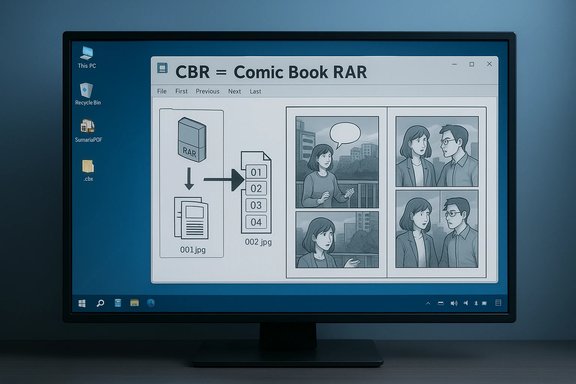
Comic book archives — commonly seen with extensions like .cbr, .cbz, .cb7, and .cbt — are not a distinct, proprietary image format. They are simply conventional archive files (RAR, ZIP, 7z, TAR) that have been given a “comic book” extension to signal to comic-reading software how to present the contents: a sequential, paged image set. The widespread convention is:- .cbr → RAR archive (Comic Book RAR)
- .cbz → ZIP archive (Comic Book ZIP)
- .cb7 → 7z archive
- .cbt → TAR archive
What is a CBR file — the technical nutshell
CBR is shorthand for Comic Book RAR (or more generically, Comic Book Reader file using a RAR container). Inside a CBR you’ll typically find:- Sequentially numbered image files — usually JPEG (.jpg/.jpeg) or PNG (.png)
- Occasionally GIF, BMP, or TIFF images
- Optional metadata files (XML or text) used by some readers
Why CBR exists and why readers prefer it
CBR became popular because it packages a whole comic into a single file while preserving the natural page order and enabling reader features such as:- Two-page spreads and single-page view modes
- Smoothly advancing pages without extracting files first
- Library management (collections, thumbnails, metadata) in many desktop readers
How to open a CBR on Windows — the practical options
There are two broad approaches to using CBR files on Windows:- Read them directly with a comic reader that supports CBR (recommended for everyday reading).
- Treat them as archives: extract the images with an archiver (WinRAR / 7‑Zip / PeaZip) and view the images directly or repackage as CBZ.
Readers that open CBR directly
- SumatraPDF — lightweight, portable, and supports CBZ/CBR among many formats. It shows pages quickly and is low on resources; an excellent choice if you want a single small program that handles PDFs, ebooks, and comic archives.
- ComicRack — a Windows-focused comic manager and reader with library features, batch conversion, and multiple view modes. It supports CBZ, CBR, CB7 and more, and includes conversion utilities. ComicRack remains popular among Windows enthusiasts who want rich library management.
- CDisplayEx — originally the app that popularized comic archive viewing; many contemporary readers use the same conventions it established. It directly supports CBR/CBZ and is optimized for sequential reading.
- Icecream Ebook Reader — supports CBR and CBZ and offers a simple library view; a good choice for users who prefer a modern, easy-to-use interface. The WindowsNoticias article specifically mentions Icecream as a recommended reader for Windows.
Extracting a CBR with an archiver (WinRAR, 7‑Zip, PeaZip)
If you prefer to inspect the images or convert the archive format, you can extract the contents like any RAR archive.- Install an archiver (examples: WinRAR, 7‑Zip, PeaZip).
- Right-click the .cbr file → choose the archiver’s “Extract” option (e.g., 7‑Zip → Extract to “folder\”).
- Open the extracted folder and view the images with your image viewer or drag the folder into a comic reader.
Step-by-step: Best ways to open CBR on Windows
Below are practical, tested workflows you can follow right now.Option A — Read CBR directly with SumatraPDF (fast, tiny)
- Download and install SumatraPDF (or use the portable executable).
- Right-click the .cbr file → Open with → SumatraPDF (or double-click if associated).
- Use arrow keys, PageUp/PageDown, and F11 for fullscreen; use the View menu to toggle two‑page spread.
Option B — Use ComicRack for library management (feature-rich)
- Install ComicRack and run it.
- Add your folder or files to ComicRack’s library (File → Add Folder).
- Double-click a comic to open it in the reader; use library features to organize series, issue numbers, and tags.
- Use ComicRack’s batch conversion to save comics as CBZ (ZIP) if you want a format that’s more universally supported by readers/archivers.
Option C — Extract with 7‑Zip and repackage as CBZ (if compatibility is a concern)
- Install 7‑Zip (latest stable release).
- Right-click the .cbr → 7‑Zip → Extract to “<filename>\”.
- Inspect the extracted files; rename them with leading zeros if needed to preserve order (001.jpg, 002.jpg, …).
- Recompress the folder to ZIP: right-click the folder → 7‑Zip → Add to archive → choose “zip” as the format and name it .cbz instead of .zip.
Troubleshooting: common issues and fixes
- Problem: “7‑Zip cannot open the archive” — Solution: update 7‑Zip (older builds may not support RAR5), or open with WinRAR/PeaZip. Many RAR5 archives require a recent decompression library.
- Problem: Pages out of order — Solution: ensure files inside the archive use zero-padded filenames (001.jpg, 002.jpg). Some archivers change order if filenames are non‑padded.
- Problem: Comic reader refuses to open a CBR — Solution: try renaming .cbr to .rar and open with an archiver; if the archive is valid, extract and then open images directly; otherwise update your reader or use SumatraPDF / ComicRack which have broad format support.
- Problem: DRM or protective packaging — Note that CBR files are simple archives and do not implement DRM themselves; if an archive or image inside is intentionally protected it requires the publisher’s tools. If a reader reports encryption or an unsupported format, verify the file source.
Security and safety: what to watch for
A CBR is a container; its contents determine safety. Compressed archives can carry malware disguised as images or executables inside folders. Practical precautions:- Scan archives with your antivirus before extracting. Many AV engines can scan inside archives, but if unsure extract to a quarantined folder and then scan.
- Avoid running any executables found inside an archive — comic archives should only contain image files.
- Use trusted sources when downloading comics — pirated files are a common vector for malware.
- Prefer modern archivers and readers from official distribution sites (SumatraPDF site, ComicRack official builds, 7‑Zip official site) to avoid trojanized installers.
Conversion, batch work, and tips for enthusiasts
- Converting CBR → CBZ (RAR → ZIP) makes files more universally accessible. Repackaging via 7‑Zip is the easiest method: extract → rezip as CBZ.
- Use batch tools (ComicRack or scripts with 7‑Zip) for large libraries. ComicRack has built-in batch conversion and tagging tools.
- If you create archives for distribution, prefer CBZ when you expect broad compatibility (ZIP is native on most platforms). If you must use RAR/CBR for compression benefits, ensure recipients have compatible readers or provide both CBZ and CBR versions.
- For multi‑page two‑page spreads, name pages to reflect their intended pairing (readers will generally present pages in filename order). Test a sample after conversion to confirm spread alignment.
Critical analysis — strengths, limitations and practical recommendations
Strengths:- Simplicity and portability: CBR keeps an entire comic in a single file that’s easy to move, backup, and share.
- Reader features: Dedicated comic readers significantly improve the reading experience compared with raw images.
- Archive tool compatibility: Because a CBR is a RAR file, standard archivers can extract it when needed.
- RAR version compatibility: Newer RAR5 archives may break older tools — always use current versions of 7‑Zip/PeaZip or WinRAR if you encounter issues.
- Security: Archives can contain malicious payloads; treat downloads from untrusted sources skeptically and scan before opening.
- No standard metadata: Comic archives are convention-based; different readers may interpret metadata differently, which complicates large-scale library synchronization across apps.
- For most users: install SumatraPDF (fast small reader) for immediate reading, and associate .cbz/.cbr with it.
- For library managers and collectors: use ComicRack or similar cataloguing readers for metadata, batch conversion and archive management.
- For converters and repair: keep WinRAR and 7‑Zip installed; use WinRAR to repair damaged RAR archives and 7‑Zip to repackage into CBZ for compatibility.
Quick reference — recommended workflows
- Quick reader-only: SumatraPDF → open .cbr directly.
- Library + metadata: ComicRack → import folders, maintain database, batch convert.
- Convert .cbr to .cbz: Extract with 7‑Zip → Add to archive → choose ZIP → save as .cbz.
- Fix RAR5 issues: update 7‑Zip or use WinRAR for extraction/repair.
Conclusion
CBR is a user-friendly convention — a RAR archive of ordered page images designed for comic‑book consumption — not a mysterious proprietary format. On Windows, reading or managing CBRs is straightforward: pick a modern reader (SumatraPDF for speed, ComicRack for library features), keep a reliable archiver (7‑Zip, WinRAR, PeaZip) for extraction or conversion, and keep tools up to date to avoid RAR5 compatibility traps. The WindowsNoticias guide succinctly outlines the same basics and points Windows users toward ComicRack and Icecream Ebook Reader, which are practical, approachable options for everyday comic reading. For advanced users and collectors: adopt a consistent archiving workflow (prefer CBZ for broad compatibility or keep both CBZ/CBR), maintain clear filename ordering, and scan all downloads before extraction. These small habits will keep your comic library portable, safe, and enjoyable across the many Windows readers available today.Source: windowsnoticias.com https://www.windowsnoticias.com/zu/archivo-cbr-que-es-y-como-se-abren-en-windows/
