

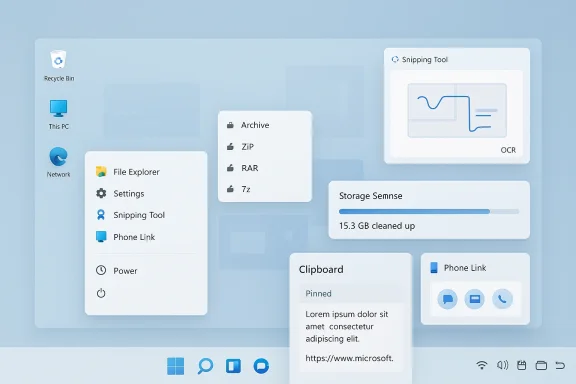
Windows has quietly crossed a threshold that longtime PC users may not have noticed: several once-essential utilities are now redundant for everyday use. In 2026, the operating system can compress and extract modern archive formats, clean up storage automatically, sync clipboard history, capture and annotate screenshots, and link a phone to the desktop with far less friction than the third-party apps that used to own those jobs. The result is not just convenience, but a smaller, cleaner Windows install with fewer background services competing for attention. That shift matters because it changes the default answer to a classic question: what do I still need to install after a fresh Windows setup?
For most of the Windows era, the answer to that question was simple: quite a lot. The operating system handled the basics, but the practical day-to-day workflow of a power user still depended on a stack of third-party tools. Archive managers, screenshot apps, clipboard managers, cleanup utilities, and phone companion software were all part of the standard setup ritual.
That made sense historically. Windows was designed to be broad and compatible, not necessarily best-in-class in every utility category. Third-party developers filled the gaps, and in many cases they built businesses around those gaps. 7-Zip, CCleaner, Lightshot, Ditto, and AirDroid became default installs because they solved problems Microsoft either had not addressed well or had not addressed at all.
Over time, however, Microsoft began folding those features into the platform itself. The shift was gradual at first, then more obvious. The screenshot stack improved, clipboard history arrived, archive support expanded, and storage cleanup became more automated. Microsoft also pushed stronger device integration through Phone Link, transforming what had once been a niche convenience into a core Windows experience.
The most important part of this evolution is not that Windows copied popular apps. It is that Windows learned from the way people actually work. Most users do not need advanced compression parameters, enterprise-grade clipboard search, or a thousand tweakable cleanup toggles. They need fast, reliable, built-in tools that do the common thing well. That is where Windows has become good enough for many users, and in some cases, better than the old standalone utilities.
This does not mean third-party apps are obsolete. It means the baseline has changed. Windows now covers the most common tasks in a way that is integrated, discoverable, and usually less bloated. For many households and businesses, that is enough to delete several icons from the Start menu and never miss them.
Today, Windows can do far more of that job itself. Microsoft’s current archive support includes ZIP, RAR, 7z, and TAR formats in Windows 11 version 24H2, which covers the most common archive types people encounter in practice. Windows also provides a straightforward right-click workflow for creating and extracting archives, reducing the need for a separate utility in everyday use.
The practical implication is simple: for ordinary extraction, the built-in experience is now sufficient. If you are just opening a downloaded archive or packaging a few folders for email or cloud sharing, Windows handles the task cleanly. The archive app category has not disappeared, but it has moved from “must have” to “specialist tool.”
That distinction matters more in enterprise, legal, and privacy-sensitive environments than in casual home use. A built-in archive tool can be enough for convenience, but it is not a full replacement for specialist compression software. Advanced users may also care about compression ratios, format-specific tuning, and batch workflows that remain stronger in dedicated tools.
But modern Windows has built-in storage management that does most of the practical work without the baggage. Microsoft’s Storage Sense can automatically free space by removing temporary files and items in the Recycle Bin, and it can be configured to run when the system is low on space or on a schedule. Microsoft also provides Cleanup recommendations, which surface temporary files, large or unused files, cloud-synced content, and unused apps for review and removal.
That is a meaningful change because it reframes cleanup as a system function rather than a rescue operation. Instead of installing a utility to “fix” Windows, users can let Windows manage its own housekeeping. In many cases, that is safer and more transparent than a third-party app that bundles extra features, tweak panels, and performance claims.
Microsoft’s storage tools are also narrower and less sensational, which is a good thing. Storage Sense handles temporary files and recycle-bin cleanup, and it does so without promising magic performance gains. The focus is on reclaiming space, not selling a myth that every PC needs constant optimization.
Microsoft’s Phone Link has closed much of that gap. The company’s support documentation describes the app as a way to read and reply to messages, view recent photos, make and receive calls, use mobile apps, and manage Android notifications from the PC. It also supports a wide range of Android devices and is integrated directly into the Windows ecosystem.
This matters because integration changes user behavior. A feature that ships with Windows, uses a Microsoft account, and feels native is easier to keep active than a separate utility that requires its own setup, permissions, and maintenance. Phone Link also avoids one of the classic problems with third-party companions: the feeling that the app is always trying to justify itself with extra prompts.
Microsoft has also steadily widened the feature set and device support, making the app more relevant to both casual and power users. For many people, the practical benefit is fewer context switches: messages, alerts, and photos can be handled on the same screen where work is already happening.
That landscape has changed dramatically. Microsoft’s Snipping Tool now supports multiple capture modes, video snips, annotation, OCR-based text actions, and a color picker. On Copilot+ PCs, it even adds Perfect Screenshot and Color picker features, while text recognition is performed locally on the device.
That is not a cosmetic upgrade. It is a sign that Microsoft now sees capture and extract workflows as foundational, not incidental. When the native tool can do the common tasks quickly, most users stop thinking about screenshots as a separate app category. They become just another part of Windows productivity.
For people who need OCR, quick redaction, or simple annotation, the built-in tool now covers the basics well. That is enough to displace the casual use case that once belonged to Lightshot. ShareX remains stronger for automation-heavy users, but many people do not need that much machinery.
But the typical Windows user is not building a screenshot pipeline. They are grabbing a receipt, a settings page, a quote, a bug report, or a quick visual note. For those tasks, Snipping Tool is now good enough that the old screenshot apps no longer feel mandatory.
Windows now includes clipboard history, accessible with Win + V, and Microsoft documents the ability to paste multiple items, pin frequently used entries, and sync clipboard history across devices using a Microsoft or work account. The built-in feature supports text, HTML, and bitmap content, which makes it useful for a wide range of daily tasks.
That changes the balance significantly. Clipboard history is one of those features that seems small until you use it regularly. Once it is enabled, it quietly eliminates a lot of repetitive copying and pasting. For many users, that is enough to remove a dedicated clipboard manager from the system.
Microsoft also supports syncing clipboard items across devices, which gives the feature more relevance in multi-PC or laptop-plus-desktop environments. That puts the built-in tool squarely in the territory where clipboard managers once had a near-monopoly.
Still, most users do not need deep clipboard forensics. They need the last several things they copied, plus a few pinned items. Windows now handles that with enough polish that the third-party category has lost its default-install status.
Enterprises look at the same change through a more operational lens. Built-in tools reduce software sprawl, simplify support, and improve standardization across fleets. A help desk can document a smaller set of features, while security teams have fewer third-party utilities to vet, patch, and monitor.
Microsoft also has an advantage here because its tools fit existing identity and policy structures. Features like Phone Link and clipboard sync align more naturally with managed accounts and Windows settings than a standalone consumer app with its own ecosystem.
The smart enterprise approach is not blanket removal; it is role-based standardization. Most users can live on the native Windows stack, while power users and technical teams keep the specialist tools they actually need. That is a more defensible model than installing everything on everyone’s machine.
This is especially true with older utilities that were built for a different era of Windows. Many of them were useful because they filled genuine product gaps, but they also brought their own update channels, settings panels, notifications, and extras. Native Windows tools tend to be simpler, more consistent, and more integrated into the operating system’s own design language.
That is one reason many users eventually gravitate back to Microsoft’s native tools even after years of third-party dependence. The third-party app may still be better at one narrow thing, but the built-in alternative is often better at being part of Windows.
The next stage is likely to be less about raw feature addition and more about refinement. If Microsoft keeps improving polish, consistency, and discoverability, the built-in toolset will continue to take market share from legacy utilities without necessarily “defeating” them outright. That is probably the more realistic outcome anyway.
A more interesting question is whether Microsoft can keep these tools coherent across consumer and enterprise use. If it can, Windows may finally gain a reputation it has long lacked: not just flexible, but genuinely complete for mainstream workflows.
The old advice was to install the missing pieces. The new advice is to check what Windows already does first. For a surprising number of everyday tasks, the operating system itself is now the best app on the PC.
Source: MakeUseOf 5 classic Windows apps I uninstalled after finding Windows has them built-in
 Background
For most of the Windows era, the answer to that question was simple: quite a lot. The operating system handled the basics, but the practical day-to-day workflow of a power user still depended on a stack of third-party tools. Archive managers, screenshot apps, clipboard managers, cleanup utilities, and phone companion software were all part of the standard setup ritual.That made sense historically. Windows was designed to be broad and compatible, not necessarily best-in-class in every utility category. Third-party developers filled the gaps, and in many cases they built businesses around those gaps. 7-Zip, CCleaner, Lightshot, Ditto, and AirDroid became default installs because they solved problems Microsoft either had not addressed well or had not addressed at all.
Over time, however, Microsoft began folding those features into the platform itself. The shift was gradual at first, then more obvious. The screenshot stack improved, clipboard history arrived, archive support expanded, and storage cleanup became more automated. Microsoft also pushed stronger device integration through Phone Link, transforming what had once been a niche convenience into a core Windows experience.
The most important part of this evolution is not that Windows copied popular apps. It is that Windows learned from the way people actually work. Most users do not need advanced compression parameters, enterprise-grade clipboard search, or a thousand tweakable cleanup toggles. They need fast, reliable, built-in tools that do the common thing well. That is where Windows has become good enough for many users, and in some cases, better than the old standalone utilities.
This does not mean third-party apps are obsolete. It means the baseline has changed. Windows now covers the most common tasks in a way that is integrated, discoverable, and usually less bloated. For many households and businesses, that is enough to delete several icons from the Start menu and never miss them.
7-Zip and the end of the mandatory archive app
7-Zip used to be one of the first downloads after a fresh Windows installation. For years, it was the dependable way to unpack ZIP files, manage obscure archives, and create compressed folders without hassle. That reputation made it a staple, especially for users who handled downloaded software, game mods, project assets, or shared work files.Today, Windows can do far more of that job itself. Microsoft’s current archive support includes ZIP, RAR, 7z, and TAR formats in Windows 11 version 24H2, which covers the most common archive types people encounter in practice. Windows also provides a straightforward right-click workflow for creating and extracting archives, reducing the need for a separate utility in everyday use.
The practical implication is simple: for ordinary extraction, the built-in experience is now sufficient. If you are just opening a downloaded archive or packaging a few folders for email or cloud sharing, Windows handles the task cleanly. The archive app category has not disappeared, but it has moved from “must have” to “specialist tool.”
Where 7-Zip still wins
There is still a meaningful case for keeping 7-Zip installed on some systems. Microsoft’s built-in archive support does not handle encrypted archive operations, which matters for users who need password-protected packages or more advanced security workflows. Microsoft explicitly notes that encrypted archive creation and decompression still require non-Microsoft software such as 7-Zip or WinRAR.That distinction matters more in enterprise, legal, and privacy-sensitive environments than in casual home use. A built-in archive tool can be enough for convenience, but it is not a full replacement for specialist compression software. Advanced users may also care about compression ratios, format-specific tuning, and batch workflows that remain stronger in dedicated tools.
- Built-in Windows support now covers the common case.
- Encrypted archives still require third-party tools.
- Advanced compression options remain better in specialist apps.
- Most users only need simple extract-and-zip functionality.
CCleaner and the decline of “PC optimization” utilities
CCleaner rose to fame in an era when Windows cleanup felt manual and mysterious. People wanted a one-click way to remove junk files, speed up a sluggish machine, and clean the residue left behind by everyday use. The app promised exactly that, and for a long time, it became shorthand for keeping a Windows PC “healthy.”But modern Windows has built-in storage management that does most of the practical work without the baggage. Microsoft’s Storage Sense can automatically free space by removing temporary files and items in the Recycle Bin, and it can be configured to run when the system is low on space or on a schedule. Microsoft also provides Cleanup recommendations, which surface temporary files, large or unused files, cloud-synced content, and unused apps for review and removal.
That is a meaningful change because it reframes cleanup as a system function rather than a rescue operation. Instead of installing a utility to “fix” Windows, users can let Windows manage its own housekeeping. In many cases, that is safer and more transparent than a third-party app that bundles extra features, tweak panels, and performance claims.
Why optimization apps became less compelling
A lot of older optimization software depended on fear, habit, and invisible complexity. Users were told their machines were full of junk, their startup was bloated, and their registry needed constant attention. Modern Windows has reduced the practical value of that pitch by exposing startup controls, storage controls, and diagnostic tools in the OS itself.Microsoft’s storage tools are also narrower and less sensational, which is a good thing. Storage Sense handles temporary files and recycle-bin cleanup, and it does so without promising magic performance gains. The focus is on reclaiming space, not selling a myth that every PC needs constant optimization.
- Storage Sense automates cleanup of temporary files.
- Cleanup recommendations surfaces files the user can review.
- Windows exposes startup and app management directly in Settings and Task Manager.
- The old “speed up your PC” pitch is much less persuasive now.
AirDroid and the rise of Phone Link
AirDroid became popular by solving a very specific cross-device problem: how to make a Windows PC and an Android phone feel like one workflow. It offered notifications, messaging, file transfer, screen mirroring, and other sync features that made a desktop and handset feel more connected. For years, that kind of bridge software was genuinely useful.Microsoft’s Phone Link has closed much of that gap. The company’s support documentation describes the app as a way to read and reply to messages, view recent photos, make and receive calls, use mobile apps, and manage Android notifications from the PC. It also supports a wide range of Android devices and is integrated directly into the Windows ecosystem.
This matters because integration changes user behavior. A feature that ships with Windows, uses a Microsoft account, and feels native is easier to keep active than a separate utility that requires its own setup, permissions, and maintenance. Phone Link also avoids one of the classic problems with third-party companions: the feeling that the app is always trying to justify itself with extra prompts.
The integration advantage
The real difference is not just feature overlap. It is the fact that Phone Link feels like part of the operating system rather than an add-on. That lowers the mental cost of using it and improves the odds that users keep it enabled.Microsoft has also steadily widened the feature set and device support, making the app more relevant to both casual and power users. For many people, the practical benefit is fewer context switches: messages, alerts, and photos can be handled on the same screen where work is already happening.
- Phone Link is built into the Windows ecosystem.
- It supports calls, texts, notifications, and photos.
- Android device support is broad and improving.
- The native experience is easier to maintain than a separate app.
Snipping Tool versus Lightshot and ShareX
There was a time when Lightshot or ShareX felt indispensable. Windows screen capture was functional but limited, and users who needed annotation, OCR, GIF capture, or fast sharing usually turned to third-party tools. Those apps built loyal followings because they solved real workflow problems that Microsoft had left in a rough state.That landscape has changed dramatically. Microsoft’s Snipping Tool now supports multiple capture modes, video snips, annotation, OCR-based text actions, and a color picker. On Copilot+ PCs, it even adds Perfect Screenshot and Color picker features, while text recognition is performed locally on the device.
That is not a cosmetic upgrade. It is a sign that Microsoft now sees capture and extract workflows as foundational, not incidental. When the native tool can do the common tasks quickly, most users stop thinking about screenshots as a separate app category. They become just another part of Windows productivity.
What changed for screenshot workflows
The biggest win is convenience. Pressing Windows key + Shift + S and immediately capturing part of the screen is faster than opening a separate utility, choosing an output behavior, and then editing the result elsewhere. The built-in tool also copies the capture into the Snipping Tool window for quick markup and saving.For people who need OCR, quick redaction, or simple annotation, the built-in tool now covers the basics well. That is enough to displace the casual use case that once belonged to Lightshot. ShareX remains stronger for automation-heavy users, but many people do not need that much machinery.
- Snipping Tool now supports image and video capture.
- OCR text extraction is built in.
- Color picker support reduces the need for separate utilities.
- Fast keyboard shortcuts make the built-in workflow practical.
Where third-party capture tools still matter
There are still power-user needs that Microsoft has not fully replaced. Automated capture routines, scrolling screenshots, complex output workflows, and advanced sharing pipelines are still better served by specialized software. If your work depends on repeatable capture automation, ShareX remains the more serious tool.But the typical Windows user is not building a screenshot pipeline. They are grabbing a receipt, a settings page, a quote, a bug report, or a quick visual note. For those tasks, Snipping Tool is now good enough that the old screenshot apps no longer feel mandatory.
Ditto and the built-in clipboard history
Ditto became popular because Windows had long treated the clipboard as a single-slot memory. Copy something new, lose something old. That was tolerable for basic tasks, but frustrating for anyone juggling passwords, links, code snippets, snippets of text, or image fragments across a long workday.Windows now includes clipboard history, accessible with Win + V, and Microsoft documents the ability to paste multiple items, pin frequently used entries, and sync clipboard history across devices using a Microsoft or work account. The built-in feature supports text, HTML, and bitmap content, which makes it useful for a wide range of daily tasks.
That changes the balance significantly. Clipboard history is one of those features that seems small until you use it regularly. Once it is enabled, it quietly eliminates a lot of repetitive copying and pasting. For many users, that is enough to remove a dedicated clipboard manager from the system.
Why clipboard history is enough for many users
The core value of a clipboard manager is not complexity. It is recall. The ability to pull back a previous snippet instead of re-copying it saves time and reduces context switching. Windows now provides that value directly, and it does so in a way that is easy to discover and activate.Microsoft also supports syncing clipboard items across devices, which gives the feature more relevance in multi-PC or laptop-plus-desktop environments. That puts the built-in tool squarely in the territory where clipboard managers once had a near-monopoly.
- Win + V exposes clipboard history instantly.
- Pinned items reduce repetitive copying.
- Clipboard sync can extend across devices.
- The built-in solution works for text, HTML, and images.
Where Ditto still feels stronger
The argument for Ditto is the same as it is for many mature third-party tools: depth. Ditto can offer more advanced search, deeper retention, and more customization than Windows’ native clipboard history. That may matter to developers, researchers, editors, and anyone who treats the clipboard like a working archive.Still, most users do not need deep clipboard forensics. They need the last several things they copied, plus a few pinned items. Windows now handles that with enough polish that the third-party category has lost its default-install status.
Enterprise and consumer impact are not the same
The collapse of these “must-install” apps affects consumers and enterprises differently. Consumers tend to benefit most from simplicity. Fewer apps mean fewer update prompts, fewer tray icons, fewer background services, and less maintenance. In that context, native Windows tools are often the obvious win.Enterprises look at the same change through a more operational lens. Built-in tools reduce software sprawl, simplify support, and improve standardization across fleets. A help desk can document a smaller set of features, while security teams have fewer third-party utilities to vet, patch, and monitor.
Why IT departments care
Every utility removed from the default image reduces the long tail of maintenance. Fewer installed apps mean fewer licensing questions, fewer update mechanisms, and fewer vendor-specific security concerns. That matters in organizations trying to balance usability with control.Microsoft also has an advantage here because its tools fit existing identity and policy structures. Features like Phone Link and clipboard sync align more naturally with managed accounts and Windows settings than a standalone consumer app with its own ecosystem.
- Consumers gain simplicity and fewer background processes.
- IT teams gain standardization and fewer support variables.
- Built-in tools often fit existing Microsoft account structures.
- Native features are easier to document and govern.
But enterprises should not oversimplify
There is a trap in assuming that “built in” automatically means “enough for everyone.” Some organizations genuinely need the advanced controls that third-party utilities still provide. Encrypted archives, specialized screenshot automation, deep clipboard retention, and custom device workflows may still justify outside software.The smart enterprise approach is not blanket removal; it is role-based standardization. Most users can live on the native Windows stack, while power users and technical teams keep the specialist tools they actually need. That is a more defensible model than installing everything on everyone’s machine.
Why fewer apps often means a better PC
One overlooked benefit of replacing third-party utilities with Windows features is not just convenience, but predictability. Fewer apps mean fewer background services, fewer startup entries, and fewer opportunities for software conflicts. That can make a machine feel calmer even when performance gains are hard to measure directly.This is especially true with older utilities that were built for a different era of Windows. Many of them were useful because they filled genuine product gaps, but they also brought their own update channels, settings panels, notifications, and extras. Native Windows tools tend to be simpler, more consistent, and more integrated into the operating system’s own design language.
The cleanup effect is real
There is also a psychological effect that matters. A PC with fewer installed utilities feels easier to trust and easier to explain. If someone else has to use the machine, troubleshoot it, or maintain it, the built-in approach is easier to support.That is one reason many users eventually gravitate back to Microsoft’s native tools even after years of third-party dependence. The third-party app may still be better at one narrow thing, but the built-in alternative is often better at being part of Windows.
- Fewer apps usually mean fewer updates and pop-ups.
- Less software clutter improves maintainability.
- Built-in tools are easier to standardize across users.
- Integration often matters more than raw feature depth.
Simplicity is a feature
The key insight is that simplicity is no longer a compromise. In the past, the built-in option often meant second-best. Now, in these specific categories, native Windows functionality is often the easiest path and the most practical one. That changes the default setup advice many of us gave for years.Strengths and Opportunities
Windows’ native toolset is stronger than many users realize, and that creates genuine opportunities for cleaner setups, less maintenance, and better day-to-day reliability. The biggest strength is that Microsoft is no longer asking users to accept a bare-bones OS and then build everything else from scratch.- Archive support now covers the most common formats people actually use.
- Storage Sense automates cleanup instead of requiring manual intervention.
- Phone Link brings cross-device convenience into the core Windows experience.
- Snipping Tool has become a real productivity tool, not just a basic capture utility.
- Clipboard history removes a long-standing productivity pain point.
- Fewer third-party apps usually mean fewer security and update concerns.
- Native integration makes features easier to discover and support.
Risks and Concerns
The danger in celebrating built-in Windows tools is assuming they solve every use case. In reality, Microsoft has replaced the common case, not the specialist case. That distinction matters, especially for advanced users and workplaces with nonstandard requirements.- Encrypted archives still need third-party tools.
- Advanced screenshot automation remains stronger in apps like ShareX.
- Deep clipboard management still favors dedicated utilities like Ditto.
- Phone integration can be uneven across devices and ecosystems.
- Storage cleanup is useful, but it is not a substitute for a full storage strategy.
- Feature drift means some tools are better on newer Windows versions than older ones.
- User confusion can persist if people do not know the built-in features exist.
Looking Ahead
The broader trend is clear: Windows is becoming less dependent on the classic utility ecosystem that defined its past. Microsoft is not replacing every specialized app, but it is removing enough common pain points that the average setup list gets shorter every year. That is a meaningful shift in how Windows is experienced and maintained.The next stage is likely to be less about raw feature addition and more about refinement. If Microsoft keeps improving polish, consistency, and discoverability, the built-in toolset will continue to take market share from legacy utilities without necessarily “defeating” them outright. That is probably the more realistic outcome anyway.
A more interesting question is whether Microsoft can keep these tools coherent across consumer and enterprise use. If it can, Windows may finally gain a reputation it has long lacked: not just flexible, but genuinely complete for mainstream workflows.
- Archive support may expand further, especially around security and encrypted workflows.
- Snipping Tool could become even more capable for text extraction and markup.
- Phone Link may deepen cross-device continuity across Android and PC.
- Clipboard history may grow smarter in retention, search, or sync.
- Storage features may become more proactive in recommending cleanup.
- Microsoft may continue bundling utilities that used to require third-party apps.
The old advice was to install the missing pieces. The new advice is to check what Windows already does first. For a surprising number of everyday tasks, the operating system itself is now the best app on the PC.
Source: MakeUseOf 5 classic Windows apps I uninstalled after finding Windows has them built-in
