

No, most Windows 10 and Windows 11 users should not start with Network reset; they should use it only after the troubleshooter, command-line TCP/IP resets, and—when appropriate—a network adapter driver reinstall fail to restore connectivity. Microsoft’s own repair sequence puts
The appeal of Network reset is obvious. Windows gives you a single Settings button, promises to reinstall adapters, and restarts the PC into what looks like a clean networking state. For a frustrated user staring at “No Internet” five minutes before a meeting, that sounds better than spelunking through Device Manager or an elevated Command Prompt.
But that convenience is exactly why it is overused. Network reset is not just a refresh of the Wi‑Fi connection. It removes installed network adapters and their settings, then reinstalls adapters after restart with default settings. That is useful when Windows’ network stack is genuinely snarled, but it is also disruptive when the real issue is a stale DHCP lease, a corrupted DNS resolver cache, a bad adapter driver, or a VPN client that inserted itself too aggressively into the stack.
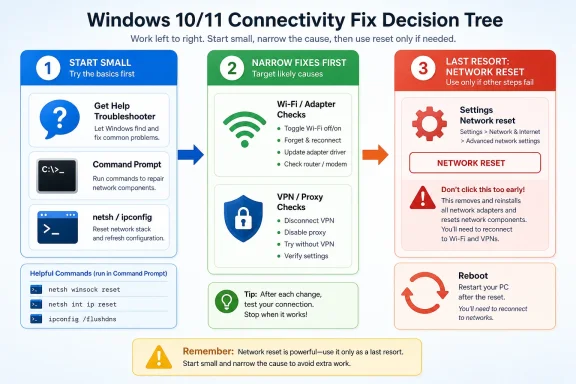
The decision tree should be ruthless. If only one Wi‑Fi network fails, forget that network and reconnect before doing anything broader. If all networks fail but the adapter is visible, run the troubleshooter and the command-line resets. If the problem began after a Windows update or driver change, uninstall the adapter driver and restart. If the problem arrived after a Windows 10-to-11 upgrade, or if multiple adapter-level fixes have failed, Network reset deserves its place at the end of the bench.
That framing matters because Windows networking is no longer just “Wi‑Fi on or off.” A modern Windows machine may have a physical Wi‑Fi adapter, Ethernet, Bluetooth networking, VPN virtual adapters, Hyper‑V switches, corporate endpoint security filters, proxy settings, and saved network profiles. Resetting that system can solve a deep configuration mess, but it can also erase precisely the custom networking state an enthusiast or IT pro needs.
On Windows 11, open Settings, go to Network & internet, select Advanced network settings, then choose Network reset. On the Network reset screen, select Reset now, confirm with Yes, and wait for the PC to restart. After the reboot, test Wi‑Fi or Ethernet before reinstalling VPN tools or changing other settings, so you can see whether the reset itself fixed the problem.
On Windows 10, open Settings, go to Network & Internet, select Status, then choose Network reset. Select Reset now, confirm with Yes, and allow Windows to restart. After the system comes back, reconnect to Wi‑Fi if needed, check whether the network profile has changed, and restore any VPN, proxy, or virtual networking configuration you depend on.
Those steps are the part every basic guide covers. The more important part is what should happen immediately before them. Open an elevated Command Prompt and run Microsoft’s listed repair commands in order:
Then test the connection. If the issue is DNS cache corruption, a bad IP lease, or a damaged Winsock/TCP/IP configuration, these commands may resolve it without wiping adapter settings. They are not risk-free in the abstract—any network repair can disturb a working configuration—but they are narrower than Network reset and usually faster to recover from.
Windows 11 users also have a newer front door: the Network and Internet troubleshooter in the Get Help app. Microsoft places that automated diagnostic step at the start of its Windows 11 Wi‑Fi guidance, and that is the correct place for it. It is not glamorous, and power users often skip it, but it can identify ordinary configuration mistakes without imposing the blast radius of a full reset.
The command-line stage is especially important because it targets the network stack without pretending every adapter setting is disposable.
Driver removal is the other overlooked middle step. Microsoft recommends uninstalling the network adapter driver and restarting before Network reset if prior steps fail, and specifically notes this approach when the connection stopped working properly after a recent update. That is a strong hint for post-update breakage: do not immediately flatten network settings if the adapter driver itself may be the failing component.
For WindowsForum readers, the important distinction is between state and software. If Windows has retained bad network state—stale DNS, broken TCP/IP settings, confused Winsock entries—the command sequence may be enough. If Windows has a bad driver install or a post-update adapter problem, Device Manager may be the right stop. If Windows’ entire networking layer has accumulated incompatible adapter settings, VPN hooks, or upgrade-era debris, Network reset finally makes sense.
The first diagnostic split is simple: does another device work on the same network? If a phone and a second laptop are also struggling, Windows is probably not the culprit. Restarting the router or modem may be boring advice, but it beats resetting a Windows network stack when the problem is upstream.
If the Windows PC alone is failing, the next question is whether it can see networks at all. If the adapter appears, Wi‑Fi is enabled, and Windows can scan nearby networks, the hardware path is at least partly alive. That is a good case for the Windows troubleshooter, forgetting and rejoining the network, and then the command-line repairs.
Where Network reset becomes more plausible is repeated, device-specific breakage across multiple networks. If the PC fails at home, fails on a mobile hotspot, and fails on office Wi‑Fi, the problem has moved from “this network” to “this Windows installation.” At that point, wiping adapter settings may be less destructive than chasing each symptom one by one.
WindowsForum has already seen the practical version of this problem in discussions about machines that only regain access after repeated network resets or restarts. That pattern is a warning sign. A reset that must be performed again and again is not a fix; it is evidence that something else is reintroducing the bad state.
That is why a VPN-related failure should start with a narrower question: does connectivity return when the VPN client is disconnected, disabled, or removed through its normal uninstaller? If yes, the problem is not generic Windows networking. It is the VPN layer, and a full Network reset may only postpone the issue until the same VPN software is reinstalled.
Still, Microsoft explicitly warns that after Network reset you may need to reinstall and set up networking software such as VPN clients or virtual switches. That warning is not a footnote for enterprise users; it is the whole story. A full reset can remove the broken virtual plumbing, but it also removes the working virtual plumbing.
For sysadmins, this is where helpdesk scripts should slow down. If a user is remote, depends on a corporate VPN to reach management tools, and has no local admin workaround, a Network reset can strand the machine outside the castle walls. The safer sequence is to confirm driver availability, capture VPN configuration details, verify whether the machine has another route to management, and only then reset.
For enthusiasts running Hyper‑V, WSL-related networking, third-party firewalls, packet capture tools, or lab VPNs, the same rule applies. Network reset may be the fastest way to clear a bad virtual adapter stack, but it is also the fastest way to forget how much custom networking you built over the last year.
The upgrade path matters because it changes the probability calculation. On a stable Windows 10 machine that suddenly cannot resolve one website, flushing DNS is a rational first move. On a newly upgraded Windows 11 machine that cannot connect reliably across multiple networks, a broader cleanup becomes more defensible.
This is also where WindowsForum’s audience differs from the average search result reader. Many enthusiasts upgrade early, maintain multiple adapters, test VPNs, run virtualization, or carry forward years of accumulated settings. Their Windows installations are not clean-room consumer images. They are sedimentary systems.
The reset is valuable precisely because it cuts through that sediment. It removes installed network adapters and their settings, then allows Windows to reinstall adapters with defaults. If the upgrade preserved a bad configuration, that can be enough to restore basic connectivity. If the upgrade exposed a driver problem, however, the driver reinstall step remains the better diagnostic move before the full reset.
The reset does not mean Windows has performed a full PC reset. It does not reinstall Windows, erase personal files, or roll back every networking-related application. It targets the network adapter layer and the settings around it. That narrower scope is why it can be so effective—and why it can surprise users who expected only a Wi‑Fi reconnect.
The most visible post-reset chore is reconnecting to networks and reviewing profile behavior. Microsoft notes that network reset might set known network connections to a public network profile. Public profile behavior is more locked down: the PC is not discoverable to other PCs and devices on the network. That is good for a coffee shop and annoying on a trusted home or office LAN where file sharing or device discovery matters.
The less visible chore is rebuilding the networking software stack. VPN clients may need to be reinstalled and configured. Virtual switches may need attention. Proxy settings may need to be checked. If you use a corporate VPN, a school network profile, a lab VLAN setup, or a custom DNS configuration, the reset is not complete when the desktop comes back. It is complete when those dependencies are restored and tested.
This is the difference between a consumer fix and an IT fix. A home user may only need to enter a Wi‑Fi password again. An admin may need to verify remote access, mapped drives, printer discovery, endpoint security agents, VPN authentication, and whether the network profile landed in the expected state.
The practical Device Manager route is simple. Search for Device Manager, open it, expand Network adapters, right-click the relevant adapter, choose Uninstall device, and if offered, check the box to attempt to remove the driver for the device. Then restart the PC and allow Windows to reinstall the adapter driver.
Before doing that, Microsoft’s caution matters: have a backup driver available. If the PC cannot connect to the Internet, download the correct network adapter driver from the PC manufacturer on another machine and place it on a USB drive. You need the PC manufacturer and model information, because grabbing a random driver is a fine way to turn a repair into a second problem.
This step is especially relevant after a recent update. If Windows updated the driver, changed the way the adapter is handled, or exposed a compatibility issue, a full Network reset may not correct the underlying driver condition. Removing and reinstalling the adapter gives Windows a chance to rebuild the device relationship without wiping every network-related setting first.
Related WindowsForum coverage on Windows 11 24H2 connectivity issues and broader Windows 10/11 Internet repairs is useful here because post-update network failures rarely have one universal fix. Some are adapter-specific. Some are VPN-specific. Some are ordinary DHCP or DNS problems wearing the costume of a Windows update bug.
If one website or app fails while everything else works, Network reset is too broad. Start with the app, firewall behavior, DNS, proxy, or service availability. A global reset for a local symptom is the networking equivalent of reinstalling Windows because one shortcut broke.
If Wi‑Fi connects but says there is no Internet, use the troubleshooter, test another device, restart the router or modem if the whole network is affected, then run the command-line sequence. If the PC alone is affected across networks, move toward driver reinstall and then Network reset.
If the issue began immediately after a Windows update, driver change, or upgrade, the adapter driver deserves serious attention before the reset. If the issue began after installing or updating a VPN, endpoint security tool, or virtualization feature, treat that layer as a suspect before flattening everything.
If the PC upgraded from Windows 10 to Windows 11 and now has persistent connectivity failures, Network reset becomes a more attractive option sooner. Microsoft explicitly frames it as useful for post-upgrade connection problems, and that is the rare case where the last resort can move closer to the middle of the sequence.
A reset can disrupt VPN software, virtual switches, network profiles, and adapter-specific settings. If the device is managed remotely, that can mean the machine comes back online locally but fails to reconnect to the management plane. A support technician who cannot see the machine after reboot has not solved the problem; they have moved it out of reach.
The pre-reset checklist should be short but real. Confirm whether the user has local credentials. Confirm whether the machine can be supported without VPN. Confirm whether the VPN installer, Wi‑Fi credentials, proxy settings, and any required adapter driver are available. Confirm whether mapped drives, shared printers, or discovery-dependent workflows matter after the reboot.
This is where Network reset can be made safe enough for helpdesk playbooks. It should not be banned. It should be gated. The first-line script should prefer the troubleshooter, command-line reset, and driver reinstall. The escalation script should include Network reset only after collecting enough information to rebuild what it removes.
For power users, the same logic applies at home. Before resetting, note whether you use a VPN, custom DNS, a proxy, Hyper‑V, a virtual switch, or unusual adapter settings. If you do, take screenshots or notes first. The five minutes spent documenting settings can save an hour of rediscovering them after the reboot.
For ordinary users, the distinction is mostly navigational. For support teams, it matters because mixed Windows 10 and Windows 11 fleets can produce confusion when users follow the wrong screenshot. A clear script should name both paths and avoid assuming the Settings app looks the same.
The larger policy difference is the Windows 11 emphasis on the Get Help troubleshooter. Microsoft’s guidance tells Windows 11 users to start with the automated Network and Internet troubleshooter in the Get Help app. That is not a substitute for admin judgment, but it is a useful default for nontechnical users who need a safe first step.
Windows 10 users still have the Settings-based Network troubleshooter path in Microsoft’s guidance. It remains worth trying because it imposes little cost. The fact that a seasoned admin can run
Internal WindowsForum guides on resetting network settings in Windows 11 and setting preferred Wi‑Fi networks are useful complements, but the sharper point is this: the reset path is easy to memorize, while the decision path is what keeps users from doing unnecessary damage.
Network reset survives because it solves a real class of Windows problems: the machine that has crossed from misconfigured to tangled. But the best Windows troubleshooting still starts by asking what kind of tangle you are looking at. For intermittent Wi‑Fi, VPN conflicts, and post-update breakage, the winning move is not always the biggest hammer; it is choosing the smallest fix that matches the failure, saving the reset for the moment when Windows’ own sequence says the network stack has earned it.
netsh, ipconfig, and driver removal ahead of Network reset, which makes the reset less of a magic button and more of a controlled last resort. The practical answer is simple: if Wi‑Fi is merely flaky, a VPN is misbehaving, or DNS looks confused, try the faster fixes first; if networking broke after an upgrade or every adapter-level fix has failed, Network reset becomes the right tool.
 The Fastest Safe Path Starts Before the Big Red Button
The appeal of Network reset is obvious. Windows gives you a single Settings button, promises to reinstall adapters, and restarts the PC into what looks like a clean networking state. For a frustrated user staring at “No Internet” five minutes before a meeting, that sounds better than spelunking through Device Manager or an elevated Command Prompt.But that convenience is exactly why it is overused. Network reset is not just a refresh of the Wi‑Fi connection. It removes installed network adapters and their settings, then reinstalls adapters after restart with default settings. That is useful when Windows’ network stack is genuinely snarled, but it is also disruptive when the real issue is a stale DHCP lease, a corrupted DNS resolver cache, a bad adapter driver, or a VPN client that inserted itself too aggressively into the stack.
The decision tree should be ruthless. If only one Wi‑Fi network fails, forget that network and reconnect before doing anything broader. If all networks fail but the adapter is visible, run the troubleshooter and the command-line resets. If the problem began after a Windows update or driver change, uninstall the adapter driver and restart. If the problem arrived after a Windows 10-to-11 upgrade, or if multiple adapter-level fixes have failed, Network reset deserves its place at the end of the bench.
That framing matters because Windows networking is no longer just “Wi‑Fi on or off.” A modern Windows machine may have a physical Wi‑Fi adapter, Ethernet, Bluetooth networking, VPN virtual adapters, Hyper‑V switches, corporate endpoint security filters, proxy settings, and saved network profiles. Resetting that system can solve a deep configuration mess, but it can also erase precisely the custom networking state an enthusiast or IT pro needs.
The Concrete Procedure Is Short, but the Decision Is Not
If you have reached the point where Network reset is justified, the steps are straightforward.On Windows 11, open Settings, go to Network & internet, select Advanced network settings, then choose Network reset. On the Network reset screen, select Reset now, confirm with Yes, and wait for the PC to restart. After the reboot, test Wi‑Fi or Ethernet before reinstalling VPN tools or changing other settings, so you can see whether the reset itself fixed the problem.
On Windows 10, open Settings, go to Network & Internet, select Status, then choose Network reset. Select Reset now, confirm with Yes, and allow Windows to restart. After the system comes back, reconnect to Wi‑Fi if needed, check whether the network profile has changed, and restore any VPN, proxy, or virtual networking configuration you depend on.
Those steps are the part every basic guide covers. The more important part is what should happen immediately before them. Open an elevated Command Prompt and run Microsoft’s listed repair commands in order:
netsh winsock resetnetsh int ip resetipconfig /releaseipconfig /renewipconfig /flushdnsThen test the connection. If the issue is DNS cache corruption, a bad IP lease, or a damaged Winsock/TCP/IP configuration, these commands may resolve it without wiping adapter settings. They are not risk-free in the abstract—any network repair can disturb a working configuration—but they are narrower than Network reset and usually faster to recover from.
Windows 11 users also have a newer front door: the Network and Internet troubleshooter in the Get Help app. Microsoft places that automated diagnostic step at the start of its Windows 11 Wi‑Fi guidance, and that is the correct place for it. It is not glamorous, and power users often skip it, but it can identify ordinary configuration mistakes without imposing the blast radius of a full reset.
Microsoft’s Order of Operations Tells You What the Reset Really Is
Microsoft’s troubleshooting sequence is revealing because Network reset is not presented as the default cure. It appears after basic checks, the troubleshooter, network commands, driver uninstall and restart, ping testing, power management checks, updates, and restart. That ordering is not accidental. It defines Network reset as the endpoint of software-side network repair, not the opening move.The command-line stage is especially important because it targets the network stack without pretending every adapter setting is disposable.
netsh winsock reset repairs the Winsock catalog. netsh int ip reset resets TCP/IP configuration. The ipconfig commands release and renew addressing and flush the DNS resolver cache. In plain English, they attack the part of Windows that translates “connect me to the network” into actual IP connectivity.Driver removal is the other overlooked middle step. Microsoft recommends uninstalling the network adapter driver and restarting before Network reset if prior steps fail, and specifically notes this approach when the connection stopped working properly after a recent update. That is a strong hint for post-update breakage: do not immediately flatten network settings if the adapter driver itself may be the failing component.
For WindowsForum readers, the important distinction is between state and software. If Windows has retained bad network state—stale DNS, broken TCP/IP settings, confused Winsock entries—the command sequence may be enough. If Windows has a bad driver install or a post-update adapter problem, Device Manager may be the right stop. If Windows’ entire networking layer has accumulated incompatible adapter settings, VPN hooks, or upgrade-era debris, Network reset finally makes sense.
Intermittent Wi‑Fi Usually Deserves a Narrower Fix
Intermittent Wi‑Fi is where users most often reach for the reset button too early. A laptop that drops one access point but joins another probably does not need every network adapter removed and reinstalled. It may need the saved network forgotten, a reconnection to the correct SSID, a check of Airplane mode, or a look at whether the router and PC disagree about the connection.The first diagnostic split is simple: does another device work on the same network? If a phone and a second laptop are also struggling, Windows is probably not the culprit. Restarting the router or modem may be boring advice, but it beats resetting a Windows network stack when the problem is upstream.
If the Windows PC alone is failing, the next question is whether it can see networks at all. If the adapter appears, Wi‑Fi is enabled, and Windows can scan nearby networks, the hardware path is at least partly alive. That is a good case for the Windows troubleshooter, forgetting and rejoining the network, and then the command-line repairs.
Where Network reset becomes more plausible is repeated, device-specific breakage across multiple networks. If the PC fails at home, fails on a mobile hotspot, and fails on office Wi‑Fi, the problem has moved from “this network” to “this Windows installation.” At that point, wiping adapter settings may be less destructive than chasing each symptom one by one.
WindowsForum has already seen the practical version of this problem in discussions about machines that only regain access after repeated network resets or restarts. That pattern is a warning sign. A reset that must be performed again and again is not a fix; it is evidence that something else is reintroducing the bad state.
VPN Conflicts Are the Reset’s Sweet Spot and Its Trap
VPN software is one of the best reasons to be cautious and one of the best reasons Network reset sometimes works. VPN clients often install virtual adapters, modify routing behavior, and change DNS handling. When they break, they can make Windows look offline even while the physical Wi‑Fi or Ethernet adapter is functioning.That is why a VPN-related failure should start with a narrower question: does connectivity return when the VPN client is disconnected, disabled, or removed through its normal uninstaller? If yes, the problem is not generic Windows networking. It is the VPN layer, and a full Network reset may only postpone the issue until the same VPN software is reinstalled.
Still, Microsoft explicitly warns that after Network reset you may need to reinstall and set up networking software such as VPN clients or virtual switches. That warning is not a footnote for enterprise users; it is the whole story. A full reset can remove the broken virtual plumbing, but it also removes the working virtual plumbing.
For sysadmins, this is where helpdesk scripts should slow down. If a user is remote, depends on a corporate VPN to reach management tools, and has no local admin workaround, a Network reset can strand the machine outside the castle walls. The safer sequence is to confirm driver availability, capture VPN configuration details, verify whether the machine has another route to management, and only then reset.
For enthusiasts running Hyper‑V, WSL-related networking, third-party firewalls, packet capture tools, or lab VPNs, the same rule applies. Network reset may be the fastest way to clear a bad virtual adapter stack, but it is also the fastest way to forget how much custom networking you built over the last year.
Post-Upgrade Breakage Is Where the Last Resort Moves Up the Queue
Microsoft calls out one scenario where Network reset has a clearer role: connection problems after upgrading from Windows 10 to Windows 11. That does not mean every Windows 11 upgrade glitch should be met with a reset. It does mean that an upgrade is exactly the kind of event that can leave old adapter state, driver assumptions, and network configuration layered awkwardly on top of a newer OS environment.The upgrade path matters because it changes the probability calculation. On a stable Windows 10 machine that suddenly cannot resolve one website, flushing DNS is a rational first move. On a newly upgraded Windows 11 machine that cannot connect reliably across multiple networks, a broader cleanup becomes more defensible.
This is also where WindowsForum’s audience differs from the average search result reader. Many enthusiasts upgrade early, maintain multiple adapters, test VPNs, run virtualization, or carry forward years of accumulated settings. Their Windows installations are not clean-room consumer images. They are sedimentary systems.
The reset is valuable precisely because it cuts through that sediment. It removes installed network adapters and their settings, then allows Windows to reinstall adapters with defaults. If the upgrade preserved a bad configuration, that can be enough to restore basic connectivity. If the upgrade exposed a driver problem, however, the driver reinstall step remains the better diagnostic move before the full reset.
What Network Reset Removes, and What It Leaves for You to Rebuild
Network reset removes installed network adapters and the settings associated with them. After restart, Windows reinstalls adapters and returns their settings to defaults. That is the core mechanic, and everything else follows from it.The reset does not mean Windows has performed a full PC reset. It does not reinstall Windows, erase personal files, or roll back every networking-related application. It targets the network adapter layer and the settings around it. That narrower scope is why it can be so effective—and why it can surprise users who expected only a Wi‑Fi reconnect.
The most visible post-reset chore is reconnecting to networks and reviewing profile behavior. Microsoft notes that network reset might set known network connections to a public network profile. Public profile behavior is more locked down: the PC is not discoverable to other PCs and devices on the network. That is good for a coffee shop and annoying on a trusted home or office LAN where file sharing or device discovery matters.
The less visible chore is rebuilding the networking software stack. VPN clients may need to be reinstalled and configured. Virtual switches may need attention. Proxy settings may need to be checked. If you use a corporate VPN, a school network profile, a lab VLAN setup, or a custom DNS configuration, the reset is not complete when the desktop comes back. It is complete when those dependencies are restored and tested.
This is the difference between a consumer fix and an IT fix. A home user may only need to enter a Wi‑Fi password again. An admin may need to verify remote access, mapped drives, printer discovery, endpoint security agents, VPN authentication, and whether the network profile landed in the expected state.
The Driver Reinstall Step Is Not Optional Theater
The most underappreciated line in Microsoft’s sequence is the instruction to uninstall the network adapter driver and restart before Network reset when earlier steps fail. This is not busywork. It is the point where troubleshooting asks whether the network adapter’s software, rather than Windows’ broader network configuration, is broken.The practical Device Manager route is simple. Search for Device Manager, open it, expand Network adapters, right-click the relevant adapter, choose Uninstall device, and if offered, check the box to attempt to remove the driver for the device. Then restart the PC and allow Windows to reinstall the adapter driver.
Before doing that, Microsoft’s caution matters: have a backup driver available. If the PC cannot connect to the Internet, download the correct network adapter driver from the PC manufacturer on another machine and place it on a USB drive. You need the PC manufacturer and model information, because grabbing a random driver is a fine way to turn a repair into a second problem.
This step is especially relevant after a recent update. If Windows updated the driver, changed the way the adapter is handled, or exposed a compatibility issue, a full Network reset may not correct the underlying driver condition. Removing and reinstalling the adapter gives Windows a chance to rebuild the device relationship without wiping every network-related setting first.
Related WindowsForum coverage on Windows 11 24H2 connectivity issues and broader Windows 10/11 Internet repairs is useful here because post-update network failures rarely have one universal fix. Some are adapter-specific. Some are VPN-specific. Some are ordinary DHCP or DNS problems wearing the costume of a Windows update bug.
A Real Decision Framework Beats a Ritual
The better way to think about Network reset is as a branch in a decision tree, not a ritual. The user’s symptom should choose the tool.If one website or app fails while everything else works, Network reset is too broad. Start with the app, firewall behavior, DNS, proxy, or service availability. A global reset for a local symptom is the networking equivalent of reinstalling Windows because one shortcut broke.
If Wi‑Fi connects but says there is no Internet, use the troubleshooter, test another device, restart the router or modem if the whole network is affected, then run the command-line sequence. If the PC alone is affected across networks, move toward driver reinstall and then Network reset.
If the issue began immediately after a Windows update, driver change, or upgrade, the adapter driver deserves serious attention before the reset. If the issue began after installing or updating a VPN, endpoint security tool, or virtualization feature, treat that layer as a suspect before flattening everything.
If the PC upgraded from Windows 10 to Windows 11 and now has persistent connectivity failures, Network reset becomes a more attractive option sooner. Microsoft explicitly frames it as useful for post-upgrade connection problems, and that is the rare case where the last resort can move closer to the middle of the sequence.
The Sysadmin Version Requires a Rollback Plan
For IT pros, the question is not simply “will this fix the laptop?” It is “what will I lose the ability to reach after I click reset?” That is the operational risk hidden behind a friendly Settings button.A reset can disrupt VPN software, virtual switches, network profiles, and adapter-specific settings. If the device is managed remotely, that can mean the machine comes back online locally but fails to reconnect to the management plane. A support technician who cannot see the machine after reboot has not solved the problem; they have moved it out of reach.
The pre-reset checklist should be short but real. Confirm whether the user has local credentials. Confirm whether the machine can be supported without VPN. Confirm whether the VPN installer, Wi‑Fi credentials, proxy settings, and any required adapter driver are available. Confirm whether mapped drives, shared printers, or discovery-dependent workflows matter after the reboot.
This is where Network reset can be made safe enough for helpdesk playbooks. It should not be banned. It should be gated. The first-line script should prefer the troubleshooter, command-line reset, and driver reinstall. The escalation script should include Network reset only after collecting enough information to rebuild what it removes.
For power users, the same logic applies at home. Before resetting, note whether you use a VPN, custom DNS, a proxy, Hyper‑V, a virtual switch, or unusual adapter settings. If you do, take screenshots or notes first. The five minutes spent documenting settings can save an hour of rediscovering them after the reboot.
The Windows 10 and Windows 11 Paths Hide a Policy Difference
The exact Settings path differs just enough to matter. Windows 11 places Network reset under Network & internet > Advanced network settings > Network reset. Windows 10 places it under Network & Internet > Status > Network reset. That difference reflects Windows 11’s broader move to collect adapter and network controls under a more layered Settings interface.For ordinary users, the distinction is mostly navigational. For support teams, it matters because mixed Windows 10 and Windows 11 fleets can produce confusion when users follow the wrong screenshot. A clear script should name both paths and avoid assuming the Settings app looks the same.
The larger policy difference is the Windows 11 emphasis on the Get Help troubleshooter. Microsoft’s guidance tells Windows 11 users to start with the automated Network and Internet troubleshooter in the Get Help app. That is not a substitute for admin judgment, but it is a useful default for nontechnical users who need a safe first step.
Windows 10 users still have the Settings-based Network troubleshooter path in Microsoft’s guidance. It remains worth trying because it imposes little cost. The fact that a seasoned admin can run
netsh from memory does not mean every user should start there.Internal WindowsForum guides on resetting network settings in Windows 11 and setting preferred Wi‑Fi networks are useful complements, but the sharper point is this: the reset path is easy to memorize, while the decision path is what keeps users from doing unnecessary damage.
The Five-Minute Answer Before the Fifteen-Minute Reset
Before clicking Network reset, the concrete sequence should look like this:- Run the Windows 11 Network and Internet troubleshooter in Get Help, or the Windows 10 Network troubleshooter in Settings, before changing adapter state manually.
- Run
netsh winsock reset,netsh int ip reset,ipconfig /release,ipconfig /renew, andipconfig /flushdnsfrom an elevated Command Prompt when Windows can see the adapter but connectivity remains broken. - Uninstall the network adapter driver in Device Manager and restart when the failure followed a recent update or when the adapter appears installed but behaves incorrectly.
- Use Network reset when earlier steps fail, when multiple networks are affected on the same PC, or when connectivity broke after a Windows 10-to-11 upgrade.
- After Network reset, verify VPN clients, virtual switches, proxy settings, Wi‑Fi reconnection, and whether the network profile has been changed to public.
Network reset survives because it solves a real class of Windows problems: the machine that has crossed from misconfigured to tangled. But the best Windows troubleshooting still starts by asking what kind of tangle you are looking at. For intermittent Wi‑Fi, VPN conflicts, and post-update breakage, the winning move is not always the biggest hammer; it is choosing the smallest fix that matches the failure, saving the reset for the moment when Windows’ own sequence says the network stack has earned it.
References
- Primary source: support.microsoft.com
Fix Wi-Fi connection issues in Windows | Microsoft Support
Learn about different things you can try to fix network connection problems in Windows.support.microsoft.com - Primary source: WindowsForum
Reset Network Settings to Fix Connectivity Issues (Windows 10/11) - Step-by-Step | Windows Forum
The thread focuses on fixing Windows 10/11 Wi‑Fi or wired connectivity problems by using the built-in “Network reset” feature to restore default network...windowsforum.com

