

Where Winds Meet launched to wide interest and equally wide teething problems on PC: players report crashes on startup, mid-game freezes during combat or cutscenes, and random exits to the desktop. This feature distills the practical fixes that actually work, explains why the crashes happen, verifies the game’s system requirements against multiple sources, and warns about the trade‑offs and risks of the more invasive remedies. If Where Winds Meet is crashing on your Windows PC, these are the ten fixes to try — ordered from safe and reversible to deep and potentially risky — plus diagnostic steps to collect the evidence developers need to fix root causes.
Where Winds Meet is a free‑to‑play wuxia open‑world action RPG developed by Everstone Studio and published by NetEase Games, released on PC and PlayStation 5 in November 2025. The game’s PC storefront pages and publisher materials list slightly different system requirement figures, which matters because following the wrong spec will either over‑stress your hardware or lead you to unnecessary troubleshooting steps. Steam’s store page lists a fairly demanding baseline (Core i7‑7700K / Ryzen 5 1600 and 16 GB RAM) while the Epic Games Store, Game8 and the game’s official PC launcher/install guide include lower minimums (e.g., GTX 750 Ti / RX 550 and 8 GB RAM) and tiered recommendations. These inconsistencies mean the true minimum varies depending on the version or the launcher you use; treat store pages and the official install guide as separate authoritative references when diagnosing performance or launch failures. Why that matters: if a store lists a higher minimum than your system actually needs, you may be chasing a hardware upgrade unnecessarily. Conversely, a storefront that understates minimum RAM/GPU demands could make you assume the game should run when it won’t. Always check the launcher/page you actually use to install the game first.
Where Winds Meet’s PC launch window has produced inevitable stability reports, but most players can restore reliable gameplay by following the ordered checklist above. Start small — update drivers and verify files, then move through overlays, Windows updates, and clean driver installs only if needed. If none of the ten fixes resolves your crash, collect logs (Event Viewer, game logs, driver versions) and escalate to NetEase/Everstone support with the evidence; developers can only fix what they can reproduce, and clear logs speed that process. If you proceed with advanced steps (DDU or TDR edits), create a system restore point, back up important data, and document the changes so you can revert them. These steps will get most players back to the wuxia action — but exercise caution with the invasive options, and escalate to support with full logs if instability persists.
Source: Get Droid Tips Where Winds Meet Crashing on PC? 10 Best Fixes You Must Try
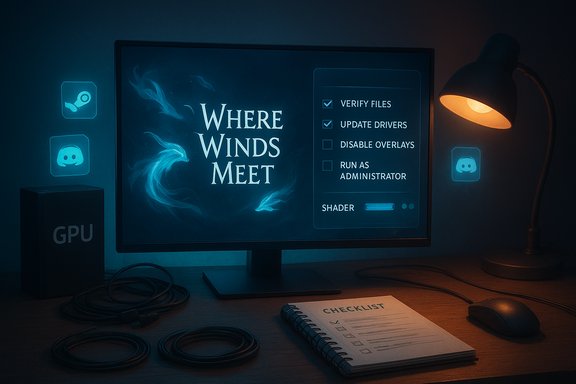 Background / Overview
Where Winds Meet is a free‑to‑play wuxia open‑world action RPG developed by Everstone Studio and published by NetEase Games, released on PC and PlayStation 5 in November 2025. The game’s PC storefront pages and publisher materials list slightly different system requirement figures, which matters because following the wrong spec will either over‑stress your hardware or lead you to unnecessary troubleshooting steps. Steam’s store page lists a fairly demanding baseline (Core i7‑7700K / Ryzen 5 1600 and 16 GB RAM) while the Epic Games Store, Game8 and the game’s official PC launcher/install guide include lower minimums (e.g., GTX 750 Ti / RX 550 and 8 GB RAM) and tiered recommendations. These inconsistencies mean the true minimum varies depending on the version or the launcher you use; treat store pages and the official install guide as separate authoritative references when diagnosing performance or launch failures. Why that matters: if a store lists a higher minimum than your system actually needs, you may be chasing a hardware upgrade unnecessarily. Conversely, a storefront that understates minimum RAM/GPU demands could make you assume the game should run when it won’t. Always check the launcher/page you actually use to install the game first. Why Where Winds Meet crashes on PC (most common root causes)
Crashes for modern online open‑world titles tend to fall into a handful of patterns. These are the failure modes you should consider and the factual basis that links them to Where Winds Meet in community reports and official guidance:- Driver and renderer conflicts — outdated or buggy GPU drivers cause initialization failures, API negotiation problems (Vulkan/DX12), or runtime GPU resets. Community troubleshooting and vendor guidance both identify drivers as a leading cause of startup and mid‑game crashes.
- Corrupt or missing game files — interrupted installs, corrupted updates, or launcher issues produce missing assets or broken shader caches that crash the game; verifying or repairing files resolves many cases.
- Third‑party overlays and monitoring tools — Steam Overlay, Discord Overlay, GeForce Experience, MSI Afterburner / RTSS and similar tools inject hooks into the renderer and are an extremely common proximate cause of silent exits or crashes.
- Windows runtime, security or kernel barriers — Windows Memory Integrity (Core Isolation), strict antivirus/firewall rules, or missing OS updates can block launcher helper drivers or anti‑cheat components and prevent the game from initializing.
- Resource contention — background apps hogging CPU, memory, or I/O (browser tabs, sync clients, heavy antivirus scans) can starve the game and cause exits or stutters.
- GPU timeouts (TDR) and GPU recovery — long shader compiles or heavy GPU workloads can trip Windows’ Timeout Detection and Recovery (TDR) and cause the renderer or whole process to close. Adjusting TDR values is a known workaround (with caveats).
The 10 Best Fixes (ordered: safest → most invasive)
Follow these steps in order. Do one change at a time and test — that way you know precisely what fixed (or didn’t fix) the issue.1. Check (and match) the system requirements for your launcher
- Why: Steam, Epic and the official launcher list different minimums/recommended specs; make sure you’re looking at the version you installed. If your PC falls below the minimum listed by the launcher you used, crashes and instability are likely.
- What to do: Open the launcher/store page you used to install Where Winds Meet and compare your CPU, RAM, GPU and free storage. If you’re under the minimum, either lower in‑game settings or consider hardware upgrades.
2. Run the game (and the launcher) as Administrator
- Why: Permission errors (unable to write shader caches, log files, or install helper drivers) can silently fail or crash the launcher/game.
- Steps:
- Right‑click the launcher or WhereWindsMeet.exe → Properties → Compatibility.
- Check “Run this program as an administrator” → Apply → OK.
- Launch again and verify.
- Risks: Running as admin is a diagnostic step — don’t keep everything elevated permanently unless you understand the security trade‑offs.
3. Verify/repair game files (Steam/Epic/Launcher)
- Why: Corrupted downloads or bad patching are prime causes of unexpected crashes.
- How:
- Steam: Library → Right‑click Where Winds Meet → Properties → Local Files → Verify integrity of game files.
- Epic: Library → … next to game → Verify.
- Official launcher: use any built‑in repair/verify option described in the launcher’s Help/FAQ.
- Notes: Let the client complete the scan; if files are repaired, retest the game.
4. Update GPU drivers — or do a clean reinstall with DDU
- Why: Driver bugs and leftover driver artifacts are a leading cause of launch failures and runtime crashes. A fresh driver install or a DDU clean wipe frequently resolves rendering conflicts.
- Steps:
- Try the normal driver update first (NVIDIA GeForce Experience, AMD Radeon Software, or Intel Driver & Support).
- If problems persist, use Display Driver Uninstaller (DDU) in Safe Mode to remove the old stack, then install the vendor driver cleanly. Follow the DDU author and vendor guidance: create a restore point, boot to Safe Mode, run DDU, then install the latest driver offline and reboot.
- Risks: DDU is invasive — mistakes can cause a black screen or broken display until the driver is reinstalled. Back up data and ensure you have another device to look up recovery steps if required.
5. Disable overlays and monitoring utilities
- Why: Overlays inject code/hooks into the rendering pipeline and are a frequent proximate cause of crashes in many modern games. Players commonly resolve crashes by turning off Discord, Steam, GeForce Experience, MSI Afterburner / RTSS overlays.
- How:
- Steam: Right‑click game → Properties → uncheck “Enable the Steam Overlay”.
- Discord: User Settings → Game Overlay → Toggle off.
- GeForce Experience: Settings → In‑Game Overlay → Off.
- MSI Afterburner / RTSS: Close/disable the overlay or set application level to “none”.
- Test the game after disabling each overlay; overlays can be re‑enabled later once stability is confirmed.
6. Install Windows updates, runtimes, and DirectX redistributables
- Why: Missing Windows updates, Visual C++ runtimes, or misplaced DirectX files can cause launch failures.
- What to do:
- Windows Update → Check for updates and install.
- Install/update DirectX End‑User Runtime (if the launcher requests it).
- Install the latest Visual C++ redistributables.
- Note: The game supports DirectX 12 (and sometimes DX11 options); forcing DX12 from Steam launch options (e.g., -dx12) is a common community diagnostic if the default renderer fails.
7. Adjust GPU TDR settings (only if GPU resets are visible)
- Why: If Event Viewer or on‑screen symptoms indicate GPU timeouts (TDR), increasing the TdrDelay value gives the GPU more time to complete long shader compiles or heavy frames. Intel, Microsoft and community docs document this registry tweak as an advanced workaround.
- Steps (advanced):
- Press Win + R → regedit → Navigate to HKEY_LOCAL_MACHINE\SYSTEM\CurrentControlSet\Control\GraphicsDrivers.
- Create a DWORD (32‑bit) named TdrDelay and set Decimal to 20 (or higher, e.g., 60 for very long workloads).
- Reboot and test.
- Risks: Increasing TDR delays can hide real GPU faults and may cause a system freeze instead of a clean recover. Only use this after driver clean installs and monitoring show TDR as the likely culprit.
8. Temporarily disable antivirus/firewall or add game exceptions
- Why: Security software can block launcher helpers, anti‑cheat drivers, or game network connections, producing crashes or failed inits.
- Steps:
- Temporarily disable real‑time protection (Windows Security or third‑party AV).
- If the game starts, add WhereWindsMeet.exe and the launcher to exclusions and re‑enable protections.
- For Windows Firewall: Control Panel → Windows Defender Firewall → Allow an app or feature → Add game/launcher.
- Caveat: Disabling security software leaves your PC exposed; only do this briefly to test, and then add structured exceptions if needed.
9. Clean boot to isolate conflicting software
- Why: If third‑party services (Razer Cortex, cloud sync clients, background updaters) interfere, a clean boot narrows the culprit.
- How:
- Win + R → msconfig → Services → Hide Microsoft services → Disable all non‑Microsoft services.
- Task Manager → Startup → Disable non‑essential items → Reboot.
- Test the game; re‑enable services in groups to find the conflict.
10. Reinstall the game and, as a last resort, reinstall Windows
- Why: If deep file corruption or an irrecoverable OS/runtime mismatch exists, only a full reinstall will restore a pristine environment. Reinstall the game first; if the problem persists across freshly installed drivers and a clean user profile, a repair or reinstall of Windows may be necessary.
- Steps:
- Uninstall Where Winds Meet and the launcher.
- Reboot and delete leftover install folders (verify you’ve saved configs/backups).
- Reinstall and test.
- If pervasive instability across multiple games exists, consider an OS repair (DISM /restorehealth and sfc /scannow) or clean Windows reinstall — but back up all data first.
Diagnostics: what logs and info to collect before contacting support
If the game still crashes after the checklist above, gather the following so publisher support or community volunteers can diagnose reliably:- Windows build number (Win + R → winver) and full OS channel (e.g., Windows 11 Pro 23H2).
- Full GPU model and driver version.
- CPU, RAM, and whether the game was installed on SSD or HDD.
- Exact game version and launcher used (Steam, Epic, NetEase launcher) and timestamped crash events.
- Event Viewer logs: Windows Logs → Application/System entries at the crash time (save as .evtx).
- A short screen capture or video of the crash behavior and steps to reproduce.
- Any crash IDs or dump files from the game's local logging folder.
Cross‑checked technical notes and points of caution
- System requirement inconsistencies: Steam, Epic and the official install guide currently differ on minimum CPU and RAM figures — treat the launcher/store you used as the authoritative spec and flag any mismatch when you ask for help. The official launcher’s PC guide shows a tiered spec table (minimum: older CPUs and as low as 8 GB in some listings), while Steam’s page lists a higher minimum and 16 GB — both are published by credible sources and both may be correct for different build targets or launchers. Verify which store/launcher you are using when troubleshooting.
- TDR registry edits are an advanced workaround, not a cure: increasing TdrDelay can stop Windows from resetting a GPU mid‑operation but may only mask a driver/hardware fault; it should be attempted only after driver clean installs and with awareness of potential system freezes. Intel and community guidance document the registry path and default values.
- DDU works and is widely recommended — but it is invasive: use Safe Mode and create a restore point; ensure you have the correct replacement driver ready to install. Vendor support articles and DDU’s documentation caution users about the risks.
- Overlays are high‑value diagnostics: the cost of disabling overlays temporarily is negligible, and the payoff in stability is often immediate. Discord and GeForce overlays have well‑documented histories of causing crashes across many titles.
Final analysis — strengths, risks, and when to escalate
Where Winds Meet is an ambitious, open‑world wuxia experience with cross‑platform ambitions; that complexity increases the surface area for PC‑specific crashes. The good news is that most crashes are caused by the usual suspects — drivers, overlays, corrupt files, or missing runtimes — and are resolvable with the ordered checklist above. Community and publisher guidance agree on the high‑value, low‑risk steps: verify files, update drivers, disable overlays, and test DX renderer options. Notable strengths of the troubleshooting flow:- Starts with reversible steps (verify files, run as admin) that rarely create side effects.
- Escalates to well‑documented vendor‑recommended fixes (driver update, DDU) with clear safeguards.
- Emphasizes diagnostic logging and rollback points so users can give developers actionable reproduction data.
- Registry edits (TdrDelay) and DDU usage carry non‑trivial risk and should be used with backups and system restore points in place. They can mask deeper hardware faults or produce system instability if used incorrectly.
- Temporarily disabling security protections should be limited and immediately followed by creating properly scoped firewall/AV exceptions rather than leaving protection off.
- If the problem stems from a compatibility regression in a GPU driver or in Windows itself, the only safe long‑term option may be a driver rollback or waiting for a vendor hotfix. Community experience shows that keeping known‑good driver installers archived is a pragmatic policy for gamers who value long‑term playability.
Where Winds Meet’s PC launch window has produced inevitable stability reports, but most players can restore reliable gameplay by following the ordered checklist above. Start small — update drivers and verify files, then move through overlays, Windows updates, and clean driver installs only if needed. If none of the ten fixes resolves your crash, collect logs (Event Viewer, game logs, driver versions) and escalate to NetEase/Everstone support with the evidence; developers can only fix what they can reproduce, and clear logs speed that process. If you proceed with advanced steps (DDU or TDR edits), create a system restore point, back up important data, and document the changes so you can revert them. These steps will get most players back to the wuxia action — but exercise caution with the invasive options, and escalate to support with full logs if instability persists.
Source: Get Droid Tips Where Winds Meet Crashing on PC? 10 Best Fixes You Must Try
