

If you still run a “one‑click registry cleaner” because some utility promises to speed up Windows, stop — the gains are negligible and the risk of breaking software or the OS is real.
The Windows Registry is a hierarchical database of configuration settings used by Windows and countless applications. It stores everything from simple preferences (light vs dark theme) to file associations, COM registrations, driver and service configuration, and the precise paths programs use when launching. Over years of installing and uninstalling software, the Registry accumulates entries that are orphaned or unused, and that accumulation is what registry‑cleaner vendors have historically targeted. Yet modern Windows and modern hardware reduce — and in many cases eliminate — the old rationale for routinely scanning and mass‑deleting registry entries.
This article explains what registry cleaners actually do, why routine use is harmful rather than helpful for most users, when targeted registry edits are appropriate, and safe alternatives to maintain a healthy Windows PC. It summarizes the technical facts, offers a step‑by‑step scalpel approach for real reinstall or broken‑installer cases, and provides a conservative checklist for safe Windows maintenance.
Registry cleaners take a broadbrush approach: they flag thousands of entries as “issues” and often provide a single click to remove many or all flagged items. That design — one operation that deletes many disparate keys — is what turns an otherwise minor housekeeping task into a potentially dangerous, system‑breaking operation.
By replacing registry‑cleaner rituals with targeted troubleshooting and disciplined backups, you preserve system stability while still having the tools and steps to fix true problems when they arise.
Source: How-To Geek Please stop using registry cleaners, they're harming your PC
 Background / Overview
The Windows Registry is a hierarchical database of configuration settings used by Windows and countless applications. It stores everything from simple preferences (light vs dark theme) to file associations, COM registrations, driver and service configuration, and the precise paths programs use when launching. Over years of installing and uninstalling software, the Registry accumulates entries that are orphaned or unused, and that accumulation is what registry‑cleaner vendors have historically targeted. Yet modern Windows and modern hardware reduce — and in many cases eliminate — the old rationale for routinely scanning and mass‑deleting registry entries.This article explains what registry cleaners actually do, why routine use is harmful rather than helpful for most users, when targeted registry edits are appropriate, and safe alternatives to maintain a healthy Windows PC. It summarizes the technical facts, offers a step‑by‑step scalpel approach for real reinstall or broken‑installer cases, and provides a conservative checklist for safe Windows maintenance.
What registry cleaners claim to do — and what they really do
Registry cleaners scan the Registry for entries that match heuristic rules: orphaned file extensions, missing application uninstall traces, unused COM registrations, and entries referencing files that no longer exist. Their sales copy promises:- Faster boot times and snappier performance
- Fewer errors and broken file associations
- Smaller Registry footprint and reclaimed disk space
Registry cleaners take a broadbrush approach: they flag thousands of entries as “issues” and often provide a single click to remove many or all flagged items. That design — one operation that deletes many disparate keys — is what turns an otherwise minor housekeeping task into a potentially dangerous, system‑breaking operation.
Why registry cleaners are effectively obsolete today
Modern storage and Registry performance
- Modern SSDs (both SATA and NVMe) make Registry reads and writes extremely fast; any micro‑difference in Registry file layout is not perceptible at normal desktop workloads.
- The Registry’s total size is small relative to modern drive capacities; reclaiming a few dozen megabytes yields no meaningful user‑level performance gain.
Windows manages critical housekeeping
- Windows includes built‑in maintenance features — automatic drive optimization (TRIM/Optimize Drives), Storage Sense for reclaiming temporary files, and integrated update and repair tools — that reduce the need for external “maintenance” utilities. These built‑in features are designed to be conservative and safe for the variety of Windows configurations found in the wild.
Vendor and expert guidance
- Microsoft and experienced Windows technicians explicitly caution against routine use of unsupported registry‑cleaning utilities because incorrectly removing keys can break applications or the OS itself. Multiple community and security analyses converge on the same practical conclusion: registry cleaning is unnecessary as routine maintenance and should be reserved for precisely diagnosed scenarios.
What registry cleaners get wrong — a technical breakdown
1. Heuristics cannot reliably determine “unused”
Heuristic scanners detect patterns, not intent. A key that looks orphaned might still be referenced by a delayed or optional component of an installed program, a scheduled task, or a system service, and removing it can lead to application failure or subtle bugs later.2. Deleting keys can have cascading effects
The Registry contains references that form relationships between COM classes, file associations, service registrations, and driver configuration. Removing one “orphan” key may break another component’s ability to locate necessary resources.3. Backups are often insufficient or ignored
Many cleaners create a quick export backup of deleted keys, but recovery is not always straightforward. Importing a backup after a failure is possible — if the user recognizes the cause and knows which backup to restore. In the worst case, the system may be rendered unstable and require System Restore, an in‑place repair, or a clean reinstall.4. Aggressive cleaning after major updates is particularly dangerous
Major Windows updates can change Registry structures, relocate data, or alter how components are referenced. An overly aggressive cleaner that hasn’t been updated for the latest OS changes is more likely to delete keys that are critical in the new OS state. Community testing and support notes routinely highlight this risk after feature updates.When you might legitimately need to touch the Registry
There are real, narrowly defined situations where editing the Registry is warranted:- An installer or reinstaller refuses to run because leftover registry keys conflict with a fresh install.
- A known, documented vendor support procedure instructs you to modify or remove specific Registry entries to fix a reproducible problem.
- Forensics and malware removal when a persistence entry must be removed after a confirmed infection.
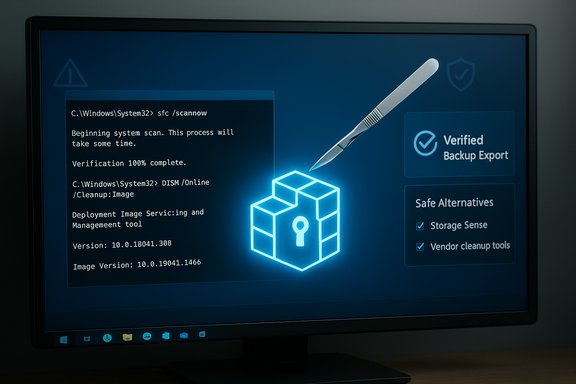
Safer alternatives — the “scalpel” approach
If you have a problem tied to leftover registry entries (for example, an installer that refuses to run), follow a careful, manual process instead of running a registry cleaner:- Create a full system backup or disk image, or at minimum set a System Restore point.
- Use the program’s built‑in uninstaller first or the vendor’s official cleanup tool.
- If that fails, use a reputable uninstaller that performs targeted cleanup (for example, tools that scan for program traces after uninstall and let you review each deletion). These tools are less risky because they focus on entries related to the specific product rather than sweeping the whole Registry.
- If further action is required, open Registry Editor (regedit), use Find to locate keys related to the problem app, and delete only the validated keys after exporting them for backup.
- Reinstall the program and verify functionality.
Step‑by‑step: safely removing leftover registry traces for a stubborn installer
Follow this procedural checklist when an installer fails due to registry leftovers:- Create a System Restore point and (preferably) a full disk image.
- Attempt the vendor’s cleanup or uninstall tool (many major vendors publish cleanup utilities for their products).
- If the program was removed by deleting files rather than by using its uninstaller, re‑run the original uninstaller if possible or run an administrative command to clear Windows Installer entries (useful for MSI-based installers).
- Run SFC and DISM to verify system file integrity:
- Open an elevated Command Prompt and run:
- DISM /Online /Cleanup-Image /RestoreHealth
- sfc /scannow
These commands repair component store and protected system files and are a safe first step before editing the Registry. - Use Registry Editor:
- Start regedit.exe (as Administrator).
- Use Edit → Find and search for the program’s name, vendor, or product GUID.
- For each result, right‑click and choose Export — save to a clearly named .reg file so you can restore it later.
- After exporting, delete only entries you can confidently associate with the problematic program (for example, entries under the app’s vendor key).
- Reboot and attempt the install again.
- If something fails after deletion, re‑import the exported .reg file or use System Restore to revert to the prior state.
Recovery and remediation if a registry cleaner already caused trouble
If a registry cleaner has already created problems, use this escalation path:- Stop using the PC for further maintenance tasks to avoid additional changes.
- Try System Restore to revert to a point before the cleaner ran.
- If a registry backup was created by the cleaner, import it cautiously; verify the content before applying it.
- Run SFC and DISM to repair system files. Review logs for clues and escalate to an in‑place repair if system integrity tools can’t restore functionality.
- As a last resort, perform an in‑place upgrade/repair (mount or mount an ISO and choose Keep personal files and apps), or perform a clean install if needed.
Tools and commands you should know (technical reference)
- DISM /Online /Cleanup-Image /RestoreHealth — repairs the Windows component store.
- sfc /scannow — verifies and replaces protected system files.
- Autoruns (Sysinternals) — audit autorun locations without deleting entries; disable first, delete only after validation.
- Optimize Drives / TRIM — Windows schedules drive optimization automatically; do not install third‑party defraggers for SSDs.
- Storage Sense — configure for scheduled cleanup of temp files and Recycle Bin management.
- Regedit — use only for targeted edits; always Export before modifying or deleting keys.
- Vendor cleanup tools (example: Microsoft Support and Recovery Assistant for Office) — use vendor‑provided cleanup utilities when available.
A critical appraisal: strengths, weaknesses, and tradeoffs
Strengths of the modern “avoid blanket registry clean” position
- Reduced risk of accidental system breakage because mass deletions are avoided.
- Built‑in OS maintenance handles most routine needs safely and automatically.
- Time saved: users don’t repeatedly run third‑party chores that yield no measurable user‑experience improvements.
- Better alignment with vendor support: using official tools simplifies troubleshooting and support escalation.
Weaknesses and tradeoffs
- Edge cases remain where targeted cleaning is required: stubborn installers, legacy software, or forensic malware cleanup sometimes demand precise Registry edits.
- Users who prefer “one‑click” convenience may still be tempted by third‑party tools — and may lack the knowledge to perform targeted edits safely.
- Some reputable uninstallers and cleanup utilities provide genuinely useful selective removal, but they require cautious use and user review of changes.
When a third‑party tool is reasonable
- The tool focuses on a single product (uninstallers that remove leftovers after uninstall).
- The tool exports a clear backup and lists each change for user confirmation.
- The tool is well‑maintained, open about its heuristics, and has a track record of careful updates after major Windows releases. Even then, prefer targeted actions over blanket scans.
Quick, practical checklist — what to do now (conservative defaults)
- Stop running registry cleaners routinely. Replace that habit with Windows’ built‑in tools: Storage Sense, Optimize Drives, and Windows Security.
- For a misbehaving app, use the vendor’s uninstaller or cleanup tool. If that fails, use a vetted uninstaller that lets you review leftover traces before removal.
- Before any manual Registry edits: create a System Restore point and export the keys you plan to change.
- Use DISM and SFC as first responders for system integrity issues.
- For forensic or malware cleanup, rely on reputable anti‑malware scanners and manual inspection with tools like Autoruns rather than automated global cleaning.
Flagging unverifiable or overstated claims
- Claims that registry cleaning will produce large, measurable speed increases (e.g., “200% faster”) are unsupported and should be treated as marketing hyperbole.
- The exact maximum Registry size is not a fixed number — it depends on installed software, user profiles, and specific applications; while community tests suggest sizes in tens to hundreds of megabytes, specific numbers for every system are not universally verifiable without measurement on that machine. Treat size claims as approximate rather than absolute.
- Assertions that “all registry cleaners are malware” are also overbroad; some cleaners are legitimate applications, but even legitimate cleaners present a tradeoff: their heuristics may still cause damage if used indiscriminately. The correct stance is risk‑based: avoid routine use and prefer targeted, evidence‑driven edits.
Final verdict — practical guidance for enthusiasts and professionals
Registry cleaners are a relic of an era when storage was tiny and operating systems required heavy manual tuning. For modern Windows users, these utilities deliver negligible benefit and non‑trivial risk. The smarter path is to:- Trust built‑in Windows maintenance tools for routine housekeeping.
- Use SFC and DISM for integrity repairs.
- Use vendor cleanup tools or selective uninstallers for stubborn product traces.
- When manual Registry edits are necessary, apply a scalpel: export, delete only validated keys, and keep a restore point or image.
By replacing registry‑cleaner rituals with targeted troubleshooting and disciplined backups, you preserve system stability while still having the tools and steps to fix true problems when they arise.
Source: How-To Geek Please stop using registry cleaners, they're harming your PC
