

Two decades of ritual reinstalling—a white-knuckled clutch at a pristine desktop—no longer buys what it used to, and in many cases it can introduce fresh problems you won't spot until days later when a vendor utility won't run or a battery health profile is gone. The reflex to "format and start over" came from a different era of Windows, but modern Windows recovery tools, improved OEM practices, and hardware realities mean that reinstalling as a first response is often the slowest, riskiest, and least effective path to a fast, stable PC.
The advice to reinstall Windows when a PC acted up was once practical: hard drives were slow, startup agents were many, and OEM-installed software sometimes dug deep hooks into the operating system. A fresh image restored responsiveness and removed suspicious add-ons. That island of certainty mattered to technicians and enthusiasts alike: a known baseline made troubleshooting reproducible.
But Windows, PC hardware, and vendor behavior have changed. Microsoft has improved built-in recovery tools such as Reset this PC and cloud‑download recovery options, and OEMs increasingly ship useful utilities—battery managers, firmware updaters, and thermal controls—that matter to a laptop’s daily function. At the same time, the most dangerous forms of OEM bloatware are far less common thanks to public scrutiny and regulatory action. Those shifts alter the risk/reward calculation for a clean install.
A thoughtful maintenance regimen and a short diagnostics checklist will save far more time over the life of a PC than repeated clean installs ever did. Reinstall with purpose, not habit.
Source: PCMag UK Stop Reinstalling Windows—It's Probably Making Your PC Worse
 Background / Overview
The advice to reinstall Windows when a PC acted up was once practical: hard drives were slow, startup agents were many, and OEM-installed software sometimes dug deep hooks into the operating system. A fresh image restored responsiveness and removed suspicious add-ons. That island of certainty mattered to technicians and enthusiasts alike: a known baseline made troubleshooting reproducible.But Windows, PC hardware, and vendor behavior have changed. Microsoft has improved built-in recovery tools such as Reset this PC and cloud‑download recovery options, and OEMs increasingly ship useful utilities—battery managers, firmware updaters, and thermal controls—that matter to a laptop’s daily function. At the same time, the most dangerous forms of OEM bloatware are far less common thanks to public scrutiny and regulatory action. Those shifts alter the risk/reward calculation for a clean install.
Why wipes used to be the smart move
The HDD era and startup chaos
Early Windows-era laptops commonly shipped with slow mechanical hard drives and dozens of startup processes. The combination was a user experience disaster: long boot times, high I/O contention, and sluggish UI responsiveness. For many users a clean install was the quickest way to remove the "startup swarm" and get snappy performance back—especially when a novice user had little appetite to manually audit and remove dozens of background apps.Bloatware that reached too deep
Not all preinstalled software was harmless. High‑profile incidents—most notably ad-injecting software that installed its own root certificate—demonstrated that some vendor-supplied applications could compromise security and web encryption. These episodes convinced many users that only a completely clean, vendor-free install could be trusted. Regulatory pressure and public exposure eventually curtailed the worst abuses, but for a long time reinstalling Windows was a prudent defensive move.A repeatable baseline for troubleshooting
Reimaging provided reproducibility: a technician could return a machine to a well-known state and then stepwise add drivers and apps until the offending element reappeared. That binary-style troubleshooting (clean vs. dirty) made sense when diagnostics, driver delivery, and recovery were immature or inconsistent.What’s changed: why a reinstall is no longer the default
Stronger built-in recovery and repair flows
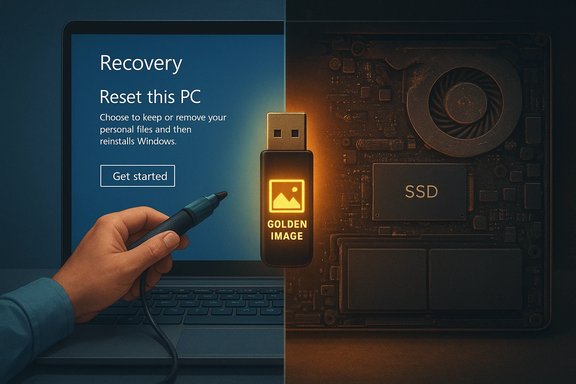
Modern Windows provides layered repair options that can restore system files or reinstall Windows without the friction of old-school installs. Reset this PC can reinstall Windows from local media or perform a cloud download of the latest image while offering choices to keep files or remove everything. These options reduce the need to locate ISO files, create boot media, or manually re-download drivers. That convenience alone removes one big reason power users used to reach for an installer.OEM utilities now deliver real value
Many laptop vendors ship utilities that are functionally important: firmware delivery (BIOS/UEFI/EC updates), battery charging thresholds, fan/thermal control, and keyboard lighting profiles. These apps often tie into system firmware or expose model‑specific controls and, if removed without preparation, can be time-consuming to recover. For many users, keeping these utilities outweighs the theoretical cleanliness of a fresh image.Bloatware is less toxic and easier to remove
Today’s preinstalled extras are more likely to be trial antivirus, cloud storage offers, or casual games—annoyances rather than systemic security threats. Windows and the Start menu now let users uninstall many of these apps quickly, so the heavy-handed "nuke it" approach that once produced big wins offers diminishing returns.Hardware is often the real culprit
Performance problems frequently trace to hardware issues: a failing HDD, thermal throttling from clogged fans, or degraded battery chemistry. Reinstalling software won't change physical limits or a drive’s SMART‑reported health; hardware fixes (cleaning fans, replacing thermal paste, switching from HDD to SSD) are the real performance levers. Software wipes can waste time and delay the hardware repair you actually need.What you lose when you wipe everything
- OEM integrations: Fan and power curves, battery health profiles, and firmware update convenience can vanish and be awkward to restore.
- Time and productivity: Backups, reinstalling apps, reconfiguring settings, and restoring licences take hours or days.
- Hidden settings and device-specific drivers: Some model‑specific drivers or store-only packages are not obvious and may be difficult to find after a wipe.
- Potential regressions: Features you relied on (touchpad gestures, keyboard backlight profiles, battery charging thresholds) may not behave identically until you reinstall vendor utilities.
The myth of the performance‑boosting reinstall
Reinstalling Windows is often described as the equivalent of "defragmenting the soul" of a PC—instantly faster, cleaner, and more stable. In practice, that myth breaks down because:- If disk I/O, memory, or thermals are the bottleneck, a reinstall can't change the hardware constraints that determine perceived speed.
- Many performance problems are caused by a single runaway process, a misbehaving driver, or cloud sync activity—issues you can measure and remediate quickly with diagnostics.
- Reinstalls can preserve problematic third‑party components if you perform an in‑place repair, so they are not guaranteed cures.
When a clean install still makes sense
There remain clear, defensible scenarios where a reinstall (or Reset → Remove everything) is the right move:- Irreparable system corruption: SFC, DISM, and in‑place repairs fail; component store or system file corruption persists.
- Severe malware or rootkit compromise: When forensic indicators show persistent tampering that can't be confidently removed, starting from known clean media is the safest option.
- Preparing a device for resale or transfer: A provable wipe with the drive-clean option protects privacy and reduces liability.
- Devices used as testbeds: Machines used for years of driver testing, Insider builds, or frequent installs can accumulate obscure cruft; a controlled rebuild with a golden image may be faster than endless troubleshooting.
A practical, risk‑aware playbook (do this before you reinstall)
Quick triage (20–30 minutes)
- Create a System Restore point and take a minimal file backup of essential Documents and Photos.
- Run Windows Security full scan, then run DISM and SFC:
- DISM /Online /Cleanup-Image /RestoreHealth
- sfc /scannow
- Open Task Manager → Startup and disable high‑impact nonessential entries.
- Uninstall obvious unwanted apps in Settings → Apps → Installed apps.
- Check Device Manager for flagged devices and roll back drivers where appropriate.
Intermediate repairs (1–2 hours)
- Try a repair install using the Windows ISO (in‑place upgrade) to overwrite system files while keeping apps and data. Note this may preserve unwanted third‑party components.
- Use Reset this PC → Keep my files and choose Cloud download if you suspect local image corruption; this often combines the reliability of a fresh image with the convenience of preserving user data.
Hardware checks
- Inspect thermals: clean dust, verify fan operation, and check temperatures. Replace thermal paste on older systems when appropriate.
- Check storage health (SMART), and if using an HDD, consider an SSD upgrade—the single best perceived performance upgrade for older laptops.
If you must wipe: a safe rebuild checklist
- Back up everything: files, app data, licence keys, browser exports, and BitLocker recovery keys.
- Document installed OEM utilities (Lenovo Vantage, Dell Power Manager, Asus Armoury Crate, etc. and collect their installers or bookmark vendor support pages.
- Create current bootable media or use Cloud download to avoid old or patched‑out installers.
- Disconnect from the internet until you create a local admin account and secure keys where relevant.
- After reinstall: install chipset and vendor drivers first, then GPU drivers, then extras. Validate thermal and power settings with vendor tools.
- Capture a golden image once configured to speed any future rebuilds.
Enterprise and power‑user considerations
For IT pros and power users, a few additional patterns are worth adopting:- Standardize on a golden image that includes required vendor utilities; deploy this image for mass rebuilds.
- Use out-of-band tooling (MDT/Windows Autopilot/Intune) to automate driver and utility deployment after a reset, preserving support paths.
- For lab and test machines, prefer virtualization to avoid contaminating your primary environment. Virtual machines are the safest way to experiment without risking the host OS.
Risks, tradeoffs, and a few cautions
- Vendor apps are not uniformly good: some OEM utilities can introduce telemetry, bugs, or incompatibilities. Keep what helps and remove what harms, but do so after documenting how to restore essential features.
- Data loss is common after a casual wipe: users often forget to export app-specific data, browser profiles, or licensing files. The time lost restoring these can exceed the time you hoped to save by reinstalling.
- A reinstall can mask root causes: doing a wipe without diagnostics can hide hardware defects or misconfigurations, resulting in wasted effort and repeat failures.
A recommended maintenance routine to avoid reinstall reflexes
- Keep storage under ~80% capacity to avoid performance cliffs.
- Run periodic malware scans and use Defender + a reputable backup solution.
- Keep firmware and drivers current via vendor tools you intentionally keep.
- Maintain a golden image and a verified restore plan for disaster recovery.
- Learn the Windows recovery flows (Reset this PC, cloud download) so you can repair quickly without rebuilding.
Final verdict
Reinstalling Windows was once an efficient and practical reset button. Today it is still a valid tool, but one among many—and not the automatic first choice. Modern Windows recovery tools, improved OEM practices, better uninstall flows, and the reality that many performance problems are hardware-related mean that indiscriminate wipes are increasingly counterproductive. Treat reinstalling as a last‑resort, high‑cost operation: measure first, fix targeted problems, prefer Reset/repair options when appropriate, and only perform a full wipe when corruption, compromise, or privacy needs make it necessary. Do the preparatory work—backups, vendor utility inventories, and a golden image—and when you do reinstall, do it intentionally and efficiently.A thoughtful maintenance regimen and a short diagnostics checklist will save far more time over the life of a PC than repeated clean installs ever did. Reinstall with purpose, not habit.
Source: PCMag UK Stop Reinstalling Windows—It's Probably Making Your PC Worse
