

Two decades of ritual reinstalling—format, wipe, reinstall—worked once because hardware and vendor practices made it the fastest path to a sane, usable PC, but today that reflex often wastes time and can even leave you worse off.
The core argument against habitual clean installs is simple: modern Windows, vendor practices, and available recovery tools have changed the calculus that once made reinstallation the default fix. The original PCMag piece that sparked this discussion recounts how reinstalling Windows used to remove deeply embedded bloat and security‑compromising preloads, but notes that most contemporary preinstalled extras are less toxic and far easier to remove; it argues a clean install is now a last‑resort operation, not routine maintenance.
That shift didn't happen by accident. High‑profile incidents—most notably Lenovo's preinstallation of Superfish/VisualDiscovery in 2014–2015—exposed how some OEM software could install its own root certificate and intercept HTTPS traffic, creating real security risk. Regulators and industry pressure followed, and vendors changed how they package software. The Federal Trade Commission's complaint and subsequent settlement with Lenovo, together with early technical alerts from government cybersecurity agencies, are part of the documentary record that moved the industry away from the worst abuses. At the same time, Microsoft has added layered recovery and repair flows that let users refresh or reinstall Windows without rebuilding from scratch: “Reset this PC,” cloud‑download reinstall options, and the “Fix problems using Windows Update” repair path can restore system files while preserving apps and settings in many scenarios. That makes a full manual reinstall less necessary for most users.
Practical immediate checklist (one page):
Source: PCMag Australia Stop Reinstalling Windows—It's Probably Making Your PC Worse
 Background / Overview
The core argument against habitual clean installs is simple: modern Windows, vendor practices, and available recovery tools have changed the calculus that once made reinstallation the default fix. The original PCMag piece that sparked this discussion recounts how reinstalling Windows used to remove deeply embedded bloat and security‑compromising preloads, but notes that most contemporary preinstalled extras are less toxic and far easier to remove; it argues a clean install is now a last‑resort operation, not routine maintenance.That shift didn't happen by accident. High‑profile incidents—most notably Lenovo's preinstallation of Superfish/VisualDiscovery in 2014–2015—exposed how some OEM software could install its own root certificate and intercept HTTPS traffic, creating real security risk. Regulators and industry pressure followed, and vendors changed how they package software. The Federal Trade Commission's complaint and subsequent settlement with Lenovo, together with early technical alerts from government cybersecurity agencies, are part of the documentary record that moved the industry away from the worst abuses. At the same time, Microsoft has added layered recovery and repair flows that let users refresh or reinstall Windows without rebuilding from scratch: “Reset this PC,” cloud‑download reinstall options, and the “Fix problems using Windows Update” repair path can restore system files while preserving apps and settings in many scenarios. That makes a full manual reinstall less necessary for most users.
Why reinstalling Windows used to be the smart move
The HDD era and startup chaos
In the Vista-to-Windows‑7 era, many new laptops shipped with low‑RPM mechanical drives and a swarm of startup processes. Those drives could bottleneck the system, and dozens of auto‑starting vendor apps produced long, I/O‑heavy boots. For enthusiasts and technicians, a fresh image removed the startup swarm and delivered a predictable, snappy baseline. The labor saved in day‑one cleanup made reinstalling practical for many.Deeply intrusive bloatware
Some preinstalled utilities weren't merely annoying—they reached into low‑level system layers. Superfish (VisualDiscovery) is the canonical example: the adware replaced website certificates and used the same weak private key across many machines, leaving systems vulnerable to man‑in‑the‑middle spoofing. The scale and technical severity of that incident justified clean installs in affected cases and helped make “start over clean” a defensive habit.A repeatable troubleshooting baseline
For technicians rebuilding fleets, a known clean image meant reproducible troubleshooting: add drivers and apps back one at a time to isolate problems. That forensic, binary approach made sense when diagnostics were immature, updates varied wildly, and vendor driver delivery was inconsistent.What has changed — why wiping Windows is often the wrong first move
Stronger built‑in recovery and repair flows
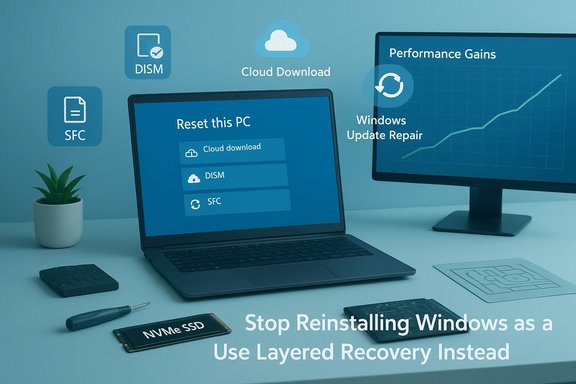
Windows now offers several progressively invasive repair tiers:- DISM / SFC to repair the component store and system files.
- In‑place repair (repair install) that rewrites Windows system files while keeping apps and data.
- Reset this PC with “Keep my files” or “Remove everything,” plus Cloud download to fetch a fresh image remotely.
- Fix problems using Windows Update that reinstalls the current OS version while preserving apps and settings when Update fails.
OEM utilities now do real work
Modern vendor suites—Lenovo Vantage, Dell Power Manager / Dell Optimizer, Asus Armoury Crate, and similar tools—perform functions that go beyond cosmetics:- Delivering BIOS/UEFI and firmware updates
- Managing battery charging thresholds and health
- Controlling thermal profiles and fan behavior
- Providing validated vendor drivers and firmware‑aware settings
Bloatware is less toxic and easier to remove
Today’s preload landscape is dominated by trial subscriptions, games, and innocuous cloud offers. Most such items can be uninstalled directly from Settings or the Start menu, and they generally don't compromise cryptographic trust or inject themselves into sensitive I/O paths the way Superfish did. That reduces the marginal benefit of nuking the system entirely for day‑one cleanup.Hardware is often the real culprit
If a machine is slow because of dust‑clogged cooling, thermal throttling, a failing HDD, or low memory, reinstalling Windows changes nothing. Hardware upgrades—especially swapping a mechanical HDD for an NVMe SSD—or simple maintenance such as cleaning fans deliver much larger and more permanent gains in perceived responsiveness. Community experience and technician playbooks repeatedly show hardware fixes are the highest‑leverage interventions.What you lose when you wipe everything
- Vendor‑specific utilities and firmware convenience. Losing tools that manage battery health or firmware updates can make post‑reinstall restoration slow and error‑prone.
- Time and productivity. Backing up, reinstalling apps, restoring settings, reactivating licenses, and hunting down obscure drivers often takes hours or days.
- Hidden features. Touchpad gestures, keyboard backlight profiles, and vendor power modes may not behave identically without OEM software.
- Risk of data loss. People commonly forget to export app‑specific data, browser profiles, or licensing tokens. A casual wipe can become a lengthy restore exercise.
The myth of the performance‑boosting reinstall
The belief that a reinstall will always speed your PC is a holdover from a different era. Typical modern slowdowns are traceable via Task Manager, Resource Monitor, and Process Explorer to:- A single runaway process (e.g., search indexing, cloud sync)
- A driver mismatch or GPU/chipset issue
- Post‑update maintenance tasks (index rebuilds, TiWorker)
- Hardware constraints (disk I/O, insufficient RAM, thermal throttling)
When a clean install still makes sense
There are clear, defensible scenarios where a full wipe or clean install is the correct choice:- Advanced persistent compromise or rootkit evidence. If forensic indicators show kernel‑level tampering, starting from known clean media is the safest path.
- Irreparable component store corruption. When SFC, DISM, in‑place repairs, and reset workflows fail repeatedly.
- Preparing a device for resale or transfer. A provable drive‑clean with secure erase protects privacy.
- Long‑term testbeds and sandboxes. Machines that have served as years‑long experiment platforms often accumulate cruft that’s cheaper to reimage from a golden image than to untangle.
Practical, risk‑aware playbook (do this before you reinstall)
A measured workflow saves time and prevents accidental regressions. Follow these steps in the order shown.Quick triage (20–30 minutes)
- Create a System Restore point and a minimal file backup (Photos, Documents).
- Run Windows Security full scan, then run:
- DISM /Online /Cleanup‑Image /RestoreHealth
- sfc /scannow
- Open Task Manager → Startup and disable nonessential high‑impact entries.
- Check Task Manager, Resource Monitor, and Process Explorer to identify top CPU/Disk/Memory consumers.
- Uninstall obvious unwanted apps from Settings → Apps → Installed apps.
Intermediate repairs (1–2 hours)
- Try an in‑place repair with the Windows ISO to rewrite system files while attempting to keep apps and data.
- Use Reset this PC → Keep my files and choose Cloud download if you suspect local image corruption; it often combines the reliability of a fresh image with convenience.
- If a driver is implicated, reinstall the vendor‑supplied driver (use NVIDIA/AMD/Intel utilities or OEM downloads) and create a system restore point before making further changes.
Hardware checks and fixes
- Inspect thermals: clean dust, verify fan operation, and check temperatures with HWInfo or similar.
- Replace thermal paste on older machines when appropriate.
- Check storage health (SMART). If using an HDD, consider an SSD upgrade—the single most perceptible performance upgrade for older laptops.
If you must wipe — a safe rebuild checklist
- Back up everything: files, app data, license keys, browser exports, and BitLocker recovery keys.
- Document installed OEM utilities (Lenovo Vantage, Dell Power Manager, Asus Armoury Crate) and collect their installers or bookmark vendor support pages.
- Create current bootable media or use Cloud download to avoid outdated installers.
- Disconnect from the internet until you create a local admin account and secure keys where relevant.
- After reinstall: install chipset and vendor drivers first, then GPU drivers, then extras, and validate thermal/power settings with vendor tools.
- Capture a golden image once configured to speed future rebuilds.
Critical analysis — strengths and blind spots of the “stop reinstalling” argument
Notable strengths
- Evidence‑based shift: The article correctly identifies structural changes—regulatory action after Superfish, Microsoft’s improved repair tools, and the higher utility of OEM suites—that materially reduced the benefits of habitual reinstalls. FTC, CISA, and vendor statements corroborate the historical arc.
- Practical alternatives offered: The playbook—measure before you nuke, use DISM/SFC, try Reset or in‑place repairs—matches best practice and is less risky for most users.
- Emphasis on hardware and maintenance: Highlighting SSD upgrades, thermal cleaning, and firmware updates correctly focuses effort on higher‑impact fixes.
Potential risks and blind spots
- Recovery tool reliability is not absolute. Built‑in recovery options are powerful, but they are not infallible. Recent real‑world incidents show that Windows updates can sometimes break recovery features; in August 2025 Microsoft acknowledged a bug introduced by cumulative updates that interfered with reset/recovery workflows and issued fixes. That episode underscores the need to keep recovery options patched and to maintain local backups and recovery media as a fallback.
- OEM utilities are a double‑edged sword. While Lenovo Vantage and Dell Power Manager provide firmware and battery management, they can also introduce telemetry and occasionally buggy firmware updates. Keep vendor apps if they genuinely add value, but document how to reinstall them if you ever need to.
- Enterprise and managed devices differ. Devices controlled by IT with update policies, Autopatch, or WSUS may not show all user recovery options, and wiping without coordination can break management enrollment and compliance. The Microsoft documentation for the Reset/repair paths explicitly cautions about devices managed by work or school accounts.
- Anecdotes vs. measurement. The article rightly flags that long‑held personal lore ("a reinstall always fixed my PC") is often anecdotal. Users should prefer measurement (boot time, process accounting, SMART data) over ritual.
A maintenance regimen to avoid the reinstall reflex
- Keep storage under ~80% capacity to avoid performance cliffs.
- Create a monthly checkpoint: a full disk image or a verified cloud backup, and a list of installed OEM utilities and license keys.
- Run periodic DISM/SFC and Windows Security scans.
- Maintain a driver vault: store copies of working driver installers for rollback.
- Stage feature updates for 3–14 days where practical; apply security updates promptly but allow time for early regressions to surface.
- Use virtualization for risky experiments—avoid contaminating the host OS with repeated installs and driver tests.
Final verdict
Reinstalling Windows was once the pragmatic, predictable reset button for a messy ecosystem. Today it remains an important tool, but it is no longer the default cure for everyday slowness or minor corruption. Modern Windows recovery options, improved OEM behavior after high‑profile security incidents, and the reality that most performance problems are hardware or configuration issues mean that indiscriminate reinstalls are increasingly wasteful and sometimes harmful. Treat a full reinstall as a deliberate, high‑cost operation: measure first, attempt layered repairs, prioritize hardware fixes and vendor tools where they provide real value, and only perform a complete wipe when forensic compromise, irreparable corruption, or privacy needs make it necessary.Practical immediate checklist (one page):
- Create a backup and System Restore point.
- Run Windows Security scan, then DISM /RestoreHealth and sfc /scannow.
- Inspect Task Manager and disable heavy startup items.
- If needed, try Reset this PC → Keep my files with Cloud download.
- If Reset fails or compromise is suspected, secure backups and perform Remove everything with Clean Data, reinstall vendor tools in this order: chipset → GPU → firmware utilities → extras.
- Capture a golden image for future fast rebuilds.
Source: PCMag Australia Stop Reinstalling Windows—It's Probably Making Your PC Worse
