

Modern Windows PCs are rarely crippled by noisy, desktop‑breaking viruses anymore, but infections still happen — and when they do a calm, methodical cleanup that uses built‑in tools plus a few trusted free utilities will remove most threats without paying for premium software or rebuilding the machine from scratch.
Windows has changed. The loud, obvious malware of the past — popups, corrupted icons and constant crashes — has largely been replaced by stealthy threats that try to go unnoticed while they steal data or run background tasks. Modern endpoint protections, especially Microsoft Defender (Windows Security), plus cloud‑assisted engines and browser protections, stop the bulk of commodity threats before they cause visible damage. Independent lab testing continues to show Microsoft Defender performs well in protection and performance evaluations, making it a sensible first line of defense for most home users. That said, the attack surface remains real: malicious attachments, drive‑by downloads, malicious browser extensions, and removable media still deliver malware. You should assume that a layered, methodical response is the fastest path back to a trustworthy computer: contain the machine, gather evidence, run layered (on‑demand and offline) scans, remove persistence mechanisms, and only then decide whether to reinstall Windows. The following guide expands a practical 12‑step, free toolkit that covers those tasks and explains why each method works.
If you find processes you don’t recognize:
Source: ZDNet How to find and remove viruses on your Windows PC - 12 free methods that I can attest to
 Background / Overview
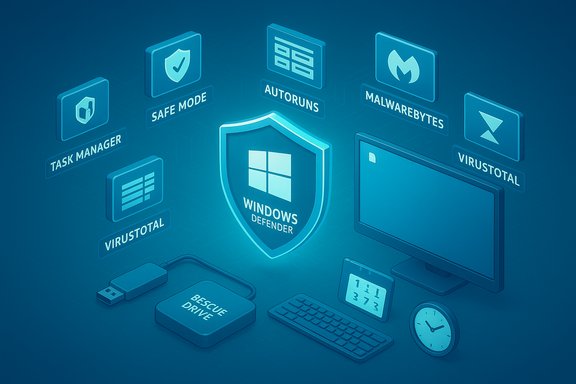
Windows has changed. The loud, obvious malware of the past — popups, corrupted icons and constant crashes — has largely been replaced by stealthy threats that try to go unnoticed while they steal data or run background tasks. Modern endpoint protections, especially Microsoft Defender (Windows Security), plus cloud‑assisted engines and browser protections, stop the bulk of commodity threats before they cause visible damage. Independent lab testing continues to show Microsoft Defender performs well in protection and performance evaluations, making it a sensible first line of defense for most home users. That said, the attack surface remains real: malicious attachments, drive‑by downloads, malicious browser extensions, and removable media still deliver malware. You should assume that a layered, methodical response is the fastest path back to a trustworthy computer: contain the machine, gather evidence, run layered (on‑demand and offline) scans, remove persistence mechanisms, and only then decide whether to reinstall Windows. The following guide expands a practical 12‑step, free toolkit that covers those tasks and explains why each method works.The 12 free methods — quick summary
- Disconnect and isolate the PC immediately.
- Do a quick triage with Task Manager and identify suspicious processes.
- Boot into Safe Mode (or Windows Recovery) to make removal tools effective.
- Run Windows Security (Microsoft Defender) Full Scan.
- Run Microsoft Defender Offline (boot‑time) scan to catch bootkits/rootkits.
- Scan with a second‑opinion tool such as Malwarebytes (free on‑demand).
- Upload suspicious files to VirusTotal for multi‑engine consensus (treat results as evidence, not proof).
- Scan external drives and removable media.
- Remove suspicious apps and browser extensions; reset browsers.
- Clean temporary files and check startup / persistence with Autoruns and Process Explorer.
- Use rescue media/offline toolkits if Windows won’t boot.
- Back up personal files and consider a clean reinstall (Reset or cloud/local reimage) only when remediation stalls.
1) Immediate containment: cut network access
If you suspect active infection, stop all network connectivity immediately. Unplug Ethernet, disable Wi‑Fi, and disconnect the PC from VPNs or company networks. This quickly prevents:- further payload downloads,
- data exfiltration to attacker servers,
- lateral movement to other devices on the LAN.
2) Rapid triage: Task Manager and quick evidence gathering
Open Task Manager (Ctrl+Shift+Esc) and scan the Processes tab for unusual CPU, disk, or network usage. Right‑click suspicious entries and choose Open file location — legitimate system files live in known system folders (for example, System32), while malware often runs from Downloads, AppData, or temporary directories.If you find processes you don’t recognize:
- Take a screenshot and record the executable path and digital signature (if present).
- Right‑click → End task to stop a process temporarily, but understand ending a process does not remove it.
3) Safe Mode (or Windows Recovery) — why booting minimally helps
Booting into Safe Mode (or Safe Mode with Networking if you need internet access for downloads) reduces the attack surface by loading only essential drivers and services, making it harder for malware to block scanners or re‑spawn itself. The reliable method in Windows 10 and 11 is: hold Shift while clicking Restart → Troubleshoot → Advanced options → Startup Settings → Restart → select 4 or 5. If Safe Mode won’t start normally, WinRE options or vendor recovery procedures can get you into a troubleshooting environment. Running scans from Safe Mode often lets on‑demand tools remove stubborn components that would otherwise be protected in normal boot.4) Run Windows Security (Microsoft Defender) — full system pass
Windows Security (Microsoft Defender) is the built‑in, always‑on baseline. From Windows Security → Virus & threat protection → Scan options → Full scan, run a deep scan of system files. This scan can take hours depending on disk size and contents, but it frequently detects and removes common malware. Independent lab reports show Defender is a robust baseline solution for everyday protection — a solid place to start a cleanup. Practical tip: run this Full scan in Safe Mode where possible to reduce interference from running malware. If the scan finds threats, quarantine or remove them and then reboot.5) Microsoft Defender Offline (boot‑time scan) — boot before Windows
For threats that hide during Windows runtime (memory infections, injected code, bootkits), run Microsoft Defender Offline. This option restarts the PC and scans outside of the normal OS, where stealthy malware can’t hide behind running services. Microsoft documents that the offline scan typically takes about 15 minutes, though timing varies by hardware and sample complexity. Use the Windows Security app to initiate the offline scan. Why it matters: boot‑time scans can detect and remove samples that ordinary in‑OS scans miss because they run before the OS fully initializes.6) Second opinion scanning: Malwarebytes and other on‑demand tools
No single engine catches everything. After running Defender, install and run a second‑opinion scanner such as Malwarebytes (free on‑demand scanner) and perform a full Threat/Custom scan of the system and any attached external drives. Malwarebytes frequently finds adware, PUPs (Potentially Unwanted Programs), and certain spyware that other engines overlook. Use these tools one after another; avoid running multiple real‑time engines simultaneously to prevent conflicts. Caveat: on‑demand scanners differ in detection philosophies; use quarantine first rather than immediate deletion to avoid accidentally breaking applications.7) Verify suspicious files with VirusTotal — crowd‑sourced engine consensus
If you find an unknown executable or archive, upload it to VirusTotal for a multi‑engine scan. VirusTotal aggregates dozens of AV engines and sandbox results so you can spot consensus or disagreement. Treat the result as evidence, not absolute proof: one engine flagging a file doesn’t make it malicious, and conversely a clean report isn’t a guarantee. Be mindful that attackers have been known to use VirusTotal to refine evasive malware, so never upload sensitive files you don’t own. Practical rule: if multiple reputable engines consistently flag the file, quarantine and remove it; if only a single or obscure engine flags it, investigate further before deletion.8) Scan external drives and removable media
Infections often spread via USB sticks and external hard drives. With the external media plugged in, right‑click it in File Explorer and select Scan with Microsoft Defender (or use Malwarebytes). If you plan to restore data from backups stored on external drives, re‑scan them after you clean the PC, and consider copying only verified personal documents and not executables, installers or drivers that could reintroduce infection.9) Remove suspicious apps and browser extensions; reset browsers
Browser extensions are a common infection vector. Audit your browser extensions (Chrome/Edge/Firefox) and remove any you don’t recognize. Then use the browser’s Reset settings feature to return the browser to defaults, clearing homepage hijacks, search redirects and harmful cookies. Also inspect installed apps in Settings → Apps → Installed apps and uninstall anything suspicious; after uninstalling, search for left‑behind files in Program Files, AppData and the user profile.10) Clean temporary files and check startup/persistence with Autoruns and Process Explorer
Malware often persists via startup entries, scheduled tasks or shell extensions. Use Autoruns (Sysinternals) to list auto‑start entries across registry keys, Task Scheduler, services and browser helper objects; Autoruns can hide signed Microsoft entries to help you focus on third‑party autostart items. Use Process Explorer to inspect process trees, verify digital signatures, and view which files a process has open. These Sysinternals tools are free and are the gold standard for manual persistence hunting. Actionable checklist:- Run Autoruns, enable “Hide Microsoft entries,” and review unsigned entries.
- Disable (uncheck) suspicious auto‑start items rather than deleting them immediately.
- Use Process Explorer to inspect the parent process and loaded modules for any suspicious process.
- Reboot and re‑scan to ensure persistence entries don’t reappear.
11) Rescue media and offline toolkits when Windows won’t boot
If malware prevents Windows from starting or blocks security tools, create rescue media from a second, clean PC: many AV vendors offer bootable rescue ISOs that run independent scanning environments. Boot from the rescue USB and run the vendor offline toolkit — this environment gives you the best chance to clean advanced bootkits and rootkits that live beneath the OS. If you can’t remove a rootkit, image the disk for later forensic analysis and then reinstall.12) Back up, then consider a clean reinstall when remediation stalls
If multiple engines disagree or threats persist after layered scanning, the safest option is a clean reinstall (Reset this PC → Keep my files or Remove everything) or a full clean install from official Microsoft media. Back up personal documents, photos and other irreplaceable data first — but do not back up or reuse executables, installers or drivers that could carry infection. Microsoft’s Reset offers both Cloud download and Local reinstall options; Cloud download fetches a fresh image from Microsoft and is useful if local files are corrupted. Use Reset as a last resort when remediation won’t restore confidence in system integrity.Practical, ordered checklist you can follow now
- Unplug network (Ethernet, disable Wi‑Fi).
- Take screenshots of suspicious Task Manager entries and note file paths.
- Boot into Safe Mode (Shift + Restart → Troubleshoot → Advanced options → Startup Settings → Restart → F4).
- Run Windows Security → Virus & threat protection → Full scan.
- Run Microsoft Defender Offline (boot‑time scan).
- Install and run Malwarebytes on‑demand Threat scan.
- Upload suspicious EXEs to VirusTotal and interpret results cautiously.
- Run Autoruns and Process Explorer and disable suspicious auto‑start entries.
- Reboot normally and re‑scan. If issues persist, boot rescue media and scan offline.
- If the system remains compromised or you need absolute assurance, back up personal files and perform Reset/clean install (Cloud or local).
Hardening after cleanup — make reinfection harder
- Keep Windows Update enabled and patch promptly.
- Use a password manager and enable 2‑factor authentication on critical accounts.
- Limit daily use to a non‑admin account; only use admin privileges when required.
- Regularly review browser extensions and installed apps.
- Maintain routine backups (one local offline copy + one cloud backup).
- Consider enabling Controlled Folder Access for ransomware protection if you handle sensitive files.
Critical analysis — strengths, limitations and risks
Strengths of this free, layered approach- Cost: nearly all steps use free tools (Windows Security, Malwarebytes free scan, Autoruns/Process Explorer, VirusTotal). This keeps recovery accessible to home users.
- Multiple detection philosophies: combining signature‑based scans, boot‑time/offline scans and manual persistence inspection increases the odds of finding stealthy or niche threats.
- Reproducible workflow: the ordered checklist is usable by non‑experts with patience and careful note taking.
- False positives: multi‑engine aggregators and even reputable scanners can flag benign files. Quarantine rather than immediate deletion and confirm with digital signature and file origin. Treat VirusTotal as an investigative cue, not definitive proof.
- Conflicting AVs: installing multiple real‑time AV suites causes performance problems and can destabilize Windows. Use on‑demand tools or temporarily disable real‑time shields as needed.
- Firmware/bootkits and advanced threats: some malware lives outside the Windows file system (firmware, hidden partitions). Those can require specialized tools, vendor support, imaging for forensic analysis, or full drive/firmware replacement. In such cases, a clean reinstall may not be sufficient without addressing firmware compromise.
- Human factor: social engineering (phishing, malicious attachments) remains the most common infection vector; technical defenses are only one part of risk reduction.
- Multiple engines disagree or you find persistence mechanisms you cannot remove.
- The device is used for sensitive work and you need a guaranteed clean baseline.
- System files are corrupted or the OS fails to boot reliably after cleanup attempts.
In those scenarios, document, back up, and perform a Reset or clean install from official media; do not restore executables or unknown installers from your backup.
Final verdict and practical takeaways
For most home users and small offices, the free, layered response above will detect and remove the majority of infections. The best single investments remain: keep Windows and applications up to date, use the built‑in Windows Security protection as a baseline (it scores well in independent tests), and add an occasional second‑opinion scan with a respected on‑demand tool such as Malwarebytes. When in doubt, isolate the machine and rebuild from a fresh image rather than risk lingering persistence. Use this sequence as your operating procedure:- Contain (cut network) → 2. Triage (Task Manager) → 3. Safe Mode → 4. Defender Full → 5. Defender Offline → 6. Second opinion scans → 7. Persistence hunt (Autoruns/Process Explorer) → 8. Rescue media if needed → 9. Reinstall if necessary.
Source: ZDNet How to find and remove viruses on your Windows PC - 12 free methods that I can attest to
