

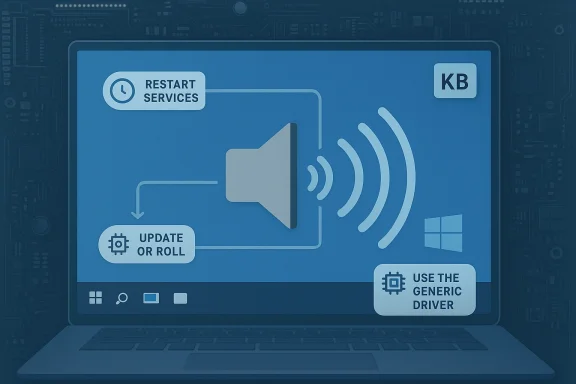
If your PC went silent after a Windows update, you are not alone — this problem is common, often fixable, and usually caused by drivers or audio services that were changed, replaced, or failed to start during the update process. Microsoft’s official troubleshooting checklist — covering restart the audio services, install pending Windows updates, update or roll back the audio driver, and use the generic Windows audio driver — is the baseline starting point for most successful recoveries. (support.microsoft.com)
Windows updates change a lot of moving parts: system files, device drivers, and service startup behavior. When audio stops working immediately after an update, the cause is usually one of these three failures: the audio driver is incompatible or was replaced by an unsuitable driver, the Windows Audio services didn’t start or crashed, or system settings (default device, enhancements, exclusive mode) were altered by the update.
Microsoft documents the recommended recovery path — check for and install pending updates, restart the machine to apply updates, update or reinstall audio drivers via Device Manager, and roll back drivers if the problem appeared immediately after an update. If driver rollbacks aren’t available, a system restore point created before update installation is the fallback. (support.microsoft.com)
At the same time, real-world evidence shows that specific cumulative updates have introduced audio breakages on a subset of machines — most notably the July 2022 preview/quality updates (for example KB5015878 and related rollups) — prompting Microsoft to acknowledge the issue and issue mitigations. Independent tech outlets and user communities tracked the problem and the patching response. Community threads captured similar patterns: users reporting total audio loss after particular updates, and then recovering sound by rolling back drivers, uninstalling the offending update, or reinstalling OEM audio drivers.
Where Microsoft can be faulted is in the mechanics of driver distribution. Automatic driver delivery via Windows Update simplifies life for many but can cause regressions for systems that depend on vendor-customized drivers or firmware-specific quirks. Microsoft’s Known Issue Rollbacks and targeted mitigations help prevent new installs of a problematic update but typically cannot reverse the damage on machines that already installed the problematic driver or update — those require manual remediation. That reactive model places a lot of burden on end users and smaller OEMs to coordinate fixes quickly. Public reporting loops through forums, independent outlets, and social media often expose problematic updates faster than official channels can remediate them.
A second blind spot is update telemetry and exposure: many home users receive cumulative updates automatically and may not have the technical know-how to identify and revert an offending change. Microsoft’s guidance assumes a degree of comfort with Device Manager, services.msc, and driver management that not all users possess; community tutorials fill that gap, but they vary in accuracy and trustworthiness.
Finally, the October 14, 2025 end-of-support milestone for Windows 10 reduces Microsoft’s obligation to ship fixes for older OS branches, which means older systems may no longer receive mitigations for driver-update regressions. That increases the importance of vendor driver support and proactive user-side patch management for Windows 10 remainers.
Preventive habits — keeping OEM driver installers offline, delaying optional updates on critical systems, and having reliable restore points or backup images — make recovery far less stressful when the next problematic update hits. If you’re on Windows 10, remember Microsoft’s October 14, 2025 end-of-support milestone: long-term protection against update regressions depends increasingly on vendor support and sound update hygiene.
If you want, use the checklist in this article on your affected PC in the order provided — and if a particular step resolves your problem (for example, a roll back or an OEM driver install), note the exact driver version and the KB number you rolled back so you can protect other machines with the same configuration.
Source: Microsoft Support Fix audio stops working after a Windows update in Windows - Microsoft Support
 Background
Windows updates change a lot of moving parts: system files, device drivers, and service startup behavior. When audio stops working immediately after an update, the cause is usually one of these three failures: the audio driver is incompatible or was replaced by an unsuitable driver, the Windows Audio services didn’t start or crashed, or system settings (default device, enhancements, exclusive mode) were altered by the update.Microsoft documents the recommended recovery path — check for and install pending updates, restart the machine to apply updates, update or reinstall audio drivers via Device Manager, and roll back drivers if the problem appeared immediately after an update. If driver rollbacks aren’t available, a system restore point created before update installation is the fallback. (support.microsoft.com)
At the same time, real-world evidence shows that specific cumulative updates have introduced audio breakages on a subset of machines — most notably the July 2022 preview/quality updates (for example KB5015878 and related rollups) — prompting Microsoft to acknowledge the issue and issue mitigations. Independent tech outlets and user communities tracked the problem and the patching response. Community threads captured similar patterns: users reporting total audio loss after particular updates, and then recovering sound by rolling back drivers, uninstalling the offending update, or reinstalling OEM audio drivers.
Why updates sometimes break audio
Drivers get replaced or misapplied
Windows Update can and often does install drivers automatically. That’s usually helpful, but sometimes the driver bundled with Windows Update is a generic or newer version that doesn’t play nicely with your device’s firmware or OEM stack. When Windows replaces a vendor-provided Realtek/Intel/IDT driver with a Windows Update-supplied package, audio output can vanish, devices can be misreported in Device Manager, or sample rates and feature flags (like enhancements) can change. Microsoft’s own guidance explicitly lists updating, reinstalling, or reverting audio drivers as primary remedies. (support.microsoft.com)Windows Audio services fail to start or crash
Audio depends onr example, Windows Audio and Windows Audio Endpoint Builder). If services fail to start during or after an update, there’s no sound even if the driver is correct. Restarting these services often restores audio temporarily while you take longer-term steps to stabilize drivers. Forum reports consistently mention restarting audiosrv as a quick workaround that frequently brings sound back.Device defaults and configuration change
Updates can change the default playback device, enable or disable audio enhancements, activate exclusive mode, or change sample-rate settings — all of which can result in “no sound” or intermittent sound. Many cases turn out to be as simple as Windows switching the default output to an HDMI monitor or a Bluetooth device, leaving internal speakers silent. (support.microsoft.com)Known problematic updates and vendor-driver interactions
Some cumulative updates have been associated with audio breakages on certain hardware combinations (e.g., a Windows Update that delivered an Intel Smart Sound Technology driver or a problematic Realtek package). Microsoft has acknowledged and mitigated specific incidents in the past (for example, KB5015878 caused audio problems on some systems and Microsoft published guidance and mitigations). Independent reporting and community threads documented the problem pattern and the remedial steps that worked for affected users.A prioritized, step-by-step recovery plan (do these in order)
Follow these steps in order. Many users restore sound by following just the first few measures; proceed further only if earlier steps fail.- Before you begin — save work and prepare
- Save open documents and close apps.
- If you’re comfortable, make a quick system restore point (or verify an existing restore point) before you change drivers or uninstall updates.
- Quick sanity checks (2–5 minutes)
- Check the speaker icon in the taskbar. Make sure the volume is up and nock the speaker icon -> Open Sound settings -> under Output, confirm the correct playback device is selected and set as default. Windows sometimes switches defaults during updates. (support.microsoft.com)
- Restart Windows Audio services (5 minutes)
- Press Win+R, type services.msc, and press Enter.
- Find Windows Audio and Windows Audio Endpoint Builder, right-click each and select Restart. If a service is stopped, start it.
This action often recovers immediate playback and is a safe first move. Community reports show service restarts frequently restore audio while you apply more durable fixes. - Reboot (2–5 minutes)
- Restart the PC. Some updates require a restart to finish applying components. If you see Update and restart options in the Power menu, use them. Microsoft explicitly lists restarting after installing updates as a key step. (support.microsoft.com)
- Check Device Manager and driver status (10–20 minutes)
- Right-click Start -> Device Manager -> expand Sound, video and game controllers.
- Look for your audio device (Realtek, Intel Smart Sound, NVIDIA HDMI audio, etc.). Check for warning icons. Right-click -> Properties -> Driver tab to see driver version/date.
- If the device is missing entirely, in Device Manager choose View -> Show hidden devices and scan for hardware changes. Missing devices sometimes indicate the driver was removed or the device is disabled at a lower level. Community threads show this pattern repeatedly.
- Update the audio driver via Device Manager (10–30 minutes)
- In Device Manager, right-click your audio device -> Update driver -> Search automatically.
- If Windows finds nothing, download the OEM driver from the PC or motherboard vendor (not a third-party driver site) and install that. Microsoft recommends the OEM driver if Windows Update-provided drivers fail. (support.microsoft.com)
- Roll back the driver (when the problem started immediately after an update) (10–20 minutes)
- If sound stopped right after a Windows Update or driver install, open Device Manager -> audio device -> Properties -> Driver -> Roll Back Driver. This option reverts to the previously installed driver version and is often the fastest cure. Microsoft documents this path as the primary remediation for update-caused audio loss. (support.microsoft.com)
- If roll back is unavailable: uninstall and reinstall the driver (15–30 minutes)
- In Device Manager, right-click the audio device -> Uninstall device -> check Attempt to remove the driver for this device (or Delete the driver software). Restart the PC. Windows will attempt to reinstall a driver on reboot. If that installs a broken driver, immediately install the OEM driver from the vendor package. (support.microsoft.com)
- Use the generic Microsoft audio driver (if vendor drivers fail) (10–20 minutes)
- Device Manager -> Update driver -> Browse my computer -> Let me pick from a list -> choose High Definition Audio Device (the generic driver) and install. This can restore sound when vendor software conflicts with the updated OS.
- Uninstall the offending Windows update (if you can identify it) (20–45 minutes)
- If diagnostics show the problem began after a particular KB update (note the KB number in Update history), you can uninstall that update: Settings -> Windows Update -> Update history -> Uninstall updates. Reboot and test. Microsoft has at times released Known Issue Rollbacks and guidance specific to problematic KBs. Use this option carefully — removing security updates may expose you to vulnerabilities if left unaddressed for long.
- Restore from System Restore (if an update or driver change still blocks recovery) (20–60+ minutet exists from before the change, restore to it. Microsoft creates system restore points before major updates and recommends trying restore if driver rollbacks and reinstalls don’t help. (support.microsoft.com)
- Advanced: check enhancements and exclusive control (5–10 minutes)
- Control Panel -> Sound -> Playback -> device -> Properties -> Advanced tab. Try toggling the sample rate and uncheck Allow applications to take exclusive control of this device and disable Enhancements. Some updates change these settings, and disabling them has fixed audio loss in many cases. (support.microsoft.com)
- Last resorts
- Boot into Safe Mode to see if sound works there (to isolate third-party conflicts).
- If you use third-party audio utilities (Voicemod, virtual audio drivers), temporarily uninstall them. They often conflict after OS updates.
- As a final approach, backup data and perform a Repair Install (in-place upgrade) or clean install — these will restore system files and drivers to a known-good state but are time-consuming.
Troubleshooting cheatsheet (short, copyable)
- Restart Windows Audio service (services.msc -> Windows Audio -> Restart).
- Confirm default audio device and system volume (Sound settings). (support.microsoft.com)
- Device Manager: Update driver -> OEM driver if Windows fails. (support.microsoft.com)
- Device Manager: Roll Back Driver if audio broke immediately after update. (support.microsoft.com)
- Uninstall the suspect KB only after weighing security risks; consider blocking it temporarily.
Known update-related incidents and what they teach us
- KB5015878 (July 2022 preview) — documented cases of no audio on affected devices, acknowledged in Microsoft release notes, with a mitigation path and advice to roll back audio drivers or apply the known issue rollback when possible. Independent tech outlets and threads tracked the problem and restoration steps. This incident illustrates how a single cumulative update can affect a narrow set of driver-feature interactions and how Microsoft’s mitigation process (KIR) prevents further installs but cannot necessarily auto-repair already affected machines; those often require driver rollbacks or reinstallations.
- Intel Smart Sound Technology driver delivered via Windows Update — Microsoft has published a support note where installing the Intel SST driver via Windows Update caused audio to stop working on some systems; Microsoft provided targeted fixes and guidance. That demonstrates one recurring problem: Windows Update can deliver vendor-supplied firmware/drivers that are not fully compatible with every OEM laptop/desktop revision.
- Community reports persist across years: multiple forum threads and user posts show the pattern (update → no audio → driver rollback or manual OEM driver install → recovery). The community’s role in circling specific KB numbers and drivers can accelerate a fix for other users but also highlights the fragility of one-size-fits-all driver delivery.
Risk assessment and advisory — what to watch out for
- Don’t assume the Windows-supplied driver is always best. For hardware with vendor customizations (laptops with vendor audio stacks, docking stations, HDMI boards), the manufacturer’s driver is often the most stable choice. Use OEM drivers when issues arise after an update. (support.microsoft.com)
- Uninstalling security updates is effective for troubleshooting, but dangerous if you leave the system unpatched. If you remove a security patch to get sound back, plan to reapply a safe replacement (vendor driver update, patched KB) or mitigate exposure via network controls until you can fully patch.
- Windows 10 End of Support: If you are still on Windows 10, Microsoft ended free support on October 14, 2025, which affects future patches and mitigations for update-caused driver issues. That reduces Microsoft’s ability to provide fix updates on older systems; for those still on Windows 10, relying on OEM driver updates and careful update management becomes more important. If you can, plan an upgrade path to a supported OS to ensure continued fixes and driver compatibility.
- Driver update tools and “one-click driver updaters” from third parties can cause more harm than good. Prefer OEM downloads or Windows Update, and when in doubt, consult vendor support.
Preventive measures to reduce future risk
- Create a reliable backup/restore plan: set Windows to create system restore points automatically and keep a current disk image backup before major updates. That shortens recovery time if an update breaks audio. (support.microsoft.com)
- Delaydriver updates on critical machines. Use Windows Update Pause and Update settings to defer non-security updates while you monitor early reports for problem patches. Test updates on a non-critical machine before wide deployment in a business setting. (support.microsoft.com)
- Keep a copy of the OEM audio driver installer on hand. When Windows Update replaces a working driver, having the vendor package makes recovery much faster.
- Learn to identify the recent update that may have caused the issue: Settings -> Windows Update -> Update history. Note KB numbers and consult official advisories and community threads for any known regressions. Community hubs and Microsoft Q&A often surface the earliest reports and mitigations.
Critical analysis — Microsoft’s guidance, strengths, and blind spots
Microsoft’s support playbook is practical and sensible: check updates, restart the system, verify services, and manage drivers (update, uninstall, roll back, use generic driver). This stepwise approach is effective in a majority of cases because the two most common root causes are either driver replacement or service failure — both of which these steps directly address. The official guidance is clear and actionable for most users. (support.microsoft.com)Where Microsoft can be faulted is in the mechanics of driver distribution. Automatic driver delivery via Windows Update simplifies life for many but can cause regressions for systems that depend on vendor-customized drivers or firmware-specific quirks. Microsoft’s Known Issue Rollbacks and targeted mitigations help prevent new installs of a problematic update but typically cannot reverse the damage on machines that already installed the problematic driver or update — those require manual remediation. That reactive model places a lot of burden on end users and smaller OEMs to coordinate fixes quickly. Public reporting loops through forums, independent outlets, and social media often expose problematic updates faster than official channels can remediate them.
A second blind spot is update telemetry and exposure: many home users receive cumulative updates automatically and may not have the technical know-how to identify and revert an offending change. Microsoft’s guidance assumes a degree of comfort with Device Manager, services.msc, and driver management that not all users possess; community tutorials fill that gap, but they vary in accuracy and trustworthiness.
Finally, the October 14, 2025 end-of-support milestone for Windows 10 reduces Microsoft’s obligation to ship fixes for older OS branches, which means older systems may no longer receive mitigations for driver-update regressions. That increases the importance of vendor driver support and proactive user-side patch management for Windows 10 remainers.
Checklist for IT admins and advanced users
- Maintain a driver repository (OEM-approved versions) you can push to machines if Windows Update drivers break audio.
- Use Windows Update for Business or WSUS to test updates in a staging ring before broad deployment.
- Apply Known Issue Rollback (KIR) guidance from Microsoft for affected updates and monitor Microsoft’s release notes for corrections.
- Keep a documented rollback path (driver uninstall script, restore image) and test it periodically.
When to call support or replace hardware
If you’ve exhausted driver rollbacks, reinstalls, system restore, and uninstalling recent updates and still have no audio, escalate:- Confirm whether the device appears in Device Manager at all. If the device is completely absent, it could be a hardware failure (or BIOS/UEFI setting disabled) rather than a driver problem.
- If the issue persists across Safe Mode, try a clean install only after you have a verified backup. If a clean install brings audio back before drivers are applied, the problem is likely driver/software related; if not, consider a hardware issue and contact the vendor.
- Reach out to your PC or motherboard vendor support — they may have OEM-specific driver packages or firmware updates that Microsoft Update does not provide.
Conclusion
Audio loss after a Windows update is a routinely annoying but usually solvable problem. Start with the simple wins — confirm output device, restart the Windows Audio services, and reboot — then move through the driver-focused steps: update, roll back, uninstall, or replace with the OEM or generic Windows driver. When a whole wave of users reports audio loss after a particular KB, consult Microsoft release notes for known-issue guidance and community threads to learn which driver rollback or OEM package worked for others. (support.microsoft.com)Preventive habits — keeping OEM driver installers offline, delaying optional updates on critical systems, and having reliable restore points or backup images — make recovery far less stressful when the next problematic update hits. If you’re on Windows 10, remember Microsoft’s October 14, 2025 end-of-support milestone: long-term protection against update regressions depends increasingly on vendor support and sound update hygiene.
If you want, use the checklist in this article on your affected PC in the order provided — and if a particular step resolves your problem (for example, a roll back or an OEM driver install), note the exact driver version and the KB number you rolled back so you can protect other machines with the same configuration.
Source: Microsoft Support Fix audio stops working after a Windows update in Windows - Microsoft Support
