

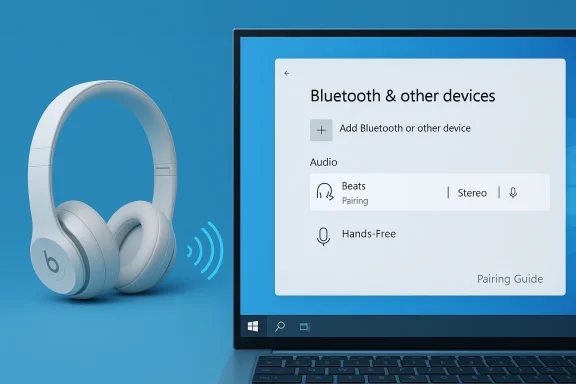
Connecting your Beats wireless headphones to a Windows 10 PC is normally straightforward, but a few Windows-specific quirks — most notably the way Windows handles Bluetooth audio profiles — can make the experience confusing. This guide walks you through a reliable, step-by-step pairing process, explains the audio profile trade-offs that can degrade sound during calls, shows you how to fix the most common problems, and recommends practical workarounds so your Beats sound great whether you’re listening to music or joining a call. The instructions below are verified against Microsoft’s official pairing guidance and community-tested troubleshooting proven on real Windows machines.
Background: why Bluetooth headsets behave differently on Windows 10
Bluetooth audio on Windows 10 uses distinct profiles for high-fidelity playback (A2DP) and for two-way voice (HFP/HSP). When an app or the system opens the headset microphone, Windows typically switches from the A2DP stereo profile (good music quality) to the Hands‑Free Profile (HFP/HSP), which provides microphone input but reduces audio fidelity and often collapses stereo into mono. That’s why music can suddenly sound thin or muffled during a Zoom call. This is a limitation of the classic Bluetooth audio stack Windows 10 uses, not a fault of your Beats.Two important takeaways:
- A2DP = high-quality stereo playback (no mic).
- HFP/HSP = two‑way voice support (mic available) but lower fidelity and mono playback.
Note: Microsoft and the industry are moving to LE Audio (LC3), which can support higher-quality audio while the microphone is active, but these improvements are part of Windows 11 and require LE Audio–capable hardware and drivers. Windows 10 generally does not expose LE Audio features, so the classic profile trade‑off is the reality for most Windows 10 PCs.
Quick pre-checks: before you start pairing
Do these quick checks so pairing goes smoothly:- Charge your Beats to at least 30% — low battery can prevent pairing.
- Turn off or forget other nearby Bluetooth hosts (phones/tablets) temporarily to avoid multipoint conflicts.
- Make sure Bluetooth is enabled on your PC (Windows 10: Start → Settings → Devices → Bluetooth & other devices).
- If your PC is an enterprise/corporate device, verify that Bluetooth isn’t disabled by group policy or device configuration — check with IT if unsure. Community reports note corporate images sometimes disable radios.
Step-by-step: pair Beats wireless headphones with Windows 10
Follow these numbered steps exactly. If anything fails, skip down to the troubleshooting section.- Power on your Beats and enter pairing mode.
- Most Beats models: press and hold the power/Bluetooth button for around 5 seconds until the LED flashes (or you hear a voice prompt) indicating pairing mode. If you’re unsure, consult the Beats user guide for your specific model.
- On the PC, open Bluetooth settings:
- Press Start → Settings → Devices → Bluetooth & other devices. Ensure the Bluetooth toggle is On.
- Click “Add Bluetooth or other device” → choose Bluetooth.
- Windows will scan for nearby devices.
- When your Beats appear in the list, click the device name to pair.
- If Windows prompts for a PIN, try 0000 (older devices) or follow the device-specific instructions.
- Confirm connection and test audio:
- After Windows reports the device as “Connected,” right-click the speaker icon on the taskbar → Open Sound settings. Under Output, select your Beats (Stereo) for music. Play a track to confirm stereo playback.
- Test the microphone if you plan to use it:
- In Sound settings, under Input, select the Beats Hands‑Free microphone endpoint and use the Voice Recorder (or a quick Teams/Zoom test call) to confirm the mic works.
After pairing: pick the right audio endpoint
Windows 10 often creates two audio endpoints for a single Bluetooth headset:- {Device} Stereo (A2DP) — for music
- {Device} Hands‑Free — for calls (includes microphone)
- For music and video: set Stereo as the default output.
- For calls where you need the Beats mic: set the Hands‑Free endpoint as the communications device or select it within your conferencing app.
- Right‑click the speaker icon → Open Sound settings → choose Output. Or open Control Panel → Sound (mmsys.cpl) to see the detailed list of endpoints and configure defaults. Community guides strongly recommend choosing the Stereo endpoint for media playback to avoid low-fidelity sound.
Troubleshooting: common problems and step-by-step fixes
Below are the most frequent failure modes and the practical fixes that resolve them in most cases. Each entry includes the reason it works.1) Headphones don’t appear in the Add device list
- Confirm Beats are actually in pairing mode and near the PC.
- Turn Bluetooth Off → On on the PC and restart the Beats.
- Remove or turn off other devices that might be connected to your Beats (phones).
- Run the Windows Bluetooth troubleshooter: Settings → Update & Security → Troubleshoot → Additional troubleshooters → Bluetooth. The troubleshooter will attempt safe fixes like restarting Bluetooth services.
2) Paired but no sound (or only one channel)
- Open Sound settings and explicitly set the Stereo endpoint as the Output device.
- If you see both Stereo and Hands‑Free endpoints, pick Stereo for music/playback. Windows often doesn’t switch the default automatically.
- If only Hands‑Free exists and you don’t need the mic, you can disable the Hands‑Free Telephony service for the device (Control Panel → Devices and Printers → right‑click the device → Properties → Services → uncheck Hands‑Free Telephony). This forces A2DP playback but disables the headset microphone. Use this only if you don’t require headset mic functionality. Community threads call this the most practical workaround for music-first users.
3) Sound quality collapses when mic is active
- This is the A2DP ↔ HFP switch. Fixes:
- If you need high-quality audio and don’t need the headset mic, disable Hands‑Free Telephony as above.
- If you need the mic, consider a dedicated USB mic or a USB adapter/dongle that came with the headset’s UC bundle (some enterprise SKUs include USB dongles that avoid Windows’ HFP limitations).
- Updating Bluetooth and audio drivers may help if the chipset supports better HFP modes; however, Windows 10’s capabilities remain limited compared to Windows 11’s LE Audio improvements.
4) Frequent dropouts or stuttering
- Check power management: Device Manager → Bluetooth adapter → Properties → Power Management → uncheck “Allow the computer to turn off this device to save power.” Also disable USB selective suspend if using a USB Bluetooth dongle.
- Move the headset and PC away from Wi‑Fi routers, USB 3.0 ports/cables, microwaves and other 2.4 GHz noise sources.
- If your internal Bluetooth is old, try a modern USB Bluetooth dongle (preferably one that explicitly supports aptX/AAC/LE Audio if you plan to upgrade OS or hardware). Community testing shows OEM drivers and newer radios often fix stuttering and codec problems.
5) Pairing works on phone but not on PC
- Likely a driver or Bluetooth stack mismatch. Update the Bluetooth adapter driver from the laptop/OEM support site (Intel/Qualcomm/Broadcom/Realtek) rather than relying only on Windows Update. Reboot the PC and re‑pair after driver installation. Community advice emphasizes OEM/chipset drivers over generic Microsoft drivers.
Advanced fixes (for stubborn cases)
- Uninstall and reinstall the Bluetooth adapter driver: Device Manager → right‑click adapter → Uninstall device → reboot. Let Windows reinstall or manually install the chipset vendor package from the OEM. This can clear corrupted driver state.
- Reset the Beats to factory pairing state (manufacturer‑specific reset procedure) and re‑pair from scratch. This clears stale bonding keys that sometimes block new connections.
- If you require both high-quality stereo and a headset mic simultaneously on Windows 10, consider a USB workaround:
- Use a separate USB microphone or the laptop’s built-in mic for calls while keeping Beats on Stereo for music.
- Purchase a USB audio dongle/adapter that presents the headset to Windows as a USB audio device (these adapters vary by model and may require vendor support). Community testing and vendor documentation explain this is a practical compromise.
Beats-specific notes and firmware updates
- Most Beats models follow the same pairing procedure: press and hold the power/Bluetooth button to enter pairing mode until an LED flashes or you hear a voice prompt. Apple’s Beats pairing documentation and the Beats user guide provide model-level details. If you have a model-specific question (e.g., Beats Studio Pro vs Beats Fit Pro), check the manual for that model’s pairing/reset steps.
- Firmware: Beats firmware updates are typically delivered via the Beats app on supported devices or via an iPhone during normal use. The update method varies by model and platform; if you suspect a firmware bug, check the Beats/Apple support documentation for your model or use the Beats companion app on a smartphone to check for updates. If no official update method is available for Windows, updating through a phone is usually the supported path. (This is model-dependent—verify on your device’s support pages).
Why upgrading to Windows 11 might matter — but only sometimes
If your priority is simultaneous high-quality stereo playback and a usable headset mic, Windows 11’s LE Audio and “super wideband stereo” improvements are relevant — but only if both your PC’s Bluetooth radio and your headset support LE Audio. The improvements are real: Microsoft and major tech outlets report that Windows 11 (24H2 and later builds) and compatible radios can avoid the A2DP/HFP compromise altogether by using LE Audio (LC3) or newer codec negotiation. However, most Windows 10 machines won’t be upgraded by drivers alone — hardware and OS support are required.If you’re considering an OS upgrade purely to fix this problem, verify:
- Your PC’s Bluetooth adapter is LE Audio-capable (check vendor specs).
- Your Beats model supports LE Audio (most existing Beats models may not).
- Updated drivers (chipset vendor or OEM) expose LE Audio support to the OS.
Fast-reference checklist (one-page troubleshooting)
- Pairing fail: ensure Beats in pairing mode, restart Bluetooth, remove other pairings.
- No audio after pairing: explicitly select the Beats Stereo endpoint in Sound settings.
- Music becomes muffled in calls: disable Hands‑Free Telephony (if you don’t need mic) or use a separate USB mic.
- Dropouts: disable Bluetooth power saving in Device Manager and move away from interference sources.
- Driver problems: update Bluetooth drivers from OEM/chipset vendor pages; if problem started after update, roll back.
Final recommendations and risk notes
- For the best day-to-day experience on Windows 10:
- Use the Stereo endpoint for media playback.
- Use a dedicated mic for conferencing if you care about music quality during calls.
- Keep Bluetooth and audio drivers updated from your PC maker or chipset vendor, not just Windows Update.
- If you want a single-solution experience (no trade-offs between music and calls), evaluate:
- Upgrading to a Windows 11 machine with LE Audio-capable hardware and a head‑set that supports LE Audio.
- Purchasing a vendor-provided USB dongle/UC bundle if available for your Beats or an adapter that provides USB audio for calls.
- Warnings and caveats:
- Disabling Hands‑Free Telephony removes the headset microphone system-wide — only do this if you don’t need the mic. Community guides repeatedly flag this as a necessary trade-off.
- Firmware update methods and pairing/reset button sequences vary by Beats model; verify model-specific steps before attempting resets or updates. Manufacturer instructions trump generic guides.
In short: pairing your Beats to Windows 10 is a five-minute task if you follow the right steps, but managing audio quality across music playback and voice calls requires an understanding of Windows’ Bluetooth profiles and a pragmatic decision about whether you want stereo fidelity or headset mic convenience. Use the steps above to pair cleanly, choose the correct audio endpoint for your activity, and apply the troubleshooting checklist if anything misbehaves — the combination of Microsoft’s official pairing flow and community-proven workarounds will resolve almost every common issue.
Source: Born2Invest https://born2invest.com/?b=style-323406012/
