

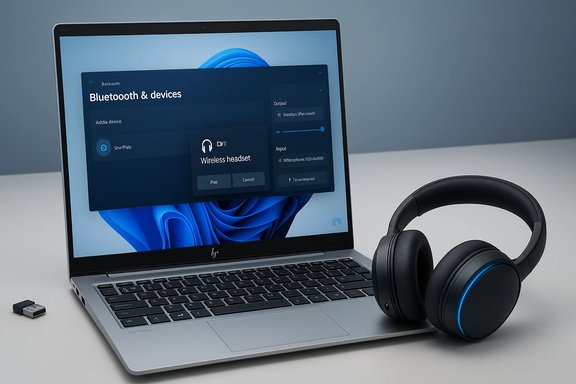
Connecting Bluetooth headphones to an HP EliteBook running Windows 11 is straightforward when you know which Windows settings to use, what the Bluetooth stack is actually doing behind the scenes, and the right troubleshooting steps for common failure modes.
Background / Overview
Bluetooth audio on Windows 11 works through a few predictable flows: the long-form Settings → Bluetooth & devices path, the Quick Settings flyout for fast toggles, and Swift Pair for modern accessories that support Microsoft’s quick‑connect protocol. Windows discovers nearby devices, negotiates audio profiles and codecs, and stores a remembered pairing so your EliteBook reconnects automatically when the headset is in range. Recent Windows 11 updates also introduce LE Audio (the LC3 codec and isochronous channels) and features such as the Shared audio preview, but those capabilities depend on the entire hardware and driver chain (headphones, PC radio, firmware and OS build) to be present.Two decades of Bluetooth audio experience has produced recurring practical problems: devices that won’t appear in discovery, headphones that pair but don’t carry audio, stereo quality collapsing to mono when the microphone activates, or inconsistent codec availability. Most of those problems are solvable with a methodical checklist that includes updating drivers/firmware, adjusting sound endpoints, and — when needed — using a modern USB Bluetooth adapter.
What you need before you start
- A charged pair of headphones and the manufacturer’s quick‑start instructions for entering pairing mode (most models use a press‑and‑hold on power/Bluetooth until an LED flashes or a voice prompt announces pairing).
- A Windows 11 HP EliteBook with Bluetooth hardware enabled. If Bluetooth is missing, a USB Bluetooth adapter is a simple fallback.
- Up‑to‑date Bluetooth and audio drivers (prefer OEM drivers from HP, Intel, Qualcomm or Broadcom rather than generic Microsoft drivers when possible).
- Reasonable proximity: stay within a few feet of the laptop during pairing and avoid heavy 2.4 GHz interference.
- Administrator access on the EliteBook for driver updates and Device Manager actions (on corporate machines, coordinate with IT).
Step‑by‑step: Pair Bluetooth headphones with an HP EliteBook on Windows 11
Follow this reliable sequence to pair most Bluetooth headsets.- Turn on Bluetooth on the EliteBook
- Press Windows + I → choose Bluetooth & devices → toggle Bluetooth to On.
- Alternatively, open Quick Settings (Windows + A) and toggle Bluetooth there for a faster route.
- Put the headphones into pairing mode
- Follow the manufacturer’s pairing method (usually press-and-hold the power or Bluetooth button until an LED flashes or you hear a voice prompt). Keep the headphones near the laptop.
- Add the device in Windows
- In Settings → Bluetooth & devices, click Add device → choose Bluetooth → wait for the headset name to appear and click it to connect. If Windows asks for a PIN, try 0000 (common default) unless the headset gives a different code.
- Accept Swift Pair if offered
- Many modern headphones and earbuds support Swift Pair; a small notification will appear when the device is discoverable — click Connect to pair without opening Settings.
- Confirm the default audio output and microphone
- Right‑click the taskbar sound icon → Sound settings (or Settings → System → Sound). Under Output, select the newly paired headphones. Under Input, confirm the headset microphone is selected if you plan to use it.
- Test audio and calls
- Play media to confirm stereo playback. Run a test call in Teams/Zoom/Discord to confirm microphone routing and quality. Adjust app-level device selection if the conferencing app is using a different device.
HP EliteBook specifics and driver best practice
HP EliteBooks are business-class laptops that sometimes ship with vendor-managed driver packages and power‑saving policies that can affect Bluetooth. For the most reliable experience:- Use HP Support Assistant or the official HP drivers page to fetch the Bluetooth and audio drivers specifically released for your EliteBook model rather than relying solely on Windows Update. OEM drivers may expose features (LE Audio support, codec options) that the generic Microsoft driver doesn’t.
- Check BIOS/UEFI settings or physical radio switches if Bluetooth appears missing. Some corporate builds disable radios or gate them behind administrative policies — coordinate with your IT team before altering BIOS settings.
- If you have an Intel, Qualcomm, or Broadcom Bluetooth radio, follow their published driver guidance when updating; in many cases the chipset vendor’s package is the most compatible.
Common problems and methodical fixes
Below are the usual failures and how to diagnose and fix them, ordered from quick checks to deeper repairs.Headphones don’t show up in Add device
- Ensure the headset is actually in pairing (discoverable) mode and has sufficient battery. Put it very close to the EliteBook and retry.
- Restart Bluetooth: toggle Bluetooth Off and On in Quick Settings, or reboot the laptop and the headset.
- If your EliteBook has an external Bluetooth dongle or separate Wi‑Fi/Bluetooth card, try a different USB port or reseat the card (laptop service required).
Paired but no sound, or only one channel works
- Open Sound settings and explicitly set the Bluetooth headset as the Output device (Windows sometimes doesn’t make it default automatically). If Windows lists both Headphones (Stereo) and Hands‑Free endpoints, choose the Stereo endpoint for media playback.
- Disable Hands‑Free Telephony for the device as a temporary workaround if you don’t need the mic — this forces the A2DP stereo path but removes the mic system‑wide. Use Devices and Printers → right‑click device → Services to toggle.
Audio quality collapses when microphone is active
- This is the long-standing A2DP vs HFP tradeoff: stereo music uses A2DP, while voice calls negotiate HFP which is lower fidelity. Windows 11 has begun to fix this with LE Audio and LC3, but it depends on the headset and PC supporting those features. If LE Audio isn’t available, update firmware and drivers; otherwise consider using the laptop’s built‑in mic for calls.
One earbud silent or left/right imbalance
- Re‑pair the headset. For true wireless earbuds, perform the manufacturer‑specified factory reset and pair again. Check battery level and clean charging contacts if one bud doesn’t charge.
Driver or stack problems
- Open Device Manager (Win + X → Device Manager). Expand Bluetooth and Sound, video and game controllers. Update the Bluetooth adapter driver (right‑click → Update driver → Search automatically) or download the OEM/chipset vendor driver from HP or the chipset vendor. If the problem started after an update, try Roll Back Driver or uninstall and let Windows reinstall the driver.
- Verify Bluetooth Support Service (bthserv) is running (services.msc). In Device Manager, disable the power‑saving option “Allow the computer to turn off this device to save power” for the Bluetooth adapter to prevent connection drops.
Persistent or strange failures (advanced)
- Run system repair tools from an elevated Command Prompt:
DISM /Online /Cleanup-Image /RestoreHealth
sfc /scannow
These fix corrupted OS components that can affect Bluetooth stacks. Reboot after completion. - Show hidden devices in Device Manager (View → Show hidden devices) and remove greyed or stale entries for Bluetooth/audio devices, then reboot and re‑pair.
- Try a known‑good USB Bluetooth dongle (preferably one that advertises Bluetooth 5.x and LE Audio support). If the dongle works, the internal radio or its firmware is likely the issue.
Advanced: LE Audio, codecs, and what Windows 11 can (and can’t) change
LE Audio and the LC3 codec are designed to end the compromise where stereo playback and microphone use could not coexist at high quality. Windows 11 exposes LE Audio features in Settings when the stack and drivers support it; you might see a “Use LE Audio when available” toggle in device details. However, LE Audio requires:- Headphones that implement LE Audio and LC3.
- A Bluetooth radio and firmware that expose isochronous channels (ISO).
- Windows 11 builds and OEM drivers that surface the LE Audio options.
Codec availability (AAC, aptX, aptX Adaptive, SBC) is also a function of both the host and accessory. If your EliteBook doesn’t present a high-quality codec for a compatible headset, updating the chipset/OEM drivers is the usual remedy.
Security, privacy and corporate device cautions
- Only pair devices you trust. Pairing creates a persistent link and stores device identifiers; remove a lost headset from Settings → Bluetooth & devices → Devices to prevent unauthorized reconnects.
- Public discoverability should be limited: most headphones are discoverable only briefly during pairing, which is the safer default. Avoid leaving accessories in a constantly discoverable state.
- On managed corporate EliteBooks, IT policies or security controls may prevent driver updates, disable radios, or restrict the installation of third‑party drivers. Coordinate with IT before making system-level changes.
Quick troubleshooting checklist (copyable)
- Charge headphones, put them in pairing mode, and move them near the EliteBook.
- Windows + I → Bluetooth & devices → toggle Bluetooth On → Add device → Bluetooth → select headset.
- If a Swift Pair prompt appears, accept it to speed pairing.
- Confirm sound output under Settings → System → Sound → Output; choose the Stereo endpoint for media.
- If microphone use collapses stereo quality, update headset firmware and Bluetooth drivers; if unsupported, consider using the laptop mic or disabling Hands‑Free Telephony.
- If problems persist, update OEM drivers from HP or chipset vendor, run SFC/DISM, toggle Bluetooth Support Service, and consider a USB Bluetooth dongle as a last‑mile test.
When to escalate or call support
- If Device Manager shows a persistent hardware warning (yellow triangle) on the Bluetooth adapter after driver updates, contact HP support and provide the adapter’s Hardware IDs. Tracking the issue with HP support ensures model-specific firmware or BIOS fixes are considered.
- If multiple headsets fail to pair on the EliteBook but work on other hosts, suspect the laptop’s radio or BIOS policy and escalate to HP or your IT department.
- If a vendor’s own firmware updater (usually mobile‑app based) is required to fix headset behavior, follow the manufacturer’s guidance. Some firmware updates are delivered only through mobile apps and are unsupported on desktop emulators; attempt them on a phone or tablet to avoid bricking the headset.
Final recommendations and realistic expectations
- For day‑to‑day use: follow the Windows 11 Settings pairing flow, keep OEM drivers and headset firmware current, and explicitly select the Stereo endpoint for media playback. This combination fixes most user complaints about missing audio or poor quality.
- For reliable call quality: test your headset inside your conferencing app after pairing. If the headset mic triggers quality drops, a built‑in laptop mic or a dedicated USB microphone may be a practical alternative until LE Audio support is available end‑to‑end.
- For advanced audio features (LE Audio, Shared audio/broadcast, LC3): verify the entire chain (headset, radio firmware, OEM driver, Windows 11 build) before expecting those features to work. Broad claims about LE Audio availability are vendor‑dependent and time‑sensitive; don’t assume a Bluetooth 5.2 tag guarantees LE Audio.
Source: Born2Invest https://born2invest.com/?b=style-324731612/
