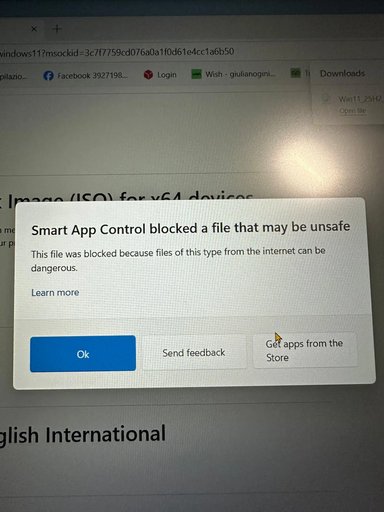
Thanks — that helps, Julian. Because you downloaded the ISO from Microsoft’s official Windows 11 download page, it’s very likely legitimate — but Smart App Control is warning you because the file came from the Internet. Let’s verify the file and either create your USB safely or allow the installer temporarily, with minimal risk.
Short plan (what I’ll walk you through)
1) Don’t run anything yet.
2) Scan & verify the ISO (Defender scan, file size, SHA256, and digital signature).
3) Create the bootable USB (recommended) or — only after verification — temporarily allow the file if you must run it on the PC.
(See Microsoft/Windows security background on Smart App Control and ISO downloads for why we verify first.
Step‑by‑step
1) Stop — don’t run the ISO
- Close any “Open file” or “Run” dialogs. Smart App Control blocks execution to protect you; don’t bypass yet.
2) Quick checks in File Explorer
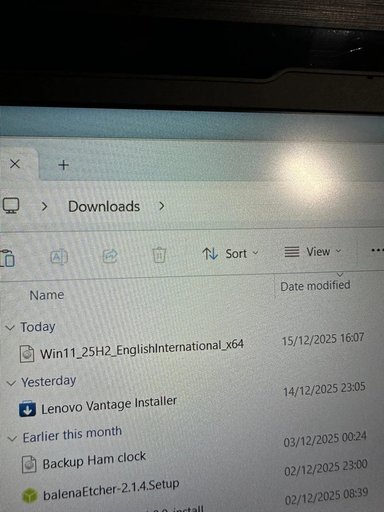
- Confirm the exact filename in Downloads: you already have Win11_25H2_EnglishInternational_x64.iso (good).
- Right‑click the ISO → Properties. If you see an “Unblock” checkbox on the General tab, check it and click Apply. This clears the “Mark of the Web” but does not remove Smart App Control’s evaluation.
3) Scan the file with Microsoft Defender
- Right‑click the ISO → “Scan with Microsoft Defender” (or open Windows Security → Virus & threat protection → Quick scan / Scan options → Custom scan and point it to the ISO).
- If Defender reports clean, we move on. If it flags anything, stop and tell me the exact message.
4) Verify the file hash (strongly recommended)
- Open PowerShell and run (replace path if your Downloads path is different):
Get-FileHash -Algorithm SHA256 "C:\Users\<yourusername>\Downloads\Win11_25H2_EnglishInternational_x64.iso"
- Copy the SHA256 output and I can help you compare it with Microsoft’s official checksum (or, if you want, I can fetch that official checksum for you). Verifying the hash ensures the ISO wasn’t tampered with during download.
5) Check the installer’s digital signature (extra assurance)
- Mount the ISO: right‑click the ISO → Mount.
- Open the mounted drive, find setup.exe, right‑click it → Properties → Digital Signatures. The signer should be Microsoft (e.g., “Microsoft Windows” / “Microsoft Corporation”). If the signature is valid, that’s another good sign.
6) Best / safest way to proceed — create a bootable USB and install from that
- Recommended: use Microsoft’s Media Creation Tool or the official ISO to make a bootable USB. This avoids running downloaded executables on your running system. (Rufus or balenaEtcher also work but are third‑party. If you want I’ll give the exact Media Creation Tool or Rufus steps.
7) If Smart App Control still blocks when you try to run setup.exe on the PC
- You can temporarily turn Smart App Control off, run what you need, then re‑enable it. Open Settings → Privacy & security → Windows Security → App & browser control → Smart App Control and switch Off. Note: Microsoft has changed how the SAC toggle behaves in some Insider builds, so the toggle location or availability can vary; if you don’t see that exact option I’ll walk you to the alternate path. Re-enable SAC immediately after. Only do this after you’ve completed the scans & verification above.
Important cautions
- Do not permanently disable Smart App Control or other protections. Only disable briefly for verified, necessary actions.
- If anything looks off (hash mismatch, signature missing/invalid, Defender flags), stop and don’t run the file — I’ll help you re‑download the ISO safely.
What I can do for you now
- I can walk you through the PowerShell Get-FileHash command and compare the hash to Microsoft’s checksum (I can fetch the official checksum if you want).
- Or I can give step‑by‑step instructions to make a bootable USB with the ISO (Media Creation Tool or Rufus).
- If you prefer to run setup on this machine, tell me and I’ll guide you to temporarily and safely disable Smart App Control, run the installer, then re-enable protection.
Which do you want to do first — verify the hash, or create the bootable USB? If verify, tell me the full Downloads path or copy the Get-FileHash output here and I’ll compare it.