

Win10 Spy Disabler is a tiny, no-frills portable utility that promises to “shut down Windows 10 telemetry” with a handful of clicks — and for many users in 2015–2019 it offered a fast, convenient route to privacy tweaks that would otherwise require hunting through Services, Scheduled Tasks and the Registry. The program still appears on download portals and review sites, but its age, the changing telemetry architecture in Windows, and the fact that Windows 10 reached end-of-support in October 2025 mean this tool is now a legacy item: useful for understanding how third‑party telemetry‑disablers work, but risky to run blindly on modern systems without a careful plan.
Windows 10 introduced a broad set of diagnostic and cloud‑integrated features that collect telemetry and usage data to improve security, reliability and product development. That telemetry is controlled by a mix of Services, Scheduled Tasks, Group Policy/MDM settings and registry keys — and it has changed multiple times across Windows 10 feature updates and into Windows 11.
Third‑party “antispy” utilities — Win10 Spy Disabler, O&O ShutUp10, Blackbird, Destroy Windows 10 Spying and others — emerged to give users a single interface to flip many privacy-related switches. Win10 Spy Disabler distinguished itself by being tiny (sub‑2MB), portable (no install), and presenting a short list of grouped “privacy tweaks” that create a restore point before applying changes.
Over the years these privacy utilities evolved: some added granular controls, full change logs, and active maintenance; others stagnated. As of its last public release footprint, Win10 Spy Disabler’s most recent recorded changes date to around 2019, while actively maintained alternatives (notably O&O ShutUp10++) continued to track Windows changes through late 2024 and 2025.
Caution: claims that a tool “blocks all Microsoft telemetry hosts” or “fully disables all tracking” are difficult to verify unless the tool’s code or a precise list of modified artifacts is published. In the case of Win10 Spy Disabler, the vendor did not provide a comprehensive, machine‑readable manifest of every change, so treat absolute claims with skepticism.
The sensible path for privacy‑minded Windows users is to use tools that are actively maintained, transparent about every change they make, and aligned with supported OS management mechanisms. When using any third‑party disabler, treat it as a surgical tool: prepare backups, test first, read every checkbox, and accept that disabling telemetry has functional tradeoffs. Win10 Spy Disabler remains a historical example of the class, but it is not the best choice for modern, lived‑in systems that demand predictable security and support.
Source: BetaNews https://betanews.com/article/shut-down-windows-10-telemetry-with-win10-spy-disabler/]
 Background
Windows 10 introduced a broad set of diagnostic and cloud‑integrated features that collect telemetry and usage data to improve security, reliability and product development. That telemetry is controlled by a mix of Services, Scheduled Tasks, Group Policy/MDM settings and registry keys — and it has changed multiple times across Windows 10 feature updates and into Windows 11.Third‑party “antispy” utilities — Win10 Spy Disabler, O&O ShutUp10, Blackbird, Destroy Windows 10 Spying and others — emerged to give users a single interface to flip many privacy-related switches. Win10 Spy Disabler distinguished itself by being tiny (sub‑2MB), portable (no install), and presenting a short list of grouped “privacy tweaks” that create a restore point before applying changes.
Over the years these privacy utilities evolved: some added granular controls, full change logs, and active maintenance; others stagnated. As of its last public release footprint, Win10 Spy Disabler’s most recent recorded changes date to around 2019, while actively maintained alternatives (notably O&O ShutUp10++) continued to track Windows changes through late 2024 and 2025.
What Win10 Spy Disabler does — quick summary
- It is a portable executable (32‑ and 64‑bit versions included) that lists ~20+ grouped privacy tweaks.
- It offers a single‑click approach to disable telemetry components, remove or disable some preinstalled apps, and toggle system settings such as Recent Items or OneDrive.
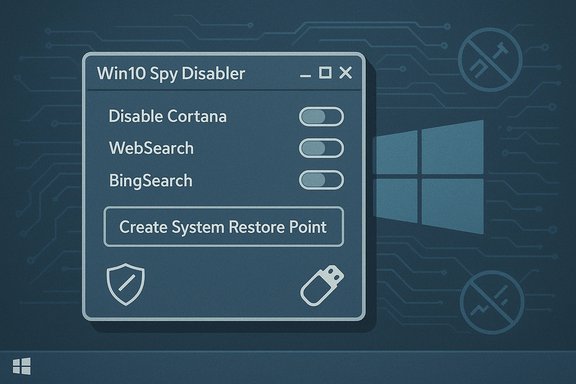
- Before applying changes the tool prompts to create a System Restore point.
- The app bundles grouped actions (for example: “Disable Cortana, WebSearch, BingSearch” as a single toggle) rather than exposing every individual registry key and scheduled task.
How Windows telemetry actually works (concise technical primer)
Windows telemetry is not a single switch. It’s a layered collection of services and settings:- Services such as DiagTrack (Diagnostics Tracking Service), diagnosticshub.standardcollector.service (Diagnostics Hub Standard Collector), and dmwappushservice (WAP Push Message Routing) are commonly associated with telemetry and diagnostic upload.
- Registry policy keys — most notably Software\Policies\Microsoft\Windows\DataCollection\AllowTelemetry — control the diagnostic data level Windows permits. Values typically map to:
- 0 = Security / Diagnostic data off (only valid on Enterprise / Education editions)
- 1 = Basic (required minimum on most consumer editions)
- 2 = Enhanced (historically used)
- 3 = Full (optional)
- Group Policy (Computer Configuration > Administrative Templates > Windows Components > Data Collection and Preview Builds) and MDM policies can lock a diagnostic level and prevent users from changing it.
- Scheduled tasks and background processes in the Microsoft\Windows* task trees may wake telemetry components.
- Certain Windows features (Windows Update, Windows Defender/Exploit telemetry, OneDrive sync, Cortana, Search integration) depend on some of these services to provide full functionality.
Verification: what Win10 Spy Disabler changes, and what we can confirm
Testing and cross‑referenced download pages show consistent behavior for Win10 Spy Disabler:- It targets well‑known telemetry services and scheduled tasks and attempts to disable or alter them.
- The program offers to create a System Restore point before making changes, which is an important safety net for non‑expert users.
- It includes a small “System Tweaks” tab to adjust non‑telemetry settings (show hidden files, disable Remote Assistance, turn off Delivery Optimization/P2P updates, etc..
- It is a free tool and portable, packaged by an author listed as site2unblock with a recorded version of 1.5 in 2019 on several download portals.
Caution: claims that a tool “blocks all Microsoft telemetry hosts” or “fully disables all tracking” are difficult to verify unless the tool’s code or a precise list of modified artifacts is published. In the case of Win10 Spy Disabler, the vendor did not provide a comprehensive, machine‑readable manifest of every change, so treat absolute claims with skepticism.
Strengths of Win10 Spy Disabler
- Simplicity: A very small, portable utility that’s quick to run and approachable for casual users.
- Restore point creation: The program’s default offer to create a System Restore point mitigates some risk.
- Group actions: For users who want to stop telemetry now and don’t care about granular control, grouped toggles are convenient.
- No installation: Being portable minimizes footprint and makes it suitable for quick testing on a VM or secondary machine.
Weaknesses and risks
- Aging codebase: The last visible updates clustered around 2018–2019. Telemetry and diagnostic mechanisms in Windows have evolved since then; running an old tool on a newer build can leave gaps or cause instability.
- Overbroad toggles: Grouped actions (example: disabling Cortana + WebSearch + BingSearch as a single switch) remove nuance. Users can inadvertently break features they value.
- Lack of an auditable changelog: Without a detailed manifest or source code, it’s hard to verify exactly what the tool changes — or to reverse those changes reliably if something goes wrong.
- Potential compatibility problems: Disabling certain services or scheduled tasks can interfere with Windows Update, Defender, driver reliability, or Microsoft Store apps.
- Security posture: Using an executable from an unmaintained third‑party vendor is a risk — unsigned or poorly signed binaries may be flagged by AV, and older code can contain bugs or be abused.
- Edition limitations: Some registry-based “disable telemetry” techniques (AllowTelemetry=0) are only honored on Enterprise/Education/Server editions; on Home/Pro they may do nothing or be overridden by the OS.
Alternatives: safer and better‑maintained options
When the goal is to reduce telemetry without guessing which services to stop, consider these alternatives:- O&O ShutUp10++ — a free, actively maintained GUI utility that lists well‑documented, individual toggles for dozens of Windows settings. It emphasizes transparency, includes descriptions for each tweak, and keeps pace with Windows changes.
- Blackbird — a lockdown utility targeting many potentially unwanted privacy and telemetry features, often favored by power users who want aggressive hardening.
- Manual / Enterprise controls — Group Policy or MDM policies (for enrolled devices) are the recommended way to set diagnostic data limits in managed environments. These are supported by Microsoft and auditable.
- PowerShell or well‑documented scripts — custom scripts give total control with explicit commands to stop services, change registry keys and disable scheduled tasks; they are reproducible and reviewable.
Practical, safer approach to disabling telemetry — a recommended workflow
- Inventory and backup
- Create a full system backup or image before making wide changes.
- Use System Restore and also a full disk image for the safest rollback.
- Test in isolation
- Try any tool first in a virtual machine or on a spare test PC that mirrors your production environment.
- Prefer granular controls
- Use tools that show individual settings and their impact rather than “black box” single toggles.
- Read the explanation for each tweak; avoid options labeled “Not recommended” unless you understand consequences.
- Use the OS supported methods when available
- Employ Group Policy / MDM to set AllowTelemetry values for managed devices.
- On Enterprise/Education editions, the “Diagnostic data off” configuration is supported; on Home/Pro, the OS enforces a minimum required level.
- Apply and monitor
- After applying changes, reboot and monitor functionality: Windows Update, Defender, search, and any enterprise management tools.
- If something breaks, revert via restore point or re‑enable specific services.
- Keep systems updated
- Reducing telemetry does not replace security updates — with Windows 10 now out of mainstream support, ensure devices are either moved to Windows 11, covered by Extended Security Updates (if applicable), or isolated from high‑risk networks.
Example — the kinds of modifications such tools perform (what happens under the hood)
- Stop and disable telemetry services:
- sc stop DiagTrack
- sc config DiagTrack start=disabled
- sc stop diagnosticshub.standardcollector.service
- sc config diagnosticshub.standardcollector.service start=disabled
- sc stop dmwappushservice
- sc config dmwappushservice start=disabled
- Set the diagnostic policy:
- reg add "HKLM\SOFTWARE\Policies\Microsoft\Windows\DataCollection" /v AllowTelemetry /t REG_DWORD /d 0 /f
- Note: AllowTelemetry=0 is only honored on Enterprise/Education; on consumer editions it effectively maps to the minimum allowed by the OS.
- Disable scheduled tasks related to Compatibility Appraiser, CEIP (Customer Experience Improvement Program) and other telemetry jobs:
- schtasks /Change /TN "Microsoft\Windows\Application Experience\Microsoft Compatibility Appraiser" /Disable
- schtasks /Change /TN "Microsoft\Windows\Customer Experience Improvement Program\Consolidator" /Disable
- Modify various registry keys to stop implicit input collection, Office telemetry, and other application‑specific telemetry settings.
The effect on functionality — tradeoffs you must accept
- Disabling telemetry may reduce Microsoft’s ability to diagnose and push fixes for your device. In general, telemetry helps Microsoft identify widespread issues.
- Some cloud‑dependent features (Cortana, cloud‑backed search, Windows Spotlight, syncing, certain app updates) will be degraded or disabled.
- Windows Update’s behavior may be impacted if you disable components that report compatibility or diagnostic info; this is more significant in managed ecosystems using Desktop Analytics or Update Compliance.
- Enterprise management scenarios expect certain telemetry to be available for security and update reporting.
Is Win10 Spy Disabler still a good choice in 2026?
Win10 Spy Disabler gained attention because of its convenience, but its lack of recent updates is a significant shortcoming. Windows 10’s telemetry internals evolved across multiple feature updates; Windows 10’s lifecycle itself ended in October 2025, which changes the calculus for running legacy tweak tools on aging systems.- For historical curiosity, verification and quick one‑off experiments on test systems, Win10 Spy Disabler still illustrates the classic approach of telemetry disabling tools.
- For production machines or any device that must remain secure and stable, prefer actively maintained tools (for example O&O ShutUp10++), or use Windows’ supported Group Policy/MDM controls.
- If you choose to run Win10 Spy Disabler, follow a strict safety procedure: full backup, run in a VM first, verify what it changes with a registry and service snapshot, and be prepared to restore.
Practical checklist: before you run any antispy utility
- Make a full image backup.
- Create a System Restore point and verify it completes successfully.
- Check whether your Windows edition supports the policies you are attempting to enforce (Enterprise/Education vs Home/Pro).
- Use a transparency‑first utility (one that lists precise registry keys and tasks).
- Prefer portable tools that allow inspection of their runtime behavior (use Process Monitor / Autoruns to see what changed).
- Maintain a rollback plan: System Restore, disk image recovery steps, and documentation of changes.
Final verdict
Win10 Spy Disabler played a useful role when Windows 10 was new: it lowered the barrier for ordinary users to regain a measure of privacy. Its tiny, portable design and restore‑point safety net were practical strengths then. Today, however, the privacy and telemetry landscape is different: Microsoft has refined diagnostic controls, telemetry mechanics shifted across updates, and Windows 10 left mainstream support at the end of 2025.The sensible path for privacy‑minded Windows users is to use tools that are actively maintained, transparent about every change they make, and aligned with supported OS management mechanisms. When using any third‑party disabler, treat it as a surgical tool: prepare backups, test first, read every checkbox, and accept that disabling telemetry has functional tradeoffs. Win10 Spy Disabler remains a historical example of the class, but it is not the best choice for modern, lived‑in systems that demand predictable security and support.
Source: BetaNews https://betanews.com/article/shut-down-windows-10-telemetry-with-win10-spy-disabler/]
