

Microsoft’s support guidance on desktop apps and privacy is blunt: traditional Windows desktop programs (Win32/.EXE/.MSI/.DLL) operate outside the per-app permission model used by Microsoft Store apps, and Windows’ built-in privacy toggles won’t always control what those programs can do with your camera, microphone, location, files, or other personal data. This matters because the desktop ecosystem still dominates productivity, creative, and enterprise software—and the difference in how those apps access data creates real security and privacy trade-offs that every Windows user and administrator should understand.
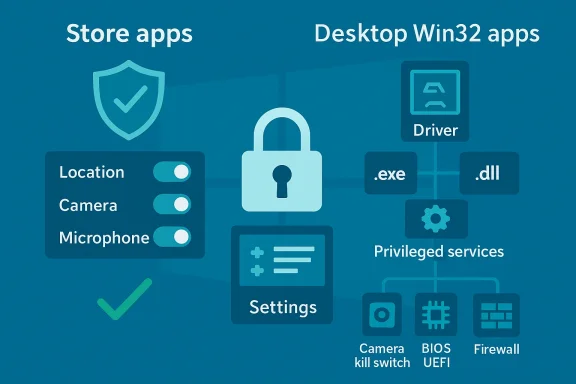
Windows exposes a modern permissions model for Store-style apps: per-capability toggles for Location, Camera, Microphone, Contacts, Calendar, and so on. That model is visible in Settings under Privacy & security and is useful for limiting what modern apps can access. But Microsoft’s documentation draws a clear line: desktop (Win32) apps are not governed by the same per-app permission dialogs; they may not appear in Settings’ app lists, and some can access hardware or personal data without the privacy prompts modern apps must honor.
This distinction isn’t academic. Desktop apps can be distributed through many channels (downloaded from the web, installed from USB media, or even listed in the Store but “Provided and updated by the developer”), and they frequently include drivers, background services, or privileged installers. Those extra components can interact directly with devices or OS surfaces in ways Settings cannot fully mediate. Microsoft’s support page explicitly recommends reading a desktop app’s privacy policy, checking the app’s own settings, and installing only from trusted sources to reduce the risk of unwanted data access.
Independent coverage and privacy-focused guides corroborate the general guidance:
Understanding this split—between what the Settings UI controls and what native desktop code can do—is the first step to making Windows safer without losing essential functionality. Be cautious, verify suspicious behavior with technical evidence, and prefer supported, auditable controls (Group Policy/MDM) over brittle hacks. Those practices will give you the best balance of privacy, usability, and maintainability on Windows.
Source: Microsoft Support Windows desktop apps and privacy - Microsoft Support
 Background / Overview
Windows exposes a modern permissions model for Store-style apps: per-capability toggles for Location, Camera, Microphone, Contacts, Calendar, and so on. That model is visible in Settings under Privacy & security and is useful for limiting what modern apps can access. But Microsoft’s documentation draws a clear line: desktop (Win32) apps are not governed by the same per-app permission dialogs; they may not appear in Settings’ app lists, and some can access hardware or personal data without the privacy prompts modern apps must honor. This distinction isn’t academic. Desktop apps can be distributed through many channels (downloaded from the web, installed from USB media, or even listed in the Store but “Provided and updated by the developer”), and they frequently include drivers, background services, or privileged installers. Those extra components can interact directly with devices or OS surfaces in ways Settings cannot fully mediate. Microsoft’s support page explicitly recommends reading a desktop app’s privacy policy, checking the app’s own settings, and installing only from trusted sources to reduce the risk of unwanted data access.
How desktop apps relate to Windows privacy settings
The technical reality
- Desktop apps generally run as native binaries (.EXE, .DLL) and have the same process-level privileges your user account grants them. That means they can read files, access devices, and call system APIs without the Store-style permission handshake.
- Windows provides some global toggles that affect classes of access (for example, “Let desktop apps access your camera”), but those are coarse-grained: turning a setting off may block many apps at once, and turning it on allows a wide set of legacy programs to interact with the device. Detailed per-desktop-app controls are limited or non-existent.
- Drivers and services installed by desktop apps can operate at a lower level. A camera driver, for example, has direct hardware hooks that Windows’ user-space privacy switch can’t necessarily intercept; an intentionally malicious or poorly written driver could bypass the Settings UI entirely. Microsoft explicitly warns that a driver-installed app could interact directly with camera or microphone hardware and bypass Windows controls.
User-facing implications
- Many widely used desktop programs (classic video conferencing clients, older browsers, multimedia tools, background utilities) may not appear as individual entries under Settings > Privacy, making audits less straightforward.
- Windows’ privacy toggles reduce exposure for Store apps and for some platform-infused flows; they are not a guarantee that desktop software won’t access data. For total assurance, Microsoft recommends disabling devices (physical disconnect or BIOS/firmware/OS-level disable) or avoiding installation of the app—practical but blunt mitigations.
Location: why “off” isn’t always off
Windows’ Location toggle controls system-provided location services, and Store apps must respect that setting. But several important caveats apply:- Desktop apps can estimate location using alternative signals—Wi‑Fi SSIDs, Bluetooth beacons, IP-based geolocation, or cellular data—without touching Windows’ location service. Even with Location turned off in Windows, an app with network access can create an approximate location profile.
- Microsoft states that developers publishing through the Microsoft Store or using Microsoft tools are required to respect Windows location settings unless legally required consent is present; however, enforcement and detection of third-party behavior vary, and the underlying technical ability to reconstruct location via radios remains.
- If you need near-absolute location privacy, the practical options are extreme: disable radio hardware (Wi‑Fi, Bluetooth, cellular), use an always‑on VPN to mask IP location, or avoid connectivity entirely. These steps degrade functionality (maps, emergency services, syncing) but are the only surefire ways to remove many location vectors.
Camera, microphone, and device-level risks
Windows exposes global camera and microphone controls, and shows a limited list of detected desktop apps that have interacted with those devices. Still:- Some desktop programs bundle device drivers or install services that talk to hardware directly, bypassing higher-level Windows permission gates. Microsoft’s guidance explicitly recognizes this exception and recommends physically disconnecting or disabling the device for robust protection.
- In practice, you’ll see three patterns:
- Modern Store apps that appear in Settings and can be individually toggled.
- Desktop apps that Windows lists only as an aggregate “desktop apps” entry; toggling affects all listed desktop apps together.
- Low-level components (drivers, kernel-mode modules) that are not controlled by Settings and may access peripherals invisibly.
- For sensitive environments, the conservative posture is to disable cameras and microphones at the device or firmware level (camera kill-switches on hardware, BIOS/UEFI device disablement) or physically cover/disconnect them when not in use. These are simple, trustworthy mitigations because they remove the hardware pathway entirely.
Real-world risk scenarios and attack surface
1. Supply-chain or installer tricks
A seemingly normal installer can ship background services and drivers that run with higher privileges. Those pieces can collect or transmit data outside what the Settings UI would suggest. Community investigations into controversial bundled apps on Windows have shown how difficult it can be to audit an installer’s real behavior without packet captures and process tracing.2. Cookie and browser-integrated checks
Some apps or helpers query local browser cookie stores or run embedded browser components. If those components run with access rights or parse local stores, they might read tokens or identifiers that browsers assume are protected. Independent security analyses have flagged examples where desktop components inspected local artifacts; when in doubt, inspect network traffic and runtime I/O to validate claims.3. Radio-based triangulation
Even without GPS, apps can build a location profile from Wi‑Fi SSIDs and Bluetooth devices. This can be done entirely by a desktop app performing network scans—no Windows location service required. That makes network-level protections (VPNs, MAC randomization, disabling radios) crucial for stronger location privacy.4. Legacy or signed drivers with privileges
Signed drivers enjoy kernel-level privileges. A misbehaving or malicious driver can access peripherals and storage with minimal OS-level constraints. Enterprises should scrutinize driver provenance and use endpoint controls to limit unauthorized driver installation.Practical steps for users — an actionable checklist
Below are layered, realistic steps you can take to reduce exposure from desktop apps, from low risk to more intrusive but effective measures.- Low-effort, low-risk (minutes)
- Review Settings > Privacy & security and disable Advertising ID and Tailored experiences to reduce personalization-based telemetry.
- Audit Camera, Microphone, and Location sections and revoke access for Store apps you don’t use. Note that desktop apps may not appear individually; these toggles still help for modern apps.
- Unlink OneDrive if you don’t use it for sync and disable unnecessary cloud sync features.
- Moderate-effort, medium-risk (30–60 minutes)
- Use Task Manager and Autoruns-style tooling to review installed background services and startup items. Disable suspicious entries after researching their origin.
- Inspect network traffic for unknown outbound connections from desktop processes with a packet capture tool (Wireshark/Fiddler). Look for unexpected exfiltration of cookie-like strings or identifiers.
- In System > Sound > Microphone properties, consider disabling “Allow applications to take exclusive control of this device” to reduce covert audio hijacking.
- High-effort, high-assurance (suitable for privacy-minded users and some admins)
- Use hardware toggles or BIOS/UEFI to disable cameras and radios when not needed.
- Create a hardened virtual machine or separate user profile for high-risk tasks; keep sensitive work on a device with minimal third-party desktop apps installed.
- For enterprises: enforce settings with Group Policy or Intune, vet drivers centrally, and use endpoint protection with behavior-based detection to flag unusual device access.
- Settings → Privacy & security → General: Turn off Advertising ID.
- Settings → Privacy & security → Diagnostics & feedback: Send required diagnostic data only; turn off optional telemetry.
- Settings → Privacy & security → Camera / Microphone / Location: Audit and toggle as needed.
- Unlink OneDrive if you don’t want automatic sync.
- Install a reputable local firewall and monitor outbound connections for suspicious behavior.
Guidance for power users and IT administrators
Enterprises and advanced users can and should rely on supported management tools rather than brittle hacks:- Use Group Policy or Microsoft Intune to enforce app privacy and telemetry settings across fleets. Group Policy offers controlled, auditable configuration and is more resilient to servicing changes than random registry edits.
- Treat driver installation policies seriously: limit who can install drivers, require signed drivers from vetted vendors, and maintain an allowlist for trusted suppliers. Kernel-mode components are high risk and require rigorous supply-chain controls.
- Where visual or screenshot-based AI features (for example, Copilot screenshot processing) are piloted, require enterprise DLP (Data Loss Prevention) controls and policy-based review before enabling workplace-wide. Transparency about whether processing is local or cloud-based must be clarified before roll-out. Community reporting stresses checking retention and routing policies for new AI features before broad deployment.
Cross-checking the claims: verification and independent perspectives
Microsoft’s official documentation is explicit about the differences between Store and desktop apps and about the limits of Settings’ control over the latter. The support article states the key facts bluntly: desktop apps “won’t ask for permission” through the Settings model and “won’t appear in the list” of apps where you manage privacy settings. It also warns about driver-level exceptions for camera and microphone.Independent coverage and privacy-focused guides corroborate the general guidance:
- Wired’s long-form privacy guide has repeatedly emphasized that Windows’ privacy toggles matter but have limits, and that telemetry/diagnostic and sensor permissions are the most impactful controls users can change.
- Computerworld and other reputable outlets recommend disabling optional telemetry, removing Advertising ID, and auditing sensor permissions—guidance that aligns with Microsoft’s recommended first steps. They also highlight that desktop apps are not fully controlled by the Settings UI.
What’s verifiable and what’s uncertain
- Verifiable: Microsoft’s documentation about desktop apps not using the Store permission prompts and not appearing in per-app Settings lists is authoritative. The existence of global toggles like “Let desktop apps access your camera” and the recommendation to disable radios or physically disconnect devices for stronger protection are explicit.
- Cautionary / harder to verify broadly: Specific claims about what a given desktop app is doing (for example, whether it reads local browser cookies or exfiltrates tokens) require independent technical testing of that specific app. Community research has produced such evidence in named cases, but those are app-specific and cannot be generalized to all desktop apps without testing. Treat such claims as actionable only after reproduction.
Final analysis — strengths, weaknesses, and recommended posture
Strengths- Windows now exposes many privacy controls that give everyday users meaningful ways to limit telemetry, disable personalized ads, and control Store app access to sensors. These controls are discoverable and supported for common scenarios.
- Microsoft’s guidance is candid about the limitations of the Settings model and clearly explains the difference between Store and desktop apps—transparency that helps users make informed trade-offs.
- Desktop apps remain a broad attack surface because of legacy installers, drivers, and privileged components that can access hardware and data beyond Settings’ visibility.
- Defaults and servicing updates can reintroduce permissive settings; registry hacks are brittle and may be reverted by updates. Administrators who need stable outcomes should use Group Policy/MDM, not ad-hoc registry fixes.
- Some privacy claims in public discussion are app-specific; independent verification is required before generalizing to all desktop apps. Treat app-level claims cautiously and seek reproducible tests where possible.
- Everyday users: apply the low-risk, high-impact settings first—disable Advertising ID, turn off optional telemetry, audit sensor permissions, unlink OneDrive if not used—and keep a quarterly privacy check.
- Privacy-minded users: combine the above with hardware-level mitigations (camera covers, radio disables), and use isolated VMs or separate user accounts for risky software.
- Enterprises: enforce settings via Group Policy/Intune, vet drivers and installer provenance, apply DLP to visual inputs, and pilot AI/screenshot features only after confirming data routing and retention.
Conclusion
Microsoft’s plain-language support guidance cuts to the essential point: Windows’ privacy permission model protects modern Store apps in useful ways, but it is not a silver bullet for the desktop (Win32) ecosystem. Desktop apps can and do operate outside the per-app prompts and, in some cases, may use drivers or low-level components to access hardware and data in ways Settings cannot mediate. The practical answer for users is layered defense: apply the supported privacy toggles, audit installed desktop apps and their network behavior, use hardware-level protections when appropriate, and for organizations—use centralized management and strict driver policies.Understanding this split—between what the Settings UI controls and what native desktop code can do—is the first step to making Windows safer without losing essential functionality. Be cautious, verify suspicious behavior with technical evidence, and prefer supported, auditable controls (Group Policy/MDM) over brittle hacks. Those practices will give you the best balance of privacy, usability, and maintainability on Windows.
Source: Microsoft Support Windows desktop apps and privacy - Microsoft Support
