

WinDirStat is a free, open-source Windows disk-usage analyzer that scans drives or folders and, as of its May 2026 guidance, remains aimed at Windows 8 and later clients plus Windows Server 2012 and newer systems. Its value is not that it deletes files better than Windows does. Its value is that it makes storage waste visible before administrators and users reach for the wrong cleanup button.
Running out of disk space on Windows is rarely mysterious in the abstract. Something grew: a profile, a log directory, a VM image, a cache, a forgotten ISO library, a backup folder, or a software distribution share that nobody has looked at since the last migration. The hard part is not knowing that storage is finite. The hard part is discovering which corner of the file system has quietly become the problem.
That is where WinDirStat has endured. It does not pretend to be a full storage-management platform, and it does not replace retention policy, backup hygiene, or endpoint management. It gives Windows users and administrators a fast visual answer to a deceptively important question: where did the space go?
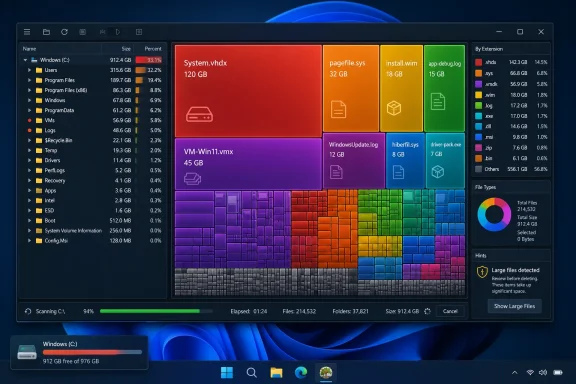
The Petri guide frames WinDirStat as a practical cleanup utility, and that is the right lens. The tool scans a selected drive or folder, then presents the results as a directory tree, a file-extension breakdown, and a colored treemap. That combination remains powerful because it bridges two audiences: people who think in folder paths and people who can spot a suspiciously huge rectangle faster than they can parse a column of numbers.
Each rectangle represents a file. Bigger files become bigger rectangles. Colors correspond to file extensions, making it easy to distinguish, for example, media files from archives, virtual disks, installers, databases, or logs.
That sounds almost quaint in an age of telemetry dashboards and cloud-native observability, but it is precisely why the tool remains useful. WinDirStat answers a local, concrete question with a local, concrete visualization. If a single forgotten VHDX is consuming half a workstation’s SSD, the user does not need a data lake. They need a giant rectangle shouting at them.
The directory list adds the administrative half of the story. It shows folder size, file counts, percentages, and last-change data, allowing an operator to move from visual suspicion to filesystem evidence. The file-type list then adds another angle: not just where the storage is going, but what kind of content is responsible.
The current picture is more interesting. The official download channels now point users toward modern packaging options, including MSI installers, portable archives, Microsoft Store availability, GitHub releases, and package-manager installs through winget, Chocolatey, or Scoop. There are x64, x86, and ARM64 builds, which matters as Windows on Arm moves from curiosity to legitimate deployment target in some environments.
That packaging story is more than convenience. In enterprise and prosumer settings, the difference between “download this EXE from somewhere” and “install a known package from a managed source” is a security and operations distinction. The more WinDirStat fits into modern Windows deployment habits, the less it feels like a one-off rescue tool and the more it becomes a legitimate part of the troubleshooting workflow.
The current support floor also matters. The tool is now described as supporting Windows 8 and later, including Windows 10, Windows 11, and Windows Server beginning with Windows Server 2012. That neatly excludes the museum wing of Windows while still covering the systems most likely to exist in real production estates.
A 90GB file is not automatically junk. It may be a Hyper-V disk, a database, a backup chain component, a mail archive, a forensic image, a deduplicated storage artifact, or a line-of-business application file with a name only its vendor understands. The tool can show size and location; it cannot always tell intent.
This is where Windows users need discipline. The safest WinDirStat workflow begins with investigation, not deletion. Scan the most likely volume or folder, sort by size, inspect the biggest consumers, and start with obvious user-owned clutter: old downloads, stale installers, duplicated media, abandoned archives, or forgotten ISO files.
The Recycle Bin option is not a minor convenience. It is a guardrail. Permanent deletion has its place, particularly on servers or when dealing with very large files that bypass the bin, but the first cleanup pass should be reversible whenever possible. Storage pressure makes people reckless; good tools should slow the hand before the delete key lands.
Duplicate detection is especially attractive because duplication feels like waste with a moral dimension. Two copies of the same file look like an obvious failure of hygiene. In reality, duplicates can be legitimate: deployment packages mirrored for resilience, application assets copied by design, user data synchronized across profiles, or backups stored in multiple stages.
That does not make the duplicate view useless. It makes it a triage tool rather than a verdict. On a personal PC, duplicate videos or downloaded installers may be easy wins. On a server, duplicate-looking files may reflect application design, backup practice, or operational policy.
The File Watcher view is arguably more interesting for administrators. A static scan tells you what exists now. Watching file activity helps explain why a disk keeps filling again after cleanup. That distinction matters in cases where logs, temp files, application caches, or runaway processes are the real culprit.
WinDirStat does not replace those tools. It complements them by showing the file system in a way Microsoft’s built-in interfaces often do not.
The difference is granularity. Native Windows cleanup tools are good at categories: temporary files, delivery optimization files, recycle-bin content, previous installations, and the like. WinDirStat is good at evidence. It lets a user see that a particular folder under a particular path contains a particular file consuming a particular share of the drive.
For IT pros, that evidence is what turns a vague support ticket into an action plan. “The C: drive is full” becomes “a user profile contains 140GB of video exports” or “a forgotten test VM is sitting under a downloads folder” or “an application log directory has no rotation policy.” That is the level where cleanup becomes operationally meaningful.
So why keep talking about WinDirStat? Because free, open-source, understandable tools still occupy an important space in Windows administration. WinDirStat’s interface may not be the slickest, and its scan speed may not always impress power users accustomed to faster alternatives. But it remains transparent, widely known, and easy to explain.
That matters in community and support contexts. If you are helping a family member, a small office, or a forum user diagnose a full disk, a tool that produces an immediately understandable treemap is often better than a technically superior tool that requires more explanation. If you are an administrator in a controlled environment, the availability of MSI and portable packages also makes WinDirStat easier to standardize than its older reputation might suggest.
The practical recommendation is not ideological. Use the tool that fits the job. If scan speed is the overriding requirement, alternatives may be preferable. If the goal is a free, open-source, visually clear analyzer that works across modern Windows clients and servers, WinDirStat remains a sensible first stop.
The safest path is boring: use the official WinDirStat site, the Microsoft Store, the project’s GitHub releases, or a reputable package manager. For administrators, verifying published hashes before deployment is not paranoia. It is a reasonable step when a tool will be run with elevated privileges across systems that may contain sensitive data.
Elevation deserves similar caution. Running WinDirStat as administrator can improve visibility and performance, and it may be necessary to inspect protected areas of the file system. But elevation also means the cleanup actions carry more consequence. A standard user deleting clutter from Downloads is one risk profile; an elevated process deleting from system or application directories is another.
The healthiest posture is to treat WinDirStat like a diagnostic tool first and a cleanup tool second. Let it reveal the storage story. Then decide whether deletion, archiving, compression, policy changes, application fixes, or user education is the right response.
WinDirStat encourages that explanation because it makes storage consumption visible in multiple ways. The treemap shows outliers. The directory tree shows hierarchy. The extension list shows file-type patterns. The newer targeted views help isolate large files, duplicates, search matches, and changing files.
The right workflow is methodical. Scan only what you need to scan. Start with the volume under pressure. Investigate the largest folders and files. Prefer user data and obvious detritus over system paths. Move or archive before deleting when business value is uncertain. Rescan after cleanup to verify the result.
On servers, that discipline becomes even more important. A full system drive can break updates, logging, monitoring agents, application services, and backup jobs. But deleting files from a server without understanding ownership can create outages. WinDirStat can point to the culprit; change control still matters.
That map is especially useful because storage problems often cut across roles. A help desk technician may need to clear a user’s laptop. A homelab enthusiast may need to find which VM ate the SSD. A sysadmin may need to understand why a server volume is filling between maintenance windows. A power user may simply want to reclaim space without trusting a black-box cleaner.
There is a reason visual disk analyzers remain popular despite decades of operating-system evolution. Humans are poor at intuiting filesystem scale from nested folders. We are better at spotting disproportion. WinDirStat turns storage into disproportion.
That does not make it glamorous. It makes it useful. And in Windows administration, useful tools tend to survive long after flashier utilities have disappeared.
 Storage Trouble Usually Starts as a Visibility Problem
Running out of disk space on Windows is rarely mysterious in the abstract. Something grew: a profile, a log directory, a VM image, a cache, a forgotten ISO library, a backup folder, or a software distribution share that nobody has looked at since the last migration. The hard part is not knowing that storage is finite. The hard part is discovering which corner of the file system has quietly become the problem.That is where WinDirStat has endured. It does not pretend to be a full storage-management platform, and it does not replace retention policy, backup hygiene, or endpoint management. It gives Windows users and administrators a fast visual answer to a deceptively important question: where did the space go?
The Petri guide frames WinDirStat as a practical cleanup utility, and that is the right lens. The tool scans a selected drive or folder, then presents the results as a directory tree, a file-extension breakdown, and a colored treemap. That combination remains powerful because it bridges two audiences: people who think in folder paths and people who can spot a suspiciously huge rectangle faster than they can parse a column of numbers.
The Treemap Still Works Because Windows Still Hides Scale Poorly
File Explorer has improved over the years, but it still does not give users an intuitive sense of scale. A directory containing 80,000 small files and a directory containing three 60GB virtual disks can both look equally ordinary until you open properties, wait, and then begin a tedious drill-down. WinDirStat’s treemap solves that human-interface problem by turning file size into area.Each rectangle represents a file. Bigger files become bigger rectangles. Colors correspond to file extensions, making it easy to distinguish, for example, media files from archives, virtual disks, installers, databases, or logs.
That sounds almost quaint in an age of telemetry dashboards and cloud-native observability, but it is precisely why the tool remains useful. WinDirStat answers a local, concrete question with a local, concrete visualization. If a single forgotten VHDX is consuming half a workstation’s SSD, the user does not need a data lake. They need a giant rectangle shouting at them.
The directory list adds the administrative half of the story. It shows folder size, file counts, percentages, and last-change data, allowing an operator to move from visual suspicion to filesystem evidence. The file-type list then adds another angle: not just where the storage is going, but what kind of content is responsible.
The Newer Builds Matter More Than the Old Reputation
For many Windows veterans, WinDirStat is frozen in memory as an old-school utility from the era when every sysadmin carried a toolkit folder full of small executables. That reputation is both an asset and a liability. It suggests reliability and familiarity, but it can also make the tool sound like abandonware.The current picture is more interesting. The official download channels now point users toward modern packaging options, including MSI installers, portable archives, Microsoft Store availability, GitHub releases, and package-manager installs through winget, Chocolatey, or Scoop. There are x64, x86, and ARM64 builds, which matters as Windows on Arm moves from curiosity to legitimate deployment target in some environments.
That packaging story is more than convenience. In enterprise and prosumer settings, the difference between “download this EXE from somewhere” and “install a known package from a managed source” is a security and operations distinction. The more WinDirStat fits into modern Windows deployment habits, the less it feels like a one-off rescue tool and the more it becomes a legitimate part of the troubleshooting workflow.
The current support floor also matters. The tool is now described as supporting Windows 8 and later, including Windows 10, Windows 11, and Windows Server beginning with Windows Server 2012. That neatly excludes the museum wing of Windows while still covering the systems most likely to exist in real production estates.
Cleanup Tools Are Dangerous When They Make Deletion Feel Easy
WinDirStat’s great strength is also its risk. It makes large files obvious, and once a large file is obvious, deleting it becomes tempting. That is not always wise.A 90GB file is not automatically junk. It may be a Hyper-V disk, a database, a backup chain component, a mail archive, a forensic image, a deduplicated storage artifact, or a line-of-business application file with a name only its vendor understands. The tool can show size and location; it cannot always tell intent.
This is where Windows users need discipline. The safest WinDirStat workflow begins with investigation, not deletion. Scan the most likely volume or folder, sort by size, inspect the biggest consumers, and start with obvious user-owned clutter: old downloads, stale installers, duplicated media, abandoned archives, or forgotten ISO files.
The Recycle Bin option is not a minor convenience. It is a guardrail. Permanent deletion has its place, particularly on servers or when dealing with very large files that bypass the bin, but the first cleanup pass should be reversible whenever possible. Storage pressure makes people reckless; good tools should slow the hand before the delete key lands.
Duplicate Detection Is Useful, but It Is Not a Records Policy
The newer WinDirStat views described in the Petri walkthrough broaden the tool beyond the classic three-pane interface. Dedicated views for all files, largest files, duplicate files, search results, and file watching make it easier to move from “what is big?” to “what should I investigate next?”Duplicate detection is especially attractive because duplication feels like waste with a moral dimension. Two copies of the same file look like an obvious failure of hygiene. In reality, duplicates can be legitimate: deployment packages mirrored for resilience, application assets copied by design, user data synchronized across profiles, or backups stored in multiple stages.
That does not make the duplicate view useless. It makes it a triage tool rather than a verdict. On a personal PC, duplicate videos or downloaded installers may be easy wins. On a server, duplicate-looking files may reflect application design, backup practice, or operational policy.
The File Watcher view is arguably more interesting for administrators. A static scan tells you what exists now. Watching file activity helps explain why a disk keeps filling again after cleanup. That distinction matters in cases where logs, temp files, application caches, or runaway processes are the real culprit.
WinDirStat Belongs Beside, Not Instead of, Microsoft’s Native Tools
Windows already includes storage tools. Settings exposes storage usage categories and cleanup recommendations. Disk Cleanup still appears in many workflows. Storage Sense can automatically clear temporary files and recycle-bin content. Server environments add their own layers of monitoring, quotas, deduplication, and backup management.WinDirStat does not replace those tools. It complements them by showing the file system in a way Microsoft’s built-in interfaces often do not.
The difference is granularity. Native Windows cleanup tools are good at categories: temporary files, delivery optimization files, recycle-bin content, previous installations, and the like. WinDirStat is good at evidence. It lets a user see that a particular folder under a particular path contains a particular file consuming a particular share of the drive.
For IT pros, that evidence is what turns a vague support ticket into an action plan. “The C: drive is full” becomes “a user profile contains 140GB of video exports” or “a forgotten test VM is sitting under a downloads folder” or “an application log directory has no rotation policy.” That is the level where cleanup becomes operationally meaningful.
The Alternatives Win on Speed, but Not Always on Trust
Any honest discussion of WinDirStat has to mention its competitors. WizTree and TreeSize are popular for good reasons. WizTree, in particular, is known for very fast scans on NTFS volumes because of how it reads filesystem metadata. TreeSize offers polished commercial editions that appeal to organizations needing reporting, automation, and a more enterprise-friendly feature set.So why keep talking about WinDirStat? Because free, open-source, understandable tools still occupy an important space in Windows administration. WinDirStat’s interface may not be the slickest, and its scan speed may not always impress power users accustomed to faster alternatives. But it remains transparent, widely known, and easy to explain.
That matters in community and support contexts. If you are helping a family member, a small office, or a forum user diagnose a full disk, a tool that produces an immediately understandable treemap is often better than a technically superior tool that requires more explanation. If you are an administrator in a controlled environment, the availability of MSI and portable packages also makes WinDirStat easier to standardize than its older reputation might suggest.
The practical recommendation is not ideological. Use the tool that fits the job. If scan speed is the overriding requirement, alternatives may be preferable. If the goal is a free, open-source, visually clear analyzer that works across modern Windows clients and servers, WinDirStat remains a sensible first stop.
The Security Lesson Is About Download Habits, Not Just WinDirStat
Utilities like WinDirStat live in a risky part of the software ecosystem. They are useful, widely searched for, and often installed in moments of urgency. That makes them ideal bait for third-party download sites, repackaged installers, misleading ads, and search-result traps.The safest path is boring: use the official WinDirStat site, the Microsoft Store, the project’s GitHub releases, or a reputable package manager. For administrators, verifying published hashes before deployment is not paranoia. It is a reasonable step when a tool will be run with elevated privileges across systems that may contain sensitive data.
Elevation deserves similar caution. Running WinDirStat as administrator can improve visibility and performance, and it may be necessary to inspect protected areas of the file system. But elevation also means the cleanup actions carry more consequence. A standard user deleting clutter from Downloads is one risk profile; an elevated process deleting from system or application directories is another.
The healthiest posture is to treat WinDirStat like a diagnostic tool first and a cleanup tool second. Let it reveal the storage story. Then decide whether deletion, archiving, compression, policy changes, application fixes, or user education is the right response.
The Best Cleanup Is the One You Can Explain Afterward
A good storage cleanup should leave behind an explanation, not just free space. If a machine had 3GB free in the morning and 90GB free after lunch, someone should be able to say what changed. Otherwise, the same problem will return, or worse, the wrong data will be gone and nobody will know why.WinDirStat encourages that explanation because it makes storage consumption visible in multiple ways. The treemap shows outliers. The directory tree shows hierarchy. The extension list shows file-type patterns. The newer targeted views help isolate large files, duplicates, search matches, and changing files.
The right workflow is methodical. Scan only what you need to scan. Start with the volume under pressure. Investigate the largest folders and files. Prefer user data and obvious detritus over system paths. Move or archive before deleting when business value is uncertain. Rescan after cleanup to verify the result.
On servers, that discipline becomes even more important. A full system drive can break updates, logging, monitoring agents, application services, and backup jobs. But deleting files from a server without understanding ownership can create outages. WinDirStat can point to the culprit; change control still matters.
The Small Utility Still Earns a Place in the Admin Kit
The enduring appeal of WinDirStat is that it does not ask Windows to become something else. It accepts the messy reality of local disks, mapped drives, user profiles, application folders, and years of accumulated leftovers. Then it gives the user a map.That map is especially useful because storage problems often cut across roles. A help desk technician may need to clear a user’s laptop. A homelab enthusiast may need to find which VM ate the SSD. A sysadmin may need to understand why a server volume is filling between maintenance windows. A power user may simply want to reclaim space without trusting a black-box cleaner.
There is a reason visual disk analyzers remain popular despite decades of operating-system evolution. Humans are poor at intuiting filesystem scale from nested folders. We are better at spotting disproportion. WinDirStat turns storage into disproportion.
That does not make it glamorous. It makes it useful. And in Windows administration, useful tools tend to survive long after flashier utilities have disappeared.
The Rectangles Tell the Story Before the Delete Button Does
Before reaching for WinDirStat, it is worth remembering what kind of problem it is built to solve. It is not a magic optimizer, a registry cleaner, a deduplication engine, or a replacement for backup and retention strategy. It is a visibility tool with cleanup hooks, and its best results come when users respect that order.- WinDirStat is most valuable when you need to identify which files, folders, or file types are consuming space on a Windows drive.
- The treemap is useful because it turns file size into visual scale, making unusually large files easy to spot.
- The safest downloads come from official project channels, the Microsoft Store, GitHub releases, or reputable package managers.
- Elevated scans can reveal more of the file system, but they also raise the stakes for accidental deletion.
- Duplicate-file results should be investigated carefully because identical files are not always unnecessary files.
- WinDirStat is best used as the beginning of a cleanup decision, not as an excuse to delete anything that looks large.
References
- Primary source: Petri IT Knowledgebase
Published: 2026-05-26T13:20:11.308894
WinDirStat: Quickly Find and Remove Large Files on Windows
Learn how to use WinDirStat find oversized files, duplicate content, and other storage hogs so you can clean up your system more intelligently. petri.com
- Related coverage: windirstat.io
- Official source: learn.microsoft.com
How to Install PowerToys on Windows 11 and Windows 10 | Microsoft Learn
Install PowerToys, a set of utilities for customizing Windows, using an executable file or package manager (WinGet, Chocolatey, Scoop).learn.microsoft.com - Related coverage: windirstat.net
- Official source: github.com
GitHub - windirstat/windirstat: WinDirStat is a disk usage statistics viewer and cleanup tool for Microsoft Windows · GitHub
WinDirStat is a disk usage statistics viewer and cleanup tool for Microsoft Windows - windirstat/windirstat github.com
- Related coverage: wingetgui.com

WinDirStat.WinDirStat 2.7.0 download
WinDirStat is a disk usage statistics viewer and cleanup tool for various versions of Microsoft Windows.
www.wingetgui.com
- Related coverage: winget.run
Download and install WinDirStat with winget
WinDirStat (Windows Directory Statistics) is a disk usage statistics viewer and cleanup tool for Windows. On start up, WinDirStat reads the whole directory tree once and then presents it in three useful views: - The directory list, which resembles the tree view of the Windows Explorer but is...winget.run
- Related coverage: autofulltravel.com
