

Windows 10 has reached its planned end of mainstream support: Microsoft stopped routine security updates, feature releases, and standard technical assistance on October 14, 2025, and users now face a clear choice between upgrading, buying time with a paid or free Extended Security Updates (ESU) path, or accepting growing security and compatibility risk.
Windows 10 launched in July 2015 and became the dominant desktop operating system for much of the last decade. Microsoft’s lifecycle policy set a firm servicing horizon for that platform and designated Windows 10, version 22H2 as the final major build; the vendor stopped mainstream servicing for consumer and most business SKUs on October 14, 2025. That calendar milestone does not “turn PCs off” — Windows 10 machines will continue to boot and operate after the end-of-support date — but the vendor safety net of monthly cumulative security patches and new feature updates has been withdrawn for machines not enrolled in a supported extension path. The practical consequence is straightforward: newly discovered OS-level vulnerabilities discovered after October 14, 2025 will not be patched for unenrolled devices, making those installs progressively more attractive to attackers. The consumer-facing narrative and many how-to guides created in the run-up to October 2025 emphasized the same essentials: check your device’s Windows 11 eligibility, back up your data, and pick a path — upgrade, enroll in ESU, replace hardware, or move to an alternative OS or cloud desktop service.
Conclusion: the calendar date of October 14, 2025 is not an apocalypse but it is the moment the vendor stops fixing the platform you rely on. For households and organizations alike, an immediate inventory, a tested upgrade plan (or ESU enrollment), and basic compensating security controls will be the difference between a manageable migration and an avoidable security incident.
Source: AddictiveTips Windows 10 End of Support and What It Means
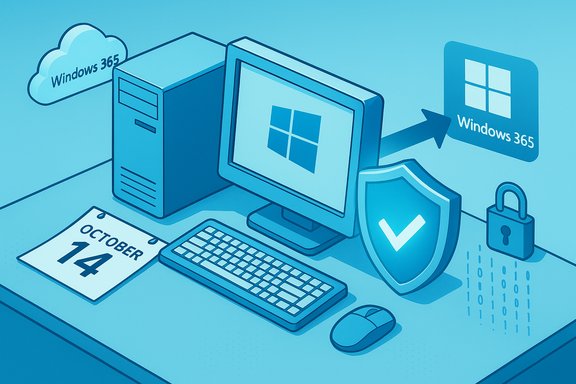 Background / Overview
Windows 10 launched in July 2015 and became the dominant desktop operating system for much of the last decade. Microsoft’s lifecycle policy set a firm servicing horizon for that platform and designated Windows 10, version 22H2 as the final major build; the vendor stopped mainstream servicing for consumer and most business SKUs on October 14, 2025. That calendar milestone does not “turn PCs off” — Windows 10 machines will continue to boot and operate after the end-of-support date — but the vendor safety net of monthly cumulative security patches and new feature updates has been withdrawn for machines not enrolled in a supported extension path. The practical consequence is straightforward: newly discovered OS-level vulnerabilities discovered after October 14, 2025 will not be patched for unenrolled devices, making those installs progressively more attractive to attackers. The consumer-facing narrative and many how-to guides created in the run-up to October 2025 emphasized the same essentials: check your device’s Windows 11 eligibility, back up your data, and pick a path — upgrade, enroll in ESU, replace hardware, or move to an alternative OS or cloud desktop service.What ended and what continues
What Microsoft stopped providing on October 14, 2025
- Routine security updates (monthly cumulative rollups) for mainstream Windows 10 consumer and many business SKUs.
- Feature and quality updates — no more new features or non-security fixes for Windows 10 22H2.
- Standard technical assistance through Microsoft’s consumer channels for Windows 10.
What Microsoft continues to provide (limited, separate timelines)
- Consumer Extended Security Updates (ESU): a time‑boxed program offering security‑only patches for eligible devices through October 13, 2026.
- Some application-level servicing (not OS patches) — notably Microsoft Defender security intelligence updates and staged servicing for Microsoft 365 apps that continue on their own schedules (for example, Microsoft has indicated Microsoft 365 Apps security updates for Windows 10 continue until Oct 10, 2028).
The Extended Security Updates (ESU) program — exactly what it is and how it works
Microsoft provided a consumer‑focused ESU program to give households and small users a migration runway after October 14, 2025. The consumer ESU is security‑only and is explicitly a short bridge, not a new long‑term support model. Key facts every user should know:- Coverage window for the consumer ESU program runs from Oct 15, 2025 through Oct 13, 2026.
- ESU delivers only security updates classified as Critical and Important by Microsoft’s security teams — no feature updates, no design changes, and no general technical support.
- Enrollment prerequisites: devices must be running Windows 10, version 22H2 and be updated to required baselines; the ESU license is linked to a Microsoft Account and the account must be an administrator on the device.
- Enable Windows Backup (sync PC Settings) to a Microsoft Account — no additional cost.
- Redeem 1,000 Microsoft Rewards points — no additional cash cost.
- Make a one‑time purchase of $30 USD (local currency equivalent and taxes may apply).
Important caveats and regional differences
- The free enrollment route and EEA (European Economic Area) arrangements have additional conditions in some regions — for example, EEA users were given specific terms about periodically signing in to maintain eligibility. These regional rules mean the exact enrollment mechanics may vary by country. Treat Microsoft’s ESU page as the authoritative reference for your locale.
- Domain‑joined, MDM‑managed, kiosk, or enterprise devices follow separate ESU channels (volume licensing and commercial ESU), with different pricing and multi‑year options for enterprises. Consumer ESU is explicitly targeted at individual/home devices.
Why the security risk increases after end of support
When vendor patching stops, newly found OS vulnerabilities remain unpatched on unsupported installations. This creates practical attack paths:- Exploit developers can perform patch diffing on fixes released for supported platforms and adapt those techniques to attack unpatched legacy code paths.
- Ransomware and commodity exploit kits scale quickly against large, predictable installed bases.
- An unpatched endpoint is an easy pivot into broader networks, making corporate estates and home networks vulnerable.
Upgrade to Windows 11: the preferred path (when possible)
For most users with compatible hardware, upgrading to Windows 11 is the simplest path to remain supported and receive ongoing security improvements and new features. Microsoft continues to provide free in-place upgrades for eligible Windows 10 devices. The critical compatibility baseline:- Processor: 1 GHz or faster with 2 or more cores on a compatible 64‑bit CPU.
- RAM: 4 GB or more.
- Storage: 64 GB or more.
- Firmware: UEFI with Secure Boot capable.
- TPM: Trusted Platform Module (TPM) version 2.0 (discrete or firmware fTPM).
Upgrading — practical steps
- Back up important files to an external drive or cloud storage.
- Run the Microsoft PC Health Check tool to confirm Windows 11 eligibility.
- If eligible, use Windows Update (Settings → Update & Security → Windows Update) to initiate the free upgrade; follow on‑screen instructions and keep the device plugged in until the process finishes.
If you can’t upgrade: alternatives and mitigations
Not all Windows 10 systems can move to Windows 11 because of the stricter hardware requirements. For those users, options include:- Enroll in the consumer ESU program for a one‑year security bridge.
- Migrate to a supported alternative OS (modern Linux distributions, ChromeOS Flex) where appropriate for your workflow. Linux desktops have matured significantly and can be a practical, lower‑cost long‑term option for many users.
- Use a cloud desktop solution (Windows 365 / Cloud PC) to run a supported Windows endpoint in the cloud and keep the older device as a thin client. Microsoft has highlighted Windows 365 and Cloud PC as migration tools that can remove hardware blockers.
- Keep all third‑party applications (especially browsers and productivity apps) updated.
- Use a reputable, up‑to‑date antivirus and endpoint protection product.
- Practice strict network hygiene: enable firewalls, minimize administrative account use, and isolate legacy devices on segmented networks.
- Avoid risky activities (banking, sensitive work) on unsupported endpoints.
Practical upgrade checklist and a short action plan
- Immediately check whether your device meets Windows 11 minimum requirements. Use PC Health Check or the manufacturer’s compatibility guidance.
- Back up your files before any major change. Use external drives or cloud backups.
- If eligible: upgrade to Windows 11 via Windows Update — it’s free for qualifying Windows 10 22H2 devices.
- If not eligible and you must keep Windows 10: enroll in consumer ESU before Microsoft stops that program on October 13, 2026 (or immediately, since ESU enrollment windows and prerequisites must be met). Choose between the free sync option, redeeming Rewards points, or paying the one‑time $30 fee if needed.
- For organizations: inventory endpoints, prioritize mission‑critical systems for upgrade, and budget for commercial ESU or hardware refresh cycles where necessary.
Costs, commercial considerations, and compliance
For home users the consumer ESU price is modest (one‑time $30 USD per account/device group where the paid option applies). Enterprise customers face higher per‑device commercial ESU pricing with multi‑year escalations depending on licensing channels. For many organizations the calculus includes direct costs (ESU licensing or new hardware) and indirect costs (staff time, compatibility testing, potential downtime). There are also compliance and regulatory angles: sectors bound by data‑protection rules or contractual requirements may be unable to accept unsupported OS deployments. In regulated environments, running an unsupported OS can violate compliance controls, trigger audit findings, or impact cyber insurance coverage. These non‑technical costs are frequently larger than the licensing expense and should be part of migration planning.Risks, scams, and the temptation to bypass requirements
The pressure to remain secure has driven a cottage industry of workarounds and “bypass” tools that let users install Windows 11 on unsupported hardware. These hacks — registry tweaks, modified installers, or third‑party tools — carry real risks: they can leave systems in unsupported states that may not receive future updates reliably, and malicious actors have already distributed trojanized versions of popular bypass tools. Avoid untrusted downloads; installing a patched but unsupported OS copy can increase security exposure rather than reduce it. Similarly, post‑end‑of‑support phishing and scam campaigns often exploit user confusion about EOL and ESU. Be skeptical of unsolicited prompts asking for payment or account credentials; use the Settings → Windows Update enrollment wizard or official Microsoft channels for ESU enrollment.Strengths and weaknesses of Microsoft’s approach (critical analysis)
Notable strengths
- Microsoft published a clear, date‑driven policy and a consumer ESU path to reduce immediate pragmatic risk for households unwilling or unable to upgrade quickly. This clarity helps IT teams and consumers plan procurement and migration decisions.
- Windows 11’s higher hardware baseline (TPM 2.0, Secure Boot) genuinely lifts the security floor for new devices, which benefits the ecosystem over time.
Significant risks and shortcomings
- The hardware gating for Windows 11 leaves a sizable number of working Windows 10 PCs ineligible for an official upgrade, creating equity and environmental concerns about forced hardware turnover and e‑waste. Estimates of how many machines are affected vary and should be treated as directional rather than exact.
- The consumer ESU design ties free enrollment to Microsoft Account behaviors (or to redeeming Rewards or paying), which critics argue disadvantages privacy‑conscious users or those without Microsoft accounts. Regionally specific rules add complexity.
- ESU is explicitly time‑boxed and limited. Relying on it as a permanent solution is risky for compliance and security posture. Organizations should treat ESU as a temporary bridge only.
Final verdict and recommendations
Windows 10 end of support is a concrete, calendar‑driven event that reassigns responsibility for patching from Microsoft to device owners unless you enroll in a supported program. The safest, most forward‑looking path for most users is to upgrade to Windows 11 when hardware permits. If an upgrade isn’t possible immediately, enroll in consumer ESU or choose a reliable alternative — but treat ESU as temporary breathing room, not a final destination. Action items (short list):- Check Windows 11 eligibility now. Back up your data. Act this week if you haven’t already.
- If you cannot upgrade, enroll in ESU before you lose access to the program’s protections in your region.
- For businesses, inventory, prioritize, test app compatibility, and budget for hardware refresh or commercial ESU.
Conclusion: the calendar date of October 14, 2025 is not an apocalypse but it is the moment the vendor stops fixing the platform you rely on. For households and organizations alike, an immediate inventory, a tested upgrade plan (or ESU enrollment), and basic compensating security controls will be the difference between a manageable migration and an avoidable security incident.
Source: AddictiveTips Windows 10 End of Support and What It Means
