

Ammon News’ now-unavailable piece urging readers that “it’s time to upgrade to Windows 11 without hesitation” landed on a familiar note: upgrade, because security and future compatibility are no longer optional. The original Ammon News URL the user supplied returns an error, but an archived copy of the article's text is available in our files and delivers the same core advice—move to Windows 11 if your PC is eligible, or plan for replacement or short-term mitigation if it isn’t. osoft formally ended mainstream support for Windows 10 on October 14, 2025, which means consumer devices no longer receive routine feature updates or standard security fixes from Windows Update. Microsoft’s guidance for consumers has been blunt: upgrade eligible PCs to Windows 11, buy a new Windows 11 PC, or enroll eligible devices in the one-year Consumer Extended Security Updates (ESU) program if you need breathing room.
That corporate timeline changes the calculus. An upgrade that once felt optional has become a security and compatibility imperative for many users. This article assesses the claims behind the “upgrade now” push, verifies the key technical facts, and offers a practical, risk-aware plan for individuals and small organizations deciding whether and how to move to Windows 11.
Windows 10’s end of support is more than a date on a calendar. When Microsoft stops patching an OS, the unpatched software becomes a growing liability. Two systemic risks make staying on Windows 10 unpalatable for many users:
We verified the article’s most significant factual claims against primary sources:
Source: Ammon News https://en.ammonnews.net/article/89040/
That corporate timeline changes the calculus. An upgrade that once felt optional has become a security and compatibility imperative for many users. This article assesses the claims behind the “upgrade now” push, verifies the key technical facts, and offers a practical, risk-aware plan for individuals and small organizations deciding whether and how to move to Windows 11.
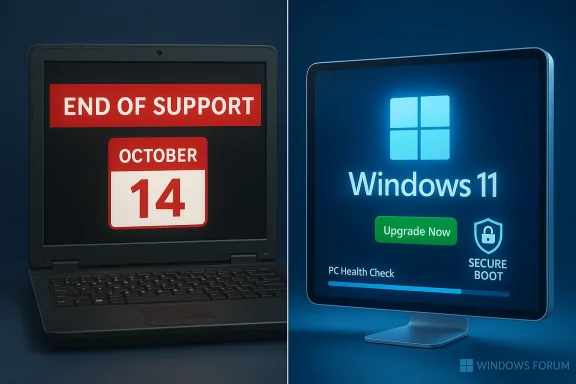 Why the “Upgrade Now” message has teeth
Windows 10’s end of support is more than a date on a calendar. When Microsoft stops patching an OS, the unpatched software becomes a growing liability. Two systemic risks make staying on Windows 10 unpalatable for many users:- No more security updates from Microsoft for Windows 10 after Oct 14, 2025, except for devices enrolled in ESU. That means newly discovered vulnerabilities won't be fixed on unpatched Windows 10 systems, increasing exposure to ransomware, rootkits, and other threats.
- Platform-level certificate and firmware changes are arriving that favor supported systems. Microsoft is renewing long-lived Secure Boot certificates and rolling these updates into supported Windows servicing. Devices that remain on unsupported OS versions may miss automatic updates that maintain the cryptographic chain for Secure Boot—creating a “degraded security state” at boot-time and increasing the risk of low-level compromise or incompatibility with future hardware and drivers. Recent reporting highlights that Microsoft’s Secure Boot certificate refresh is being shipped via Windows updates and primarily benefits devices on supported Windows versions.
What Ammon News said — and what we verified
The archived Ammon News text (mirror in our files) urged readers to mouse of its security model, productivity improvements, and the end of Windows 10 support. The article’s practical recommendations—check compatibility with Microsoft’s PC Health Check tool, enable TPM and Secure Boot if present, or consider ESU or a new PC—match Microsoft’s official guidance. That archived text is our reference for the Ammon piece’s claims.We verified the article’s most significant factual claims against primary sources:
- Windows 10 reached end of support on October 14, 2025. This is Microsoft’s official position and the anchor date behind the upgrade push.
- Windows 11 minimum system requirements are a 64‑bit processor (1 GHz, 2+ cores), 4 GB RAM, 64 GB storage, UEFI with Secure Boot, and TPM 2.0. Microsoft’s documentation lists internet connectivity and a Microsoft account as required for initial setup on Home and Pro for personal use (internet + MS account required during OOBE). These are not optional toggles for many modern installs.
- Microsoft offers a Consumer ESU program for Windows 10 that lets eligible consumer devices continue to receive critical security updates through October 13, 2026; enrollment is available via several options (including a $30 one‑time purchase in many regions or free methods when syncing settings or using Rewards points). That program is explicitly a short-term stopgap and not a substitute for moving to a supported OS.
Windows 11: real benefits — what to expect
Upgrading to Windows 11 delivers a mix of security, usability, and platform-level advances. Below are the most material, verifiable improvements:- Hardware-backed security baseline: TPM 2.0, Secure Boot, and virtualization-based security (VBS) enable features like BitLocker key protection, Windows Hello credential isolation, and hypervisor-protected code integrity (HVCI). These make certain classes of attack substantially harder. Microsoft’s requirement for TPM 2.0 and Secure Boot is central to this claim.
- Ongoing security servicing: Windows 11 continues to receive feature and security updates. Staying on a supported platform keeps the device in the natural Microsoft patch cadence and eligible for future certificate/firmware updates that preserve Secure Boot integrity. Recent reporting on Secure Boot certificate refreshes underscores this point—devices on Windows 11 will automatically get updated certificates through Windows Update.
- Performance and platform updates, especially for gaming and modern workloads: Microsoft has invested in background workload management, driver co‑engineering, DirectX improvements (including DXR 1.2), and OS-level features like Automatic Super Resolution (Auto SR) that leverage on-device NPUs on supported hardware. These are rolling platform features that improve frame pacing, reduce shader compile hitches, and, on compatible hardware, deliver better gaming experiences. Independent reporting and Microsoft-facing developer notes confirm a suite of gaming and graphics improvements in Windows 11’s post-launch roadmap.
- Modern productivity and UI improvements: Snap layouts, virtual desktops, updated File Explorer behavior, and closer integration with services like OneDrive and Copilot (on devices where AI capabilities are supported) can materially change workflow efficiency for some users. These are visible, product-level changes that work best on supported hardware and with an up-to-date Windows 11 build. Microsoft’s feature lists and changelogs are clear on these additions.
Real risks and trade-offs you must consider
Upgrading is not a no‑loss proposition. The Ammon piece framed the choice as urgent and positive; our analysis tempers that with realistic cautions.- Hardware compatibility and forced exclusions: Not every PC can upgrade. The TPM 2.0 / Secure Boot / approved CPU list cuts out older systems—even some machines sold in the past decade. Microsoft’s compatibility checks (PC Health Check and Windows Update eligibility prompts) are authoritative; if your machine fails those checks, a direct in-place upgrade via Windows Update won’t be offered. Some users will be forced into clean installs or replacement hardware.
- Migration costs and e‑waste: Critics warned that Microsoft's strict hardware requirements could increase device turnover and e‑waste, particularly among users of otherwise functional older PCs. That criticism resurfaced in media coverage as Windows 10’s end date approached. If your device is under-spec and repair or upgrades (e.g., new drive, added RAM, or TPM enablement) aren’t possible or affordable, you may need a new PC—an economic and environmental cost.
- Setup friction: Microsoft account and internet at OOBE: Windows 11 requires internet connectivity and a Microsoft account during first-time setup on Home and Pro for personal use. Microsoft has been removing known local-account workarounds in Insider builds and is increasingly steering consumer installs toward cloud-backed accounts to enable features like Microsoft backup of keys and settings—this matters for privacy-conscious users and those that prefer purely local accounts. Expect that a clean, modern Windows 11 install will likely need an MS account and network access.
- Driver and app compatibility: Some legacy apps and drivers may misbehave on Windows 11 despite meeting minimum requirements. Vendors and peripheral manufacturers may not prioritize older hardware legacy drivers. Test mission‑critical applications (or check vendor support statements) before upgrading at scale.
- Upgrade regressions and update risks: Major platform upgrades occasionally introduce regressions—performance dips, device-specific bugs, or feature regressions. While Windows 11 has matured substantially, caution for early adopters with specialized workloads is still warranted.
- Bypass methods and unsupported installs: Tech-savvy users can bypass hardware checks (registry tweaks, third-party USB installers like Rufus, or other workarounds). These options exist, but they create support and security exposures: bypassed devices may not be eligible for full Windows Update servicing, and future cumulative updates may fail. Tom’s Hardware and other outlets have documented workaround methods, but users should treat them as last-resort or experimental options and understand the downsides.
Practical upgrade checklist — a recommended sequence
If you’re convinced your PC is eligible and you want to upgrade responsibly, follow this plan.- Verify eligibility
- Run Microsoft’s PC Health Check or check Settings > Update & Security > Windows Update to see whether Windows 11 is offered to your device. Microsoft’s system requirements page is the definitive reference for compatible processors, TPM, and Secure Boot requirements.
- Back up everything
- Create a full image backup (disk image) and an independent copy of personal data. Use reliable image tools or cloud backups. A recovery image lets you recover quickly if something goes wrong.
- Check firmware and driver updates
- Visit your PC or motherboard vendor’s support page and install the latest UEFI/BIOS and driver updates. These updates often enable fTPM/iTPM (firmware TPM) or restore Secure Boot options necessary for upgrade compatibility.
- Enable TPM 2.0 and Secure Boot if present
- Many systems have TPM and Secure Boot available but disabled. Microsoft’s guidance explains how to enable TPM in UEFI—typical entries are “fTPM” (AMD) or “PTT/iPPT” (Intel). If you’re unsure, consult the vendor’s support docs. Enabling TPM can be required to pass the Windows 11 installer checks.
- Decide your installation path
- In-place upgrade via Windows Update preserves apps and settings.
- A clean install reduces legacy cruft but requires reinstalling apps and restoring data.
- For stubborn compatibility issues, test an in-place upgrade on a cloned drive first.
- Plan for account and OOBE
- Expect to sign in with a Microsoft account during OOBE for Home and Pro personal installs and to be online during the initial setup. If local-only accounts are required for privacy or policy reasons, prepare a business or enterprise deployment plan that supports local provisioning (IT-managed images, AAD join workflows, or Autopilot options).
- Test critical apps
- Before committing a work or family PC, open key productivity apps (Office suites, device-specific software, printers, and VPNs) and verify functionality.
- Understand rollback options
- After upgrading, Windows keeps the previous OS in Windows.old and provides a 10‑day window to “Go back” to the previous OS using Settings > System > Recovery. You can extend that window up to 60 days via DISM before upgrading if you anticipate needing more time to validate the new OS. If you miss the rollback window, you’ll need to perform a clean install of the old OS from media or your image backup.
For users whose hardware isn’t eligible
If your PC fails Microsoft’s compatibility checks, you have three mainstream options:- Repair/upgrade hardware where possible. Many small compatibility issues (insufficient storage, old drive, disabled TPM) can be fixed. Add a larger SSD or enable TPM and Secure Boot via firmware if supported.
- Enroll in Consumer ESU (short-term). Microsoft’s consumer ESU provides critical security updates through Oct 13, 2026. Enrollment options include syncing settings to Microsoft cloud (free), redeeming Microsoft Rewards points, or a one-time purchase (about $30 in many markets). ESU is a stopgap for security-only updates—not a substitute for moving to Windows 11. If you choose ESU, recognize the limits: only critical and important security fixes, no feature updates, and the program is time-limited.
- Buy a new Windows 11 PC. A new device avoids compatibility holes and brings the latest security baseline and hardware features (NPUs, improved battery life, firmware that supports Secure Boot certificate updates). If you replace the device, use Windows Backup or other migration tools to move files and settings.
Enterprise and power‑user considerations
While this article targets consumers and enthusiasts, businesses must take a more cautious approach:- Test with images and pilot groups. Enterprise deployments should use test images, update channels, and pilot groups before rolling Windows 11 across many endpoints.
- Driver and vendor certification. Verify that mission-critical vendors (anti-cheat, medical/industrial hardware, specialized printers) support Windows 11 on your installed hardware.
- Identity strategy. Microsoft is continuing to nudge devices toward online managed identity models (Azure AD, Microsoft accounts). Enterprises should plan for Single Sign-On, conditional access, and BitLocker key escrow strategies.
- Firmware/endpoint management. Coordinate with OEMs for firmware updates addressing Secure Boot and TPM firmware issues to avoid surprises when you attempt mass upgrades.
Balanced verdict
The Ammon News exhortation—“upgrade to Windows 11 without hesitation”—is rhetorically strong, and for many users it’s practically correct.- If your PC is eligible, you should strongly prefer upgrading to Windows 11: irosoft’s supported security footing, is the target for upcoming platform-level fixes (including Secure Boot certificate updates), and delivers meaningful security and platform improvements. Microsoft’s own documentation and multiple independent technology outlets corroborate the technical reasons to move.
- If your PC is not eligible, don’t panic—but don’t ignore the clock. Use the Consumer ESU program if you need time, patch and harden the system to the extent possible, and plan an orderly hardware refresh if your workload needs continued Microsoft support. ESU is explicitly a one‑year bridge (through Oct 13, 2026) for consumers and is not a long-term solution.
- If you prize privacy and local-only accounts, be aware that Windows 11’s consumer flows increasingly favor Microsoft accounts and cloud-backed setup. That friction is a legitimate reason some users will delay, but it’s increasingly a product trade-off rather than a misrepresentation.
Final, practical recommendation
- Run the PC Health Check now — confirm eligibility before the next mandatory update or hardware change.
- Back up and create a full disk image before you touch any upgrade. A disk image is the simplest insurance policy against upgrade regressions.
- Enable TPM and Secure Boot if your board supports them and they are off; vendor firmware updates can often fix compatibility surprises.
- If eligible, upgrade during a planned maintenance window—prefer the Windows Update in-place path for the simplest experience.
- If ineligible, enroll in ESU or plan hardware replacement—ESU buys time but does not replace a supported operating system.
Source: Ammon News https://en.ammonnews.net/article/89040/
