

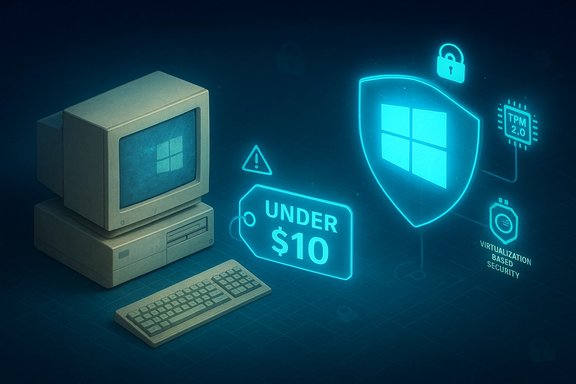
Microsoft’s formal end-of-support for Windows 10 has turned what was already a long-running upgrade debate into a moment of real urgency — and a flurry of steep Windows 11 Pro discounts and third‑party “lifetime” license offers has followed, pitching sub‑$10 keys as a low‑cost bulletproofing strategy for aging PCs.
Windows 10 reached its official end of support on October 14, 2025, which means Microsoft no longer provides free security updates, feature updates, or routine technical assistance for Home, Pro, Enterprise, Education, and IoT editions. Microsoft’s lifecycle pages and support notices make this explicit and encourage eligible devices to move to Windows 11 — or enroll in Extended Security Updates (ESU) if staying on Windows 10 is unavoidable. That calendar milestone is important because attackers prize predictable, unpatched targets. U.S. cybersecurity agencies, including CISA, treat unpatched or unsupported systems as high‑risk initial access vectors for ransomware and other intrusions, and public guidance repeatedly emphasizes patching, segmentation, and modern endpoint defenses as primary mitigations. Market telemetry also frames the scale of the problem: through much of 2024, Windows 10 still accounted for the majority of Windows desktop usage in many tracker snapshots, meaning hundreds of millions of PCs were potential targets as the platform aged toward retirement. StatCounter‑derived and industry reports from that period show Windows 10 retaining a large installed base even as Windows 11 adoption grew.
Every upgrade decision now carries a tradeoff between short‑term cost and long‑term security exposure. The available discounts may be tempting, but when the price is tiny, the risk is rarely correspondingly small.
Source: findarticles.com Windows 10 Users Are Being Targeted With New Upgrade Offer
 Background
Windows 10 reached its official end of support on October 14, 2025, which means Microsoft no longer provides free security updates, feature updates, or routine technical assistance for Home, Pro, Enterprise, Education, and IoT editions. Microsoft’s lifecycle pages and support notices make this explicit and encourage eligible devices to move to Windows 11 — or enroll in Extended Security Updates (ESU) if staying on Windows 10 is unavoidable. That calendar milestone is important because attackers prize predictable, unpatched targets. U.S. cybersecurity agencies, including CISA, treat unpatched or unsupported systems as high‑risk initial access vectors for ransomware and other intrusions, and public guidance repeatedly emphasizes patching, segmentation, and modern endpoint defenses as primary mitigations. Market telemetry also frames the scale of the problem: through much of 2024, Windows 10 still accounted for the majority of Windows desktop usage in many tracker snapshots, meaning hundreds of millions of PCs were potential targets as the platform aged toward retirement. StatCounter‑derived and industry reports from that period show Windows 10 retaining a large installed base even as Windows 11 adoption grew. Why this matters now: the security and economics of end‑of‑support
When a product reaches “end of support,” it doesn’t stop working — but it does stop receiving patches for newly discovered vulnerabilities. That creates a steadily widening attack surface that can be scanned and weaponized repeatedly. Public reporting and government advisories show that unsupported endpoints are commonly exploited by threat actors as easy entry points into larger networks. At the same time, Microsoft and major security vendors built Windows 11 around a higher baseline of hardware‑assisted protections — Trusted Platform Module (TPM 2.0), UEFI Secure Boot, Virtualization‑Based Security (VBS), and Hypervisor‑Protected Code Integrity (HVCI, also called Memory Integrity) are junction points for several of those protections. Those features make certain kernel‑level and boot‑process attacks harder to execute on compliant hardware. Microsoft’s public documentation explicitly frames Windows 11 as a “security by default” evolution. The financial calculus for individual users and small businesses is therefore compressed into two variables: the cost of staying on an unpatched OS (measured in risk and potential breach losses) versus the true cost and reliability of any upgrade path. The findarticles.com piece highlights a widely promoted deal: Windows 11 Pro licenses discounted to under $10 — a price that, if legitimate and transferable, looks like an exceptional value compared with Microsoft’s retail pricing (Windows 11 Pro is generally sold at about $199 retail). But that headline price needs context and verification before anyone clicks “buy.”What Windows 11 Pro actually adds (security and usability)
Windows 11 isn’t just a cosmetic refresh — many of the touted security controls are platform‑level changes that require modern hardware and firmware:- TPM 2.0 and Secure Boot — hardware root of trust and boot integrity. These features underpin BitLocker key protection and help prevent boot‑level tampering.
- Virtualization‑Based Security (VBS) and HVCI / Memory Integrity — VBS creates a secure kernel isolated from the main OS. HVCI enforces code integrity checks in that isolated environment, reducing the risk of kernel‑mode exploitation. Windows 11 defaults these protections on compatible hardware.
- BitLocker, Credential Guard, and Windows Hello — Pro editions add BitLocker drive encryption and Credential Guard for secrets protection; Windows Hello gives passwordless or PIN/biometric sign‑in options that reduce exposure to credential theft.
- Smart App Control / App Allowlisting — on new Windows 11 installs this helps block untrusted apps at runtime; it’s part of Microsoft’s attempt to reduce commodity malware execution by default.
The promotional math: cheap keys vs. real licenses
At face value, buying an official Windows 11 Pro retail license at roughly $199 versus a sub‑$10 third‑party deal looks like an overwhelmingly simple choice. But the devil is in the license type and provenance.- Microsoft’s retail channel price for Windows 11 Pro sits around $199; upgrade prices from Home to Pro historically appear in the $99–$199 range depending on route. Authorized retailers may discount modestly, but not to single‑digit prices.
- Discounts that push a Pro key below $20 typically come from gray‑market sellers offering OEM, volume, or region‑restricted keys sold outside authorized distribution. These keys can work initially but are frequently revoked, blocked, or later determined to be mis‑licensed. Microsoft has litigated and warned about decoupled activation keys and unauthorized resellers for years.
Practical upgrade paths and a safe checklist
If the security argument and budgeting line up for you, here are the safe ways to move off Windows 10 — with practical steps and what to expect.Step 1 — Confirm compatibility
- Run Microsoft’s PC Health Check app to verify TPM 2.0, Secure Boot, CPU, and storage requirements. Many vendors also provide BIOS guidance for enabling TPM and Secure Boot. If the tool says you’re eligible, the path is straightforward.
Step 2 — Back up first
- Back up files to an external drive and/or reliable cloud service before changing the OS. A full disk image is the safest rollback plan if something goes wrong.
Step 3 — Choose an installation method
- If compatible: perform an in‑place upgrade via Windows Update or the Installation Assistant for the least friction; if you want a clean slate, perform a clean install from official installation media. Clean installs reduce driver/legacy software conflict risk but require reinstallation and reconfiguration.
Step 4 — Harden the new install
- After upgrade or fresh install, enable BitLocker, confirm Credential Guard and Memory Integrity (HVCI) are active where supported, and set up Windows Hello for biometric or PIN sign‑in. Turn on automatic updates and verify Windows Defender / Microsoft Defender for Endpoint settings if you use additional EDR tools.
Step 5 — License and activation sanity check
- Use a retail Microsoft key from an authorized store or an OEM license that came preinstalled on a new device. If you currently have a digital entitlement tied to Windows 10 linked to a Microsoft account, the free upgrade path may already provide a digital license for Windows 11 — check Settings > System > Activation. Avoid unknown bargain sites that advertise “lifetime” Pro keys for single‑digit prices.
If your PC isn’t compatible: options and tradeoffs
Not every older PC meets Windows 11’s requirements. If TPM 2.0, Secure Boot, or CPU compatibility is the blocker, you have four practical choices — each with tradeoffs.- Buy time with Extended Security Updates (ESU). Microsoft offers a consumer ESU route that extends security updates for Windows 10 through a limited program (consumers can enroll with a Microsoft account, or pay a one‑time $30 fee per device, or redeem Microsoft Rewards points in some regions). Businesses can purchase ESU through volume licensing with a year‑by‑year cost doubling schedule. ESU only delays the inevitable and is not a long‑term security modernization plan.
- Purchase a new or refurbished Windows 11 PC. Modern Copilot+ and Windows 11‑ready systems include hardware designed for the enhanced security baseline; vendors are offering discounts and trade‑in programs around the Windows 10 retirement window. This is the cleanest path for sustained security but costs more upfront.
- Run Windows 11 in a virtual machine on a capable host to isolate certain workloads while keeping primary systems on Windows 10 (with ESU or offline‑only usage) — useful for testing or running specific apps that require Windows 11 features, but not a full replacement for a secure endpoint.
- Switch to alternative OSes such as supported Linux distributions or ChromeOS Flex for older machines that can’t run Windows 11; this may require figuring out replacements for Windows‑only apps. Community support makes this increasingly viable for many home users.
Critical risks and the trustworthiness question around sub‑$10 deals
The appeal of a sub‑$10 Windows 11 Pro key is obvious — but there are at least four concrete risks to weigh before purchasing:- Revocation risk: Gray‑market keys often come from repurposed volume licensing pools or stolen/compromised license batches. Microsoft’s activation systems can and do block such keys, leaving buyers with a deactivated PC and no Microsoft support.
- No or limited transferability: OEM keys are frequently non‑transferable and limited to the original motherboard; sellers may mislabel a non‑transferable key as “lifetime.” If your device dies, you may need to buy again.
- Malware and scam risk: Some shady sellers bundle activation "tools" or require running scripts that can contain malware. Very low prices correlate with fraudulent storefronts and poor consumer protection.
- No official support or refunds: Microsoft will prioritize support for licenses bought through authorized channels. If your cheap key fails, your first recourse is the seller — often nonresponsive or nonexistent.
How to spot a suspicious license offer
- Offers that look too good to be true (single‑digit Pro price) are a red flag.
- Sellers that insist on out‑of‑band activation steps (installing third‑party “activator” tools) are likely distributing illegitimate software.
- No receipts, no company registration, or sellers on marketplaces with a high rate of complaints = avoid.
- Ask whether the key is retail, OEM, or volume — the distribution model affects transferability and legality. Retail keys are your safest bet if you need portability.
A realistic cost–benefit example
- Scenario A: Buy an authorized Windows 11 Pro retail license at ~$199, or upgrade from Home via Microsoft’s official route for the published upgrade price (often ~$99 for Home→Pro), and keep guaranteed activation and Microsoft support.
- Scenario B: Buy a $9 “lifetime” key from an unknown third party. You may save money up front but accept a non‑zero chance of deactivation, lack of updates, no Microsoft support, and potential malware exposure.
Recommendations for Windows 10 holdouts and IT managers
- Prioritize compatibility checks and inventory: use PC Health Check and vendor lists to classify devices as upgradeable, refurbishable, or replace.
- If hardware is compatible, prefer the free Microsoft upgrade path (digital entitlement via Windows Update) or buy a retail key from an authorized store.
- For incompatible hardware that still holds critical data or functions, enroll in ESU as a stopgap while budgeting replacements. ESU pricing for consumers is modest relative to device replacement costs, but it’s explicitly temporary.
- Avoid buying “too cheap to be true” keys from unknown vendors. If cost is a hard constraint, consider ChromeOS Flex or a mainstream Linux distro as an alternative for older hardware.
The bottom line
The promotional narrative that a sub‑$10 Windows 11 Pro key is “by far one of the cheapest ways to bulletproof an aging PC” is half right: upgrading to Windows 11 Pro — when performed with genuine, supported licensing and on compatible hardware — does materially raise the security baseline for many endpoints. Microsoft’s end‑of‑support for Windows 10 and CISA’s repeated warnings about unsupported systems make moving to a supported OS a sensible priority for exposed or high‑value devices. But the economics of third‑party bargains require careful scrutiny. Single‑digit Pro keys are overwhelmingly sold through gray markets with known risks: revoked keys, lack of support, limited transferability, and potential malware. For users who value a dependable, long‑term secure endpoint — and for organizations that can’t absorb activation instability — paying a legitimate price (or planning for hardware refreshes and authorized upgrades) is the safer and ultimately cheaper path in total cost of ownership and risk. Upgrading is not a magic bullet — it reduces certain classes of attack surface but requires correct hardware enablement (TPM 2.0, Secure Boot, VBS/HVCI) and good hygiene: patched software, vetted peripherals and drivers, strong identity protection (MFA), and sensible backups. For anyone still on Windows 10 today, the immediate next steps are clear: inventory, backup, verify compatibility with PC Health Check, and plan a migration that uses legitimate licensing and preserves your data.Every upgrade decision now carries a tradeoff between short‑term cost and long‑term security exposure. The available discounts may be tempting, but when the price is tiny, the risk is rarely correspondingly small.
Source: findarticles.com Windows 10 Users Are Being Targeted With New Upgrade Offer
