

Microsoft’s safety net for Windows 10 is being pulled back — and for many users that comfortable, familiar desktop could become progressively less secure unless action is taken now. com]
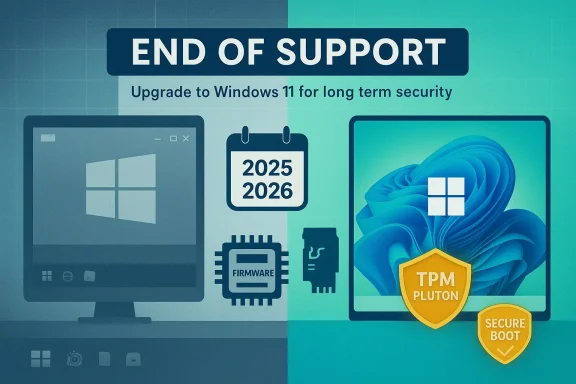
Windows 10 reached its official end of mainstream support on October 14, 2025. That date marked the end of free monthly security updates, non-security fixes, and standard technical assistance for most Home and Pro installations; organizations and some specialized editions have narrower options to extend protection through paid programs.
At the same time Microsoft is updating the platform-level security architecture that underpins modern Windows protections — most notably, a set of Secure Boot certificates that have been in the firmware trust chain since 2011. Those certificates begin expiring in mid‑2026, and Microsoft is distributing newer 2023 certificates to keep boot‑time protections intact. The combination of Windows 10’s lifecycle milestone and the Secure Boot certificate refresh is the technical reason many observers (and vendors) are now telling users to upgrade or plan a migration.
This article breaks down what changed, how it affects home users and enterprises, why Windows 11 is being pushed as the safer long‑term choice, and — crucially — what practical steps you can take this week to protect your PC or plan an upgrade.
Important implications for users:
What Microsoft says will happen when the old certificates expire:
Independent technology outlets and security reporters have flagged the same timeline and the practical consequences, which is why many headlines now frame the situation as “degraded security state” for unprepared Windows 10 machines. That framing is accurate as a risk description: the protections that would be available with current certificates are simply unavailable on an unupdated device.
Key security differences that Microsoft highlights:
Where outlets conflict, assume the conservative stance for safety planning: treat your device as if it may need manual intervention or an OEM firmware update and prepare a migration strategy.
However, the execution contains trade‑offs and political friction:
For most users the practical, safe course is:
Source: thewincentral.com Windows 10 Security Support Is Fading — Upgrade Recommended
 Background / Overview
Windows 10 reached its official end of mainstream support on October 14, 2025. That date marked the end of free monthly security updates, non-security fixes, and standard technical assistance for most Home and Pro installations; organizations and some specialized editions have narrower options to extend protection through paid programs.At the same time Microsoft is updating the platform-level security architecture that underpins modern Windows protections — most notably, a set of Secure Boot certificates that have been in the firmware trust chain since 2011. Those certificates begin expiring in mid‑2026, and Microsoft is distributing newer 2023 certificates to keep boot‑time protections intact. The combination of Windows 10’s lifecycle milestone and the Secure Boot certificate refresh is the technical reason many observers (and vendors) are now telling users to upgrade or plan a migration.
This article breaks down what changed, how it affects home users and enterprises, why Windows 11 is being pushed as the safer long‑term choice, and — crucially — what practical steps you can take this week to protect your PC or plan an upgrade.
What “end of support” actually means — and what it doesn’t
Microsoft’s lifecycle language is precise: after the published end‑of‑support date the company will no longer provide free security updates, non‑security updates, or general technical support for the product in question unless you enroll in a paid Extended Security Updates (ESU) program. For Windows 10, Microsoft’s lifecycle documentation and product notices make this explicit.Important implications for users:
- No more routine security patches delivered through Windows Update for most consumers after October 14, 2025, unless they pay for ESU.
- Microsoft 365 and Office apps lose guaranteed support on Windows 10 after the same milestone, which can affect performance and compatibility for productivity users.
- Firmware-level protections are changing: the Secure Boot certificates originally issued in 2011 are expiring and must be replaced to keep receiving boot‑chain protections. Microsoft is issuing replacement certificates, but device firmware (OEM BIOS/UEFI) and update channels determine how and whether those changes are applied.
The Secure Boot certificate refresh — why it matters
Secure Boot acts at the very start of a PC’s boot process. It uses a certificate/key hierarchy stored in UEFI firmware to verify that firmware, option ROMs, and bootloaders are signed and trusted. If that chain can’t be updated or the signing certificates expire, Microsoft cannot deliver new boot‑level protections or revocations tied to those certificates.What Microsoft says will happen when the old certificates expire:
- Devices that have not received the new 2023 certificates will still boot and run normally.
- Those devices will be unable to receive new Secure Boot/boot manager protections that rely on the updated certificates, such as future revocations or mitigations for newly discovered boot‑chain vulnerabilities.
- Over time, that gap narrows the window for detecting and blocking firmware/boot‑level threats, increasing risk for attacks that target pre‑OS code.
Independent technology outlets and security reporters have flagged the same timeline and the practical consequences, which is why many headlines now frame the situation as “degraded security state” for unprepared Windows 10 machines. That framing is accurate as a risk description: the protections that would be available with current certificates are simply unavailable on an unupdated device.
Why Microsoft is steering people toward Windows 11
Windows 11 was designed from the ground up with hardware‑backed security in mind. Its baseline requirements — UEFI Secure Boot, TPM 2.0, virtualization support — are intended to make certain mitigations possible and enabled by default. Microsoft’s Windows 11 security pages and security blog outline the primary advantages: hardware‑backed credentials and key storage (TPM/Pluton), virtualization‑based isolation (VBS/HVCI), and secured boot hardening.Key security differences that Microsoft highlights:
- Hardware-backed root of trust: TPM 2.0 (and in some new devices the Microsoft Pluton processor) stores keys and sensitive secrets in hardware, making remote extraction far harder than software‑only approaches.
- Virtualization‑based protections enabled by default: VBS and HVCI create isolated environments for critical code integrity checks and kernel protections that reduce the attack surface for driver and kernel exploits.
- Stronger firmware and boot protections: Windows 11’s ecosystem is expected to ship with the newer Secure Boot certificates, and OEMs have been encouraged to produce firmware updates for devices that will continue in use.
What the practical risks are for staying on Windows 10
The risk profile for Windows 10 after the end of support (and as the Secure Boot certificate transition completes) is layered:- No routine security patches for non‑ESU consumers: New vulnerabilities discovered after the support cutoff will not be fixed in consumer Windows 10 images unless you join ESU. That increases exposure to zero‑day and exploit‑kit attacks.
- Missing boot‑chain mitigations: Firmware/boot mitigations and certificate‑bound revocations will not be applied to devices that don’t receive the new 2023 certificates or compatible firmware. Attackers targeting early‑boot code or BitLocker protections may find a larger set of susceptible targets.
- Compatibility and app support erosion: Office and other major apps have already been aligned with Microsoft’s lifecycle messaging — continued optimisation and guaranteed compatibility are increasingly focused on supported client OS versions.
- Regulatory/compliance exposure for organisations: Schools, healthcare providers, and businesses that must demonstrate supported‑software baselines for compliance purposes may face audit and liability risk if they continue to run unsupported Windows 10 machines on critical networks.
Conflicting coverage and a note on nuance
Some outlets reported that the updated Secure Boot certificates would only be delivered to Windows 10 devices enrolled in a paid ESU program. Other reports and Microsoft’s own documentation contradict that narrow interpretation, saying that most devices will receive the 2023 certificates automatically via Windows Update and that OEM firmware updates will be provided when required. The truth is conditional: Microsoft controls the certificate payloads via Windows Update, but OEM firmware is required in some cases to fully apply changes; distribution timing and firmware availability differ across vendors and models. Readers should treat single‑source reporting with care and prefer the vendor and Microsoft lifecycle documentation for authoritative guidance.Where outlets conflict, assume the conservative stance for safety planning: treat your device as if it may need manual intervention or an OEM firmware update and prepare a migration strategy.
A straightforward checklist: what to do right now (home users)
- Check whether your PC is eligible for Windows 11. Run the Microsoft PC Health Check app or use Windows Update compatibility messaging to determine if your device meets Windows 11 requirements (TPM 2.0, UEFI Secure Boot, compatible CPU). If you have an eligible device, plan the upgrade.
- Verify TPM and Secure Boot status. Open Windows Security > Device security to see Security processor details, or run tpm.msc. If TPM is present but disabled, enable it in UEFI/BIOS per your manufacturer’s instructions. Do not disable Secure Boot to “work around” issues — that weakens protection.
- Back up your data now. Before any firmware changes or an OS upgrade, create a verified image or use a robust cloud/local backup process. Upgrades and BIOS changes carry small but non‑zero risk. (This is non‑negotiable.)
- Update firmware and drivers. Check your PC or motherboard vendor for BIOS/UEFI updates that may include Secure Boot certificate handling or compatibility fixes. Many OEMs have published lists of affected platforms with minimum BIOS versions.
- If your PC is supported, upgrade using the official Microsoft path. Use Windows Update for the in‑place upgrade when offered, or the official Installation Assistant or Media Creation Tool for manual upgrades. If you prefer a clean start, use a fresh installation only after ensuring you have backups and installation keys for critical apps.
- If your PC is not supported, plan for replacement (or ESU for a temporary bridge). Evaluate whether your current device can be firmware‑updated to meet requirements; if not, consider buying a new machine that ships with Windows 11 and the 2023 Secure Boot certificates.
Advanced steps for technical users and IT admins
- Convert MBR to GPT and enable UEFI/Secure Boot if you plan to upgrade: many legacy systems use MBR. Use Microsoft’s MBR2GPT tool or the offline Windows Recovery Environment to convert safely, and follow OEM guidance. Hasty conversions can leave systems unbootable — back up first.
- Scripted checks for certificate state: administrators can query UEFI variables and Secure Boot DB entries via PowerShell and firmware utilities to confirm whether the 2011 or 2023 certificates are present. Use Microsoft’s guidance for exact procedures.
- ESU planning for enterprises: the Microsoft ESU program is a stopgap that delivers critical and important security updates for up to three years beyond end of support; licences, activation keys, and procurement terms must be managed through volume licensing channels. ESU does not include non‑security fixes or feature updates.
- Firmware validation and testing: hardware vendors may release BIOS updates that implement the new KEK/DB entries. Test firmware updates in a lab environment before mass deployment; some older platforms will not receive firmware updates at all and should be queued for replacement.
If you can’t move to Windows 11 immediately — mitigation strategies
Not every user can immediately buy new hardware or fully upgrade. If you must remain on Windows 10 for the short to medium term, apply these compensating controls:- Enroll in Extended Security Updates (if eligible) as a temporary measure to keep receiving critical security patches. ESU is expensive long‑term and intended only as a bridge.
- Harden the device:
- Use a modern, sandboxed browser and enable automatic updates.
- Keep anti‑malware/endpoint protection solutions up to date and enable behavioral protections.
- Restrict local accounts and use least privilege for daily work.
- Enable BitLocker and protect recovery keys in a secure repository.
- Implement application allow‑listing where feasible (App Control) to reduce the risk of unknown binaries executing.
- Network segmentation and isolation: place legacy devices on segmented networks with restricted access to sensitive resources. Use firewalls and VPN controls to reduce lateral movement risk.
- Strong identity controls: enable MFA on accounts, prefer passkeys/Windows Hello where available, and retire weak authentication flows that are more vulnerable on older platforms.
Critical analysis: strengths, trade‑offs and supply chain realities
Microsoft’s push toward Windows 11 and the replacement of decade‑old Secure Boot certificates are technically defensible: Secure Boot, TPM, VBS, and hardware isolation materially reduce the attack surface for several high‑risk threats. Enabling these protections at scale helps the entire ecosystem. The shift also pushes OEMs and silicon partners to modernise and ship devices with a consistent trust baseline.However, the execution contains trade‑offs and political friction:
- Compatibility and lifecycle fairness: Many otherwise capable PCs were sold with TPM disabled by default or with OEM firmware that does not expose clear upgrade paths. That leaves financially constrained users with a tough choice — pay for ESU, buy new hardware, or remain exposed. OEM firmware support timelines differ, and in numerous cases older platforms will receive no firmware update at all.
- Communication and mixed reporting: Conflicting media coverage about whether certificate updates require ESU or will be broadly distributed created confusion. Microsoft’s documentation is the canonical source, but public interpretation and vendor rollouts can produce gaps in understanding. Users need clear, device‑specific guidance from their OEMs.
- Security vs. sustainability: Making hardware requirements a gate for modern protections improves security going forward but increases e‑waste and replacement costs for users with otherwise functional devices. Organisations must balance security, procurement budgets, and sustainability goals when planning refresh cycles.
- Risk of partial protections: Devices that receive some updates (e.g., OS patches) but miss firmware/boot updates could be in a false sense of safety — they will run normally and accept many updates, yet still lack core boot protections against particular classes of attacks. That middling state is dangerous because it may delay a needed migration while the exposure widens.
A recommended migration timeline (practical, six‑month plan)
- Weeks 0–2: Inventory and triage
- Run PC Health Check on all endpoints, record TPM/Secure Boot/CPU status, and note which devices will require firmware updates or replacement.
- Weeks 2–6: Firmware and backup
- Contact OEMs for firmware updates; schedule device maintenance windows. Verify backup systems and test restore procedures.
- Months 2–4: Pilot upgrades
- Select a representative set of machines (home office, knowledge workers, power users) to upgrade to Windows 11, validate app compatibility, and measure user impact.
- Months 4–6: Broad rollout and remediation
- Accelerate upgrades for eligible hardware. For non‑eligible devices, implement compensating controls and procurement for replacements. Enroll critical systems in ESU only if migration cannot be completed within operational constraints.
Final verdict: act now, thoughtfully
Windows 10 will continue to power countless PCs, but its official safety net has been reduced. Firmware‑level certificate changes and the platform’s end‑of‑support status mean the risk environment will change — not instantly, but steadily — for machines left on older configurations. Microsoft’s guidance is clear: move to Windows 11 for long‑term security, or use ESU as a temporary bridge while you plan replacements.For most users the practical, safe course is:
- Check compatibility immediately.
- Back up and update firmware before attempting upgrades.
- Upgrade supported machines to Windows 11 via official Microsoft paths.
- For unsupported devices, harden and isolate them and budget for replacement — ESU can buy time, not a permanent fix.
Source: thewincentral.com Windows 10 Security Support Is Fading — Upgrade Recommended
