

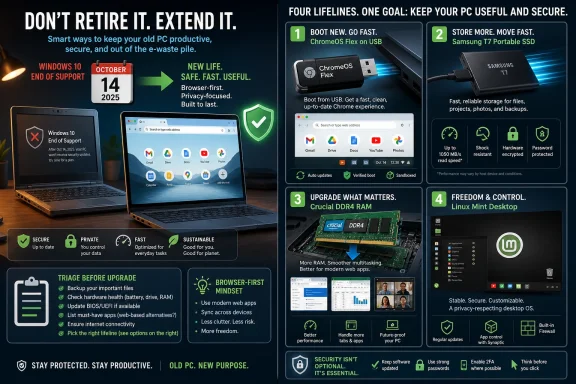
After Microsoft ended free Windows 10 support for most users on October 14, 2025, older PCs can still remain useful through four practical routes: installing ChromeOS Flex, adding a Samsung T7 portable SSD, upgrading Crucial DDR4 laptop memory, or replacing Windows with Linux Mint. The bigger story is not that aging hardware suddenly became obsolete. It is that Microsoft’s support deadline has forced households, schools, and small offices to separate software risk from hardware value. A ten-year-old laptop may be a bad Windows 10 endpoint in 2026, but it can still be a perfectly competent browser terminal, writing machine, media box, lab system, or lightweight Linux workstation.
Windows 10 did not stop booting when Microsoft’s support window closed. Files still open, printers still print, and old habits still work right up until they collide with a browser exploit, an unpatched driver bug, or a phishing page that assumes the target is running a machine nobody is maintaining anymore. That is why the end of support matters: it changes the risk calculation more than the immediate usability of the PC.
Microsoft’s line is simple enough. After October 14, 2025, most Windows 10 users no longer receive free security updates, feature updates, or technical support. Extended Security Updates soften that cliff for some users, but they do not turn Windows 10 into a long-term consumer platform again. They buy time; they do not reverse the lifecycle.
That distinction matters because the usual retail answer to an unsupported PC is suspiciously convenient: buy a new one. Sometimes that is the right answer, especially for business machines that handle customer data, regulated workloads, or privileged credentials. But for millions of devices that missed Windows 11 requirements because of CPU generation, TPM support, firmware mode, or vendor abandonment, replacement is not the only rational path.
The eWeek list gets the broad categories right. There are four realistic ways to extend the life of an old Windows 10-era machine: move it to a lighter managed operating system, improve the storage bottleneck, add enough memory to make modern multitasking tolerable, or install a free desktop Linux distribution. The interesting question is not whether these fixes work. It is which kind of user each one saves.
The kit matters because installation friction is often the difference between reuse and e-waste. Technically capable users have long been able to create bootable USB installers, test Linux distributions, wipe drives, and recover from mistakes. Most people do not want an operating-system migration project. They want the old laptop in the closet to become safe enough for Gmail, Docs, banking, Netflix, school portals, or a second-screen workspace.
That is ChromeOS Flex’s natural territory. It does not promise to preserve every Windows application, every peripheral workflow, or every local utility a user accumulated over a decade. It promises to make common web-centric computing feel lighter and safer on hardware Windows 10 may have outgrown. For a parent handing down a laptop to a student, or a small nonprofit trying to keep donated machines useful, that trade-off is often acceptable.
The catch is that ChromeOS Flex is not the same thing as a Chromebook. Hardware compatibility varies, Android app support is not the headline here, and specialized Windows software does not magically follow the user into Google’s ecosystem. Anyone dependent on local accounting software, niche device utilities, older games, or Windows-only accessibility tools needs to test before wiping anything.
But as a sustainability play, the logic is strong. A PC that is too old for Windows 11 may still have a perfectly adequate display, keyboard, webcam, Wi-Fi card, and battery. ChromeOS Flex extracts value from those components by lowering the operating system burden and moving the center of gravity to the browser. That is not glamorous computing, but it is exactly how many people use their laptops already.
Samsung’s T7 Portable SSD is an external drive, not a magic wand, but it points at the right diagnosis. With advertised sequential read and write speeds of up to roughly 1,050MB/s and 1,000MB/s under suitable conditions, it is dramatically faster than old external hard drives and far more pleasant for moving photos, backups, media libraries, project files, and installers. For a user trying to preserve data before an OS migration, an external SSD is one of the most useful purchases they can make.
The more transformative upgrade, when the machine allows it, is replacing an internal hard drive with a SATA or NVMe SSD. That can shorten boot times, reduce application launch delays, and make background update activity less punishing. The T7 still has a role because it remains useful after the PC is retired; it can become a backup drive, transfer drive, media drive, or companion to a newer laptop.
This is where buyers need to be careful with the language of speed. An external SSD connected to an old USB 2.0 port will not behave like the same drive connected to a modern USB 3.x port. Likewise, booting Windows from an external SSD is not the mainstream fix for most users, and it may introduce firmware, licensing, and reliability complications. The practical value of a T7-style drive is portability, backup, and data movement; the practical value of an internal SSD is day-to-day responsiveness.
Still, the storage lesson is important. Before declaring an old PC dead, listen to it. If the system grinds constantly, takes minutes to settle after login, or becomes unusable during disk-heavy tasks, the bottleneck may be mechanical storage rather than the whole machine. An SSD upgrade will not make unsupported Windows 10 safe forever, but it can make the migration path much less painful.
Crucial’s DDR4 laptop memory sits in that practical middle ground. It is not exciting, and it will not rescue every device, but for machines with accessible SODIMM slots it can turn constant swapping into ordinary multitasking. Moving from 4GB to 8GB can be the difference between frustration and tolerance; moving from 8GB to 16GB can extend the useful life of a laptop used for schoolwork, office tasks, and browser-heavy routines.
The problem is that RAM upgrades are less universal than they used to be. Many thin-and-light laptops ship with memory soldered to the motherboard. Others have one soldered module and one slot, or vendor-specific service complications that make a nominally cheap upgrade less attractive. Before buying memory, users need to check the exact model, maximum supported capacity, speed, slot configuration, and whether the bottom panel can be opened without turning a weekend project into a broken hinge.
For IT departments, the calculation is different. Upgrading RAM across a fleet of unsupported Windows 10 machines may make them nicer to use, but it does not solve compliance, patching, or endpoint security requirements. For a home user, memory can be a sensible bridge. For a business, it is usually part of a broader redeployment plan: kiosk duty, lab use, Linux conversion, spare inventory, or controlled non-sensitive workloads.
The case for RAM is strongest when paired with another decision. A Linux Mint Xfce install on 8GB of RAM is a very different experience from Windows 10 limping along on 4GB. ChromeOS Flex can also benefit from adequate memory, even if its operating model is lighter. Memory does not decide the future of the device by itself; it widens the number of futures still available.
Linux Mint does not keep Windows 10 alive. It replaces it. That sounds obvious, but it is the point many migration discussions blur. The user is not getting a patched Windows environment; they are choosing a different operating system with a different application model, different hardware support assumptions, and different troubleshooting culture. For many people, that is liberating. For others, it is the beginning of a support burden they did not ask for.
The Xfce edition is particularly relevant for older machines because it reduces desktop overhead without dropping users into an austere command-line world. A repurposed Windows 10 PC running Mint can handle browsing, email, document editing, streaming, basic photo management, video calls, coding practice, and lightweight Steam experiments. LibreOffice, Firefox, Thunderbird, VLC, Spotify, and other familiar names soften the landing.
The weak points are predictable. Microsoft Office desktop apps, Adobe’s professional suite, some anticheat-protected games, proprietary VPN clients, printer utilities, and industry-specific Windows applications can complicate or kill a migration. Web apps have made this less painful than it was fifteen years ago, but not painless. The right advice is not “install Linux on everything.” The right advice is “install Linux where the workload already fits.”
For enthusiasts and sysadmins, Linux Mint is also the most flexible of the four options. It can become a home server front end, a tinkering box, a writing machine, a retro gaming station, a security lab, or a daily driver for someone comfortable with occasional research. That flexibility is precisely why it is less appliance-like than ChromeOS Flex. Mint gives users more control, but it also expects more judgment.
For a household spare machine, ChromeOS Flex may be the lowest-maintenance answer. For a student who writes papers and lives in a browser, it may even be better than keeping Windows. For a tinkerer or privacy-conscious user, Linux Mint offers a more traditional desktop with less dependence on Google services. For someone keeping Windows temporarily while planning a migration, SSDs and RAM upgrades reduce pain without pretending the support issue has disappeared.
The security context should remain central. Unsupported Windows 10 is riskiest on machines used for browsing, email, cloud accounts, banking, remote access, and work credentials. Air-gapped hobby machines, offline media centers, and legacy-device controllers live in a different risk category, though “offline” has a way of becoming “just this once” when someone needs a driver or a file. The moment an unsupported PC returns to the open internet, the old calculus returns with it.
There is also an environmental argument here, but it should not be romanticized. Reuse is better than replacement when the machine is safe, functional, and efficient enough for the task. Keeping a power-hungry, unreliable desktop alive to avoid buying a modest modern mini PC is not automatically greener. But discarding a working laptop because of a software policy deadline is equally wasteful.
The most sensible path is triage. Check the hardware. Check the workload. Check whether the user can tolerate an operating-system change. Check whether the machine handles sensitive data. Then decide whether to convert, upgrade, isolate, or recycle. The Windows 10 deadline should trigger an inventory, not a shopping reflex.
That does not mean Microsoft was wrong to end support. Operating systems cannot be maintained forever, and Windows 10’s installed base became a drag on Microsoft’s security model, developer priorities, and Windows 11 adoption strategy. But the company’s strict hardware requirements for Windows 11 turned what might have been a conventional upgrade cycle into a visible rupture. Many devices that run Windows 10 acceptably cannot officially move forward.
That rupture is why products like the ChromeOS Flex USB kit resonate. The kit is cheap, but the message is larger: if Windows no longer wants this PC, maybe another ecosystem does. The same message underlies Linux Mint’s appeal, and even the humble SSD upgrade. The old machine is not pleading for nostalgia; it is asking for a workload it can still perform safely.
For WindowsForum readers, the lesson is familiar. Hardware capability and vendor support are related, but they are not identical. A platform owner can declare an endpoint obsolete for its roadmap while the silicon, display, keyboard, and ports remain useful. The post-Windows 10 era will be full of machines living in that gap.
 The End of Windows 10 Is a Security Event, Not a Hardware Funeral
Windows 10 did not stop booting when Microsoft’s support window closed. Files still open, printers still print, and old habits still work right up until they collide with a browser exploit, an unpatched driver bug, or a phishing page that assumes the target is running a machine nobody is maintaining anymore. That is why the end of support matters: it changes the risk calculation more than the immediate usability of the PC.Microsoft’s line is simple enough. After October 14, 2025, most Windows 10 users no longer receive free security updates, feature updates, or technical support. Extended Security Updates soften that cliff for some users, but they do not turn Windows 10 into a long-term consumer platform again. They buy time; they do not reverse the lifecycle.
That distinction matters because the usual retail answer to an unsupported PC is suspiciously convenient: buy a new one. Sometimes that is the right answer, especially for business machines that handle customer data, regulated workloads, or privileged credentials. But for millions of devices that missed Windows 11 requirements because of CPU generation, TPM support, firmware mode, or vendor abandonment, replacement is not the only rational path.
The eWeek list gets the broad categories right. There are four realistic ways to extend the life of an old Windows 10-era machine: move it to a lighter managed operating system, improve the storage bottleneck, add enough memory to make modern multitasking tolerable, or install a free desktop Linux distribution. The interesting question is not whether these fixes work. It is which kind of user each one saves.
ChromeOS Flex Turns the Old PC Into an Appliance
ChromeOS Flex is the cleanest answer for the least technical user because it changes the job description of the computer. Instead of asking an aging Windows machine to remain a full legacy desktop, it converts the device into a browser-first appliance with automatic updates, a simplified management model, and far fewer moving parts. That is why Google’s partnership with Back Market around a roughly $3 ChromeOS Flex USB kit is more than a quirky accessory launch.The kit matters because installation friction is often the difference between reuse and e-waste. Technically capable users have long been able to create bootable USB installers, test Linux distributions, wipe drives, and recover from mistakes. Most people do not want an operating-system migration project. They want the old laptop in the closet to become safe enough for Gmail, Docs, banking, Netflix, school portals, or a second-screen workspace.
That is ChromeOS Flex’s natural territory. It does not promise to preserve every Windows application, every peripheral workflow, or every local utility a user accumulated over a decade. It promises to make common web-centric computing feel lighter and safer on hardware Windows 10 may have outgrown. For a parent handing down a laptop to a student, or a small nonprofit trying to keep donated machines useful, that trade-off is often acceptable.
The catch is that ChromeOS Flex is not the same thing as a Chromebook. Hardware compatibility varies, Android app support is not the headline here, and specialized Windows software does not magically follow the user into Google’s ecosystem. Anyone dependent on local accounting software, niche device utilities, older games, or Windows-only accessibility tools needs to test before wiping anything.
But as a sustainability play, the logic is strong. A PC that is too old for Windows 11 may still have a perfectly adequate display, keyboard, webcam, Wi-Fi card, and battery. ChromeOS Flex extracts value from those components by lowering the operating system burden and moving the center of gravity to the browser. That is not glamorous computing, but it is exactly how many people use their laptops already.
The SSD Upgrade Attacks the Bottleneck Users Actually Feel
For users who want to keep their Windows installation or simply improve an old PC before repurposing it, storage is often the first place to look. A surprising number of aging laptops still feel “old” not because their processors are useless, but because they are dragging mechanical hard drives through modern workloads. The difference between a spinning disk and an SSD can be the difference between a machine that feels broken and one that feels merely mature.Samsung’s T7 Portable SSD is an external drive, not a magic wand, but it points at the right diagnosis. With advertised sequential read and write speeds of up to roughly 1,050MB/s and 1,000MB/s under suitable conditions, it is dramatically faster than old external hard drives and far more pleasant for moving photos, backups, media libraries, project files, and installers. For a user trying to preserve data before an OS migration, an external SSD is one of the most useful purchases they can make.
The more transformative upgrade, when the machine allows it, is replacing an internal hard drive with a SATA or NVMe SSD. That can shorten boot times, reduce application launch delays, and make background update activity less punishing. The T7 still has a role because it remains useful after the PC is retired; it can become a backup drive, transfer drive, media drive, or companion to a newer laptop.
This is where buyers need to be careful with the language of speed. An external SSD connected to an old USB 2.0 port will not behave like the same drive connected to a modern USB 3.x port. Likewise, booting Windows from an external SSD is not the mainstream fix for most users, and it may introduce firmware, licensing, and reliability complications. The practical value of a T7-style drive is portability, backup, and data movement; the practical value of an internal SSD is day-to-day responsiveness.
Still, the storage lesson is important. Before declaring an old PC dead, listen to it. If the system grinds constantly, takes minutes to settle after login, or becomes unusable during disk-heavy tasks, the bottleneck may be mechanical storage rather than the whole machine. An SSD upgrade will not make unsupported Windows 10 safe forever, but it can make the migration path much less painful.
RAM Is the Cheapest Way to Stop the Browser From Eating the Machine
Memory upgrades are less dramatic than operating-system swaps, but they are often the most humane fix for an old laptop that still has a decent CPU and serviceable storage. The modern web is heavy. A handful of browser tabs, a video call, a password manager, a cloud sync client, and an office document can punish a 4GB machine long before the user does anything that feels “advanced.”Crucial’s DDR4 laptop memory sits in that practical middle ground. It is not exciting, and it will not rescue every device, but for machines with accessible SODIMM slots it can turn constant swapping into ordinary multitasking. Moving from 4GB to 8GB can be the difference between frustration and tolerance; moving from 8GB to 16GB can extend the useful life of a laptop used for schoolwork, office tasks, and browser-heavy routines.
The problem is that RAM upgrades are less universal than they used to be. Many thin-and-light laptops ship with memory soldered to the motherboard. Others have one soldered module and one slot, or vendor-specific service complications that make a nominally cheap upgrade less attractive. Before buying memory, users need to check the exact model, maximum supported capacity, speed, slot configuration, and whether the bottom panel can be opened without turning a weekend project into a broken hinge.
For IT departments, the calculation is different. Upgrading RAM across a fleet of unsupported Windows 10 machines may make them nicer to use, but it does not solve compliance, patching, or endpoint security requirements. For a home user, memory can be a sensible bridge. For a business, it is usually part of a broader redeployment plan: kiosk duty, lab use, Linux conversion, spare inventory, or controlled non-sensitive workloads.
The case for RAM is strongest when paired with another decision. A Linux Mint Xfce install on 8GB of RAM is a very different experience from Windows 10 limping along on 4GB. ChromeOS Flex can also benefit from adequate memory, even if its operating model is lighter. Memory does not decide the future of the device by itself; it widens the number of futures still available.
Linux Mint Is the Escape Hatch for People Who Still Want a PC
If ChromeOS Flex turns an old laptop into an appliance, Linux Mint tries to preserve the feeling of owning a general-purpose computer. That is why it remains one of the most approachable Windows alternatives for older hardware. Its desktop layout is familiar, its software manager is friendly by Linux standards, and its Cinnamon, MATE, and Xfce editions let users choose between polish and lightness.Linux Mint does not keep Windows 10 alive. It replaces it. That sounds obvious, but it is the point many migration discussions blur. The user is not getting a patched Windows environment; they are choosing a different operating system with a different application model, different hardware support assumptions, and different troubleshooting culture. For many people, that is liberating. For others, it is the beginning of a support burden they did not ask for.
The Xfce edition is particularly relevant for older machines because it reduces desktop overhead without dropping users into an austere command-line world. A repurposed Windows 10 PC running Mint can handle browsing, email, document editing, streaming, basic photo management, video calls, coding practice, and lightweight Steam experiments. LibreOffice, Firefox, Thunderbird, VLC, Spotify, and other familiar names soften the landing.
The weak points are predictable. Microsoft Office desktop apps, Adobe’s professional suite, some anticheat-protected games, proprietary VPN clients, printer utilities, and industry-specific Windows applications can complicate or kill a migration. Web apps have made this less painful than it was fifteen years ago, but not painless. The right advice is not “install Linux on everything.” The right advice is “install Linux where the workload already fits.”
For enthusiasts and sysadmins, Linux Mint is also the most flexible of the four options. It can become a home server front end, a tinkering box, a writing machine, a retro gaming station, a security lab, or a daily driver for someone comfortable with occasional research. That flexibility is precisely why it is less appliance-like than ChromeOS Flex. Mint gives users more control, but it also expects more judgment.
The Upgrade Path Depends on the Job, Not the Age of the Laptop
The mistake in many Windows 10 end-of-support conversations is treating all old PCs as the same kind of problem. They are not. A 2018 business laptop with 16GB of RAM and a seventh-generation Intel CPU is very different from a 2013 budget notebook with a failing hard drive and 4GB of memory. Both may be blocked from Windows 11, but they do not deserve the same fate.For a household spare machine, ChromeOS Flex may be the lowest-maintenance answer. For a student who writes papers and lives in a browser, it may even be better than keeping Windows. For a tinkerer or privacy-conscious user, Linux Mint offers a more traditional desktop with less dependence on Google services. For someone keeping Windows temporarily while planning a migration, SSDs and RAM upgrades reduce pain without pretending the support issue has disappeared.
The security context should remain central. Unsupported Windows 10 is riskiest on machines used for browsing, email, cloud accounts, banking, remote access, and work credentials. Air-gapped hobby machines, offline media centers, and legacy-device controllers live in a different risk category, though “offline” has a way of becoming “just this once” when someone needs a driver or a file. The moment an unsupported PC returns to the open internet, the old calculus returns with it.
There is also an environmental argument here, but it should not be romanticized. Reuse is better than replacement when the machine is safe, functional, and efficient enough for the task. Keeping a power-hungry, unreliable desktop alive to avoid buying a modest modern mini PC is not automatically greener. But discarding a working laptop because of a software policy deadline is equally wasteful.
The most sensible path is triage. Check the hardware. Check the workload. Check whether the user can tolerate an operating-system change. Check whether the machine handles sensitive data. Then decide whether to convert, upgrade, isolate, or recycle. The Windows 10 deadline should trigger an inventory, not a shopping reflex.
Microsoft’s Deadline Created a Market for Second Lives
The interesting business angle is that Microsoft’s lifecycle decision has opened a lane for everyone else. Google gets to pitch ChromeOS Flex as an answer to Windows 11 incompatibility. Linux distributions get a once-in-a-decade wave of users looking for an off-ramp. Component makers get a final round of SSD and RAM upgrades for devices that might otherwise leave service. Refurbishers get to sell not just hardware, but continuity.That does not mean Microsoft was wrong to end support. Operating systems cannot be maintained forever, and Windows 10’s installed base became a drag on Microsoft’s security model, developer priorities, and Windows 11 adoption strategy. But the company’s strict hardware requirements for Windows 11 turned what might have been a conventional upgrade cycle into a visible rupture. Many devices that run Windows 10 acceptably cannot officially move forward.
That rupture is why products like the ChromeOS Flex USB kit resonate. The kit is cheap, but the message is larger: if Windows no longer wants this PC, maybe another ecosystem does. The same message underlies Linux Mint’s appeal, and even the humble SSD upgrade. The old machine is not pleading for nostalgia; it is asking for a workload it can still perform safely.
For WindowsForum readers, the lesson is familiar. Hardware capability and vendor support are related, but they are not identical. A platform owner can declare an endpoint obsolete for its roadmap while the silicon, display, keyboard, and ports remain useful. The post-Windows 10 era will be full of machines living in that gap.
Four Lifelines, Four Very Different Second Acts
The smart move is to match the rescue plan to the person who will actually use the computer. A technically elegant migration that confuses the owner is a failed migration. A cheap upgrade that leaves the system exposed is false economy.- ChromeOS Flex is the strongest option for users whose computing life already happens mostly in the browser and who want a simple, update-friendly environment.
- A Samsung T7-style portable SSD is most useful for backups, file migration, and fast external storage, while an internal SSD replacement is usually the bigger performance upgrade when the PC supports it.
- Crucial DDR4 laptop memory can meaningfully improve multitasking on upgradeable systems, especially those stuck at 4GB or 8GB.
- Linux Mint is the best free route for users who still want a traditional desktop and can live without Windows-only software.
- None of these options removes the need to think about security, because unsupported Windows 10 remains the wrong place for sensitive online work unless it is covered by an appropriate update plan.
References
- Primary source: eWeek
Published: Tue, 19 May 2026 19:36:37 GMT
4 Products That Could Keep Old PCs Useful After Windows 10 | eWeek
Windows 10 support has ended. These four products and alternatives can help older PCs stay useful with ChromeOS Flex, SSDs, RAM upgrades, or Linux Mint. www.eweek.com
- Official source: support.microsoft.com
Windows 10 notification: “Your device has reached the end of service” | Microsoft Support
Windows 10 notification: “Your device has reached the end of service”support.microsoft.com - Official source: learn.microsoft.com
Windows 10 reaching end of support - Microsoft Lifecycle | Microsoft Learn
Announcing Windows 10 reaching end of support.learn.microsoft.com - Official source: microsoft.com
End of support for Windows 10, Windows 8.1, and Windows 7 | Microsoft Windows
Make a smooth transition to Windows 11 from your unsupported operating system with help from Microsoft. Enjoy the benefits of upgrading to a Windows 11 PC.www.microsoft.com - Related coverage: windowscentral.com
Windows 10 reaches end of support: Discover how to keep your device secure beyond October 2025 | Windows Central
Windows 10 support ended on Tuesday, October 14. That means Windows 10 PCs will no longer receive security updates automatically, and you must take action to ensure these devices remain secure when connected to the internet.www.windowscentral.com - Related coverage: techrepublic.com
Google Introduces $3 ChromeOS Flex Kit for 500M Windows 10 Users
Google and Back Market’s $3 ChromeOS Flex USB Kit offers Windows 10 users a low-cost way to revive older PCs as support winds down.www.techrepublic.com
- Official source: news.microsoft.com
Bleiben Sie sicher: mit Windows 11, Copilot+ PCs und Windows 365, bevor der Support für Windows 10 endet | News Center Microsoft
Der Support für Windows 10 endet am 14. Oktober 2025. Microsoft hat im Windows-Blog Aktualisierungen zum Extended Security Updates (ESU)-Programm für Windows 10 veröffentlicht, das im Oktober 2024 angekündigt wurde. Die Aktualisierungen sind: Für Privatnutzer*innen...news.microsoft.com - Related coverage: winbuzzer.com
Google’s New $3 USB Kit Converts Old Windows 10 PCs to ChromeOS Flex Machines
Google and Back Market have launched a $3 USB kit that installs ChromeOS Flex on old Windows 10 PCs, targeting 500 million users facing end of support.winbuzzer.com - Related coverage: tomshardware.com
Windows 10 support ends today — here's who's affected and what you need to do | Tom's Hardware
Update if you can, upgrade if you can't, or at least get the extended support license.www.tomshardware.com - Related coverage: as.com
Cómo seguir usando Windows 10 después del fin del soporte en octubre de 2025: así funciona el programa ESU de Microsoft - Meristation
Microsoft continuará ofreciendo una alternativa para los usuarios de Windows 10 tras el cese del soporte oficial. Así funciona el programa ESU de W10.as.com - Related coverage: atomicdata.com
- Related coverage: transparity.com
