

If your Windows 10 product key refuses to activate Windows 11, the symptom can look simple — a rejected 25‑character code, an activation error, or an “Windows is not activated” message — but the root causes are layered and often related to license type, edition mismatch, hardware identity, or the activation process itself. This feature walks through what’s actually happening, verifies the technical details, and gives a prioritized, step‑by‑step troubleshooting path that covers both the common quick fixes and the deeper command‑line workarounds professionals use. It draws on Microsoft’s activation model and real‑world fixes used by technicians and enthusiasts, while flagging risks around key types and resale markets.
Windows 11 uses the same activation ecosystem that matured in Windows 10: either a digital license (sometimes called digital entitlement) tied to a device and often linked to a Microsoft account, or a 25‑character product key. A free upgrade from a genuine, activated Windows 10 to Windows 11 should preserve the entitlement — but only under certain rules: the Windows edition must match, the license channel (Retail vs OEM vs Volume) matters, and the system’s hardware identity usually must remain consistent. Microsoft documents these activation methods and the rules for reactivation after hardware changes. At a glance, the most frequent causes when a Windows 10 key “doesn’t work” in Windows 11 are:
6. If you see KMS / Enterprise / Workstation in
If
This guidance consolidates Microsoft’s official activation documentation and the practical sequences that technicians and Windows power users repeatedly rely on to resolve the “Windows 10 product key not working in Windows 11” problem. Tackling activation methodically — confirm edition and channel, use Microsoft’s tools, and clean out conflicting data when necessary — minimizes risk and gets systems back to a fully activated state most efficiently.
If you still see a specific error code after trying the steps above, document the exact code and the output of
Source: Guiding Tech Windows 10 Product Key Not Working in Windows 11
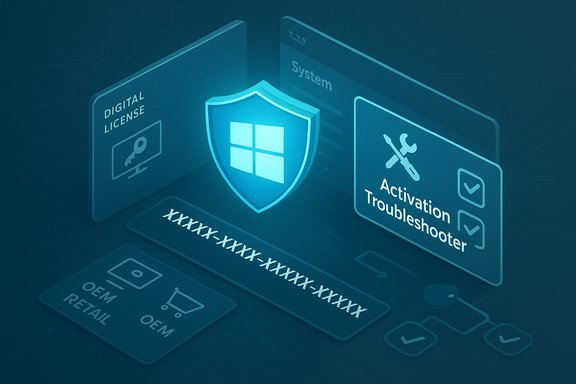 Background
Windows 11 uses the same activation ecosystem that matured in Windows 10: either a digital license (sometimes called digital entitlement) tied to a device and often linked to a Microsoft account, or a 25‑character product key. A free upgrade from a genuine, activated Windows 10 to Windows 11 should preserve the entitlement — but only under certain rules: the Windows edition must match, the license channel (Retail vs OEM vs Volume) matters, and the system’s hardware identity usually must remain consistent. Microsoft documents these activation methods and the rules for reactivation after hardware changes. At a glance, the most frequent causes when a Windows 10 key “doesn’t work” in Windows 11 are:- Edition mismatch (Home key vs Pro installation, etc..
- Channel restrictions (OEM keys tied to original hardware; volume keys requiring corporate KMS servers).
- Hardware identity / digital license not linked to Microsoft account, especially after a major hardware change.
- Temporary activation glitches or leftover keys/custom license metadata in the OS that block reactivation.
slmgr.vbs, changepk.exe and the Activation Troubleshooter — and explains when each approach is appropriate. Why a Windows 10 product key may not activate Windows 11
1. Edition mismatch and SKU rules
A product key is edition‑specific: a Windows 10 Home key won’t activate Windows 11 Pro, and vice‑versa. Even small SKU mismatches (e.g., Pro N vs Pro) can block activation. Always confirm the installed edition before entering a key. Settings → System → Activation shows the current edition and activation state.2. License channel: OEM vs Retail vs Volume
- OEM licenses come preinstalled by the device maker and are usually tied to the original device hardware (primarily the motherboard). They generally cannot be transferred to a new PC.
- Retail licenses are purchased directly and can typically be transferred to another device (you should deactivate the old device first).
- Volume (KMS/MAK) keys are intended for organizations and often require a corporate activation server; they will not activate on a home machine without the proper infrastructure.
slmgr /dlv helps reveal whether a key is Retail, OEM, or KMS/Volume — critical information when diagnosing activation failures. 3. Hardware changes and digital licenses
If a device’s hardware changes substantially (especially the motherboard), a previously attached digital license may no longer match the stored hardware profile. If you linked the license to a Microsoft account, the Activation Troubleshooter can often reassign a retail digital license after you sign in. If not linked (or if the license is OEM), reactivation can fail. Microsoft recommends linking a digital license to your Microsoft account before making major hardware changes.4. Leftover or conflicting license metadata
Systems can retain old product keys, KMS settings, or OEM tokens that impede entering a new retail key. Clearing or resetting the activation state withslmgr.vbs commands (e.g., /upk, /cpky, /rilc, /rearm) is a standard technician step to get a clean slate. Microsoft documents all slmgr.vbs options used to inspect, remove, or reinstall activation artifacts. 5. Illicit or gray‑market keys
Keys bought from unauthorized sellers — especially very cheap ones — are frequently invalid, revoked, or already in use. Activation may initially appear to work and then later fail when Microsoft blocks the key. Exercise caution and prefer official retailers. Community experience and Microsoft guidance both warn about this risk.Quick checklist: verify these before trying advanced fixes
- Confirm the Windows edition (Settings → System → Activation).
- Confirm the product key is entered correctly (25 characters, include dashes).
- Check whether the device uses a digital license linked to a Microsoft account.
- Determine the license channel with
slmgr /dlv(run as Administrator). - Make sure you are connected to the internet and Windows Update services are running — activation talks to Microsoft’s servers.
- If you recently changed major hardware, sign into the same Microsoft account you used previously and run the Activation Troubleshooter.
Fixes: prioritized, practical steps
Below are fixes ordered from least invasive / most likely to succeed, to more advanced. Follow them in sequence unless you have a specific diagnosis.1. Confirm edition and re‑enter key (fast)
- Open Settings → System → Activation.
- If a “Change product key” button is available, click it and carefully retype the 25‑character Windows 10 key.
- If activation fails, note the exact error code shown — that code is the fastest way to the right fix.
2. Use the Activation Troubleshooter (digital license path)
- Settings → System → Activation → Troubleshoot.
- If you changed hardware recently, choose “I changed hardware on this device recently,” sign in with your Microsoft account and select the device you want to reassign.
- Follow the prompts to attempt automatic reactivation.
3. Install Windows 10 then upgrade (when moving to a new device with a retail key)
If you have a Retail Windows 10 key and are trying to activate on a new device, some users see success by first installing and activating Windows 10 (using the key), then upgrading to Windows 11 via Windows Update or the Media Creation Tool. This can create the expected digital entitlement on the device. It’s slower but often effective for retail keys.4. Use the generic edition switch then enter your retail key
When trying to move from Home → Pro (or vice versa) the edition switch may need to be completed before entering a retail key. Microsoft’s generic keys allow you to convert the installed edition to the target edition; after the edition change, enter your real product key to activate:- Generic Windows 11 Pro key: VK7JG-NPHTM-C97JM-9MPGT-3V66T
- If you install Pro N, use the Pro N generic (different code)
- Open an elevated command prompt or PowerShell.
- Run:
changepk.exe /ProductKey VK7JG-NPHTM-C97JM-9MPGT-3V66T - Reboot. Then, back in Activation, enter your real purchased key and choose Activate.
5. Command‑line activation and license cleanup (advanced)
When GUI methods fail, theslmgr.vbs script (Microsoft’s Software Licensing Management Tool) offers definitive control:slmgr /dlv— shows activation details and channel (Retail/OEM/KMS).slmgr /upk— uninstalls the current product key (useful to remove problematic OEM or KMS keys).slmgr /cpky— clears product key from registry to avoid reuse or conflict.slmgr /ipk <your-key>— installs a product key.slmgr /ato— forces online activation.slmgr /rearm— resets activation timers (resets activation state in certain scenarios).slmgr /rilc— reinstalls licenses from known‑good copies (useful with OEM token issues).
slmgr.vbs options thoroughly; use them with care. Example recommended sequence for a clean slate:- Open Admin Command Prompt.
slmgr /upk(uninstall key) → reboot.slmgr /cpky(clear key from registry).- Optionally
slmgr /rilc(reinstall licenses) if you’re recovering OEM tokens. slmgr /ipk XXXXX-XXXXX-XXXXX-XXXXX-XXXXX(install your valid key).slmgr /ato(force activation).
6. If you see KMS / Enterprise / Workstation in slmgr /dlv
If slmgr /dlv shows the current installation is using a KMS/MAK/Enterprise channel (common on corporate images), those keys will not activate on a home PC. Convert to the correct retail SKU or obtain a matching retail/OEM key for that edition; otherwise contact your organization’s licensing admin or the seller.When to contact Microsoft Support
- You have a legitimate retail purchase and nothing above works. Microsoft Support can manually validate and activate licenses for customers who can prove purchase/ownership.
- You recently replaced your motherboard and the Activation Troubleshooter fails even though you used the same Microsoft account; support can often reassign retail licenses after verification.
- You suspect your purchased key was revoked or blocked — Microsoft can verify key status.
Risks, caveats and important warnings
- Don’t buy cheap, gray‑market keys. Extremely low prices often indicate keys that are volume‑resold, already used, or harvested illicitly; such keys can be revoked and leave you unactivated. Community reporting and Microsoft advisories support caution here.
- Edition (SKU) matters — installing the wrong edition is the single most common reason for a rejected key. If you have a Home key, reinstalling or switching to Pro first will not make the key valid.
- OEM licenses are generally non‑transferable — if your Windows 10 key was OEM on another machine, you cannot move it to a new device and expect it to activate there.
- Using
slmgr.vbsand editing tokens is powerful but irreversible in some cases; back up important data first and proceed with administrative caution. Use documented commands only and avoid third‑party “activation” tools. - Unsupported hardware installs are a separate problem — running Windows 11 on unsupported hardware (bypassing TPM 2.0 / CPU checks) may be possible via workarounds, but Microsoft may restrict updates or support in those cases. This can complicate licensing and activation.
Real‑world case patterns and tested sequences
Experienced technicians and community threads consistently report these success patterns:- Retail key fails → check
slmgr /dlv→ edition mismatch → usechangepk.exewith the generic key → reboot → enter retail key → activate. This flow resolves many 0x803fa067 and edition mismatch errors. - Moving a retail key to a new PC → install Windows 10, activate with the key, link to Microsoft account → upgrade to Windows 11. This builds the digital entitlement Microsoft’s servers expect.
- Residual OEM metadata blocks activation →
slmgr /upk+slmgr /cpky+ optionalslmgr /rilccleans the state, then install the retail key. Use this sequence only when you understand the current license state.
Step‑by‑step quick reference (TL;DR)
- Confirm edition: Settings → System → Activation.
- Re‑enter key exactly (include dashes).
- Run Activation Troubleshooter; sign into the same Microsoft account.
- If moving to new hardware and you have a retail key: install Windows 10, activate, link to MS account, then upgrade to 11.
- If edition mismatch: use
changepk.exe /ProductKey <generic>then enter your retail key. - If still stuck: run
slmgr /dlvto inspect channel; then useslmgr /upk,slmgr /cpky,slmgr /ipk <key>,slmgr /atosequence as needed. - Contact Microsoft Support with receipts and Microsoft account details if none of the above works.
Final analysis: strengths, caveats, and a recommended approach
Windows’ activation model gives Microsoft the tools to maintain genuine licensing while enabling a smooth free upgrade path from Windows 10 to Windows 11 — when dialog and metadata line up. The strengths of the current system are:- Digital licenses and Microsoft account linking make reactivation after non‑major hardware changes simple and user‑friendly.
- Command‑line tools (
slmgr.vbs) provide administrators precise control for troubleshooting and clean resets. - Generic edition keys enable manual edition conversions without destructive reinstalls.
- OEM vs Retail policy remains a frequent source of confusion and frustration; many users assume a key “belongs” to them when OEM rules say otherwise.
- Third‑party key markets expose consumers to revoked or fraudulent keys.
- Hardware replacement and unsupported installs complicate activation and occasionally require direct Microsoft intervention.
slmgr commands when you know the license channel and edition requirements. If you bought a legitimate retail key and can’t activate after following the documented steps, escalate to Microsoft Support with proof of purchase.This guidance consolidates Microsoft’s official activation documentation and the practical sequences that technicians and Windows power users repeatedly rely on to resolve the “Windows 10 product key not working in Windows 11” problem. Tackling activation methodically — confirm edition and channel, use Microsoft’s tools, and clean out conflicting data when necessary — minimizes risk and gets systems back to a fully activated state most efficiently.
If you still see a specific error code after trying the steps above, document the exact code and the output of
slmgr /dlv and dism /online /Get-CurrentEdition — that diagnostic footprint allows support professionals to pinpoint whether the problem is edition mismatch, key type, or service‑side blocking and to recommend the final remediation path.Source: Guiding Tech Windows 10 Product Key Not Working in Windows 11
