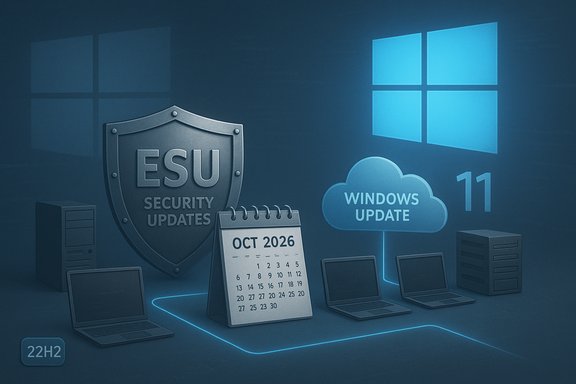
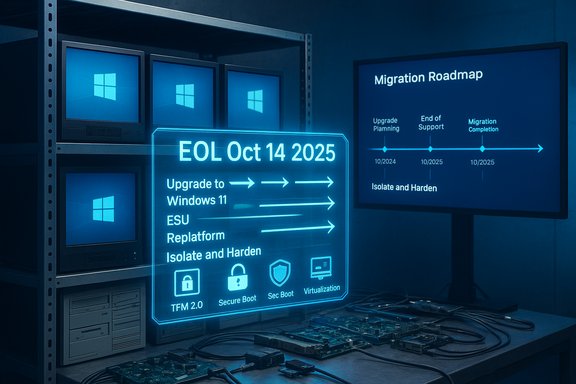
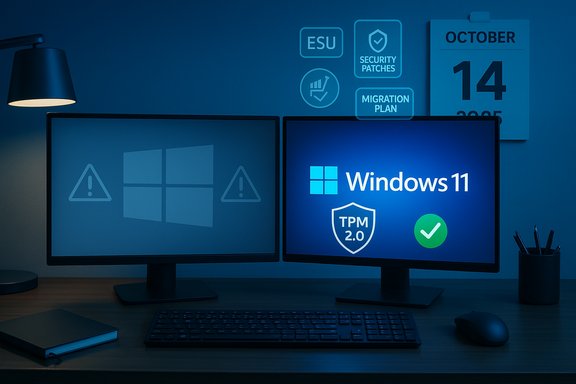
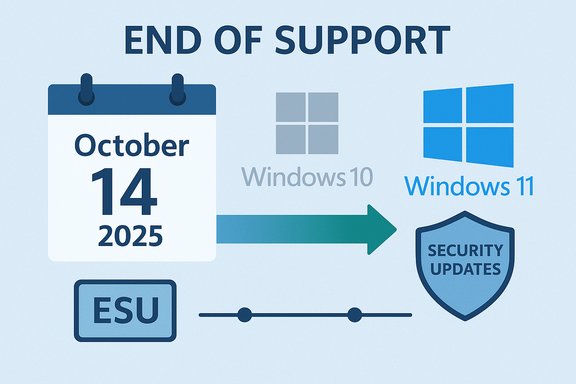
Microsoft’s official lifecycle clock for Windows 10 has run out: on October 14, 2025 Microsoft stopped issuing free security and quality updates for mainstream Windows 10 installations, and the upgrade, migration and protection decisions that once felt optional for many households and businesses are now pressing operational priorities.
Windows 10 debuted in 2015 and for a decade served as Microsoft’s mainstream desktop platform. Microsoft planned and communicated a fixed servicing cadence for the product, culminating in Windows 10, version 22H2 as the final consumer feature update. The company set a firm end‑of‑servicing date—October 14, 2025—after which mainstream, free servicing of that final release would stop. Microsoft did not leave consumers entirely without options. For the first time it opened a tailored consumer Extended Security Updates (ESU) program that provides a time‑boxed, security‑only bridge for eligible Windows 10 devices. That consumer ESU window runs through October 13, 2026; commercial customers are offered a separate multi‑year ESU track. The consumer ESU enrollment includes free and paid routes—each with trade‑offs that matter for privacy, admin control and long‑term planning.
For most users the prioritized plan should be:
(Disclosure: verified Microsoft lifecycle and ESU program details were used in preparing this feature; community reaction and migration playbooks from Windows‑centric forums and industry reporting were referenced to analyze practical impact and common failure modes.
Source: Mashable PSA: Windows 10 support ends one year from today
 Background / Overview
Windows 10 debuted in 2015 and for a decade served as Microsoft’s mainstream desktop platform. Microsoft planned and communicated a fixed servicing cadence for the product, culminating in Windows 10, version 22H2 as the final consumer feature update. The company set a firm end‑of‑servicing date—October 14, 2025—after which mainstream, free servicing of that final release would stop. Microsoft did not leave consumers entirely without options. For the first time it opened a tailored consumer Extended Security Updates (ESU) program that provides a time‑boxed, security‑only bridge for eligible Windows 10 devices. That consumer ESU window runs through October 13, 2026; commercial customers are offered a separate multi‑year ESU track. The consumer ESU enrollment includes free and paid routes—each with trade‑offs that matter for privacy, admin control and long‑term planning. What “end of support” actually means in practice
- No more free monthly OS security updates for unenrolled Windows 10 Home and Pro installations after October 14, 2025. Microsoft will not ship routine kernel, driver or platform fixes for devices that aren’t covered by ESU or an enterprise support contract.
- No more standard Microsoft technical support for Windows 10 issues on unenrolled consumer devices. Microsoft’s public guidance will direct customers toward upgrade or ESU enrollment pathways.
- Some application‑level and service components are decoupled from OS servicing: Microsoft Defender signature updates and selected Microsoft 365 servicing windows persist on a separate timetable, but these do not substitute for OS‑level security fixes. Microsoft 365 Apps will continue getting security updates for a limited window (separately scheduled) but the alignment of app and OS support is reduced.
The ESU lifeline: consumer vs commercial
Consumer ESU — one year, mixed enrollment mechanics
Microsoft published a consumer ESU program that extends security‑only updates for Windows 10, version 22H2 through October 13, 2026. Enrollment is available through Settings → Update & Security → Windows Update when the rollout reaches a device. Microsoft’s published consumer enrollment options are:- Free if you remain signed in to the PC with a Microsoft Account and enable Windows Backup / settings sync to OneDrive.
- Free if you redeem 1,000 Microsoft Rewards points on the Microsoft Account used to enroll.
- Paid one‑time purchase of $30 USD (or local equivalent) plus tax, which enables ESU without requiring persistent sign‑in on that device.
Commercial ESU — a deliberately expensive runway
For organizations and education customers, Microsoft offered a three‑year ESU option via volume licensing and partner channels. The published commercial pricing begins at roughly $61 per device in Year 1, doubles to around $122 in Year 2 and increases again to about $244 in Year 3 (cumulative totals apply and late enrollments are charged retroactively). The aggressive step‑up pricing is an explicit nudge to accelerate migration projects.Why this matters: security, compatibility and costs
The technical and financial impacts fall into three categories: immediate security risk, medium‑term compatibility erosion, and migration cost.- Security: Without vendor OS patches, newly discovered kernel or platform vulnerabilities affecting Windows 10 will remain unpatched on unenrolled devices, increasing exposure to remote compromise, ransomware and supply‑chain attacks. Microsoft’s own guidance emphasizes upgrading to a supported OS to reduce exposure.
- Compatibility: Hardware and driver vendors will gradually focus validation and driver updates on currently supported Windows releases. Peripheral and OEM driver support for older platforms degrades over time, raising risks for long‑tail device fleets. Community reporting and IT forums have already documented vendors shifting certification and driver updates away from older Windows branches.
- Cost: The consumer ESU’s modest one‑year price is a breathing space, but enterprise ESU pricing quickly becomes more expensive than many hardware refresh cycles. Organizations with large device counts must balance multi‑year ESU spend against accelerated hardware replacement or application modernization.
Windows 11 upgrade reality: eligibility, TPM and common blockers
Microsoft positions Windows 11 as the recommended upgrade route; however, Windows 11 enforces a hardware baseline that excludes many older PCs. The core minimum requirements include a compatible 64‑bit processor, 4 GB RAM, 64 GB storage, UEFI with Secure Boot and TPM 2.0 enabled. Microsoft’s PC Health Check tool gives a quick compatibility verdict and points to actionable mitigations (like enabling TPM in firmware where supported). For many users the blocker is not raw CPU speed but firmware and platform security (TPM + Secure Boot). Some machines shipped with the necessary hardware but require a UEFI/BIOS setting change to enable TPM; others lack the hardware entirely and must rely on hardware upgrades or replacement. Microsoft explicitly discourages unsupported workaround installs because they produce unsupported configurations and can cause update/compatibility problems.Practical options and real trade‑offs
The correct path depends on your hardware, risk tolerance, budget and the role of the device. Here are the main options and practical guidance.- Option 1 — Upgrade to Windows 11 (recommended if eligible)
- Pros: Maintains full vendor patching and feature updates; long‑term security; access to newer Windows features.
- Cons: Many older PCs are ineligible due to TPM/CPU lists; upgrades occasionally expose driver or app compatibility issues that require testing.
- Option 2 — Buy a new Windows 11 PC
- Pros: Lower maintenance risk, modern hardware and warranties.
- Cons: Upfront cost, environmental impact of device replacement; may be unnecessary if the current PC meets needs.
- Option 3 — Enroll in consumer ESU for one year
- Pros: Low consumer cost (free via MS account sync, or $30 if you prefer not to stay signed in), time to plan and execute migration.
- Cons: Requires enrollment mechanics (Microsoft Account), provides security‑only updates for a single year; not a long‑term solution.
- Option 4 — Switch to a non‑Windows OS (Linux, ChromeOS, Mac)
- Pros: Excellent long‑term security and performance for many use cases; strong community and vendor support in Linux distributions; Chromebooks offer low cost for web‑centric tasks.
- Cons: App migration and user retraining; some Windows‑only apps need virtualization or Wine‑equivalents.
- Option 5 — Use Cloud/Virtual Windows (Windows 365 / Azure VMs / Cloud PCs)
- Pros: Offloads OS patching to cloud provider; can extend life of older hardware as a thin client.
- Cons: Ongoing service cost; dependence on reliable internet connectivity and Microsoft cloud licensing.
A clear, executable checklist (for home users and IT admins)
- Inventory: Identify every Windows 10 device and note edition (Home/Pro/Enterprise), build (22H2 requirement), and role (user, kiosk, lab). Use tools or a simple spreadsheet.
- Compatibility check: Run Microsoft’s PC Health Check on consumer machines and record which devices are eligible for Windows 11.
- Backup: Ensure you have a tested backup strategy (File History, OneDrive, external disk images). If you’ll use the free ESU route, understand that it requires backing up or syncing to a Microsoft Account in some regions.
- Test upgrade: Pick a representative device and test an in‑place Windows 11 upgrade; verify apps, drivers and virtual environment behavior. Consider a clean install for older devices to reduce driver baggage.
- Decide ESU vs migrate: For devices that cannot be upgraded quickly, enroll eligible machines in ESU as a short bridge while you plan replacement or OS migration. Do not use ESU as an indefinite fix.
- For enterprises: evaluate volume license ESU pricing, test application compatibility, and use Windows Update for Business or Intune to orchestrate updates and ESU keys. Budget multi‑year scenarios vs hardware refresh plans.
- Harden retained Windows 10 endpoints: apply network segmentation, enable EDR/XDR, strict email filtering and MFA to reduce attack surface while you migrate.
- Communicate: craft clear communications for end users explaining timelines, the enrollment process for ESU (if used), and any required account sign‑ins.
Privacy and account considerations
The consumer ESU’s free enrollment route requires signing a device into a Microsoft Account and enabling Windows Backup/settings sync. That introduces two practical concerns:- Privacy choices: enabling OneDrive/Windows Backup to qualify for free ESU means some settings and metadata are synced to Microsoft cloud services. For privacy‑sensitive users and organizations, this may be unacceptable. The paid $30 option exists to avoid continued sign‑in, but Microsoft still associates the ESU license with the purchaser’s Microsoft Account.
- Local account users: if you currently use a local Windows account and prefer it for privacy or operational reasons, the ESU enrollment flow will prompt you to sign in with a Microsoft Account or pay to preserve the local account while enrolling. That change has prompted debate among privacy advocates and consumer groups.
Enterprise implications: compliance, cost modeling and procurement
Large organizations face a distinct calculus. Three immediate points matter:- Compliance windows: regulated industries that require vendor‑supported OSes for data handling or certification must migrate quickly or buy ESU coverage. ESU is a short bridge; auditors and lawyers will want clear transition plans.
- Price escalation: Microsoft’s commercial ESU pricing model intentionally escalates (Year 1 → Year 2 → Year 3) to encourage migration; for sizable fleets the cumulative cost can exceed many refresh programs. Factor software assurance, Intune discounts, and potential CSP offers into procurement planning.
- Operational testing: application compatibility validation, driver certification, and user acceptance testing take time. Enterprises should treat ESU as breathing room for staged rollouts — not as a patch to buy indefinite postponement.
Risks, strengths and the longer view
Strengths of Microsoft’s approach
- Predictability: Microsoft provided clear cutoff dates and an explicit consumer ESU program, giving households and small businesses a defined runway. That predictability allows planning rather than surprise.
- Options: the mix of free and paid consumer ESU routes, plus enterprise channels and cloud alternatives, creates choices for a wide range of budgets and technical capacities.
Risks and weak points
- Fragmentation: the requirement that devices be on Windows 10, version 22H2 to enroll, plus account and enrollment mechanics, introduces fragmentation and the risk that some devices will be missed during rollout, leaving them exposed.
- Privacy friction: requiring a Microsoft Account for the free route is a sticking point for privacy‑conscious users and institutions; the paid route reduces the friction but still ties the ESU license to an account.
- False sense of safety: ESU is security‑only and time‑limited. Relying on ESU beyond the intended migration window risks accumulating technical debt and increasing attack surface as third‑party vendors drop testing and certification for the old OS.
Final verdict and recommended priorities
Windows 10’s October 14, 2025 end of mainstream servicing is an inflection point, not a catastrophic shutdown. Yet the practical consequences are real: running un‑enrolled Windows 10 on internet‑connected endpoints is an increasingly risky proposition.For most users the prioritized plan should be:
- Verify which devices are Windows 11‑eligible with PC Health Check and upgrade those devices promptly after testing.
- Use the consumer ESU only as a controlled, one‑year bridge for ineligible or mission‑critical devices while you execute a migration plan. Enroll early, don’t wait for an emergency.
- For organizations, model ESU spend versus accelerated refresh; ESU prices escalate and can become cost‑prohibitive compared with hardware refresh and modern management.
- Harden retained Windows 10 endpoints with strong network controls and EDR; treat ESU‑covered devices as temporary safety valves, not permanent endpoints.
(Disclosure: verified Microsoft lifecycle and ESU program details were used in preparing this feature; community reaction and migration playbooks from Windows‑centric forums and industry reporting were referenced to analyze practical impact and common failure modes.
Source: Mashable PSA: Windows 10 support ends one year from today