Mobility Radeon HD 4200: Safe Driver Paths for Windows 10 Laptops

  • Thread Author
The Mobility Radeon HD 4200 story is a familiar one for anyone trying to keep decade‑old laptops alive: AMD officially classed the HD 4000 family as legacy, Microsoft provides a conservative, Microsoft‑signed fallback driver through Windows Update, and the only way to regain vendor‑level Catalyst features on Windows 10 is to resort to archived AMD packages or OEM installers — both of which carry significant stability and security trade‑offs.

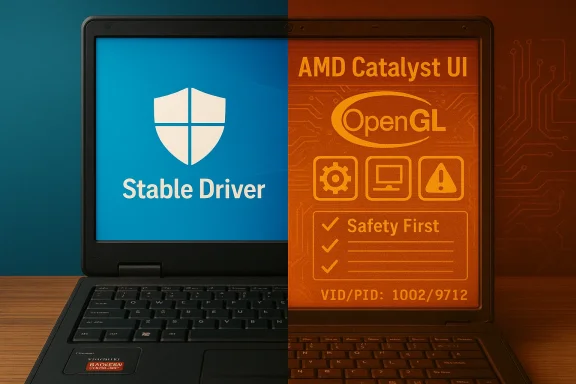
Laptop split in half: blue Windows 'Stable Driver' on the left, orange AMD Catalyst/OpenGL UI on the right.Background / Overview​

The ATI/AMD Mobility Radeon HD 4200 is an integrated mobile GPU from the HD 4000 generation, introduced around 2009–2010 for laptops and low‑power systems. Designed in the Windows 7 era, the HD 4200 implements TeraScale-era features (DirectX 10.x lineage on many parts) and was never intended for the security and driver model changes Windows 10 later introduced.
Over time AMD shifted active development away from the HD 2000/3000/4000 families. The practical effect for owners: AMD stopped producing new vendor drivers targeted at modern Windows releases and directed Windows 10/8.1 users to let Microsoft deliver a legacy display driver through Windows Update. That driver is conservative — it restores a working desktop, correct display resolutions and basic hardware acceleration without reintroducing older, possibly unsigned kernel components.
That policy created two common user experiences:
  • If you accept the Microsoft‑supplied legacy driver, your machine will usually be stable and usable for everyday tasks (web, office apps, video playback), but you’ll lose Catalyst‑era utilities and some advanced features (older UVD offload, proprietary control panels, some OpenGL behaviors).
  • If you want the old Catalyst features back, you must use archived AMD driver packages (for example, certain Catalyst releases such as the 15.x family) or OEM‑supplied laptop drivers — steps that require careful manual work and pose security/stability risks on modern Windows builds.
This article walks through the verified facts, contrasts the safe and advanced paths, gives a tested, step‑by‑step advanced procedure for experienced users, and offers a pragmatic plan for people who depend on older hardware.

What AMD and Microsoft actually say​

AMD’s public legacy guidance for the HD 2000/3000/4000 families is straightforward: the company considers these lines legacy and will not publish new official drivers for Windows 8.1 or Windows 10. For systems running Windows 10, AMD instructs users to enable Windows Update and accept the Microsoft‑supplied display driver (commonly referenced by the 8.970.x family of drivers). That Windows Update driver is Microsoft‑signed and is the officially supported route for keeping a usable display stack on modern Windows builds.
Microsoft’s side of the story is operational rather than feature‑driven: Windows Update will deliver a signed fallback driver for legacy video hardware, and that driver is intended to provide correct resolutions, basic acceleration and a stable desktop without adding vendor kernel modules that were built for older kernels. Given Windows 10’s evolution and Microsoft’s security model changes (driver signing, Kernel Patch Protection, etc.), this conservative approach is expected and by design.
Important context: Windows 10 reached end‑of‑support status in October 2025, which raises a separate set of long‑term security and maintenance concerns for anyone keeping legacy drivers in service on now‑unsupported OS versions.

Why “cheap driver” downloads are risky​

Search results and forum threads are full of repackaged, mirrored or marketplace downloads that tout “Windows 10 ready” drivers for old ATI/AMD chips. Those packages may look convenient, but they carry several real risks:
  • Repackagers often modify the driver INF or binaries to add device IDs, skip signature checks, or include unsigned kernel code. Those changes can break Windows driver trust and stability.
  • Bundled installers sometimes include adware or unwanted extras. Even when they don’t, provenance is unclear and checksums are seldom provided or verifiable.
  • Unsigned or poorly signed drivers may require users to disable driver signature enforcement or Secure Boot — which dramatically increases attack surface.
  • On systems with hybrid/switchable graphics or vendor‑specific power management, generic repackaged drivers can break features, cause thermal or battery regressions, and introduce system instability.
The safer rule: prefer Microsoft’s Windows Update driver or the OEM driver for your exact laptop model. Use original AMD archives only when you know exactly what you’re doing and have a reliable rollback plan.

Strengths and limitations of each driver option​

  • Windows Update (Microsoft‑signed legacy driver)
  • Strengths: Signed, stable, low risk; keeps desktop functional; maintained by Microsoft for compatibility patches where applicable.
  • Limitations: Fewer vendor features; no Catalyst Control Center; older media acceleration and proprietary routing may be unavailable.
  • OEM (laptop vendor) driver
  • Strengths: May include vendor-specific patches for hybrid graphics, power management, and proper scaling—often the best balance on branded notebooks.
  • Limitations: OEMs may have also stopped updates; vendor packages may be hard to find for very old models.
  • Archived AMD Catalyst packages (e.g., certain 15.x releases)
  • Strengths: Restore vendor features, older UVD/AVC acceleration, and the legacy Catalyst UI; sometimes improve performance for specific workloads.
  • Limitations: Not actively updated; installers designed for older Windows kernels; may contain components incompatible with modern kernel protections; often require manual INF verification and careful install steps.
  • Third‑party repackagers / “cheap” downloads
  • Strengths: Convenience (apparent).
  • Limitations: High risk for security, stability, and provenance; not recommended.

Practical, tested decision matrix (quick)​

  • If you only need a stable desktop, web and office use: enable Windows Update, accept the Microsoft‑signed legacy driver, stop there.
  • If you have a branded laptop and need correct hybrid/switchable behavior: find and install the OEM driver for your model.
  • If you need Catalyst era features (older OpenGL quirks, vendor utilities, specific media decoding behavior) and understand the risk: consider an archived AMD package—but only after backup and careful manual verification.
  • If you see “Microsoft Basic Display Adapter” or “This device is not supported” after attempting installs: stop, create a full image backup, and follow a strict cleanup and INF verification procedure before further attempts.

Advanced path — what power users need to know (and accept)​

If you decide to attempt a vendor archive install (advanced, risky), here are the technical realities you must accept:
  • Archived Catalyst installers were written for older Windows kernel versions and may contain components that modern Windows enforces stricter checks on. That can cause installer failures or partial installs that break the device state.
  • You may need to run a thorough driver cleanup tool (recommended: Display Driver Uninstaller, DDU) in Safe Mode to remove remnants of previous drivers. This prevents driver store conflicts and reduces the chance of Windows Update automatically reverting your changes mid‑install.
  • Always verify that the driver INF in the archived package contains your laptop’s exact hardware ID (VID/PID). Installing an INF that doesn’t match your device can render the system unstable or leave you with the Basic Display Adapter.
  • Never rely on a third‑party “one‑click” repackager. Use original AMD or OEM archives, and verify the package metadata if possible.

Preparation checklist (must do before any advanced attempt)​

  • Create a full disk image (block‑level clone) and a separate system restore point.
  • Export your current driver details (Device Manager → Properties → Details → Hardware Ids) and save the GPU hardware IDs.
  • Ensure you have recovery media (Windows installation USB) and an alternate machine to download tools and drivers.
  • Turn off automatic Windows Update driver downloads temporarily during the operation.
  • Disconnect from the Internet during cleanup/installation to prevent Windows Update from intervening.

Step‑by‑step: Safe advanced install (experienced users only)​

  • Identify exact hardware ID
  • Open Device Manager → Display adapters → right‑click → Properties → Details tab → Hardware Ids.
  • Save the VID/PID strings (for example: PCI\VEN_1002&DEV_95C6 — this is illustrative).
  • Locate original vendor or AMD archive package
  • Prefer OEM driver for your laptop model (service tag/search on vendor support) first.
  • If you must use AMD archive, select a specific tested release (some community workflows reference the Catalyst 15.x family for Windows 10 compatibility in certain cases). Verify package name and internal driver version numbers.
  • Download and verify tools
  • Download DDU (Display Driver Uninstaller) from its official source.
  • Download the archived AMD package and check its internal Display.Driver version and the INF contents. Do not use repackagers.
  • Boot into Safe Mode and run DDU
  • Reboot to Safe Mode (recommended with internet disabled).
  • Run DDU, select AMD, and choose “Clean and restart”.
  • Confirm the system reboots to a clean baseline (“Microsoft Basic Display Adapter” or minimal Microsoft driver state).
  • Inspect the archived driver INF
  • Extract the archived package fully.
  • Open the Display.Driver*.inf files and search for your hardware IDs. If the ID is present, the INF can be used for a manual install. If not, do not continue with that package.
  • Install via Device Manager → Have Disk (manual INF method)
  • In Device Manager, right‑click the display adapter (or Microsoft Basic Display Adapter), choose “Update driver” → “Browse my computer for drivers” → “Let me pick from a list” → “Have Disk” and point to the extracted INF.
  • Proceed only after Windows warns about driver signature (you may need to temporarily allow installing an unsigned driver or use a signed archive). Accept only if you understand the implications.
  • Reboot and test
  • After installation, reboot normally.
  • Test multi‑monitor, hardware video playback, and any vendor‑specific features.
  • If anything feels unstable or Windows Update starts to replace the driver, revert to the image backup and reassess.
  • If successful, re‑enable network and monitor occasional Windows Update prompts. Consider pausing Windows Update driver installs to prevent reversion.
Important safety note: this manual INF method avoids running a legacy vendor installer that attempts to install kernel‑mode components designed for older kernels, but it still can require temporarily lowering driver signing protections or accepting a driver not fully validated for modern enforcement features. Use this only on non‑critical machines or with robust backups.

Troubleshooting common failure modes​

  • Installer fails and device shows as “Microsoft Basic Display Adapter”: often the INF did not match hardware ID or previous driver remnants blocked new install. Use DDU again, confirm INF, and reinstall via “Have Disk.”
  • System instability after installing archived driver: roll back to backup/image and switch to OEM/Microsoft driver. Do not continue experiments on production machines.
  • Windows Update immediately replaces or reverts the driver: either pause Windows Update during testing or use group policy / registry settings to suppress automatic driver installs while you evaluate. Remember to re‑enable updates afterward.

Security, maintenance and long‑term recommendations​

  • With Windows 10 past end of support (October 14, 2025), relying on legacy drivers and an unsupported OS increases risk. If the device is used for anything sensitive, plan an upgrade path: either to Windows 11 on compatible hardware or to newer hardware that offers supported Windows drivers.
  • Avoid any driver packages that require permanent disabling of Secure Boot or permanent disabling of driver signature checks. Temporary test modes are sometimes necessary, but leaving those protections off is dangerous.
  • Never run unknown “driver‑updater” utilities. They frequently bundle PUPs or unsigned components.
  • If you cannot replace the hardware immediately, consider isolating the machine (limited network access) and using Extended Security Updates (ESU) offerings where available to reduce risk exposure, depending on your scenario and availability.

When to bite the bullet and upgrade hardware​

If you depend on modern application compatibility, updated web and productivity stacks, or media playback security, running on an HD 4200 with legacy drivers is a temporary measure at best. Practical triggers for upgrading:
  • You need modern GPU APIs (DirectX 11/12 feature sets, OpenGL support improvements).
  • You require reliable driver updates for stability and security (gaming, frequent multimedia work).
  • You use the device for sensitive tasks and cannot accept the increased attack surface of legacy drivers on an unsupported OS.
A hardware refresh is the cleanest long‑term solution. For budget‑constrained scenarios, even a modest modern entry GPU or a newer second‑hand laptop with supported drivers typically pays off in reliability, battery life and security.

Final assessment — promise, pragmatism, and precaution​

The Mobility Radeon HD 4200 driver saga is not a mystery so much as a lifecycle inevitability: vendors retire legacy lines, operating systems evolve, and community ingenuity fills the gaps — sometimes at real risk. The verified, pragmatic guidance here is simple and conservative:
  • For most users, use the Microsoft‑supplied Windows Update driver or your OEM driver and stop. That path is the least risky and the most sustainable.
  • For advanced users who absolutely need vendor features, use archived AMD packages only after careful preparation: full image backups, use of DDU, INF verification, offline installs, and the discipline to rollback on sign of instability.
  • Avoid third‑party repackagers and “cheap” driver downloads from untrusted sources. Convenience is not worth the security and stability trade‑offs.
  • Plan a hardware or OS upgrade if you require security updates and long‑term reliability; Windows 10 is past mainstream support, and running legacy drivers on unsupported OSes should be treated as a temporary mitigation rather than a permanent configuration.
If you want a concise, model‑specific plan (I’ll list the exact INF names to check, the likely archived package names, and the Device Manager steps tailored to your laptop’s VID/PID), provide your laptop make/model and the Device Manager hardware IDs and I’ll prepare a step‑by‑step checklist you can use on a test machine.

Source: Born2Invest https://born2invest.com/?b=style-237295112/
 

If you’re trying to get an ATI/AMD Mobility Radeon HD 4200 working reliably under Windows 10, the practical reality is simple and unambiguous: treat the HD 4200 as legacy hardware, accept the Microsoft‑supplied legacy driver from Windows Update (or your OEM’s Windows 10 package for the exact laptop model) as the safest path, and consider archived AMD Catalyst packages only as an advanced, last‑resort option that requires careful backups and technical experience.

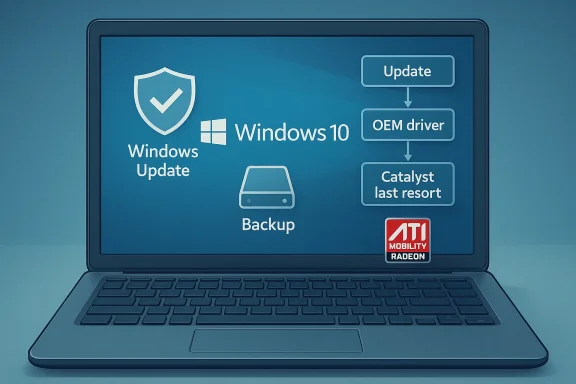
Laptop screen shows a Windows 10 update flowchart with backup and an ATI Mobility Radeon logo.Background / Overview​

The Mobility Radeon HD 4200 belongs to AMD’s HD 4000 generation, a Terascale‑era integrated/mobile GPU family originally designed around the Windows 7 timeframe (released roughly 2009–2010). Architecturally, these parts implement DirectX 10.x-era features and were never engineered or validated against modern Windows 10 display stacks or new WDDM behaviours introduced in later Windows versions. That legacy status is the single most important fact shaping any driver strategy for HD 4200 systems.
AMD moved the HD 4000 family to “legacy” status years ago and ceased active driver feature releases for it. As a result, AMD’s public guidance and community experience converge on one practical statement: for Windows 10, driver support for HD 4000-series GPUs is provided via Microsoft’s Windows Update (a Microsoft‑signed legacy driver). Archived AMD Catalyst packages remain available and are what power users use to regain vendor features, but they are not actively maintained for Windows 10 and carry compatibility and security risks.

Why driver choice matters for Radeon HD 4200 on Windows 10​

Modern Windows enforces kernel signing, driver model changes, and different expectations around features like accelerated video decode and OpenGL/Direct3D support. That means:
  • Installing an untested legacy vendor stack can produce system instability (black screens, driver crashes) or even prevent Windows from booting.
  • Microsoft’s Windows Update provides a conservative, signed driver that restores basic acceleration and correct resolution without adding unsupported kernel components — the lowest‑risk option.
  • OEM (laptop vendor) drivers can be preferable for notebooks because they may include platform‑specific power management or switchable‑graphics support not present in generic packages.
Understanding those trade‑offs up front keeps expectations realistic: the HD 4200 will not offer modern performance or feature parity with current GPUs, and the “best” driver is the one that meets your stability and security priorities, not necessarily the one with the most features.

What “best driver” means for the HD 4200​

When users ask which driver to download for an ATI Radeon HD 4200, they’re usually after one or more of the following results:
  • Correct native screen resolutions and multi‑monitor support
  • Stable desktop without frequent crashes or noise in logs
  • Hardware‑accelerated video playback where possible (within the GPU’s era limits)
  • Access to legacy control panels (Catalyst Control Center) or vendor utilities
Map those goals to practical choices:
  • Windows Update / Microsoft‑signed legacy driver — Safest and recommended first for Windows 10. Restores basic display functionality and is signed to meet Windows driver policies.
  • OEM driver for your exact laptop/desktop model — Preferred on notebooks because it often includes platform‑specific fixes. If the OEM provides a Windows 10 driver package for the machine, use that.
  • Archived AMD Catalyst legacy package (advanced) — Only for experienced users who need legacy features like Catalyst Control Center and are prepared to manage driver cleanup, INF verification, and the security tradeoffs. The commonly referenced vendor builds for this generation are from the 8.970.x family and final Catalyst releases (Catalyst 15.7.1 is frequently cited for Windows 7-era support).

The safe, recommended path — step‑by‑step​

Follow this sequence to maximize safety and minimize downtime. These steps are intentionally conservative.
  • Create a full disk image (or at minimum a System Restore point and a complete backup of important files). If something goes wrong you must be able to recover.
  • Boot Windows 10 and run Windows Update (including Optional driver updates). If Windows Update installs a Microsoft‑signed display driver that restores display functionality, test the system and stop. This is the recommended end state for most users.
  • If Windows Update does not provide a working driver or you need platform‑specific fixes (laptops), check your OEM support page for the exact model and download only the package the vendor explicitly publishes for that model and Windows 10. OEM drivers are typically safer on laptops.
  • If neither Windows Update nor the OEM driver resolves the issue and you accept the risks, proceed to an advanced manual install (see the next section). Do not skip a full system image before this.
If the machine is used for critical work, internet‑facing tasks, or contains sensitive data, stop at step 3; the security and stability tradeoffs introduced by legacy vendor stacks are non‑trivial.

Advanced / last‑resort: using archived AMD Catalyst packages​

If you absolutely need legacy vendor features (Catalyst Control Center, vendor OpenCL/UVD bits) and you understand the risks, archived Catalyst packages can be used — but only with careful preparation.

What you’ll typically find in archives​

  • Legacy Catalyst installers from the early 2010s, including builds from the 8.970.x family and final unified Catalyst releases like Catalyst 15.7.1 for Windows 7-era support. These packages sometimes contain the drivers community members extract and use to install on Windows 10, though they were not tested for modern Windows builds.

Key risks​

  • Archived installers are no longer maintained and may contain outdated kernel components or runtimes exposing long‑term security risk.
  • Third‑party repackagers or torrent sites may supply altered installers with malware or unwanted toolbars. Verify checksums and provenance thoroughly.
  • Manual INF edits, unsigned drivers, or “force installs” can break secure boot, produce blue screens, or block Windows updates in the future.

Controlled procedure for experienced users​

  • Create a complete disk image.
  • Use Display Driver Uninstaller (DDU) in Safe Mode to remove existing GPU drivers cleanly. This reduces the chance of installer conflicts.
  • Extract the archived Catalyst package to a folder. Verify the package’s checksum (if available from a reputable archive). Do not trust unknown sources.
  • Confirm the INF contains your GPU’s hardware IDs (VID/PID) before installing. Do not use an INF that doesn’t match exactly — this is a common source of instability.
  • Use Device Manager → Update driver → Browse my computer → Let me pick → Have Disk to point to the extracted INF. This manual “Have Disk” method is often safer than running the legacy installer on modern Windows because it avoids legacy installer scripts and extra components.
  • Reboot and test extensively (display, video playback, driver events in Event Viewer). If you see instability, revert to the image you created.
This is an advanced workflow that puts responsibility on the installer. Most users should avoid it.

Troubleshooting common symptoms​

Symptom: Black screen after driver install​

  • Hold power to force shutdown and boot into Safe Mode. Use DDU to remove the offending driver and revert to the Microsoft driver via Windows Update. If you did a manual INF install, use the recovery image.

Symptom: Correct resolution but poor video playback​

  • The HD 4200’s video decode capabilities are limited by era; software decode or a modern hardware upgrade may be the only fix. If you need better media performance, plan a hardware upgrade rather than chasing unsupported codecs in old drivers.

Symptom: System crashes or blue screens​

  • Check Event Viewer and run driver verifier only if you’re prepared to recover using your image. Most community guides recommending legacy drivers also recommend testing on non-critical machines first.

Security and provenance: where not to download drivers​

  • Avoid random file‑sharing sites, unverified driver “outlet” marketplaces, or repackagers that rehost vendor installers without checksums. Provenance matters: corrupted or trojanized installers are common on third‑party sites.
  • Prefer Microsoft Update, your OEM, or reputable archival sites that publish checksums and strict release notices. If a package lacks clear provenance or checksum, do not use it on a machine that matters.

When to stop chasing legacy drivers and upgrade​

Legacy GPUs like the Radeon HD 4200 were never intended for modern multimedia or security expectations. If you need:
  • Modern accelerated media playback (HEVC, AV1)
  • Stable long‑term security patches for GPU drivers
  • OpenCL/CUDA workloads or modern gaming compatibility
then buying a modest modern GPU or replacing the notebook is the correct, long‑term choice. Clinging to legacy drivers is a short‑term bandage that creates cumulative risk. The article’s practical summary: if Windows Update or the OEM driver meets your needs, stop there; otherwise plan hardware replacement rather than relying on unsupported legacy stacks.

Quick reference: recommendations at a glance​

  • Windows 10 (primary): Let Windows Update install the Microsoft‑signed legacy driver first. Test. Stop if stable.
  • Laptop users: Check the OEM support site for a model‑specific Windows 10 driver — often the safest second choice.
  • Windows 7 or specific legacy needs: Use archived AMD Catalyst packages such as Catalyst 15.7.1 on systems where vendor features are necessary — only with backups and acceptance of security risk.
  • If you must use archived vendor drivers on Windows 10: Use DDU, verify INF and checksums, perform a manual “Have Disk” install, and keep a recovery image ready.

SEO‑friendly tips and search phrasing to find the right resources​

When searching for help or downloads, use precise phrases to reduce risky hits. Examples that keep searches focused and safer:
  • “Radeon HD 4200 Windows 10 Microsoft signed driver”
  • “Mobility Radeon HD 4200 OEM driver [laptop model]”
  • “Catalyst 15.7.1 HD 4000 archived release notes”
  • “How to install Radeon HD 4200 Have Disk INF Windows 10 DDU”
Avoid vague queries like “free driver download” or “top ati radeon 4200 driver outlet”—these often surface repackagers and mirrors with unknown provenance.

Critical analysis: strengths, gaps, and risks​

  • Strength: Microsoft’s approach of delivering a conservative, signed legacy driver via Windows Update gives most users the quickest path to a usable, stable desktop without risky manual interventions. This is a pragmatic response by Microsoft to legacy hardware.
  • Strength: OEM packages remain the practical sweet spot for notebooks, where vendor tuning for thermal and power‑management matters.
  • Gap: AMD’s legacy policy means no new feature development or security maintenance for HD 4000-era drivers. That leaves users of these GPUs dependent on outdated stacks or Microsoft’s fallback driver, which may omit vendor features.
  • Risk: Advanced techniques (INF edits, manual installs from archived Catalyst packages) are well‑documented in community threads but are inherently risky. They’re appropriate only for non‑critical machines, labs, or users who fully understand kernel‑level driver implications.
  • Policy consideration: Running obsolete vendor drivers in an Internet‑connected, production environment increases attack surface and may not meet organizational compliance requirements.
If your goal is long‑term reliability, the analysis is blunt: upgrade hardware. If your goal is to keep an old system usable for basic tasks, follow the conservative Windows Update/OEM path and avoid the temptation to install unsupported vendor stacks unless you have a full recovery plan.

Conclusion​

The ATI/AMD Mobility Radeon HD 4200 driver story is a classic legacy‑hardware dilemma: vendor development stopped long ago, Microsoft provides a stable but conservative fallback via Windows Update, and community archives offer a way to restore legacy features at real cost and risk. For Windows 10 systems, the correct, defensible approach is:
  • Try Windows Update first and accept the Microsoft‑signed legacy driver if it works.
  • If necessary for a laptop, use the OEM’s Windows 10 driver package for your model.
  • Only as a last resort and with complete backups and technical skill should you extract and manually install archived AMD Catalyst drivers — and even then, expect tradeoffs and potential instability.
If you’d like, I can produce a one‑page, model‑specific checklist (exact laptop/desktop make and Windows 10 build required) that lists the precise archived package names, INF strings to verify, and the exact step sequence (including DDU settings and registry checks) tailored to your machine. Provide the vendor and model string reported in Device Manager (or the PCI VEN/DEV identifiers) and I’ll prepare that checklist.

Source: Born2Invest https://born2invest.com/?b=style-237400212/
 

If you still own an ATI/AMD Mobility or desktop Radeon HD 5470 and you’re wondering whether it’s worth hunting down a Windows 10 driver, the short answer is: yes, it can work — but only as a legacy device with significant practical limits and measurable security trade‑offs. Use the Microsoft‑signed driver or an OEM package where possible; archived AMD Catalyst/Crimson installers exist and can sometimes be coaxed into running, but those are legacy artifacts intended for advanced users who accept the risks and prepare proper backups.

Radeon HD 5470 GPU on a desk, beside DDU boxes and a monitor displaying “Legacy Driver.”Background / Overview​

The Radeon HD 5470 was released in the early 2010s as a low‑power, budget‑oriented GPU aimed at laptops and entry‑level desktop cards. It uses the Cedar (TeraScale 2 / Evergreen) family, with a very small die and modest hardware resources by modern standards: 80 shader cores, 8 TMUs, 4 ROPs, a 64‑bit memory bus, and typically 512 MB of GDDR3 memory. Typical clock figures and board TDPs place it well inside the “basic desktop and HTPC” envelope rather than the modern gaming class.
Those numbers are important because they directly explain the card’s real‑world envelope: smooth desktop compositing and older H.264 video playback are realistic expectations, while modern gaming, 4K workflows, and hardware accelerated HEVC/AV1 decoding are not. TechPowerUp’s GPU database and community tests line up on these facts — the HD 5470 is a legacy, low‑bandwidth GPU with a 19 W TDP on many desktop board designs and no modern codec acceleration.

Why driver policy matters now​

AMD moved the Radeon HD 5000 family to a legacy support model years ago. That means no ongoing driver updates and the final broadly supported WHQL/legacy bundles are archived packages (for example, Catalyst 15.7.1 and the late Crimson 16.2.1 beta). AMD’s own documentation lists the HD 5000 series under legacy support and points Windows 10 users toward those final archived drivers while recommending Microsoft Update / OEM drivers as the safest route.
There’s an added, recent wrinkle: Windows 10 reached end of mainstream support on October 14, 2025. After that date Microsoft ceased free security and feature updates for Windows 10, which changes the calculus for running legacy kernel‑level drivers on those systems. A wear‑out of vendor testing and fewer platform QA cycles for Windows 10 mean legacy drivers are more likely to trigger compatibility or security concerns as the platform ages. For that reason, conservative choices — Microsoft‑signed drivers, OEM drivers, or hardware replacement — are now stronger recommendations.

Technical snapshot: what the HD 5470 actually offers​

  • GPU architecture: Cedar (TeraScale 2 / Evergreen family).
  • Shaders / TMUs / ROPs: 80 / 8 / 4.
  • Memory: Typically 512 MB GDDR3 on a 64‑bit bus (some variants exist).
  • Peak theoretical compute: ~104 GFLOPS (FP32) — indicative of very modest compute throughput.
  • Display / I/O: Common single‑slot desktop cards offered DVI + HDMI 1.3a + VGA and PCIe 2.0 x16 interface; mobile variants used BGA packages in laptops. (techpowerup.com)
  • DirectX/OpenGL: Feature set aligned with the DirectX 11 era (DirectX 11.x feature‑level in public listings), but modern API/runtime support depends entirely on driver packages. (techpowerup.com)
Put plainly: the HD 5470 was designed for basic 2D/legacy 3D workloads and light HD video. Expect limits on resolution scaling, limited multi‑monitor support at high resolutions, and no modern codec hardware acceleration for HEVC/AV1 on current Windows 10 builds.

Driver reality: what works, what’s risky​

There are four practical driver classes you’ll encounter when supporting an HD 5470 on Windows 10, ordered by safety:
  • Microsoft‑signed driver via Windows Update — lowest risk; provides a stable fallback driver for deskis first.
  • OEM / laptop vendor driver — safer than raw archives for laptops because vendors often adapt drivers for hybrid graphics and power management on specific models. If your notebook vendor offers a Windows 10 driver for your model, prefer that.
  • AMD archived legacy packages (Catalyst 15.7.1 / Crimson 16.2.1 Beta) — provide the most features (CCC, power profiles, Radeon utilities) but were built for older Windows kernels and are legacy; can work only if the driver INF contains your hardware ID and you’re prepared to perform advanced manual installs. This is an advanced, risk‑bearing option.
  • Third‑party repackagers or “one‑click updaters” — avoid. These often repack INFs, remove signatures, or bundle PUPs; they’re a measurable security risk.
AMD’s last WHQL driver that broadly supported the HD 5000 family was Catalyst 15.7.1; a later Radeon Software Crimson Edition 16.2.1 Beta was also offered as a final beta for legacy parts. AMD’s FAQ and release notes explicitly say these families are now legacy and no further driver updates are planned. If you need features beyond Microsoft’s fallback, these archived packages are your only vendor offerings — but they are legacy artifacts.

Security and lifecycle considerations​

Graphics drivers run at kernel privilege levels and are historically a significant attack surface. That makes driver provenance and cryptographic signing important security controls. With Windows 10 out of mainstream support since October 14, for using legacy drivers changed materially:
  • Microsoft will not provide ongoing platform security updates to the general public for Windows 10 after October 14, 2025, increasing exposure for systems that run outdated, kernel‑level drivers.
  • Vendors will prioritize Windows 11 and newer platform testing; the likelihood of new compatibility for Windows 10‑era stacks is low. ([learn.microsoft.com](https://learn.microsoft.com/en-us/lifecycle/announcements/october-14-2025-products-end-of-suppor
  • Third‑party repackaged drivers can break driver signing chains or bundle unwanted software — avoid them unless you can cryptographically verify files.
Practical takeaway: for any system where security and uptime matter you should prefer the Microsoft‑ driver. If you must use an archived AMD package to regain certain features, be prepared with system images, a tested rollback plan, and the understanding that you are acc risks.

A conservative, step‑by‑step workflow to get an HD 5470 running on Windows 10​

The community and vendor guidance converge on a conservative installation workflow. This sequence is written for tech‑comforte not confident with system recovery procedures, stop at Step 2 and rely on Windows Update or OEM drivers.
  • Inventory and snapshot
  • Record the GPU hardware ID: Device Manager → Display adapters → Properties → Details → Hardware Ids. Copy the PCI\VEN_1002&DEV_xxxx string.
  • Create a System Restore point and (if image. Driver changes to the display stack can render a system temporarily unusable.
  • Try the safe options (recommended)
  • Let Windows Update search for Optional/Driver updates and install the Microsoft‑signed driver if offered. Validate resolution, multi‑monitor behavior, and basic video playback. If this meets your n - Check your laptop/PC vendor support pages for a Windows 10 driver; OEM packages, when available, are usually the best balance of stability and system integration.
  • Prepare for an advanced/manua need a specific legacy feature)
  • Download and store Display Driver Uninstaller (DDU) on removable media. DDU is the community standard for clean driver removal.
  • Obtain the archived AMD package you plan tot 15.7.1 or Crimson 16.2.1 Beta**). Keep the original installer for rollback and verify checksums if available.
  • Clean install (advanced)
  • Boot to Safe Mode and run DDU to remove legacy AMD traces. Reboot to noract the archived AMD package (many AMD installers self‑extract into C:\AMD). Inspect the Display.Driver*.inf files with a text editor and search for your recorded Hardware ID string (PCI\VEN_1002&DEV_xxxx). If your hardware ID is not explicitlr will likely fail or misbehave — do not proceed.
  • If the INF lists your device, install via Device Manager → Update driver → Browse my computer for drivers → Let me pick from a list → Have disk → point at thet and test.
  • Rollback plan
  • If anything goes wrong, use Safe Mode to uninstall the driver and restore your previous image or System Restore point. If you have screen or boot issues, Safe Mode + DDU is the recovery route.
Advancee edited INFs to add hardware IDs to legacy packages so the installer will work on machines where the OEM did not include the device; this is risky, can break driver signing, and may trigger Windows security warnings. Only do this if you fully understand the consequences and have a tested recovern manual installs fail: common causes and troubleshooting tips
  • INF mismatch: most installer failures occur because the archived INF does not contain the device’s exact PCI VID/DEV pair. Confirm this before attempting an install.
  • Signed vs unsigned: legacy installers may not be signed in a way that Windows 10 expects; forcing unsigned drivers weakens system security. Avoid unless you have a compelling reason and strong rollback options.
  • Hybrid/switchable graphics: laptops that use hybrid graphics (Intel + AMD) often require OEM chain‑of‑trust drivers for power management; generic Catalyst sets can break suspend/resume or battery life. Use OEM drivers for notebooks.

Performance expectations and real‑world use cases​

If you successfully install a working driver for an HD 5470 on Windows 10, here’s what to expect:
  • Desktop and office work: good. Window compositing, web browsing, email, and productivity apps are well within the card’s capability.
  • Legacy video playback (H.264): reasonable depending on codec and container; older HW decode units (UVD 2.3 era) were optimized for earlier profiles. Do not expect reliable hardware acceleration for modern HEVC main10 or AV1 streams.
  • Light legacy gaming: possible at low resolutions (720p / 1366×768) for older titles. Modern AAA games will be unplayable except at very low settings and resolutions.
  • Multi‑monitor and high‑resolution workflows: limited due to the narrow memory bus and small VRAM; multi‑4K setups are unrealistic.
Quantitative context is useful: the listed theoretical memory bandwidth and compute ratings are low by modern GB/s bandwidth for common 512 MB GDDR3 configurations), and real‑world throughput is constrained by both memory bus width and shader count. Those hardware realities explain why the HD 5470 remains legacy rather than useful for modern multimedia or gaming tasks.

Buying a used HD 5470 or shopping for replacement hardware​

If your goal is to buy an HD 5470 (for restoration projects, legacy builds, or compatibility with older software), accept that the part is rare and low value today. For practical everyday use on Windows 10 or later, a modest modern integrated GPU (recent Intel or AMD APUs) or a current budget discrete card will outpace the HD 5470 in performance, codec support, and power efficiency.
If you are explicitly restoring a legacy system (for compatibility with vintage software or hardware), make sure you:
  • Confirm form factor (mobile BGA vs desktop PCIe card).
  • Verify actual memory type (GDDR3 vs any variant) and board outputs — sellers sometimes relist confusing variants.
  • Prioritize vendor images or OEM driver packages for laptops to maintain hybrid graphics and power features.
From a cost/benefit view, if you need reliable modern codec support (HEVC/AV1), hardware decoding for streaming, or robust gaming, replacing the HD 5470 with even an entry‑level modern GPU or a recent APU will be far more efficient than wrestling with legacy drivers and a retired OS.

Strengths, weaknesses, and the final verdict​

Strengths
  • Extremely low power design for its era; good fortasks and older laptops. ([techpowerup.com](ATI Radeon HD 5470 Specs driver archives exist**, so advanced users can often similar to the original experience.
Weaknesses / Risks
  • Legacy status: AMD no longer develops drivers for the HD 5000 family — the last broadly supported WHmid‑2015/2016. That leaves owners dependent on archived installers or Microsoft/OEM drivers.
  • Windows 10 EOL increases the long‑term security risk of running legacy kernel drivers on those systems.
  • Practical performance limits: tiny memory and shader resources mean the card cannot handle modern codecs, high resolutions, or current games. (techpowerup.com)
Final verdict: The Radeon HD 5470 remains a useful legacy part for very specific, limited use cases — restoring older laptops, providing a basic desktop on a very low power budget, or supporting older games at low resolution. For any user who cares about security, long‑term compatibility, or modern multimedia features, the correct path is either to rely on Microsoft/OEM drivers and accept the limited feature set, or upgrade to modern hardware. Attempting to force archived Catalyst installers can work, but it’s an advanced, risk‑bearing exercise that should be done only with full backups and a tested rollback plan.

Practical checklist before you proceed​

  • Record your GPU hardware ID and take a full system image.
  • Try Windows Update and the OEM support page first.
  • If you must use archived AMD drivers, inspect the INF for your VID/DEV string before installing, and be prepared to use DDU.
  • Avoid third‑party repackaged drivers. Verify signatures and checksums if you must use downloaded archives.
  • Consider hardware refresh if you need modern codecs, multi‑monitor 4K workflows, or gaming performance.

The HD 5470 is a piece of computing history that still does a job when matched to the right expectations: basic desktop, legacy video, and older titles. But its future is limited by AMD’s legacy designation and the broader platform transition away from Windows 10. If you need long‑term security and modern multimedia capability, plan for a modest hardware refresh. If you choose to proceed with legacy drivers, prepare carefully, follow the conservative workflow above, and treat the exercise as an advanced IT task rather than a routine update.

Source: Born2Invest https://born2invest.com/?b=style-231709912/
 

Back
Top