

The AMD Radeon HD 3450 is effectively a legacy device on modern Windows releases, and the practical reality for users trying to run it under Windows 10 is that official vendor support ended years ago — Windows Update will usually supply a basic, Microsoft‑signed display driver (version 8.970.100.9001 in AMD’s guidance), while full Catalyst packages were never released for Windows 10 and any attempt to force newer or non‑OEM packages carries real risk.
The Radeon HD 3450 launched in the late 2000s as an entry‑level DirectX 10‑era GPU. AMD (then ATI) optimized the family through 2013, after which the HD 2000/3000/4000 families were declared legacy and no further Catalyst driver releases were planned. AMD’s official legacy support statement explicitly notes that the last Catalyst package validated to the Windows driver model was Catalyst 13.1 (October 2013), and that Windows 8 was the last fully supported OS for those Catalyst drivers; for Windows 8.1 and Windows 10 AMD directs users to rely on Windows Update for a basic display driver (driver version 8.970.100.9001 is the referenced build). That corporate position shaped the reality in enthusiast forums: users moving HD 3000/3450 cards to Windows 10 found that the boxed Catalyst installers either refused to run, reported device‑ID mismatches in INF files, or installed only partial components (CCC without a working display driver). Community troubleshooting has therefore focused on safe fallback options, manual INF installs, and long lists of mitigations for stubborn setups.
The HD 3450 is a capable little card for basic legacy duties, but its age and AMD’s legacy policy mean that Windows 10 operation is inherently a compromise between convenience (Windows Update) and tinkering (manual INF installs or third‑party packages). Prioritize signed drivers, backups, and a conservative installation path — and when continued stability and modern features matter, upgrade the hardware rather than patching forever.
Source: Born2Invest https://born2invest.com/?b=style-232018112/
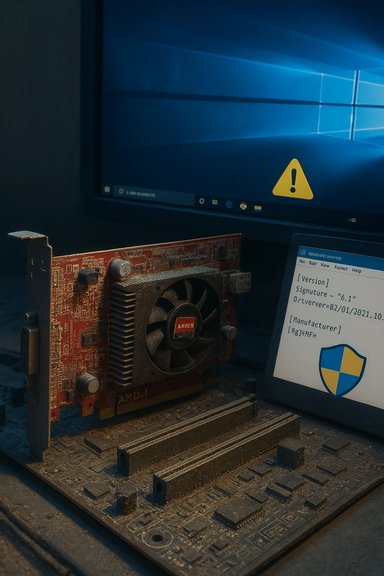 Background
The Radeon HD 3450 launched in the late 2000s as an entry‑level DirectX 10‑era GPU. AMD (then ATI) optimized the family through 2013, after which the HD 2000/3000/4000 families were declared legacy and no further Catalyst driver releases were planned. AMD’s official legacy support statement explicitly notes that the last Catalyst package validated to the Windows driver model was Catalyst 13.1 (October 2013), and that Windows 8 was the last fully supported OS for those Catalyst drivers; for Windows 8.1 and Windows 10 AMD directs users to rely on Windows Update for a basic display driver (driver version 8.970.100.9001 is the referenced build). That corporate position shaped the reality in enthusiast forums: users moving HD 3000/3450 cards to Windows 10 found that the boxed Catalyst installers either refused to run, reported device‑ID mismatches in INF files, or installed only partial components (CCC without a working display driver). Community troubleshooting has therefore focused on safe fallback options, manual INF installs, and long lists of mitigations for stubborn setups.What “works” on Windows 10: realistic compatibility expectations
- Basic display, desktop and video playback (software accelerated): Windows Update’s Microsoft‑signed driver will get you a usable desktop and basic video playback. This is the safest option for stability and security.
- Hardware acceleration, advanced features, and Catalyst utilities: Expect severe limitations. The full Catalyst control suite and features such as modern driver‑level acceleration, advanced power management, and some UVD features may not function or may be limited because those Catalyst packages were not validated against later Windows 10 kernels.
- Gaming and modern workloads: The HD 3450 was never designed for modern games or hardware‑accelerated video at higher resolutions and codecs. Performance and feature gaps are expected even if you get a driver installed.
- Unofficial or repackaged drivers: Some third‑party driver repositories and driver updaters claim “Windows 10” packages for HD 3000/3450 families (mirrors and repackagers sometimes list later dates), but these are not AMD‑validated and should be treated with caution. Cross‑check any such claims before you proceed.
Where to get drivers (ordered by trust and safety)
- OEM / Manufacturer support page (best if your system is a branded desktop or laptop)
- Branded systems (HP, Dell, Lenovo, etc. often supply vendor‑tuned drivers — these are the safest for system stability.
- Windows Update (recommended for legacy cards on Windows 10)
- Microsoft’s driver catalog provides a signed display driver that Windows Update can install automatically. AMD’s guidance points users here when Catalyst cannot be used.
- AMD’s Legacy pages (for archival Catalyst downloads and official policy)
- You can still download Catalyst 13.x packages for historical use, but they target Windows 7/8 and are not validated for Windows 10. Use them only for manual INF installs when you understand the risks.
- Reputable driver archives and community posts (use only as a last resort and verify checksums)
- Sites such as Driver Scape or certain community threads may host repackaged drivers; validate and avoid unsigned packages. If a third‑party site lists drivers later than AMD’s own legacy dates, treat that as unverified.
- One‑click driver updaters (Driver Easy and similar)
- Tools like Driver Easy offer convenience and can sometimes find a driver that works. However, they are third‑party software that can bundle unwanted extras or choose incorrect packages. Use them only after backing up and prefer the manual approach first.
Step‑by‑step: a practical, safe installation workflow
These steps prioritize system stability and give you a controlled path for trying to bring an HD 3450 up on Windows 10.- Inventory and backup first
- Note the exact GPU hardware id: Device Manager → Display adapters → right‑click → Properties → Details → Hardware Ids. Record the VID/PID string.
- Create a System Restore point and, if possible, a full system image. Driver changes that touch the display stack can leave systems unbootable in some cases.
- Try Windows Update first (recommended)
- Run Windows Update and allow Optional/Driver updates. This often installs Microsoft’s signed legacy driver (recommended by AMD for Windows 10). If Windows Update provides a driver, validate basic functionality before attempting anything else.
- If Windows Update fails and an OEM driver is available, use it
- Check your PC or motherboard vendor’s support page and download the display driver for your model.
- Clean the driver state (if switching installers)
- Use Display Driver Uninstaller (DDU) to remove driver remnants in Safe Mode before attempting a manual install. Community guides strongly recommend this to avoid conflicts.
- Attempt a manual INF install from legacy Catalyst packages (advanced)
- Download the Catalyst 13.1/13.x package (Windows 7/8 target) from AMD’s archives or your OEM.
- Extract the package and locate the Display.Driver*.inf that lists your hardware id. If the INF contains your device id, you can try Device Manager → Update driver → Browse my computer → Let me pick → Have Disk and point to that INF.
- If the INF doesn’t list your device id, editing INF files is possible but risky; this is for advanced users only and carries signature/compatibility consequences.
- Compatibility mode and signature enforcement (only for testing)
- If an installer refuses to run, try running it in Windows 7 compatibility mode. If an INF install shows “unsigned driver” blocks, you can temporarily disable driver signature enforcement to test — but do not make this a permanent configuration on production systems.
- Reboot and validate
- Reboot normally, validate display resolution, Device Manager driver version, and test basic scenarios like video playback and multi‑monitor behavior.
- If things fail, roll back
- Use System Restore or your image backup. Preserve the last working installer so you can revert.
Troubleshooting common failure modes and fixes
Device‑ID rejections or INF mismatches
- Symptom: Installer aborts or says “device not supported.”
- Likely cause: The packaged INF does not list your board’s hardware id.
- Fix: Extract the package and try a manual INF install via Device Manager. If the INF lacks your ID, an advanced user can add it manually (not recommended for novices) or rely on Windows Update’s generic driver. Community reports show many successful manual installs when the INF did include the device ID, even if the packaged installer refused to run.
Partial installs (CCC installed but no display driver)
- Symptom: Catalyst Control Center appears but device remains on Microsoft Basic Display Adapter.
- Likely cause: Installer performed a partial deployment or an earlier driver footprint conflicted.
- Fix: Clean with DDU in Safe Mode, then reattempt a manual INF install or let Windows Update supply its driver. Many users in long‑running forums found DDU resolved partial install artifacts.
Windows Update keeps reverting your driver
- Symptom: After manually installing a driver, Windows Update replaces it with another version.
- Fix: Pause Windows Update during the manual install, or hide the offending driver in Windows Update. Keep a fallback plan in case Windows re‑applies the cataloged driver. Community guidance frequently emphasizes pausing updates for manual installs.
Installer blocked by antivirus/EDR
- Symptom: Installer fails or stalls; logs show blocked file operations.
- Fix: Temporarily disable third‑party AV or enterprise EDR (with appropriate approvals) during the install. Re‑enable immediately and validate integrity. Community reports indicate EDRs sometimes block installer file operations and cause partial installs.
Driver Easy and “one‑click” updaters — pros and cons
Driver Easy and similar products advertise convenience: automatic detection and a one‑click update path. In practice:- Pros:
- Can detect missing or mismatched driver files quickly.
- Useful for users who lack the time or comfort to hunt official packages.
- Cons:
- They are third‑party tools — packages may be repackaged and are not AMD‑official.
- Risk of wrong driver selection, bundled software, and paid‑upgrade prompts.
- For legacy GPUs, these tools can suggest unverified packages that are not vendor‑validated. Use them only after a full backup and prefer the manual or OEM route first.
Security and stability considerations
- Always prefer signed drivers from AMD or your OEM. Unsigned or unverified drivers can introduce system instability or security risks.
- Avoid driver cleaners or manual driver store deletions unless you know what you’re doing — incorrect deletions can leave Windows without a valid display driver.
- If the only working route requires disabling signature enforcement or editing INF files, treat that as a short‑term troubleshooting step, not a production fix.
- Consider the long‑term security risk of running unsupported GPU drivers: vendor updates may include important fixes; legacy drivers may never receive those. AMD’s legacy policy explicitly emphasizes upgrading to supported hardware for continued security and feature updates.
When to accept defeat and upgrade the GPU
There are practical limits to what you should try to force. A modest, modern replacement GPU often costs less in long‑term support time and security risk than repeatedly fighting compatibility issues.- Replace if:
- You need modern codec hardware acceleration (HEVC, AV1, etc..
- You require stable driver updates, improved web/video playback, or modest gaming.
- Your system is mission critical and cannot tolerate the possibility of unsigned or fragile driver installs.
- Keep the HD 3450 if:
- You only need a stable basic desktop for legacy apps, and Windows Update’s driver provides adequate functionality.
- You accept its performance limits and have no security‑sensitive workloads that require vendor support.
Quick decision tree (practical)
- Is your system OEM‑supported for Windows 10? If yes, use OEM drivers from the vendor support page.
- If no, does Windows Update install a usable driver? If yes, accept that and keep the System Restore point.
- If Windows Update fails, try a manual INF install from AMD’s legacy Catalyst package only if the INF contains your hardware id.
- If that fails, consider a low‑cost GPU upgrade — it will save time and remove ongoing security risk.
Practical examples: what users reported and why that matters
- Users trying to run Catalyst 13.x installers on Windows 10 frequently saw the installer reject their device or install only partial components; many found success by extracting the display driver INF and performing a manual “Have Disk” installation via Device Manager. This approach bypasses some installer metadata checks but requires that the INF actually list the hardware id.
- Several forum threads underscore the utility of DDU to produce a clean baseline before attempting a manual driver installation. A clean driver state reduces the chance of leftover files causing conflicts with a freshly installed INF.
- Community safety advice: back up, pause Windows Update, and temporarily disable EDR/AV when doing manual installs. These practical steps have solved installer race conditions and blocked file operations in multiple cases.
Flags: unverifiable claims and what to watch for
- Claims that a later AMD package (post‑2013) officially supports HD 3450 on Windows 10 are not supported by AMD’s documentation. AMD’s legacy policy is explicit: Catalyst 13.1 was the last validated suite and Windows 10 support is via Windows Update. Treat any later‑dated driver claims from third‑party archives as unverified unless you can cross‑check checksums and vendor signatures.
- Driver repositories that list a 2015 or later driver for HD 3450 may be repackagers or unofficial builds; these can contain additional components or modifications. Do not install unsigned or unverified packages on critical machines.
Final recommendations — a conservative, practical plan
- For most users: let Windows Update provide the Microsoft‑signed legacy driver. It’s the most secure and stable option for running an HD 3450 under Windows 10. AMD explicitly recommends this path in its legacy guidance.
- If you must install Catalyst packages: treat this as an advanced task. Use DDU in Safe Mode, verify INF hardware ids, run manual INF installs via Device Manager, and pause Windows Update during the operation. Maintain a tested rollback plan.
- Avoid one‑click driver updaters as your first choice; they can be helpful as a last resort but carry the risk of wrong package selection or bundled software. If you try them, run a full backup first.
- For long‑term stability, performance, and security: plan a modest GPU upgrade to a supported modern adapter. The time and risk saved are often worth the small hardware cost.
The HD 3450 is a capable little card for basic legacy duties, but its age and AMD’s legacy policy mean that Windows 10 operation is inherently a compromise between convenience (Windows Update) and tinkering (manual INF installs or third‑party packages). Prioritize signed drivers, backups, and a conservative installation path — and when continued stability and modern features matter, upgrade the hardware rather than patching forever.
Source: Born2Invest https://born2invest.com/?b=style-232018112/
