

For Windows 10 x64 users hunting a working driver for the ATI ES1000 (Rage-series) graphics — especially those trying to resurrect older desktops or embedded systems — the practical reality is plain: official modern support no longer exists, and the safest, most reliable path is to accept the Microsoft‑supplied legacy driver or follow a cautious, advanced manual install workflow drawn from community experience.
The ATI ES1000 is a member of ATI’s older Rage/legacy embedded graphics family used in a variety of OEM motherboards and thin‑client designs. These parts were designed for the driver and operating system landscape of an earlier era, and vendor driver support was consolidated and archived long before Windows 10 became the dominant desktop OS. Community archives and modern forum testing report the same pattern repeatedly: vendors moved older ATI/AMD families into legacy maintenance, Microsoft’s Update Catalog frequently supplies a functional Microsoft‑signed driver for basic desktop use, and full vendor feature sets (Catalyst/Adrenalin utilities) are generally unavailable or unstable on modern Windows 10 kernels.
This matters for two reasons. First, a working display is often achievable with Microsoft’s generic driver; second, restoring advanced features or older Catalyst utilities requires extraction, INF inspection, and manual installation techniques that are inherently advanced and risky. Community consensus stresses safety-first: backup, DDU cleanup, and OEM checks before chasing repackaged installers.
If your goal is long‑term reliability, modern codec support, or contemporary gaming, replacing the GPU (or the host platform) is often the most pragmatic and cost‑effective solution rather than continuing to operate on legacy driver workarounds.
Key takeaway: start with Windows Update, confirm OEM options, and proceed to manual installs only after thorough backups and driver cleanup — that workflow gives the highest chance of a usable ATI ES1000 experience on Windows 10 x64 while minimizing stability and security risks.
Source: Born2Invest https://born2invest.com/?b=style-238619612/
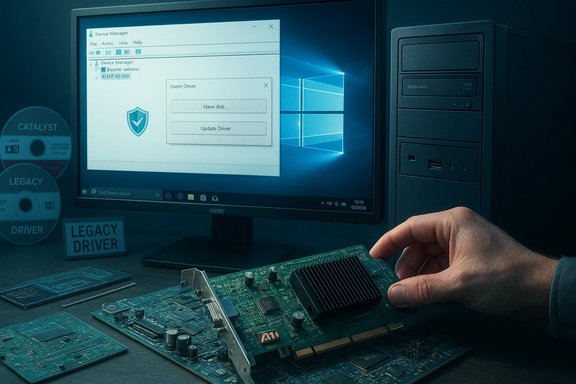 Background
The ATI ES1000 is a member of ATI’s older Rage/legacy embedded graphics family used in a variety of OEM motherboards and thin‑client designs. These parts were designed for the driver and operating system landscape of an earlier era, and vendor driver support was consolidated and archived long before Windows 10 became the dominant desktop OS. Community archives and modern forum testing report the same pattern repeatedly: vendors moved older ATI/AMD families into legacy maintenance, Microsoft’s Update Catalog frequently supplies a functional Microsoft‑signed driver for basic desktop use, and full vendor feature sets (Catalyst/Adrenalin utilities) are generally unavailable or unstable on modern Windows 10 kernels.This matters for two reasons. First, a working display is often achievable with Microsoft’s generic driver; second, restoring advanced features or older Catalyst utilities requires extraction, INF inspection, and manual installation techniques that are inherently advanced and risky. Community consensus stresses safety-first: backup, DDU cleanup, and OEM checks before chasing repackaged installers.
What “works” on Windows 10 x64 (practical definitions)
Safe and recommended: Microsoft‑signed legacy driver
- Stability and security are the key benefits.
- Provides basic desktop acceleration, multiple monitor support, and standard video playback.
- Installed via Windows Update’s Optional Drivers or through the Microsoft Update Catalog. Community threads repeatedly recommend this as the default first step.
Advanced but possible: Manual install of archival ATI drivers
- Extract an archival Catalyst/Rage package and inspect Display.Driver*.inf for your device’s VID/PID.
- If the INF explicitly contains your hardware ID, a manual “Have Disk” install via Device Manager can install a fuller legacy driver with more features than the generic Microsoft driver.
- This method is documented repeatedly in long‑form troubleshooting threads and is the principal technique to coax legacy GPUs into modern Windows versions.
Risky and not recommended: third‑party repackaged installers and “one‑click” updaters
- These often modify INFs, drop unsigned binaries, or bundle unrelated software.
- Community warnings call out these sites as security and stability hazards; prefer OEM or Microsoft sources.
Why official drivers for ES1000 on Windows 10 x64 are rare
Vendor lifecycles shifted decades ago away from the Rage/ES1000 family. AMD/ATI consolidated work on newer product families and modern driver frameworks (WDDM for Windows 10 and later), leaving older families in archive/legacy state where the last validated Catalyst packages were targeted at Windows 7 and earlier. That means:- Packaged installers frequently list older OS targets and may refuse to run on modern Windows 10 due to INF or installer manifest checks.
- The binary driver inside an archival package may still function if properly installed, but the GUI installer’s metadata is often the blocking factor. Community posts explain that the installer can fail even when the driver file itself is usable — because INF entries or installer manifests omit certain OEM device SKUs.
Preparing to install: a safety‑first checklist
Before attempting any driver work on an ES1000 system, follow this checklist exactly. Forum veterans emphasize these precautions as essential to avoid bricked systems or the need for full recovery imaging.- Create a full system image or at a minimum a Windows System Restore point.
- Record the GPU hardware ID: Device Manager → Display adapters → right‑click → Properties → Details → Hardware Ids. Copy the PCI\VEN_xxxx&DEV_yyyy string.
- Ensure you have another display output or the ability to boot into Safe Mode if the driver install fails.
- Download and keep the original working driver package (if any) for rollback.
- Download Display Driver Uninstaller (DDU) and place it on removable media; community threads recommend DDU as the standard cleanup tool before switching drivers.
Step‑by‑step: safest workflow to get a working ATI ES1000 on Windows 10 x64
This workflow merges the most consistent community recommendations into a single ordered procedure. It prioritizes Windows Update and OEM drivers, then moves to advanced manual installs only if necessary.- Try Windows Update first (recommended)
- Settings → Update & Security → Windows Update → Check for updates.
- Expand “Optional updates” and look for display driver updates. Allow Windows Update to install any Microsoft‑signed display driver and reboot to validate basic functionality. Many users find this is sufficient and the safest approach.
- Check OEM/vendor support pages
- If your system is a branded laptop, desktop, or thin client, the OEM may have a vendor‑tuned driver for Windows 10 x64. If available, prefer the OEM package over generic Catalyst archives.
- Clean the driver state (preparation for manual installs)
- Boot to Safe Mode and run Display Driver Uninstaller (DDU) to remove remnants of older drivers and registry entries. This step reduces the chance of partial installs and “Catalyst Control Center but Microsoft Basic Adapter” outcomes.
- Attempt a manual INF install only if necessary (advanced)
- Download an archival ATI driver package (older Catalyst or Rage drivers).
- Extract the installer (many ATI installers extract to C:\AMD by default). Inspect Display.Driver*.inf for your hardware’s VID/PID.
- If the INF contains your device ID, use Device Manager → Update driver → Browse my computer → Let me pick from a list → Have Disk… and point to the extracted INF.
- If Windows reports an unsigned driver, consider this only for temporary testing: disable driver signature enforcement for the install, test thoroughly, then re‑enable enforcement. Do not run production systems with signature enforcement permanently disabled.
- Pause Windows Update if it keeps reverting drivers
- Windows Update can automatically reinstall its Microsoft generic driver and replace a manual install. Temporarily pause feature updates or hide specific driver updates until you validate. Community workflows document this as a common necessary step.
- Validate and retain rollback options
- Confirm Device Manager shows the installed legacy driver and test the workflows that matter to you (multi‑monitor, video playback, legacy app rendering).
- Keep the extracted installer and INF for rollback; create a new system image immediately if successful.
Troubleshooting common failure modes
Community troubleshooting threads capture recurring problems and practical fixes. Use these diagnostic checks before escalating.- Installer aborts with “device not supported”
- Cause: INF does not list your VID/PID. Fix: Extract the package, verify the INF, and either perform a manual have‑disk install (if INF matches) or try an OEM package instead.
- Partial install (Catalyst/Control Center installs but display remains Microsoft Basic Display Adapter)
- Cause: Previous driver remnants or partial deployment. Fix: Boot to Safe Mode, run DDU, and reattempt a clean manual install.
- Windows Update keeps replacing manual driver
- Fix: Pause Windows Update or hide the driver update until you validate the manual install.
- Post‑install instability, BSODs or degraded performance
- Fixes: Revert using system image or restore point, reapply Microsoft generic driver from Windows Update, and test hardware for unrelated faults. Forum archives suggest that driver‑related BSODs on older ATI stacks sometimes require complete cleanup and a conservative Microsoft driver restore.
Security, provenance, and the danger of repackaged drivers
Several community posts issue sharp warnings: do not accept unknown repackaged drivers, and avoid third‑party driver updaters unless you can fully verify checksums and digital signatures. Repackaged installers can:- Include unsigned binaries that open attack surface.
- Modify INF files to force support for unsupported device IDs.
- Bundle adware or other unwanted components.
When replacement is the pragmatic choice
There are scenarios where the time, risk, and limitations of legacy drivers make a hardware refresh the most sensible option:- Needing modern codec hardware acceleration (HEVC, AV1) or WDDM features for streaming, editing, or new games.
- Mission‑critical systems where unsigned or fragile driver installs are unacceptable.
- When driver instability causes repeated downtime or potential data loss.
Practical checklist: exactly what to download and where to look
- Windows Update / Microsoft Update Catalog — first stop for a signed fallback driver.
- OEM support page for your desktop, laptop, or thin‑client model — the safest vendor‑tuned driver if present.
- AMD/ATI legacy archives — for historical Catalyst/Rage packages to extract INFs (advanced users only). Verify package integrity and be conservative.
- Display Driver Uninstaller (DDU) — to clean driver state before attempting manual installs. Community consensus stresses this as an essential step.
Example advanced procedure (concise, numbered)
- Backup: full image and restore point.
- Record device hardware ID.
- Attempt Windows Update driver and validate; if it works, stop.
- If more features are needed, boot Safe Mode, run DDU.
- Extract archival driver to C:\AMD, inspect Display.Driver*.inf for VID/PID.
- If ID matches, use Device Manager → Have Disk → point to INF → install. Reboot and test.
- If Windows reverts the driver, pause Windows Update or hide the driver update until validated.
Realistic expectations and feature gaps
Even with a successful manual install, remember:- Legacy Rage/ES1000 families predate modern WDDM driver features; expect limited 3D acceleration, no support for modern video codecs in hardware, and no Adrenalin‑era utilities.
- Gaming and modern multimedia workloads will be constrained by hardware and driver-era capabilities.
- Security updates for legacy drivers cease; running them on internet‑facing systems increases long‑term risk.
Conclusion
For the ATI ES1000 on Windows 10 x64, the best practical driver is the Microsoft‑signed legacy driver provided by Windows Update when it’s available — it gives the greatest stability and minimal security exposure. If you require additional legacy functionality, advanced users can try extracting archival ATI packages and performing a manual INF install after a thorough cleanup with DDU, but this path is inherently trial‑and‑error and carries measurable risk. Community consensus across multiple forum archives stresses conservative, well‑documented steps: backup first, verify INF hardware IDs, prefer OEM and Microsoft sources, and avoid unverified repackaged installers.If your goal is long‑term reliability, modern codec support, or contemporary gaming, replacing the GPU (or the host platform) is often the most pragmatic and cost‑effective solution rather than continuing to operate on legacy driver workarounds.
Key takeaway: start with Windows Update, confirm OEM options, and proceed to manual installs only after thorough backups and driver cleanup — that workflow gives the highest chance of a usable ATI ES1000 experience on Windows 10 x64 while minimizing stability and security risks.
Source: Born2Invest https://born2invest.com/?b=style-238619612/
