

If you’ve been stuck trying to get an older AMD mobile GPU — the Radeon HD 7650M, a 6630M, or similar Mobility Radeon parts — working cleanly on Windows 10, you’re not alone: community threads, vendor guidance and driver release notes converge on a cautious, methodical workflow because of legacy driver signing, INF mismatches, and the changing lifecycle of Windows itself. This article explains why those “clearance” driver bundles and forum quick‑fixes often fail, lays out a safe, step‑by‑step repair path, and evaluates the long‑term tradeoffs for running legacy Radeon hardware on an operating system that Microsoft has moved past.
Windows driver delivery for AMD graphics is the product of two distinct eras. The older Catalyst/Crimson packages (mid‑2010s and earlier) were designed for legacy GPU families and older Windows kernels; the modern AMD Software: Adrenalin Edition is AMD’s active driver ecosystem. On top of that, Microsoft’s end of mainstream support for Windows 10 changes the risk profile for running legacy drivers and repackaged installers.
If you encountered a forum thread or a “clearance” driver post and it did not include checksums, a digital signature verification, or a clear provenance back to AMD/OEM, treat it as unverified. The community‑recommended sequence — backup, try Windows Update/OEM first, clean with DDU, verify INF, then manual “Have Disk” install if necessary — is the proven way to get an old Radeon Mobility part working without unnecessarily exposing your system.
In short: start with Windows Update or your OEM driver; if you must use an archived AMD package, verify the INF, clean the system with DDU in Safe Mode, install via Device Manager (Have Disk) only when the INF contains your hardware ID, and never accept permanent signature‑enforcement changes on a production machine. Doing this will give you the best chance to restore a functioning AMD Radeon HD 7650M / 6630M driver on Windows 10 while minimizing security and stability tradeoffs.
Source: Born2Invest https://born2invest.com/?b=style-237474412/
 Background
Windows driver delivery for AMD graphics is the product of two distinct eras. The older Catalyst/Crimson packages (mid‑2010s and earlier) were designed for legacy GPU families and older Windows kernels; the modern AMD Software: Adrenalin Edition is AMD’s active driver ecosystem. On top of that, Microsoft’s end of mainstream support for Windows 10 changes the risk profile for running legacy drivers and repackaged installers.- Microsoft formally ended Windows 10 mainstream support on October 14, 2025, meaning routine security updates and official technical support for consumer Windows 10 versions stopped on that date. This is a critical context for anyone still maintaining older Windows 10 installs.
- AMD continues to publish Adrenalin drivers and legacy archives, but documentation and release notes have shifted to emphasize Windows 11 in some newer releases. That omission has caused confusion; AMD publicly clarified that driver compatibility for many Windows 10 systems remains available even where release notes no longer list Windows 10 explicitly. Use AMD’s own release notes and the package metadata to confirm supported OS targets for a specific driver build.
- Community troubleshooting and vendor recommendations converge on the same conservative sequence: try Microsoft/Windows Update or the OEM vendor driver first; if that fails and you must use a legacy AMD package, prepare for a careful manual install that includes hardware‑ID checks and a full cleanup beforehand.
Why many fixes for HD 7650M / 6630M “don’t work”
The most common failure modes
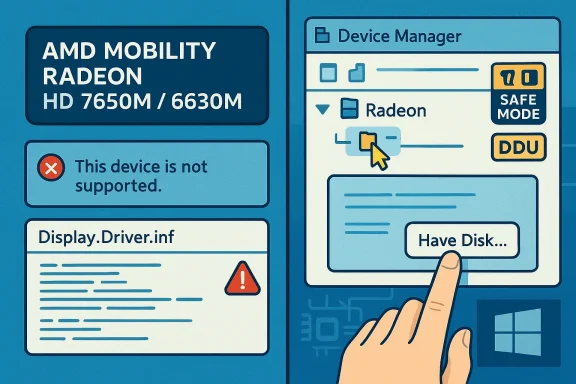
- The GUI installer aborts with “This device is not supported.” This usually means the driver package’s Display.Driver*.inf does not list your GPU’s_1002&DEV_xxxx). A GUI installer can’t install a driver that the INF doesn’t claim to support.
- The system appears to install something, but Device Manager still shows “Microsoft Basic Display Adapter.” That’s a sign of a partial install or leftover driver traces. Community threads consistently show that leftover files/registry keys from older stacks cause this. The usual remedy is a full cleanup (DDU) and then a controlled manual INF install.
- Windows Update continually reverts your manual install. Microsoft‑signed catalog drivers are preferred by Windows Update; if Microsoft’s catalog lists a signed generic Radeon driver, Windows Update may reinstall it automatically. Pausing Windows Update or hiding a specific driver while you validate an install is a standard troubleshooting step.
Why “one‑click” or marketplace “clearance” downloads are risky
- Repackagers often edit INFs, bundle unsigned kernel components, or omit checksums and digital signature details. These differences create stability, security, and signing enforcement issues on modern Windows kernels. Community audits and moderation logs repeatedly flag third‑party driver bundles as untrusted unless they clearly publish checksums and a provenance trace back to AMD or the OEM. If you found a Born2Invest-style post promising a “clearance” AMD driver, treat it as a discovery lead only — not authoritative proof of safety.
Overview: the safest path to restore a working display driver
If your goal is a stable, secure desktop and reliable video playback, follow the safety-first path. If you need Catalyst-era control utilities and legacy UVD features, proceed only as an advanced user and with full backups.Step 0 — Inventory and backup (do not skip)
- Record the GPU hardware ID:
- Device Manager → Display adapters → right‑click your device → Properties → Details tab → Hardware Ids. Copy the PCI\VEN_1002&DEV_xxxx string.
- Create a System Restore point and, if possible, a full disk image or other recovery media.
- Make sure you can boot into Safe Mode (create a recovery USB if necessary).
ial, lowest‑risk options first
- Settings → Update & Security → Windows Update → Check for updates → View optional updates → Driver updates. If Windows Update offers a Microsoft‑signed Radeon driver, install it and validate resolution and video playback. This is the lowest‑risk option.
- If you’re on a laptocheck the OEM support page for a Windows 10 driver for your exact model (Dell, HP, Lenovo, ASUS, etc.). OEM packages often include hybrid‑graphics support, power‑management, or vendor‑specific UWP components that AMD’s generic installers omit. Many community reports show OEM drivers resolve hybrid graphics and switchable graphics issues that generic packages do not.
Step 2 — Advanced: prepare for a manual / legacy install
- Download and verify packages only from authoritative sources:
- AMD official archives or your OEM vendor downloads are the primary sources.
- If you must consult community archives, require a published checksum or a matching AMD/OEM package signature before trusting the binary.
- Download Display Driver Uninstaller (DDU) and read the guide. mmunity tool to remove leftover driver traces in Safe Mode; it’s recommended before attempting a legacy install. Wagnardsoft (DDU author) documents how to use it safely and why Safe Mode is preferred.
- Verify the downloaded AMD package’s digital signature:
- Right‑click the installer → Properties → Digital Signatures. Confirm the signer is AMD or the OEM. If no valid signature is present, treat the package as untrusted (test only on a sacrificial machine).
Step 3 — INF check (the gatekeeper test)
- Extract the AMD package (many AMD installers self‑extract into C:\AMD).
- Open the extracted Display.Driver*.inf in a text editor and search for your PCI\VEN_1002&DEV_xxxx string.
- If the INF contains your device ID, you can try a manual “Have Disk” install from Device Manager.
- If it doesn’t, do not edit the INF unless you know how to re‑sign drivers and understand the security risks.
Detailed, safe workflow (advanced users only)
- Create a full backup and a system image. Create a restore point.
- Download the most appropriate driver candidates:
- Windows Update offered driver (if any).
- OEM driver for your exact machine model and Windows 10.
- AMD’s archived Catalyst/Adrenalin driver package (only from AMD) that corresponds to your GPU family.
- Disconnect from the internet (optional, recommended while you install a manual driver so Windows Update won’t auto‑revert mid‑test).
- Boot to Safe Mode and run DDU:
- Use the DDU Safe Mode dialog or manually reboot to Safe Mode.
- Run “Clean and restart” for AMD.
- Wait for the system to reboot to normal mode.
- Wagnardsoft’s DDU guide documents recommended options and warns about leaving DDU excluded from security software scans.
- Extract the AMD package and verify the INF includes your hardware ID (see Step 3 above). If the INF isn’t a match, stop and use Windows Update/OEM driver instead.
- Install via Device Manager (Have Disk) if INF matches:
- Device Manager → Display adapters → Right‑click → Update driver → Browse my computer → Let me pick from a list → Have Disk → point to the extracted Display.Driver*.inf.
- Install only the display driver portion; avoid optional runtimes or unsigned components.
- Reboot and validate:
- Check Device Manager for the proper Radeon driver entry (not Microsoft Basic Display Adapter).
- Validate resolution, video hardware acceleration, multi‑monitor behavior, and any hybrid/switchable‑graphics features on laptops.
- If Windows Update reverts the driver, temporarily pause Windows Update or use the “Show or hide updates” tool to hide the driver while you validate.
- If anything goes wrong, boot to Safe Mode, run DDU again, and reinstall the Microsoft or OEM driver. Restore from your disk image if necessary.
Security and lifecycle considerations
Windows 10 end of support impacts driver risk
- With Windows 10’s end of support on October 14, 2025, running legacy kernel‑level drivers on an unsupported OS elevates security risk and long‑term maintenance concerns. Kernel drivers are a known attack surface for privilege escalation; prefer Microsoft‑signed drivers and vendor support where security matters.
AMD’s practical stance
- AMD’s documentation shows many Adrenalin packages that historically listed Windows 10 compatibility. Recent release notes have occasionally omitted Windows 10 from the headline OS list, but AMD clarified that Windows 10 remains supported for applicable driver builds — with nuances for specific GPU families and maintenance modes. Always check the specific release notes and the package’s “Compatible Operating Systems” section to confirm support for your combination. Cross‑checking AMD’s release notes with third‑party reporting (Tom’s Hardware, TechRadar) gives a clearer picture for recent Adrenalin releases.
Lifecycle and maintenance modes
- Expect a movement to “maintenance” mode for older GPU families, where driver updates focus on security fixes or critical compatibility patches rather than new game optimizations. Some recent AMD communications have signaled that certain GPU lines are now in maintenance mode, which affects how much future investment AMD will put into drivers for those GPUs. If you rely on a legacy Radeon for productivity or retro gaming, be prepared to accept limitations or consider a hardware refresh.
Quick reference: What to avoid
- Avoid downloading repackaged “clearance” driver bundles from marketplaces or non‑vendor sites without published checksums and signature provenance. These often omit digital signatures and can include unsigned kernel drivers or bundled adware. Community audits repeatedly risky.
- Do not permanently disable driver signature enforcement or Secure Boot on production devices. Temporary test modes on sacrificial machines are acceptable for experimentation, but disabling signature enforcement weakens kernel protections.
- Don’t rely on the presence of Catalyst/Adrenalin UI as proof the driveny reports of the UI installing while Device Manager still shows the Microsoft Basic Display Adapter; this typically indicates a partial or mismatched install. Use Device Manager and real workload tests to validate functionality.
When to consider alternatives
- If you need modern codecs (HEVC 10‑bit, AV1) or current game performance, an older Mobility Radeon GPU will provide limited benefit. A hardware upgrade is the most straightforward long‑term fix.
- If the laptop or desktop cannot move to a supported OS and security is essential, consider migrating the device to a supported OS or enrolling in Extended Security Updates (ESU) where available. Microsoft documented options for moving forward after Windows 10 EOL.
- For hobbyists and legacy gaming, Linux distributions often provide better long‑term driver support for older hardware via the open‑source driver stacks; investigate that option if you’re comfortable switching platforms.
Real‑world example: Why the “This device is not supported” message happens (and how to fix it)
- Situation: You run an AMD Catalyst installer for an older Mobility Radeon and get “This device is not supported.”
- Root cause: The installer’s INF lacks your GPU’s PCI\VEN1002&DEV#### value, so the GUI refuses to bind the driver to your hardware.
- How to fix: Extract the package, open Display.Driver*.inf and search for your hardware ID. If present, use Device Manager → Update driver → Have Disk → point to that INF. If not present, don’t proceed with INF edits unless you can re‑sign drivers. If you need more features than Microsoft/OEM drivers provide, and the INF matches, run DDU first then perform the manual INF install.
Practical checklist you can follow right now
- Backup and create a system image.
- Record GPU hardware ID (PCI\VEN_1002&DEV_xxxx).
- Try Windows Update optional driver first and test.
- If on a laptop, try the OEM driver for your exact model and Windows 10.
- If still needed, download DDU and read the author’s Safe Mode guide. Run DDU in Safe Mode to wipe old traces.
- Extract the AMD package and check Display.Driver*.inf for your hardware ID.
- If the INF contains your ID, install via Device Manager → Have Disk.
- Pause Windows Update while validating the manual install if Windows Update reverts drivers.
- If problems persist, boot to Safe Mode, run DDU again, and restore the OEM or Microsoft driver.
Final analysis and caution
The community evidence and vendor guidance point to the same practical reality: the safest path for legacy AMD mobile GPUs on Windows 10 is to prefer Microsoft‑signed Windows Update drivers or OEM drivers and to reserve Catalyst-era manual installs for advanced users who can take full backups and follow the INF verification + DDU cleanup workflow. The risks are real: unsigned or repackaged installers can introduce kernel-level instability and security exposure, and with Windows 10 moved out of mainstream support after October 14, 2025, you should plan a transition strategy if the device is important to your daily workflow.If you encountered a forum thread or a “clearance” driver post and it did not include checksums, a digital signature verification, or a clear provenance back to AMD/OEM, treat it as unverified. The community‑recommended sequence — backup, try Windows Update/OEM first, clean with DDU, verify INF, then manual “Have Disk” install if necessary — is the proven way to get an old Radeon Mobility part working without unnecessarily exposing your system.
In short: start with Windows Update or your OEM driver; if you must use an archived AMD package, verify the INF, clean the system with DDU in Safe Mode, install via Device Manager (Have Disk) only when the INF contains your hardware ID, and never accept permanent signature‑enforcement changes on a production machine. Doing this will give you the best chance to restore a functioning AMD Radeon HD 7650M / 6630M driver on Windows 10 while minimizing security and stability tradeoffs.
Source: Born2Invest https://born2invest.com/?b=style-237474412/
