

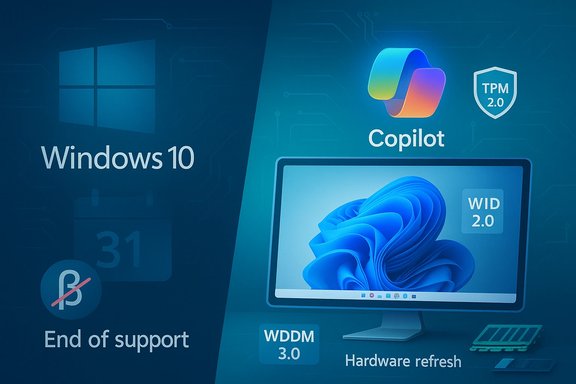
Microsoft’s oft-repeated line that “Windows 10 will be the last version of Windows” is now a piece of historical context rather than a roadmap — a pivot point that helps explain how Microsoft’s strategy shifted from versioned releases to continuous service and then, unexpectedly, back to a new major release with Windows 11. The fallout from that shift — closing the Windows 10 Beta channel, the October 14, 2025 end-of-support deadline, new AI pushes like Copilot, ongoing subsystem improvements such as WDDM 3.0 and WSLg, and recurring security headaches (Spectre/Meltdown-era compatibility problems) — defines the choices millions of consumers and enterprises face today. This feature examines those developments, verifies the technical claims around them, and offers practical guidance and risk analysis for anyone managing Windows devices or planning an upgrade path.
Microsoft’s 2015 pronouncement that Windows 10 would be “the last version of Windows” was intended to signal a transition to a continuous-delivery model: an always-up-to-date Windows delivered as a service rather than a set of monolithic numbered releases. In practice, that promise evolved into a hybrid approach — regular feature updates and cumulative servicing for Windows 10, followed by a new major release in 2021: Windows 11.
By 2024–2025 Microsoft made two strategic moves explicit. First, it wound down certain Windows 10 development channels and signaled limited future feature activity while preserving security servicing until a fixed end-of-support date. Second, it refocused engineering and marketing on Windows 11 as the primary vehicle for AI-first experiences — most visibly the Copilot integration and Copilot+ PC initiatives. These shifts created friction for users on older hardware and enterprises with large, heterogeneous fleets.
The practical result: every stakeholder now needs to balance compatibility, security, cost, and AI-readiness when deciding whether to upgrade hardware, move to Windows 11, purchase extended security support, or consider alternatives such as Linux for particular workloads.
Windows’ evolution since the “last version” statement is a study in strategic recalibration. The company’s move to continuous updating, followed by a new major release and a rapid push into AI, leaves users with very tangible choices: upgrade hardware and embrace Windows 11’s AI-first direction, extend support temporarily and consolidate legacy systems, or re-architect critical workloads to reduce OS dependency. The right path depends on risk tolerance, budget cycles, and the business value of new capabilities like Copilot and WSLg. For most organizations and power users, the pragmatic path is clear: inventory, pilot, and migrate in measured phases — treat the end-of-support date as a project deadline rather than an abstract line in the sand, and use each step to strengthen security and operational resilience before adopting the next set of platform features.
Source: BetaNews https://betanews.com/article/micros...rk-theme-in-windows-10-with-a-registry-hack/]
 Background and overview
Microsoft’s 2015 pronouncement that Windows 10 would be “the last version of Windows” was intended to signal a transition to a continuous-delivery model: an always-up-to-date Windows delivered as a service rather than a set of monolithic numbered releases. In practice, that promise evolved into a hybrid approach — regular feature updates and cumulative servicing for Windows 10, followed by a new major release in 2021: Windows 11.By 2024–2025 Microsoft made two strategic moves explicit. First, it wound down certain Windows 10 development channels and signaled limited future feature activity while preserving security servicing until a fixed end-of-support date. Second, it refocused engineering and marketing on Windows 11 as the primary vehicle for AI-first experiences — most visibly the Copilot integration and Copilot+ PC initiatives. These shifts created friction for users on older hardware and enterprises with large, heterogeneous fleets.
The practical result: every stakeholder now needs to balance compatibility, security, cost, and AI-readiness when deciding whether to upgrade hardware, move to Windows 11, purchase extended security support, or consider alternatives such as Linux for particular workloads.
The “Windows 10 will be the last version” moment — what it meant and why it didn’t
The original intent: Windows as a service
In 2015 Microsoft framed Windows 10 as an operating system that would evolve continuously through updates. The messaging aimed to reduce fragmentation (multiple old Windows versions in the market), accelerate feature delivery, and simplify lifecycle management for Microsoft and its ecosystem partners.- The promise: fewer disruptive version jumps, more incremental updates.
- The expected benefit: faster distribution of security and usability improvements across billions of devices.
The reality: a return to major releases
The later announcement and release of Windows 11 in 2021 demonstrated the limits of “one OS forever.” Windows 11 introduced new UX paradigms and hardware requirements (TPM 2.0, Secure Boot, and specific CPU families) that forced a clear delineation between legacy and modern PCs.- Outcome: Windows resumed having a distinct “next major version” in practice — driven partly by new security and AI features that assumed modern silicon and firmware capabilities.
- Implication: The phrase “last version” now reads as an artifact of a strategy pivot rather than a literal, permanent truth.
What this history teaches IT leaders
The lesson for IT and procurement teams is straightforward: platform roadmaps can shift. A commitment to a single major path (stay on Windows 10 forever) exposes organizations to supplier strategy changes. Long-term device planning must therefore account for vendor pivots, hardware refresh cycles, and the possibility that “continuous delivery” can coexist with occasional major releases.Windows 10 lifecycle: Beta channel closure and end of support
Recent operational changes
Microsoft closed or consolidated Windows 10 preview testing channels in the lead-up to the platform’s end-of-support milestones, signaling that significant feature development would move to Windows 11. The Beta channel closure was accompanied by an explicit end-of-support calendar that culminated in the final free security update date.- Practical dates and facts: Windows 10 mainstream security and feature servicing followed a defined lifecycle, with the final free updates set to end on a declared date. After that, ongoing free security patches cease unless an extended support option is purchased.
What closure of the Beta channel means for users
Closing the Beta channel (and migrating testers to Release Preview) effectively removes an accessible path for early feature feedback on Windows 10. Users and enterprises lose the opportunity to validate pre-release behavior and must rely on the more conservative Release Preview or forgo new features altogether.- For power users: fewer experimental features and slower introductions of UX changes.
- For enterprises: reduced testing windows and a firmer requirement to validate applications against Windows 11 sooner.
Extended Security Updates and migration options
Microsoft historically offers paid Extended Security Updates (ESU) to buy time for legacy deployments. For organizations with immovable dependencies, ESU can be a stopgap — but it is a recurring cost and not a permanent solution.- Consider cost vs. risk: ESU expenses plus compensating security controls can exceed the cost of hardware refresh or migration over time.
- Staged migration recommended: test critical apps in a pilot group, deploy compatibility workarounds, and schedule hardware refresh cycles aligned with vendor warranty and procurement windows.
Copilot in Windows: AI arrives on Windows 10 and Windows 11 — what’s supported where
Copilot’s expansion onto Windows 10
Microsoft has moved aggressively to integrate Copilot — its generative AI assistant — across Windows. Copilot started as a Windows 11 flagship feature, but Microsoft also released preview support for Copilot on Windows 10 (22H2) via controlled rollouts and preview programs.- Key practical point: Copilot on Windows 10 is available as an opt-in preview in supported builds and markets, with phased rollout behavior and eligibility checks.
- Requirements: Eligible Windows 10 devices must run supported 22H2 updates and meet minimum runtime constraints (memory and display capability); managed (Enterprise/EDU) devices are often excluded from early controlled rollouts.
Copilot+ PCs and the push to modern hardware
Microsoft’s Copilot+ initiative bundles optimized AI experiences with specific hardware and firmware capabilities. These “AI PCs” and Copilot+ features are primarily a Windows 11 story, designed to leverage hardware accelerators and advanced drivers to deliver low-latency on-device AI.- Business implication: If on-prem, low-latency, or privacy-sensitive AI is a requirement, the value proposition favors investing in Copilot+ capable hardware — typically Windows 11 certified platforms.
Administration and privacy controls
As Copilot became more embedded, Microsoft introduced admin controls and removal options for managed Windows 11 devices; some of these controls and policies are now also reflected in preview capabilities and group policy choices across the Windows family. Administrators can restrict rollout, manage Copilot app behavior, and implement governance around connector access (OneDrive, Outlook, Google services, etc..- Security note: Copilot features are opt-in for data connectors and integrate with organizational compliance workflows when configured properly.
WDDM 3.0 and WSLg: graphical Linux apps in Windows
What WDDM 3.0 adds
The Windows Display Driver Model (WDDM) 3.0 brought infrastructure that enables the Windows Subsystem for Linux graphical support (WSLg) to operate smoothly with host GPUs, making Linux GUI apps feel native on Windows 11. This is a core enabler for developers who rely on Linux tooling but prefer a Windows desktop.- Technical advantages:
- Hardware-accelerated rendering of Linux GUI apps through a user-mode driver model.
- Seamless integration with Windows windowing, clipboard, and task switching.
- Per-app GPU acceleration where vendor drivers support required features.
Practical impact for developers and power users
Running Linux GUI applications directly on Windows removes friction for cross-platform development and testing. WSLg support means developers can run editors, IDEs, and Linux-native utilities without virtualization overhead or separate machines.- Caveats:
- Not all GPUs and drivers will deliver identical performance; vendor support matters.
- For specialized hardware (legacy GPUs, proprietary drivers), a native Linux environment or a dedicated VM may still be preferable.
The Spectre and Meltdown pause: an historical safety lesson
What happened and why it matters
When Spectre and Meltdown were disclosed, vendors raced to patch firmware and operating systems. In early January 2018 Microsoft temporarily paused delivering certain microcode/OS mitigations to machines with some AMD processors after reports that the updates created boot or blue-screen failures.- Root cause: mismatches between chipset documentation and actual silicon behavior caused some mitigations to lead to unbootable machines.
- Outcome: Microsoft pulled affected updates, worked with AMD, and only reissued mitigations after fixes and checks.
Why this historical episode remains relevant
That pause is a reminder that rapid patching across a hardware-diverse installed base can have severe compatibility consequences. Organizations running older or diverse hardware should weigh staged rollout strategies and robust testing before broad deployment of kernel- or firmware-level mitigations.- Operational best practices:
- Maintain a pilot ring for high-impact updates.
- Use device inventory and telemetry to identify affected CPU families in advance.
- Apply out-of-band mitigation only after vendor guidance for your hardware is confirmed.
Registry hacks and hidden UI tweaks: the dark theme example
The secret dark theme registry tweak
Early Windows 10 builds contained a hidden dark theme toggle that could be enabled via the registry by creating or modifying the AppsUseLightTheme and SystemUsesLightTheme DWORD values in the Personalize key for both HKLM and HKCU. The tweak exposed how many OS behaviors are controlled by simple keys, but also why registry edits can be brittle and unsupported.- Practical note: Editing the registry is a low-level change; it can be used for customization or recovery but must be backed up and tested first.
Why power-user tweaks matter
Hidden tweaks and registry hacks are useful for enthusiasts and administrators for targeted customizations or recovering features, but they carry risk:- Unsupported behavior can break with cumulative updates.
- Enterprise environments should prefer group policy or supported management tools to avoid drift.
App ecosystems and user experience: “Best Windows apps” regular coverage
Weekly or periodic roundups of the best Windows apps help illustrate two trends: (1) the ongoing vitality of useful utilities in Windows 10/11 that fill gaps Microsoft doesn’t prioritize, and (2) the role of the Microsoft Store and third-party installers in shaping user behavior.- For users: curated app lists are a quick way to discover productivity and utility software optimized for both Windows 10 and Windows 11.
- For admins: maintain whitelists and application management policies to control which apps are permitted in corporate environments.
Migration considerations: practical, prioritized steps
For consumers and small businesses
- Inventory: map devices by model, CPU family, TPM presence, RAM, and storage.
- Check compatibility: use Microsoft’s PC Health Check or vendor tools to determine Windows 11 eligibility.
- Decide path:
- Upgrade supported devices to Windows 11 for full future feature access.
- For ineligible but functional devices, plan whether to buy ESU (if available) or migrate to Linux or new hardware.
- Backup and test: image critical systems and test key apps before mass migration.
For enterprises and IT leaders
- Prioritize workloads: rank by business impact and compatibility risk.
- Pilot early: use small, representative pilot rings to exercise upgrade scripts and security baselines.
- Protect legacy: where upgrades are impossible, isolate and compensate (network segmentation, additional endpoint controls, IDS/IPS rules).
- Budget for hardware refresh cycles aligned with end-of-support calendars.
Security and risk analysis
Immediate risks after end-of-support
Once free security updates stop, exposed systems rapidly become riskier targets. Unpatched vulnerabilities in an unsupported OS can be exploited to gain persistence, exfiltrate data, or disrupt services.- Compensating controls (temporary): strong network segmentation, strict application whitelisting, robust EDR tooling, and aggressive monitoring.
Long-term operational risk
Relying on paid extended support indefinitely increases ongoing operational cost and does not remove functional compatibility problems with new software vendors who will optimize for newer OS versions.- Strategic recommendation: treat ESU as a tactical bridge, not a strategic destination.
Strengths, weaknesses, and the horizon
Strengths in Microsoft’s approach
- Focus on security: hardware-backed features (TPM, Secure Boot) aim to raise baseline security.
- Developer-focused improvements: WSL2 and WSLg bridge Linux and Windows ecosystems in meaningful ways.
- Integration of AI: Copilot and Copilot+ reflect an ambitious attempt to improve productivity across apps and platforms.
Weaknesses and risks
- Hardware-driven exclusion: strict Windows 11 requirements leave perfectly functional PCs stranded and accelerate hardware churn.
- Messaging inconsistency: “Windows as a service” versus subsequent major releases created confusion for buyers and IT planners.
- Rapid feature growth vs. stability: AI and major UX shifts increase upgrade testing overhead for corporate IT.
Final recommendations
- Plan now, act in stages: use the end-of-support date as a hard milestone for inventory reconciliation, pilot testing, and budget planning.
- Prioritize security over novelty: security and compliance must guide upgrade decisions; avoid chasing AI features at the cost of unmanaged exposure.
- Use pilots and telemetry: staged rollouts, device telemetry, and compatibility testing reduce risk and operational disruption.
- Treat ESU as a bridge: if extended updates are needed, account for their cost and use them to buy controlled time for migration, not to postpone action indefinitely.
- Embrace cross-platform tools: evaluate WSL, containers, and cross-platform development tools to reduce OS-dependency for legacy or niche workloads.
Windows’ evolution since the “last version” statement is a study in strategic recalibration. The company’s move to continuous updating, followed by a new major release and a rapid push into AI, leaves users with very tangible choices: upgrade hardware and embrace Windows 11’s AI-first direction, extend support temporarily and consolidate legacy systems, or re-architect critical workloads to reduce OS dependency. The right path depends on risk tolerance, budget cycles, and the business value of new capabilities like Copilot and WSLg. For most organizations and power users, the pragmatic path is clear: inventory, pilot, and migrate in measured phases — treat the end-of-support date as a project deadline rather than an abstract line in the sand, and use each step to strengthen security and operational resilience before adopting the next set of platform features.
Source: BetaNews https://betanews.com/article/micros...rk-theme-in-windows-10-with-a-registry-hack/]
