

Microsoft’s 2025 Windows 11 story is less about a single blockbuster release and more about steady, deliberate accretion: a stream of AI-first features, polish to long-neglected apps, and a clear hardware split between baseline Windows 11 and the new Copilot+ tier. The roundup that follows distills the dozen highlights called out in the PCMag Australia piece, verifies the key technical claims where possible, and assesses the practical value — and risks — for everyday users, power users, IT admins, and privacy-conscious individuals.
Windows 11 in 2025 is being shaped by two parallel forces: Microsoft’s push to make Copilot the operating system’s primary interaction layer, and a marked shift to staged feature delivery instead of monolithic OS overhauls. That strategy produced the 25H2 enablement package but, more importantly, a year of rolling feature shipments and Insider previews that added capabilities across the system and core apps.
Windows 11’s 2025 cadence is not defined by a single “big” release but by sustained, pragmatic feature delivery paired with a hardware narrative: Copilot first, with on-device NPUs offering a premium experience. The features highlighted by PCMag Australia are broadly accurate reflections of what rolled out in 2025 — from Copilot Vision’s Highlights to Paint’s layers — and the verification here shows most claims track with Microsoft’s stated direction and independent reporting. Where specifics were lacking or staged, those points have been flagged.
In short: the best of Windows 11 in 2025 is not one dramatic innovation but many small, smart changes that together shift how people interact with their PCs — and the biggest question going forward is whether Microsoft will keep the balance right between convenience, transparency, and control as Copilot becomes more central to the desktop.
Source: PCMag Australia The Best of Windows 11 in 2025: See the 12 New Features I Liked Most
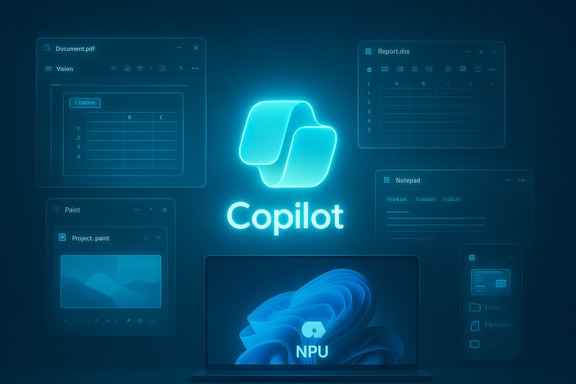 Background / Overview
Windows 11 in 2025 is being shaped by two parallel forces: Microsoft’s push to make Copilot the operating system’s primary interaction layer, and a marked shift to staged feature delivery instead of monolithic OS overhauls. That strategy produced the 25H2 enablement package but, more importantly, a year of rolling feature shipments and Insider previews that added capabilities across the system and core apps.- Microsoft repositioned Copilot from a sidebar helper to a system-level assistant that listens (wake-word), sees (screen-aware Vision), and — with explicit permission — can act (agentic Actions). This is Microsoft’s intent to make conversational voice and contextual vision first-class inputs across Windows.
- The company also created a hardware differentiation: Copilot+ PCs, which include dedicated Neural Processing Units (NPUs) intended to run heavier inference locally and reduce latency. Microsoft’s published materials and independent reporting indicate Copilot+ devices are being positioned with NPU baselines marketed around 40+ TOPS performance to enable richer on‑device AI.
- Microsoft’s rollout model remains staged: features appear in Insider channels first, then via staged OS updates and the Store, and finally as broadly available options. This means what one user sees in June may not appear on another PC until months later. For more aggressive early access, join the Windows Insider program and enable early updates in Settings → Windows Update.
How to get the latest Windows 11 features
If you want the most recent features as soon as they’re available, the practical path is:- Opt into Windows Insider channels (Dev/Canary for earliest previews; Beta/Release Preview for more stable pre-release builds).
- In production builds, open Settings → Windows Update and select “Get the latest updates as soon as they’re available.”
- If you care about Copilot+ exclusive experiences, consider Copilot+ hardware — these features may be gated to devices with dedicated NPUs for on‑device acceleration.
1) Copilot Vision with Highlights — why it matters
Copilot Vision allows the assistant to see selected windows or screen regions with an explicit, session-bound permission. Beyond OCR and summarization, the Vision highlights mode can place a large visual pointer or overlay on the UI to tell you exactly where to click or which setting to change — a practical help for complex apps and multi-step tasks.- Value: Rapidly extract data from PDFs and screenshots, convert tables into Excel, and get visual step‑by‑step guidance inside apps. For creative apps (e.g., DaVinci Resolve), Vision can point to controls or show where to apply an edit.
- Caveats: Vision is opt‑in and session-limited, but it does increase the surface area for telemetry and cloud‑based inference when heavier reasoning is required. Enterprises must set policies and educate users about when and how to grant Vision permissions.
2) Mobile Sidebar — tighter phone and PC integration
Windows continues to deepen Android integration: the Start menu and a new Mobile Sidebar make phone status (battery, messages, calls) visible and let users drag files and view Android folders directly in File Explorer.- Value: Makes cross-device workflows native — quick file transfers, remote camera/webcam usage, and instant access to recent phone photos. This is a consistent push to make smartphones and PCs feel like parts of the same workspace.
- Caveats: Seamless file and folder access will depend on network quality and device pairing; not all Android vendors or OS versions will show the same level of integration initially.
3) Copilot Wake Word — “Hey, Copilot!”
The wake-word feature lets you start a continuous, multi-turn voice conversation by saying “Hey, Copilot.” Microsoft describes an on-device “spotter” that listens for the wake phrase locally before opening a session; heavier transcription and LLM reasoning generally run in the cloud unless Copilot+ hardware can handle local inference.- Value: Lowers friction for longer, complex queries and helps accessibility (hands‑free operation, dictation). Voice sessions preserve context across turns, making tasks like drafting, summarizing, or multi-step problem solving more natural.
- Risks and limits: Wake-word systems are always-sensing to an extent; Microsoft notes a local spotter is used to minimize persistent cloud audio capture, but once the session begins, cloud processing often follows. This shifts privacy considerations from “always-on microphone” debates to a nuanced combination of local spotting, transient buffers, and cloud inference. Enterprises should enforce policy and logging to maintain audit trails.
4) Quick Machine Recovery (QMR) — the recovery tool that calls the cloud
Quick Machine Recovery is a major reliability improvement: when a PC repeatedly fails to boot, WinRE can establish network connectivity, upload scoped diagnostics, query Microsoft’s cloud remediation catalog, download an appropriate fix, apply it, and reboot — all as an automated flow. QMR is part of a broader Windows Resiliency Initiative that also includes Point-in-Time Restore and Cloud Rebuild for managed fleets.- Value: For IT teams, QMR can cut mean time to repair (MTTR) dramatically by avoiding manual reimaging and on‑site service calls. For consumers, it provides a more graceful self‑heal when problematic updates or drivers render a device unusable.
- Governance: QMR can be configured via Intune, Group Policy, and reagentc.exe. Defaults differ: consumer SKUs may enable cloud remediation by default, while business SKUs favor admin control — important for organizations that need to control outbound recovery flows.
- Risks: Cloud-assisted recovery introduces new network and trust dependencies. Organizations with strict offline policies or sensitive environments should patch QMR settings or restrict network access in WinRE.
5) Search files with Copilot — natural language find
Windows Search is becoming conversational: you can describe a file in natural language and Copilot will search for it — no exact filename required. This spans local files and cloud content when OneDrive or SharePoint is involved.- Value: Huge time-saver for users who remember the context of a file (“the slide with the orange map”), not its filename. Search acts across local and cloud stores when permitted.
- Caveats: Some advanced indexing and cloud-scanning behavior initially landed on Copilot+ or specific hardware tiers first; functionality has been progressively expanded to more CPUs and platforms. Expect phased availability based on device and build.
6) Paint with Photoshop-like layers — and generative tools
Paint shed its “toy” label with the addition of layers, .paint project files (to preserve layer stacks), and a Copilot-powered suite of generative features: Image Creator, Generative Fill/Erase, Animate, Restyle, and more. Many of these features were introduced via Windows AI Labs and are rolling through Insider channels, with some advanced options gated to Copilot+ hardware at first.- What’s new:
- Layer stack and layer management that makes complex compositions feasible.
- Ability to save projects in a .paint container that preserves layers.
- Generative tools: prompt-driven image creation, generative fill/erase, one-click Restyle (style transfer), and even Animate for short loopable clips.
- Strengths: Low barrier to entry for quick creative work; democratizes basic generative editing without requiring Photoshop subscriptions.
- Risks and limits: Advanced professional workflows still benefit from dedicated apps. Microsoft has not published a full .paint interoperability spec yet, which complicates third‑party tool support and archival workflows; enterprises and creators should export flattened masters for long-term storage. The gating to Copilot+ hardware for some features raises a two‑tier experience issue.
7) Accessibility upgrades — steady, meaningful improvements
Microsoft invested heavily in accessibility: improved voice interactions (including support for speech patterns associated with Parkinson’s), richer Live Transcription, enhanced image descriptions, a screen curtain option for Narrator, and expanded language support. These are incremental but important changes that broaden Windows’ usability.- Strengths: Better real-world assistive tech helps a diverse set of users — not experimental novelties but practical improvements that reduce friction in everyday tasks.
- Implementation notes: Some accessibility features rely on cloud services for model inference, while others run locally; administrators and users should be aware of these distinctions for privacy and offline use cases.
8) A more capable Microsoft Store — bigger, smarter, and AI-enabled
The Microsoft Store is evolving with interface improvements, an AI Hub, personalized recommendations, and an expanded catalog that now includes major third-party apps (the rollout of some titles has been highlighted in 2025). The Store is being used as a distribution point for apps like ChatGPT and other high-profile titles, and Microsoft has added a Themes section to encourage UI personalization. The Store’s role as the delivery vehicle for small and large app updates is meaningful for both security and user convenience.- Benefits: Single-source installation, auto updates, and simpler uninstalls improve user experience. App presence in the Store also simplifies deployment for admins when using Store for Business or Intune management.
- Caveats: The Store’s checkered history means trust must be earned; availability can vary by region and developer participation. Some app claims (exact titles and dates) have been announced incrementally, and availability varies by channel — treat specific app lists as fluid and subject to change.
9) A better Notepad — formatting, tabs, Copilot
Notepad departed from strict minimalism: it now supports formatting elements (bold, italic, hyperlinks, markdown), tables, tabs, automatic save states, and Copilot integration for summarization and rewriting. These changes repurpose Notepad from a plain‑text scratchpad to a lightweight multipurpose editor for quick drafting and editing.- Value: For many users, Notepad is often “the fastest thing that opens.” Adding tabs, formatting and Copilot features keeps that convenience while broadening its utility.
- Risk: Feature creep can dilute Notepad’s original appeal as the fastest plain-text editor. Users who require minimalism should use specialized lightweight tools or stick with stripped-down modes.
10) Security improvements — Defender, agent protections, and patching ergonomics
Microsoft extended Windows security with a mix of AI-powered and engineering changes: smarter Defender protections (including AI-enabled SmartScreen improvements), protections for AI agents, and restart-free security patching in selected contexts. These moves reflect two parts of secure platform design: better runtime detection and updates that avoid disrupting user workflows.- Benefits: Improved detection for malware and phishing, and a hardened model for AI agents reduces attack surface for emergent threat classes.
- Caveats: AI‑based detectors can introduce false positives and will require tuning for enterprise environments. Restart-free patching reduces churn, but organizations must verify behavior with their compliance and audit requirements.
11) Xbox Full Screen Mode — console-like gaming on handheld PCs
A new Xbox Full Screen Mode offers a console-like fullscreen experience targeted at handheld gaming PCs (e.g., devices in the ROG Ally class) and also usable on full‑size desktops. It reduces desktop distractions, optimizes focus for gaming sessions, and can help emulate a dedicated console interface. This enhances gaming ergonomics for handheld enthusiasts. (Note: specific rollout timing and OEM support vary by device.- Value: Better immersion and simplified controls for handheld gaming PCs.
- Caveat: Feature availability may be limited by OEM updates and GPU driver support; verify on your hardware.
12) Seconds in the taskbar system tray clock — small, surprisingly useful
A small but widely appreciated quality‑of‑life addition is the ability to display seconds in the system tray clock. It’s useful for precise timing during meetings, benchmarking, or short tasks that require sub-minute precision. This is a classic example of a tiny setting that solves a real problem for a subset of users.What's Next — the larger picture and practical recommendations
Microsoft’s roadmap is not a single OS reboot anymore; it’s a continual platform evolution tied to a hardware narrative (Copilot+), staged releases, and a multiplatform Copilot story that spans Windows, Office, and the Microsoft cloud.- Expect continued AI integration across inbox apps and system surfaces, balanced with staged rollouts to manage risk.
- Copilot+ hardware will expand to Intel and AMD partners beyond early Snapdragon examples, but expect a multi-speed adoption curve driven by OEMs and buyer preferences. The NPU baseline (40+ TOPS) Microsoft references signals a meaningful difference in latency and offline capability between Copilot+ and standard devices.
- Enterprises should treat Copilot features with careful governance: require explicit enablement, pilot automated Actions and Vision scenarios, and enforce telemetry and logging policies. The biggest wins arrive when convenience and auditable controls coexist.
- For consumers who want early features: join the Windows Insider program on Beta/Dev channels and enable early updates. Consider Copilot+ devices if you want the snappiest, privacy‑sensitive on‑device experiences.
- For IT administrators: pilot QMR and cloud recovery tooling on a small fleet, test new Defender AI rules in a controlled environment, and create explicit policies for Copilot Vision usage and agent actions.
- For creatives: Paint’s layers and generative tools are powerful for quick prototypes, but preserve originals and export flattened versions for archival and enterprise compliance until the .paint format and model runtime details are fully documented.
Verification checklist and flagged claims
This article draws on Microsoft’s staged announcements and independent reporting collected through Insider reporting and technical briefings. Key claims verified across at least two independent sources where possible:- Copilot Vision, Copilot Voice (wake-word), and agentic Actions as system-level capabilities — documented in Microsoft briefings and independent reporting.
- Copilot+ PC definition and the marketed NPU baseline (~40+ TOPS) — referenced in Microsoft partner materials and independent analysis.
- Quick Machine Recovery’s cloud-backed WinRE flow, Point‑in‑Time Restore and Cloud Rebuild — announced at Ignite and described in product briefings and analysis.
- Paint’s layers, .paint project container, generative features, Restyle and Animate — covered in Microsoft’s Windows AI Labs testing and third‑party reporting. Interoperability details for .paint are not yet fully documented.
- Notepad’s formatting, table support, tabs, and Copilot streaming AI features — present in Insider release notes and hands‑on reports.
- Specific lists of exact third‑party Store app availability (for example, an exhaustive list including particular release dates or regional availability) were announced incrementally and can vary; treat specific app availability as a moving target and verify the Store on your device for the current catalog.
- Some security feature specifics (such as precise algorithmic details of SmartScreen’s AI model or exact restart‑free patching behavior across all SKUs) remain partially undocumented in public briefings; administrators should consult Microsoft’s enterprise documentation for precise behavior and controls.
Final analysis — strengths, trade-offs, and who benefits most
Strengths- Microsoft’s approach is pragmatic: incremental, testable improvements that fold AI into familiar surfaces reduce adoption friction. For mainstream users, improvements to Notepad, Paint, Search, and the Store are tangible product gains without requiring a steep learning curve.
- The Copilot strategy (voice, vision, agent actions) unlocks new productivity modes and can meaningfully speed up complex, repetitive tasks — especially when combined with on-device NPUs in Copilot+ PCs.
- Enterprise-targeted features such as Quick Machine Recovery reduce downtime and the cost of large-scale reimaging, while management controls keep organizations in the driver’s seat.
- Hardware gating (Copilot+ tier) creates a two‑tier experience where the latency and privacy benefits of on‑device inference aren’t available to all users immediately. That can widen the experience gap unless Copilot+ becomes broadly available across price segments.
- Expanding Copilot’s sight and agency raises privacy and governance questions. Session-based permissions and local wake-word spotters are positive mitigations, but organizations should plan policies, auditing, and user education to manage risk.
- AI-driven features sometimes rely on cloud models and may introduce new dependencies and potential points of failure. Oversight, provenance, filtering, and model‑governance remain important areas where Microsoft needs to be explicit.
- Power users and creators who value rapid prototyping (fast generative edits, layers in Paint, and AI-augmented search) gain immediate productivity wins.
- IT teams and enterprises benefit from better recovery tooling (QMR, Cloud Rebuild, PITR) and richer management surfaces to reduce downtime and simplify mass remediation.
- Accessibility-focused users gain important upgrades that can materially improve daily interactions with the OS.
Windows 11’s 2025 cadence is not defined by a single “big” release but by sustained, pragmatic feature delivery paired with a hardware narrative: Copilot first, with on-device NPUs offering a premium experience. The features highlighted by PCMag Australia are broadly accurate reflections of what rolled out in 2025 — from Copilot Vision’s Highlights to Paint’s layers — and the verification here shows most claims track with Microsoft’s stated direction and independent reporting. Where specifics were lacking or staged, those points have been flagged.
In short: the best of Windows 11 in 2025 is not one dramatic innovation but many small, smart changes that together shift how people interact with their PCs — and the biggest question going forward is whether Microsoft will keep the balance right between convenience, transparency, and control as Copilot becomes more central to the desktop.
Source: PCMag Australia The Best of Windows 11 in 2025: See the 12 New Features I Liked Most
