

Windows 11’s recent news cycle reads like a user‑experience stress test: a redesigned, giant Start menu that many users find intrusive; a shadowy servicing update (KB5012432) that’s rolling in for insiders but not everyone; hints that Copilot is moving from the sidebar into File Explorer; small but useful Bluetooth Quick Settings improvements; reminders that WSL still can’t fully replace a native Linux desktop for some workflows; and a chorus of power‑user guides showing which default settings to change first to make Windows 11 usable. The result is a platform in active transition — one that offers genuine modern conveniences but also exposes risks around rollout, telemetry, and forced UI changes that matter to every Windows admin and enthusiast.
Microsoft has been shipping Windows 11 updates more like an ever‑evolving service than a monolithic operating system release. That means frequent cumulative updates, staged feature gating (server‑side enablement), and a steady stream of UI experiments reaching some devices before others. The Start menu redesign — now surfacing in servicing updates such as the October preview (KB5067036) and the November cumulative (KB5068861) — is the most visible manifestation of that approach: a single, vertically scrollable Start canvas that brings Pinned, Recommended, and All Apps into one place, with three presentation views (Category, Grid, List) and adaptive column/density behavior controlled by screen size. Microsoft documents these changes directly in the support notes for the October preview and November cumulative updates. At the same time, community channels and forums show that early exposure can produce odd regressions: missing newly installed apps in Start until Explorer is restarted, one‑time “scroll to top” glitches on first use after reboot, and user complaints about the new menu’s footprint. Community reporting and moderated forum summaries have tracked those regressions and Microsoft’s subsequent fixes.
While the Start menu has dominated headlines, several smaller but meaningful updates are in flight: Microsoft is testing servicing‑only cumulative builds like KB5012432 in the Dev Channel to validate its update pipeline (a servicing test build with no consumer features), there are incremental improvements to Bluetooth management in Quick Settings, and leaked test artifacts show deeper Copilot hooks inside File Explorer. Each item is small on its own and consequential when taken together for how users interact with Windows.
For enthusiasts and IT pros the prescription is clear: pilot, instrument, and document. Test new Start menu behavior on representative machines, keep a rollback path for cumulative updates, and employ supported management policies to reclaim control where Microsoft’s defaults don’t fit your needs. For everyday users, a short checklist of six tasteful default changes will reclaim performance and privacy without much pain. And finally, if you’re wary of AI features becoming unavoidable, treat Copilot as a feature to be monitored and managed — not an automatic upgrade to be accepted without oversight.
What’s certain is this: the changes are significant, useful in places, and irritating in others. Navigating them well will require more attention than previous Windows servicing waves — but it will also deliver a far more capable, AI‑prepared desktop for those who choose to embrace it.
Source: MSN https://www.msn.com/en-us/money/oth...r-to-manage-bluetooth-devices-in-windows-11/]
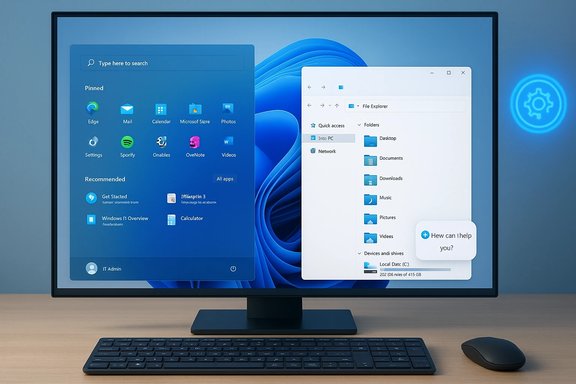 Background / Overview
Microsoft has been shipping Windows 11 updates more like an ever‑evolving service than a monolithic operating system release. That means frequent cumulative updates, staged feature gating (server‑side enablement), and a steady stream of UI experiments reaching some devices before others. The Start menu redesign — now surfacing in servicing updates such as the October preview (KB5067036) and the November cumulative (KB5068861) — is the most visible manifestation of that approach: a single, vertically scrollable Start canvas that brings Pinned, Recommended, and All Apps into one place, with three presentation views (Category, Grid, List) and adaptive column/density behavior controlled by screen size. Microsoft documents these changes directly in the support notes for the October preview and November cumulative updates. At the same time, community channels and forums show that early exposure can produce odd regressions: missing newly installed apps in Start until Explorer is restarted, one‑time “scroll to top” glitches on first use after reboot, and user complaints about the new menu’s footprint. Community reporting and moderated forum summaries have tracked those regressions and Microsoft’s subsequent fixes.While the Start menu has dominated headlines, several smaller but meaningful updates are in flight: Microsoft is testing servicing‑only cumulative builds like KB5012432 in the Dev Channel to validate its update pipeline (a servicing test build with no consumer features), there are incremental improvements to Bluetooth management in Quick Settings, and leaked test artifacts show deeper Copilot hooks inside File Explorer. Each item is small on its own and consequential when taken together for how users interact with Windows.
The Start menu redesign: what changed, and why users are upset
What Microsoft shipped
- A single, vertically scrollable Start canvas that includes Pinned apps, the Recommended area, and the full All apps list — eliminating the old “two‑pane” flow.
- Three All‑apps views: Category (grouped by purpose), Grid (denser alphabetical tiles), and List (classic A→Z).
- Responsive layout that adapts column counts and densities to screen size; a Phone Link companion can expand the panel further. These features are delivered via servicing updates (e.g., KB5067036 preview and the KB5068861 cumulative) and are often gated server‑side so not every device flips immediately.
What broke — and how users experienced it
- Missing shortcuts: installers that create Start Menu folders sometimes don’t show up in the All apps list until Explorer is restarted or the system reboots. That’s not just cosmetic — it breaks deterministic workflows for imaging and mass deployments. Community reproductions and forum threads document the behavior.
- First‑open scroll jump: a one‑time behavior where clicking an app in the All apps list after a reboot causes Start to instantly scroll to the top, dislodging the expected focus. Microsoft has acknowledged and patched variants of this in Insider builds.
- Perception of bloat and coercion: many users feel the new Start prioritizes Microsoft services, recommendations, and phone integration over a compact, efficient launcher. That perception is fueling backlash and registry/ViveTool workarounds to revert the UI.
Why this matters for users and admins
- Usability and muscle memory: for users with large app catalogs or carefully curated Start layouts, the single‑page canvas and its height can disrupt habits and reduce discoverability for frequently used apps on smaller screens. Independent testing found the Start canvas can consume roughly 80–90% of a typical laptop vertical space in common configurations, which many find overwhelming.
- Deployment stability: organizations that rely on imaging and provisioning need deterministic Start behavior. The change to server‑gated rollout and the occasional discovery/cache regressions mean admins must pilot more carefully and prepare support guidance for help desks. Microsoft added a Boolean policy to Configure Start Pins to help admins apply pinned layouts at first sign‑in and then allow personalization, which addresses one deployment pain point.
KB5012432: a servicing update for insiders, not a public feature pack
KB5012432 is a servicing cumulative update targeted at Windows Insider Dev Channel builds (not a mainstream public feature update). Microsoft has stated the package is used to test its servicing pipeline and, in this particular case, didn’t include new user‑facing features — it’s a mechanics/servicing validation. Independent outlets and insider forums reported this as part of the Dev channel cadence. If you’re not an Insider or you’re on mainstream Windows Update channels, KB5012432 is not a consumer release you should expect on production systems. Why it matters:- Servicing test builds can reveal pipeline or compatibility issues before a wider rollout, but historically they’ve occasionally led to unexpected regressions on devices where they land.
- Insiders should treat these builds as potentially unstable; production administrators should not use them as a model for broad deployment testing except within controlled lab environments.
Copilot moving deeper into File Explorer: convenience, or creeping AI?
What’s being tested
Recent leaks and tester screenshots point to an invisible Copilot affordance in File Explorer that could allow a contextual “Ask Copilot” interaction without leaving the File Explorer surface — in other words, a more embedded Copilot experience for files and folders. This extends previous Copilot/File Explorer integrations (right‑click “Ask Copilot” actions and AI actions like summarization or image edits) into a potentially more persistent and discoverable UI element. Reporting across multiple outlets and preview build sleuths confirm the presence of code strings and inactive UI artifacts hinting at this direction.Benefits
- Real‑world gains: a file‑aware Copilot could accelerate tasks like summarizing documents, finding related files, or extracting action items from text without switching apps — a genuine productivity win when the model works reliably.
- Better search experiences: Windows search has long been a weak spot compared with many third‑party tools; generative AI that understands context could help locate files in chaotic folder trees.
Risks and concerns
- Privacy and telemetry: More pervasive Copilot hooks increase telemetry surface area. Users and admins should confirm what data is transmitted, under what account context (personal Microsoft Account vs. Entra/Azure AD), and whether prompts are logged for model training or diagnostic telemetry. Community guides already flag Copilot as a background component that may consume resources and telemetry.
- Lock‑in and discoverability pressure: The more deeply Copilot is baked into File Explorer, the harder it could become to opt out completely — even if the main Copilot app is uninstalled, contextual integrations can persist.
- Reliability and correctness: Generative models can hallucinate. For tasks like summarizing sensitive documents or extracting legal/financial guidance, errors are risky. Any Copilot integration that becomes part of workflow automation should be validated carefully.
Bluetooth Quick Settings: small UI change, real usability win
Microsoft has been quietly improving Bluetooth management in Quick Settings so users can connect, disconnect, and see battery levels for supported devices without opening the full Settings app. That change began appearing in Insider builds (build 22563 and similar) and has been covered by BetaNews, MakeUseOf, and WindowsLatest as a straightforward quality‑of‑life improvement. In short: Quick Settings is becoming the place to manage day‑to‑day Bluetooth tasks rather than burying them in Settings > Bluetooth & devices. Why this matters:- It fixes a long‑standing friction point: pairing/unpairing and quick battery checks were previously spread across multiple UI surfaces.
- The change demonstrates Microsoft still ships iterative UX wins in small places even while major design experiments (like Start) stir controversy.
WSL won’t beat a real Linux desktop — three reasons, unpacked
The MSN takeaway that “WSL is powerful, but it won’t beat a real Linux desktop” summarises a common view among developers and sysadmins. WSL has dramatically improved Linux workflows on Windows, but several limitations remain for users seeking a full native Linux desktop experience:- Hardware and driver parity: native Linux desktops often get last‑mile driver support and vendor attention after Windows, particularly for certain GPUs, Wi‑Fi chips, and specialized peripherals. That makes a full native experience more predictable for some hardware mixes. Community discussion and analyses point to driver and hardware quirks as practical blockers.
- GUI and desktop integration: WSLg lets you run individual Linux GUI apps with decent integration, but it is designed for apps, not a fully supported, production desktop environment. Full DEs are achievable via hacks (XRDP, Win‑Kex, RDP sessions) but these are not equivalent to a supported, full‑time Linux desktop in terms of session lifecycle, display server parity, and long‑running background services. Microsoft’s docs and independent testers emphasize that WSLg’s goal is app integration rather than replacing native desktops.
- Filesystem and performance tradeoffs: cross‑OS file I/O still presents edge cases (performance differences when accessing Windows files from WSL vs. wsl: filesystem), and some development pipelines that rely on native Linux kernel behavior or drivers still require a VM or physical Linux host for deterministic results. Community reports and practical comparisons show these tradeoffs persist.
The “six default settings” playbook: reclaiming your Windows 11 desktop
Several long‑form guides (How‑To Geek and community writeups) recommend a small set of changes every user should consider after installing Windows 11:- Uninstall or limit Copilot and its background services for privacy and resource control.
- Turn off lock‑screen promos and app recommendations; disable Start/lock‑screen Microsoft app advertisements.
- Unlink or disable OneDrive auto‑sync if you don’t use it to avoid surprise uploads and notifications.
- Reduce telemetry to “Required” where possible; review Diagnostic & Feedback settings.
- Disable unnecessary startup apps (Copilot, OneDrive, Xbox, Teams) to free memory and boot time.
- Remove Bing integration from Windows Search via supported policy or registry tweaks (the registry method remains a community workaround and should be applied with care).
- Registry edits and third‑party “debloat” scripts carry risk; verify commands and keep backups.
- Enterprise environments should apply supported Group Policy / MDM settings rather than ad‑hoc local hacks.
- Microsoft can (and sometimes does) reintroduce integrations in future feature updates, so treat the effort as periodic maintenance rather than a one‑time fix.
Practical recommendations — how to navigate this noisy update landscape
- Pilot any major UI change: for organizations, treat Start redesign updates as a UX change requiring pilot testing on representative hardware and accessibility scenarios. Document help‑desk scripts for restarting Explorer and hiding the Recommended area.
- Monitor Microsoft Release Health and KB pages: rely on Microsoft Support KB notes for the canonical description of what's in each update (e.g., the Start redesign in KB5067036/K5068861). Use Windows Update for mainstream, stable releases and reserve Insider/dev channels for test rigs.
- Be cautious with Copailot opt‑outs: uninstalling the Copilot app may not remove every Copilot hook. Use documented MDM/Group Policy controls where possible and audit telemetry/diagnostic settings.
- Keep backups and rollback plans: when you install cumulative updates that include UX changes, have system images or restore points and a clear rollback path, especially for laptops in critical roles.
- Use ViveTool sparingly and only on test machines: community tools can toggle feature flags but are not supported by Microsoft and can cause odd states if updates flip server‑side gating.
Strengths, weaknesses, and the big picture
Strengths
- Microsoft is iterating quickly and shipping substantive UX improvements (Start redesign, Bluetooth Quick Settings) that modernize usability and bring Windows in line with contemporary launcher metaphors.
- Copilot and AI actions promise genuine productivity boosts when scoped correctly (e.g., document summarization or image edits).
- WSL continues to mature into an excellent developer tooling environment that removes friction for many hybrid workflows.
Weaknesses and risks
- Staged rollouts produce uneven experiences. Installing the same update can deliver different UI behaviors across identical devices because of server‑side gating — complicating support and user expectations. Community archives have cataloged the pain this causes.
- Telemetry and deeper Copilot integration raise privacy and manageability questions. More pervasive AI hooks mean more surface area for data collection and more places where admins must control or audit behavior.
- Regressions in core shell components (Start, Explorer) — even if not widespread — erode trust. The record shows Microsoft fixes these issues, but the churn can be disruptive for productivity and imaging workflows.
Conclusion
Windows 11 in 2025–2026 is a study in contrasts: meaningful feature work and AI‑driven conveniences sit alongside rollout noise, community backlash, and predictable teething problems. The Start menu redesign and Copilot’s deeper integration show Microsoft’s priorities — discoverability, adaptive layout, and AI assistance — but they also illuminate a core tension of modern OS development: how to ship innovation rapidly while keeping the system stable, predictable, and respectful of user choice.For enthusiasts and IT pros the prescription is clear: pilot, instrument, and document. Test new Start menu behavior on representative machines, keep a rollback path for cumulative updates, and employ supported management policies to reclaim control where Microsoft’s defaults don’t fit your needs. For everyday users, a short checklist of six tasteful default changes will reclaim performance and privacy without much pain. And finally, if you’re wary of AI features becoming unavoidable, treat Copilot as a feature to be monitored and managed — not an automatic upgrade to be accepted without oversight.
What’s certain is this: the changes are significant, useful in places, and irritating in others. Navigating them well will require more attention than previous Windows servicing waves — but it will also deliver a far more capable, AI‑prepared desktop for those who choose to embrace it.
Source: MSN https://www.msn.com/en-us/money/oth...r-to-manage-bluetooth-devices-in-windows-11/]
