

Windows 11’s 2025 updates did more than add features — they added pressure. What arrived this year reads less like a usability refresh and more like a coordinated set of nudges that steer users toward Microsoft’s cloud, AI services, and account model. For enthusiasts and privacy-minded users the changes raise a simple, uncomfortable question: at what point does an operating system stop serving users and begin serving the vendor’s product funnel?
Microsoft’s push to make Windows an “agentic” platform — one that anticipates and acts on user intent with built-in AI — accelerated through 2025. That strategy shows up in four distinct patterns that collectively amount to a class of design choices many UX professionals call dark patterns: interfaces and flows that bias users toward choices that favor the company more than the user.
Why this matters: embedding AI deeply means more prompts and context-sensitive callouts across the UI. Expect the OS to surface suggestions like “Ask Copilot” when you hover over files or see a small action button to “Share window with Copilot Vision” in taskbar previews. Many of these are opt-in in the sense that they require explicit activation before a Copilot agent consumes content, but the prompts are intentionally visible and tempting.
What’s verifiable: Microsoft publicly announced expanded Copilot integration in mid‑October 2025, describing new voice, vision, and actions features and showing how Copilot can operate inside a contained agent workspace. The upgrades were rolled into Windows builds and the Copilot app on insider channels before appearing in broader updates later in the year.
Practical effect for users: more in-context nudges to hand parts of your desktop to an AI agent; additional background UI elements that encourage trying the feature; and, for some Copilot services, new product tiers and entitlements tied to subscriptions.
Why this matters: the change reorients attention away from local file lists toward a blended, cloud-aware view. It’s amplified by hover commands — including an “Ask Copilot” action available when you’re signed in — that encourage cloud workflows and AI-assisted actions.
What’s verifiable: the File Explorer “Recommended” Home section was added to Windows Insider builds in October and has been included in November feature updates for many consumers. Microsoft’s settings still provide an option to restore Quick Access or to turn off the Recommended section, but the default is to show recommendations — and in some builds the rollout was paused or gated for certain regions while Microsoft iterated on privacy and storage-provider APIs.
Practical effect for users: if you rely on local recent-file lists or keep files on local storage for privacy, the new default pushes attention to cloud‑backed content. The toggle to disable the Recommended section exists, but disabling it sometimes affects multiple surfaces (Start menu, jump lists, File Explorer recent activity), which leads to collateral usability tradeoffs.
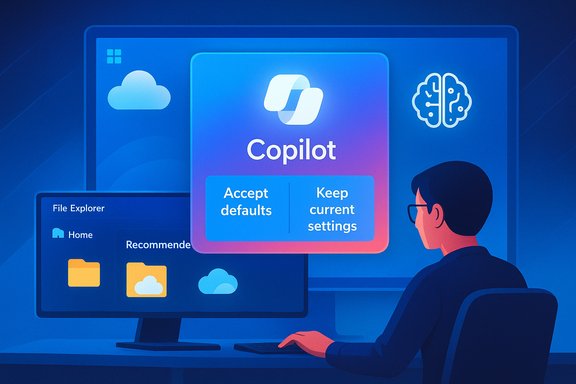
Why this matters: users who intentionally opted out during initial setup can be made to reconsider, often at the moment they just want to get to their desktop. The design emphasizes momentum: a bold affirmative button makes it easy to accept Microsoft’s defaults by reflex.
What’s verifiable: Microsoft and multiple technology outlets have documented the SCOOBE behavior and the consolidated single-page revision in preview builds. The UX tweak reduces the number of clicks but maintains the same defaults-first communication design.
Practical effect for users: increased chance of unintentionally re-enabling Microsoft services after updates; more full-screen prompts after some major updates that make the default choice the easiest.
Why this matters: requiring network connectivity and an MSA as the default, and removing simple console-based bypass tricks, means the local-only account experience is now less visible and often a second-step action after initial setup. For some users — people in low-connectivity regions, privacy proponents, and refurbishers — the change complicates a straightforward offline setup.
What’s verifiable: Insider release notes and independent testing showed commands and scripts people used during OOBE (such as the commonly shared bypassnro or a one-line start ms‑cxh:localonly trick) were neutralized in affected builds. Microsoft’s stated rationale is operational — preventing incomplete setups that skip critical screens — but the practical result is a reduced surface for offline install workflows.
Practical effect for users: the most reliable ways to get a local account now require pre-configured install media, enterprise imaging/unattended answers, or signing in with an MSA temporarily and converting afterward. Casual workarounds that previously worked from the OOBE command prompt are being closed.
What that means for Windows users: Microsoft’s commercial choices now sit inside a legal ecosystem that may push the company toward clearer disclosures or product unbundling, but enforcement timelines are long. In the meantime, design and rollout choices continue to shape user behavior.
Actionable takeaway: treat the platform’s new defaults as a set of recommendations, not inevitabilities. Review setup screens, tweak Start and File Explorer settings, and use supported imaging or unattended install methods if you require a local-only installation path. If you value privacy and control above in-OS AI conveniences, be prepared for slightly more work up front to preserve that posture.
Caveat: some claims circulating in social feeds — for example, that Microsoft is being formally accused specifically in South Africa of hiding a Copilot-free Microsoft 365 tier — do not match major independent reporting as of November 2025. That specific assertion should be treated as unverified until corroborating regulatory announcements or authoritative news reports appear. By contrast, regulatory action and formal complaints in Australia and other jurisdictions regarding Copilot-related pricing and disclosure are publicly documented and are an active context for Microsoft’s product and messaging choices.
Windows remains the world’s dominant desktop OS precisely because it balances a broad set of user needs. The 2025 moves have tilted that balance. Users who care about control have clear, practical steps to regain it — but expect the tug-of-war between convenience and control to continue as AI becomes increasingly embedded in everyday computing.
Source: How-To Geek 4 New dark patterns added to Windows 11 in 2025
 Background
Microsoft’s push to make Windows an “agentic” platform — one that anticipates and acts on user intent with built-in AI — accelerated through 2025. That strategy shows up in four distinct patterns that collectively amount to a class of design choices many UX professionals call dark patterns: interfaces and flows that bias users toward choices that favor the company more than the user.- Aggressive integration of Copilot and AI features across core places in the OS.
- UI rewrites that replace local-focused elements with cloud- or Microsoft-first equivalents.
- Repeated setup prompts designed to reconfirm or reverse earlier opt-outs (the so-called SCOOBE).
- Reduced or hidden options to create truly local accounts during setup, making Microsoft accounts the default and often the only obvious path.
Overview of the four new dark patterns
1. Persistent nudges to use AI: Copilot baked into the OS
Microsoft’s Copilot is no longer just a sidebar helper — it’s being woven into system surfaces. Throughout 2025 the company expanded Copilot capabilities: voice activation via a wake phrase, richer vision features that can analyze on-screen content, and Copilot Actions that can operate across local apps and files under policy-controlled isolation.Why this matters: embedding AI deeply means more prompts and context-sensitive callouts across the UI. Expect the OS to surface suggestions like “Ask Copilot” when you hover over files or see a small action button to “Share window with Copilot Vision” in taskbar previews. Many of these are opt-in in the sense that they require explicit activation before a Copilot agent consumes content, but the prompts are intentionally visible and tempting.
What’s verifiable: Microsoft publicly announced expanded Copilot integration in mid‑October 2025, describing new voice, vision, and actions features and showing how Copilot can operate inside a contained agent workspace. The upgrades were rolled into Windows builds and the Copilot app on insider channels before appearing in broader updates later in the year.
Practical effect for users: more in-context nudges to hand parts of your desktop to an AI agent; additional background UI elements that encourage trying the feature; and, for some Copilot services, new product tiers and entitlements tied to subscriptions.
2. File Explorer “Recommended” replaces local-first Quick Access
A long‑standing Windows habit — pinning and locating local files quickly in Quick Access — took a subtle turn. The Home view in File Explorer now prominently features a Recommended section that surfaces recently used or frequently accessed items, including cloud-hosted items from OneDrive and other providers (via a storage provider integration).Why this matters: the change reorients attention away from local file lists toward a blended, cloud-aware view. It’s amplified by hover commands — including an “Ask Copilot” action available when you’re signed in — that encourage cloud workflows and AI-assisted actions.
What’s verifiable: the File Explorer “Recommended” Home section was added to Windows Insider builds in October and has been included in November feature updates for many consumers. Microsoft’s settings still provide an option to restore Quick Access or to turn off the Recommended section, but the default is to show recommendations — and in some builds the rollout was paused or gated for certain regions while Microsoft iterated on privacy and storage-provider APIs.
Practical effect for users: if you rely on local recent-file lists or keep files on local storage for privacy, the new default pushes attention to cloud‑backed content. The toggle to disable the Recommended section exists, but disabling it sometimes affects multiple surfaces (Start menu, jump lists, File Explorer recent activity), which leads to collateral usability tradeoffs.
3. The SCOOBE: second-chance setup screens with prominent “accept defaults” buttons
Windows long had an Out‑Of‑Box Experience (OOBE) that runs on first boot. In 2024–2025 Microsoft increasingly used a follow-up sequence — often called the “Second Chance OOBE” or SCOOBE — to re-present choices on Edge, OneDrive, Microsoft 365, and other services. Recent builds consolidated these repeated prompts onto a single page with toggles. The surface is cleaner, but the pattern remains the same: a large, attractive “Accept defaults” option is visually prominent while the “Keep current settings” or “decline” paths are visually muted.Why this matters: users who intentionally opted out during initial setup can be made to reconsider, often at the moment they just want to get to their desktop. The design emphasizes momentum: a bold affirmative button makes it easy to accept Microsoft’s defaults by reflex.
What’s verifiable: Microsoft and multiple technology outlets have documented the SCOOBE behavior and the consolidated single-page revision in preview builds. The UX tweak reduces the number of clicks but maintains the same defaults-first communication design.
Practical effect for users: increased chance of unintentionally re-enabling Microsoft services after updates; more full-screen prompts after some major updates that make the default choice the easiest.
4. Harder to make a local account during setup; removal of known bypasses
Perhaps the most consequential change for privacy-focused users: Microsoft’s Insider release notes in October 2025 included a clear statement that the company was removing known mechanisms for creating a local account in the Windows Setup (OOBE). That action was implemented in preview builds and blocks popular in‑OOBE tricks that allowed a user to avoid signing into a Microsoft Account (MSA) during setup.Why this matters: requiring network connectivity and an MSA as the default, and removing simple console-based bypass tricks, means the local-only account experience is now less visible and often a second-step action after initial setup. For some users — people in low-connectivity regions, privacy proponents, and refurbishers — the change complicates a straightforward offline setup.
What’s verifiable: Insider release notes and independent testing showed commands and scripts people used during OOBE (such as the commonly shared bypassnro or a one-line start ms‑cxh:localonly trick) were neutralized in affected builds. Microsoft’s stated rationale is operational — preventing incomplete setups that skip critical screens — but the practical result is a reduced surface for offline install workflows.
Practical effect for users: the most reliable ways to get a local account now require pre-configured install media, enterprise imaging/unattended answers, or signing in with an MSA temporarily and converting afterward. Casual workarounds that previously worked from the OOBE command prompt are being closed.
Why these are dark patterns (and when they’re not)
Designers define dark patterns as deliberate UX choices that manipulate users into making decisions they might not have made with a neutral interface. The 2025 Windows changes show four hallmarks that push the classification toward that label:- Default bias: options that encourage the vendor’s outcome (cloud sign-in, Copilot use) are visually prioritized.
- Repeated prompts: asking the same question multiple times increases the likelihood of “yes” by fatigue.
- Hidden alternatives: the local-account path is still possible in many scenarios, but less discoverable.
- Contextual pressure: in-situ prompts (hover menus, taskbar previews) make cloud/AI features feel convenient and immediate, nudging adoption even when users have privacy or control concerns.
The regulatory backdrop
The push toward paid AI tiers and bundled Copilot features has already triggered regulatory scrutiny. Competition authorities in multiple jurisdictions have challenged how Microsoft presented Copilot-associated pricing and subscription changes; one high-profile case in Australia involved claims that customers weren’t clearly shown a cheaper, non‑Copilot plan until they initiated cancellation. Regulators are scrutinizing whether disclosure and opt-out channels are fair and transparent.What that means for Windows users: Microsoft’s commercial choices now sit inside a legal ecosystem that may push the company toward clearer disclosures or product unbundling, but enforcement timelines are long. In the meantime, design and rollout choices continue to shape user behavior.
Practical, verifiable steps users can take right now
The following are concrete, tested actions that reduce unwanted nudges and restore control. They rely on UI options available in recent builds — where a toggle exists it’s noted — and on supported mechanisms for installation and account control.Turn off Copilot/AI sharing prompts and visual nudges
- Open Settings > Personalization > Taskbar > Taskbar behaviors.
- Uncheck the option labeled “Share any window from my taskbar” (or similar wording in your build) to prevent hover previews from offering Copilot Vision sharing.
- In the Copilot app or Settings > Apps > Copilot (if present on your build), review privacy and permissions and disable wake‑word or voice activation features like “Hey Copilot” if you prefer not to use voice activation.
Stop Recommended items in Start and File Explorer
- To remove the Recommended section from Start and decouple the recent‑files feed:
- Open Settings > Personalization > Start.
- Turn off “Show recommended files in Start, recent files in File Explorer, and items in Jump Lists.”
- To restore Quick Access in File Explorer Home (if your build replaced it):
- In File Explorer, open the Options dialog (ellipsis menu > Options).
- Under the General tab, uncheck “Show recommended section” or re-enable Quick Access display as supported.
Avoid SCOOBE traps during update flows
- When you see a post-update or first-login setup page:
- Look for and choose the Keep current settings or Skip link rather than the prominent “Accept defaults.”
- If the keep-or-accept action is unclear, pause and use keyboard navigation (Tab) to find the less-prominent link rather than reflexively clicking the large button.
If you prefer a local account at install time
Supported methods for creating a local account without a live Microsoft Account include:- Use enterprise deployment tools (MDT, SCCM, Autounattend.xml) to preseed a local admin account in unattended installs.
- Create installation media that includes preseeded answers (tools such as Rufus or official deployment tooling can author such media) — this is the advanced, pre-install route.
- Install with an MSA to finish OOBE, then create a local account and remove the MSA afterward. This is the simplest user-facing workaround when OOBE requires an MSA.
Risks and trade-offs to consider
- Security vs. privacy: Microsoft’s reasons for pushing MSAs and cloud links are partly security-driven. An MSA enables features like easier password recovery, Windows Hello fallback, and secure key escrow for BitLocker — conveniences that can protect users who lose access to their device. Choosing a local account can increase privacy but may complicate recovery and cross-device sync.
- Entitlement fragmentation: many AI features and Copilot "Actions" remain gated behind Copilot+ devices, hardware entitlements, or paid Microsoft 365 tiers. Users on older hardware or on free-tier subscriptions may be pushed toward trials or paid upgrades to use advertised AI features.
- Usability collateral: disabling the Recommended feeds or the shared recent-activity engine can remove wanted conveniences (jump lists, quick recent files). The current UI links several features to the same recent‑activity engine, so opt-outs sometimes have side effects.
- Regional and build variation: Microsoft gates some features by region (for example EEA restrictions) or by staged rollout, and implementation details (labels, exact toggles) vary with builds. That means what’s available or how it behaves on one machine may differ on another.
Critical analysis: strengths, risks, and where Microsoft could do better
Strengths- Integration of AI into the OS has real potential to accelerate everyday productivity: Copilot Actions and Vision can automate repetitive tasks, extract structured data from documents, and assist with multi-step workflows that previously required manual effort.
- Centralizing capabilities (single Copilot UX across OS and apps) can reduce fragmentation and make discovery easier for mainstream users.
- Signing with an MSA does offer benefits: account recovery options, sync, and managed security features for non-expert users.
- The choice architecture is skewed. Design patterns that prioritize defaults and repeat prompts increase accidental opt-ins. A better approach would be explicit, reversible on-ramps that respect earlier decisions.
- Transparency about entitlements and pricing tied to AI features has been poor in some markets. Where new paid tiers appear, clearer in-product disclosures would reduce regulator and consumer friction.
- Local account workflows deserve parity. If Microsoft believes certain setup screens are critical, the company could provide a clear and supported offline path that surfaces the same critical information without forcing a cloud sign-in.
- The conflation of toggles (Start, File Explorer, jump lists) into a single “recommended” switch creates unnecessary trade-offs. Users should be able to disable recommendations in Start while preserving recent-file behaviors in File Explorer.
- Make the default the least-privileged and most private setting, with a clear, persistent banner explaining benefits and offering a one-click, fully documented path to enable features.
- Provide a single “privacy control center” that allows granular opt-in/opt-out of Copilot, cloud sync, and recommended-file telemetry with immediate feedback about what changes.
- Restore supported, documented offline setup options for consumer SKUs (like a “local account” checkbox in advanced setup), and clearly document the security implications.
Final verdict and what to watch next
The 2025 Windows updates accelerate a strategic shift: Windows is now explicitly designed to be an AI-enabled, cloud-first orchestration layer. For many users that delivers convenience and new capabilities. For others — especially those who prize local control, predictable interfaces, and minimal vendor entanglement — the changes amount to a steady reduction in discoverable alternatives.Actionable takeaway: treat the platform’s new defaults as a set of recommendations, not inevitabilities. Review setup screens, tweak Start and File Explorer settings, and use supported imaging or unattended install methods if you require a local-only installation path. If you value privacy and control above in-OS AI conveniences, be prepared for slightly more work up front to preserve that posture.
Caveat: some claims circulating in social feeds — for example, that Microsoft is being formally accused specifically in South Africa of hiding a Copilot-free Microsoft 365 tier — do not match major independent reporting as of November 2025. That specific assertion should be treated as unverified until corroborating regulatory announcements or authoritative news reports appear. By contrast, regulatory action and formal complaints in Australia and other jurisdictions regarding Copilot-related pricing and disclosure are publicly documented and are an active context for Microsoft’s product and messaging choices.
Windows remains the world’s dominant desktop OS precisely because it balances a broad set of user needs. The 2025 moves have tilted that balance. Users who care about control have clear, practical steps to regain it — but expect the tug-of-war between convenience and control to continue as AI becomes increasingly embedded in everyday computing.
Source: How-To Geek 4 New dark patterns added to Windows 11 in 2025
