

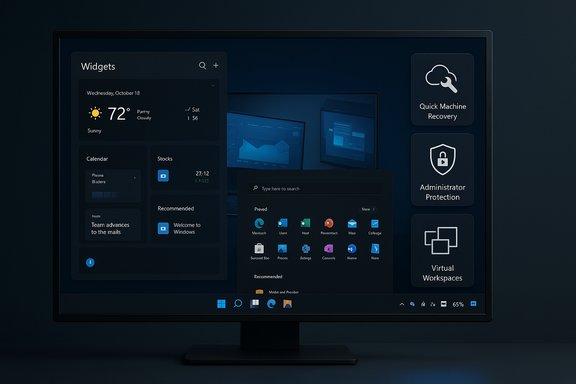
As 2025 draws to a close, Windows 11 shed much of its “first-year polish” and introduced a string of practical, user-driven enhancements—ranging from subtle UI polish to genuinely new platform services designed to reduce downtime and improve security. What began as a year of monthly cumulative updates turned into a patchwork of meaningful feature rollouts: Quick Machine Recovery for automatic boot remediation, Administrator Protection to enforce just‑in‑time elevation, the long-requested battery percentage on the Taskbar, a redesigned Start menu and Widgets board, Virtual Workspaces for virtualization management, and the Xbox Full Screen Experience for handheld gaming PCs are among the most consequential changes. These updates reflect Microsoft’s move toward tighter system resilience, clearer security boundaries, and platform features that prioritize both power users and mainstream audiences.
Windows 11’s development model in 2025 leaned heavily on Controlled Feature Rollouts (CFR) and Insider previews, which let Microsoft iterate quickly but also created staggered availability across channels and devices. Many features shipped behind feature toggles or were limited to specific hardware classes (notably Copilot+ PCs and handheld gaming devices), producing a mixed experience for users depending on channel, OEM, and region. This article examines the most impactful releases of 2025, verifies key technical facts against Microsoft documentation and independent reporting, and provides a critical assessment of benefits and risks for everyday users and IT teams.
Source: Windows Central https://www.windowscentral.com/microsoft/windows-11/top-17-windows-11-features-introduced-in-2025/
 Background
Windows 11’s development model in 2025 leaned heavily on Controlled Feature Rollouts (CFR) and Insider previews, which let Microsoft iterate quickly but also created staggered availability across channels and devices. Many features shipped behind feature toggles or were limited to specific hardware classes (notably Copilot+ PCs and handheld gaming devices), producing a mixed experience for users depending on channel, OEM, and region. This article examines the most impactful releases of 2025, verifies key technical facts against Microsoft documentation and independent reporting, and provides a critical assessment of benefits and risks for everyday users and IT teams. Design and usability improvements
Windows 11’s most visible changes in 2025 were largely aimed at smoothing UX rough edges that users have complained about since the OS launched.Dark mode finally consistent in File Explorer
One long-standing annoyance—inconsistent dark mode in File Explorer—received a major polish. Microsoft expanded dark theming to dialogs that previously defaulted to bright white (copy/move/delete confirmations and progress dialogs), bringing the experience closer to systemwide dark mode. The change improves visual continuity and reduces the jarring white flashes users reported when switching themes. That said, several legacy elements (like some pages in Folder Options) still lag behind the new look. Users should expect incremental fixes rather than a single sweeping change.Redesigned Start menu: a unified, scrollable layout
The Start menu was redesigned into a single, scrollable surface that merges Pinned, Recommended, and All sections into one frame. The new Start supports up to eight pins per row and introduces a mobile-sidebar toggle when a phone is linked. Users can still choose display modes for the All section (category groups, grid, or the legacy list). Because the redesign removes the prior “Layout” toggle from Start settings, discoverability of new options has been a common early complaint. Overall, the redesign targets cleaner navigation and one-handed use on smaller screens while modernizing the experience for touch and pen users.Widgets board and lock-screen widgets get attention
Widgets were consolidated into a redesigned board with a left-side navigation pane and an integrated settings page. The Discover board was refreshed with Copilot-curated content and a layout that mirrors Copilot’s Discover page. Importantly, Lock Screen widgets became customizable for the first time—users can now add, remove, and let the system suggest widgets for empty slots. These changes make Widgets genuinely useful beyond a weather glance, though Copilot‑tied content remains gated on hardware and account configurations for some users.Taskbar tweaks: smaller icons, hardware indicator placement, and the Drag Tray toggle
Three small but practical changes arrived for the Taskbar:- An option to use smaller Taskbar icons helps prevent overflow and reduces the need for the overflow menu.
- The Position of on‑screen indicators setting lets users relocate hardware indicators (brightness, volume, airplane mode) to several screen positions, improving alignment for multi-monitor and handheld setups.
- Drag Tray—the flyout that appears when you drag files to the top of the screen—now has a disable toggle in Nearby Sharing settings, addressing a frequent annoyance for users who found the tray intrusive.
Notification Center clock with seconds and multi-clock support
Notification Center gained a large clock option that shows seconds and supports multiple clocks, which benefits users who rely on quick glance metrics or manage time zones across monitors. Multi-monitor support for Notification Center ensures the flyout opens on the monitor where you click the clock—an overdue but welcome quality‑of‑life fix.Battery percentage on the Taskbar
A deceptively simple change—showing battery percentage directly in the Taskbar—finally arrived as an option in Settings > System > Power & battery. Microsoft also introduced color-coded battery icons (green when charging, yellow when energy saver is active, red at critical levels), making the status more readable at a glance. Early rollouts were paused and then gradually resumed as Microsoft addressed stability concerns; rollout history shows the company testing in Insiders and Release Preview channels before broad availability. If you value quick visual battery feedback, the new toggle is the most straightforward quality‑of‑life enhancement of the year.Security and system resilience
2025 was notable for an emphasis on least‑privilege security and automated recovery—two domains that directly reduce risk for end users and administrators.Administrator Protection: changing how elevation works
Administrator Protection introduces a new elevation model that treats administrator accounts as deprivileged by default and requires explicit authorization (typically via Windows Hello) for elevation. When elevated, Windows creates an isolated, temporary admin token tied to a hidden system-managed account, and destroys it after the task finishes. The approach is explicitly designed to limit attacker lateral movement and reduce the “free admin” attack surface on machines where users have administrative accounts. The feature is currently in preview and is controllable via Group Policy, Intune, or local settings—making it relevant for managed Pro devices and enterprising Home users who are comfortable editing policies. Strengths:- Enforces principle of least privilege without forcing users into separate accounts.
- Integration with Windows Hello simplifies authorization and makes social engineering harder.
- As a preview feature requiring policy changes, it can cause support friction in mixed environments.
- Administrators should test workflows that rely on persistent elevated sessions (automation, installers, dev tools) because the transient token model can break assumptions.
Quick Machine Recovery: automatic cloud remediation in WinRE
Perhaps the year’s most consequential systems feature, Quick Machine Recovery (QMR) is a cloud‑enabled repair flow that runs inside Windows Recovery Environment (WinRE). When Windows detects repeated boot failures, QMR attempts to connect to Microsoft’s cloud services, upload diagnostics, and download applicable remediations from Windows Update. It offers two modes—Cloud Remediation (search Windows Update for fixes) and Auto Remediation (automatically download and apply fixes). QMR is available on Windows 11 24H2 builds beginning with certain cumulative updates and can be manually accessed via the Recovery settings or WinRE. Strengths:- Reduces downtime and help‑desk tickets by automating recovery in many common failure scenarios.
- Test mode and telemetry make it easier for admins to validate the process before wide deployment.
- QMR sends diagnostics and attempts cloud connectivity during recovery, raising legitimate privacy and offline‑fallback concerns. Administrators and privacy‑conscious users must be aware that the recovery flow can connect to Microsoft and make changes automatically when auto remediation is enabled.
- WinRE has been a point of fragility in 2025: multiple incidents (including a USB input regression that affected keyboard/mouse support inside WinRE) forced emergency fixes and highlighted the risk of shipping deep system changes quickly. Always keep recovery media and local backups available as a fallback.
Productivity, virtualization, and power-user features
Microsoft focused on discoverability and consolidation for advanced features in 2025—bringing previously scattered controls into modern Settings.Virtual Workspaces centralizes virtualization toggles
Virtual Workspaces adds a new Settings page (System > Advanced > Virtual Workspaces) that consolidates virtualization-related features—Hyper‑V, Windows Sandbox, Virtual Machine Platform, Containers, and related services—into one discoverable location. This change reduces friction for developers and students who toggle virtualization components frequently and ties the experience into Settings telemetry and guidance. For enterprise environments that rely on scripted enablement or Group Policy, the underlying management and behavior remain the same, so IT should validate that the Settings toggles reflect desired policies in test environments.Windows Backup: local file transfer during first‑time setup
Windows Backup added an option to perform a local network file transfer during initial device setup, allowing users with local (non‑cloud) accounts to migrate files from an old device without pushing them to OneDrive first. This is not a full image march; it’s designed specifically for first‑time setup of a new device and streams files over the local network from the old PC’s Windows Backup utility. It’s a practical alternative for users who don’t want cloud synchronisation for large or sensitive data sets, but it’s limited to initial setup scenarios and devices that have never been backed up to a Microsoft account cloud.Advanced camera options: multiple-app camera streams and media type control
A modest but important change for streamers and hybrid meeting workflows is the Allow multiple apps to use camera at the same time toggle under Settings > Bluetooth & devices > Cameras > Advanced settings. This multi‑stream camera support prevents apps from monopolizing the camera feed—useful for running virtual camera software, recording utilities, and conferencing tools concurrently. The same advanced page exposes Media type (preferred resolution/frame rate) and a “basic camera” mode to simplify troubleshooting. These options are device‑dependent but make camera management far less painful for content creators.Gaming and media: Xbox Full Screen Experience
Microsoft expanded the Xbox Full Screen Experience (FSE)—the console‑like dashboard originally exclusive to the ROG Xbox Ally—across Windows handhelds and into preview for other PCs. FSE boots a device into a minimal shell that runs the Xbox app full screen, reduces background services, and focuses resources on gaming. Microsoft and partners claim the mode can free up gigabytes of memory and lower background CPU usage, though those numbers should be treated as vendor-provided estimates. FSE is particularly useful for handheld devices where battery life and thermal headroom are at a premium. Strengths:- Faster game boot times and improved resource allocation for handhelds.
- Controller-first navigation and seamless access to multiple storefronts.
- Because FSE bypasses the full Explorer shell, certain desktop apps or system integrations may behave differently. Users who rely on background utilities (overlays, mods, certain anti‑cheat systems) should test compatibility before making FSE their default mode.
Rollout realities and risk assessment
Microsoft’s rollout strategy in 2025 improved feature velocity but also increased short‑term instability and confusion.- Controlled Feature Rollouts create fragmentation. A feature visible on one machine may be absent on another, even with the same OS build, due to CFR toggles and hardware requirements. Users and sysadmins should avoid assuming uniform availability across fleets.
- Preview features and policy gates (Administrator Protection, some Copilot features) require careful testing before enterprise-wide enablement—unexpected behavior in legacy tools or automation can produce support headaches.
- WinRE fragility: shipping deep recovery changes (like Quick Machine Recovery) increases the need for conservative testing; emergency fixes for USB input and other regressions in WinRE show the high cost of a broken recovery environment. Keep offline recovery media ready.
- Privacy and telemetry during recovery: Quick Machine Recovery’s cloud remediation path requires network connectivity and diagnostic uploads. Organizations that restrict telemetry or require offline remediation must configure QMR accordingly or disable auto remediation for managed devices.
- Vendor claims require verification: memory savings or resource numbers quoted for the Xbox Full Screen Experience are useful for comparison but are vendor measurements—validate performance claims on target hardware before depending on them.
Practical recommendations: how to prepare and adopt safely
- Evaluate Controlled Feature Rollout exposure:
- For individual power users: enable Insider Preview cautiously on a secondary device if you want early access.
- For IT: use test groups and ringed deployments to validate Administrator Protection and Quick Machine Recovery.
- Harden recovery procedures:
- Keep recent full backups and a bootable recovery USB or external image.
- For mission‑critical machines, consider disabling auto remediation until you confirm the behavior and the organization’s telemetry policy.
- Test transient elevation workflows:
- If your environment relies on persistent elevated services or scripts, test Administrator Protection in a lab and update deployment documentation accordingly.
- Audit privacy settings:
- If you elect to enable QMR’s cloud remediation, document what diagnostic data is transmitted and create admin guidance for when automatic fixes should be allowed.
- Validate hardware‑dependent features:
- Xbox FSE, some Copilot features, and advanced camera controls have hardware dependencies; confirm compatibility before training or switching workflows for teams.
- Use the new Settings centralization:
- The Virtual Workspaces page, Camera advanced options, and Widgets settings reduce discovery friction—update internal knowledge bases and helpdesk scripts to reference the new Settings paths.
Strengths, missed opportunities, and the road ahead
Strengths:- 2025’s updates focused on pragmatic fixes: recovery automation, least‑privilege elevation, discoverability of advanced controls, and useful Taskbar/Task Center polish. Those moves materially improve everyday reliability and security for many users.
- Some legacy dialogs and classic Control Panel elements still lack modern theming or migration, creating inconsistent UX pockets.
- Microsoft’s heavy use of CFR and channel-specific testing increases user confusion and complicates corporate deployment planning.
- Telemetry and cloud remediation in recovery workflows create a tension between convenience and corporate privacy/compliance requirements.
Conclusion
Windows 11’s 2025 updates shifted the narrative from cosmetic novelty to functional maturity. The operating system gained meaningful capabilities—Quick Machine Recovery tackles the worst case (unbootable systems), Administrator Protection reduces the attack surface of admin accounts, and numerous user-facing improvements (Start, Widgets, battery percentage, multi‑stream camera support) improve day‑to‑day productivity. However, the year also highlighted the complexity of modern OS servicing: controlled rollouts, hardware-gated features, and the real-world consequences of pushing deep system changes (WinRE regressions) demand that users and IT pros adopt a cautious, test-first approach. For most users, the net result is positive: Windows 11 in late 2025 is more resilient, more secure by default, and more mindful of practical device scenarios than it was at the start of the year—so long as the new features are adopted with awareness of their limitations and privacy implications.Source: Windows Central https://www.windowscentral.com/microsoft/windows-11/top-17-windows-11-features-introduced-in-2025/
