

Windows 11 still ships with a surprising number of user-hostile defaults in 2026 — nudges, upsells, telemetry switches, and contextual recommendations that behave more like commercial prompts than neutral system settings. If you value privacy, performance, or a distraction-free desktop, a short checklist of changes will reclaim control: disable advertising IDs and optional diagnostics, stop “Search highlights,” prune Start and Lock screen recommendations, uninstall preinstalled bloatware, and carefully reassign default apps. This feature explains the most important settings to change, verifies what Microsoft documents, contrasts reporting from independent outlets, and flags where claims are anecdotal or build-dependent so you can act with confidence.
Windows has long balanced platform features with commercialization: built-in services (OneDrive, Microsoft 365, Edge, Game Pass) and telemetry mechanisms deliver convenience and revenue, but they also create persistent opportunities for nudges and “dark patterns” — design choices that steer users toward specific options without being overt. The behavior is familiar: pre‑checked boxes, repeated prompts, and recommendations that look like system messages.
Microsoft exposes controls for most of these behaviors, but the UI is fragmented and some defaults are enabled out-of-the-box. Community testing and support documentation show consistent patterns and practical fixes: privacy toggles in Settings, diagnostics controls, Start menu and lock-screen recommendations, and the Search experience are the main leverage points. Community guides and WindowsForum collations also warn that deeper hacks (registry or third‑party “debloat” scripts) can be brittle and should be used cautiously. ified and why it matters
What to do:
What to do:
Caution: Required diagnostic data cannot be turned off entirely; Microsoft still collects minimal telemetry for functionality and security. If you have stringent compliance needs, consider enterprise tooling or alternate OS strategies.
What to do:
Caveat: Some enterprise or registry-based policies that remove web results can gray out the setting; conversely, enforced policies may re-enable or lock behavior in managed devices.
What to do:
What to do:
What to do:
What to do:
What to do:
What to do:
If you want a calmer, more private PC in 2026, start with the ten-minute sweep and keep it part of your post-update checklist. For managed environments, push for centralized, supported policies that enforce respectful defaults for your users. And when in doubt about an aggressive tweak you find online, err on the side of supported controls and backups — the marginal risk of a misapplied registry tweak can be a lot higher than the modest benefit of one extra removed prompt. Community collations and Microsoft’s own documentation provide the controls; the work now is routine housekeeping, not heroic hacking.
Conclusion
Windows 11 in 2026 ships with more nudges than many users want, but the countermeasures are available, documented, and effective. Use the Privacy & security and Personalization sections of Settings as your first line of defense, disable optional telemetry and tailored experiences, turn off Search Highlights and Start recommendations, remove bloatware, and lock down default app handlers where necessary. Keep backups, prefer Group Policy/MDM in enterprise contexts, and treat this as periodic maintenance: vendors update and iterate, and a small, repeatable checklist is the most reliable defense against dark patterns.
Source: TechPP Dark Patterns in Windows 11: Settings You Must Change in 2026 - TechPP
 Background / Overview
Windows has long balanced platform features with commercialization: built-in services (OneDrive, Microsoft 365, Edge, Game Pass) and telemetry mechanisms deliver convenience and revenue, but they also create persistent opportunities for nudges and “dark patterns” — design choices that steer users toward specific options without being overt. The behavior is familiar: pre‑checked boxes, repeated prompts, and recommendations that look like system messages.Microsoft exposes controls for most of these behaviors, but the UI is fragmented and some defaults are enabled out-of-the-box. Community testing and support documentation show consistent patterns and practical fixes: privacy toggles in Settings, diagnostics controls, Start menu and lock-screen recommendations, and the Search experience are the main leverage points. Community guides and WindowsForum collations also warn that deeper hacks (registry or third‑party “debloat” scripts) can be brittle and should be used cautiously. ified and why it matters
- Microsoft’s official support pages document the diagnostic and personalization controls you can use to stop tailored experiences and turn off optional telemetry. Those settings are real and available in modern Windows 11 builds. Disabling them reduces the personalization pipeline that fuels in‑OS recommendations and some promotional content.
- Disabling the Advertising ID and other General privacy options is supported and effective for decoupling app-targeted personalization from your account/device. Microsoft explicitly notes the Advertising ID controls app-level personalization but clarifies it doesn’t stop ads entirely — only makes them less targeted.
- The Search Highlights / “Show search highlights” control is a supported toggle and can be turned off from Search Settings or Privacy & Security → Search permissions. Independent how‑to guides and test reports back this up.
- Practie (WindowsForum collations) matches the product documentation and supplies a short, safe checklist for everyday users: limit diagnostics, disable tailored experiences, remove Start/Lock screen recommendations, prune startup apps, and uninstall bloatware. These items are supported, reversible, and low-risk compared with registry hacks.
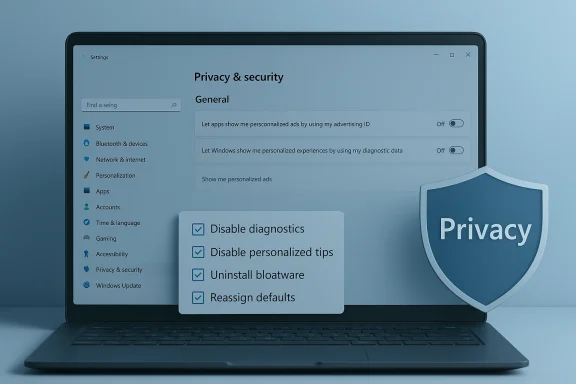
Quick checklist — the ten-minute privacy and declutter sweep
These are the highest-impact, lowest-risk changes to reduce dark-pattern friction on a Windows 11 PC.- Diand other General privacy toggles.
- Turn off Op and Tailored experiences (Personalized offers) in Diagnostics & Feed
- Disable Search Highlights and web/Bing suggestions in Search permissions.
- Turn off “Show recommendations” in Start, and remove suggested/Recommended items.
- Clean up Lock screen widgets and disable Windows Spotlight tips and “fun facts.”
- Prune Notifications: disable “get tips, tricks and suggestions” and the Windows welcome experience.
- Uninstall obvious bloatware and disable nonessential startup apps.
- Reassign default browser and explicit protocol handlers for HTTP/HTTPS/HTML/HTM/mailto if needed (see caveats below).
Privacy & Security: the big toggles you should change
Disable Advertising ID and general personalization
Why: Advertising ID ties app activity on a per-user basis to a persistent identifier that third‑party apps use for targeted ads and suggestions. Turning it off reduces cross-app profiling on the device.What to do:
- Open Settings (Windows + I) → Privacy & security → General.
- Turn off “Let apps show me personalized ads by using my advertising ID” and other suggested items such as “Show me suggested content in the Settings app.”
Turn off Optional diagnostics and Tailored experiences (Personalized offers)
Why: “Optional diagnostic data” and Tailored experiences (now described in some builds as “Personalized offers”) feed Microsoft’s personalization and suggestion pipelines. When enabled, they expand the telemetry Microsoft can use to recommend tips, apps, and offers.What to do:
- Settings → Privacy & security → Diagnostics & feedback.
- Set Diagnostic data to Required (or use the UI to turn off Send optional diagnostic data).
- Turn off Tailored experiences/Personalized offers and set Feedback frequency to Never.
- Use the Delete diagnostic data control to remove previously collected data if desired.
Caution: Required diagnostic data cannot be turned off entirely; Microsoft still collects minimal telemetry for functionality and security. If you have stringent compliance needs, consider enterprise tooling or alternate OS strategies.
Search and taskbar: stop the news and the suggestions
Turn off Search Highlights and web suggestions
Why: Search Highlights injects trending topics, news icons, and promotional items into the search pane. It’s a major vector for “in-system” ads and distraction.What to do:
- Click the Search icon on the Taskbar (or press Win + S).
- Open the three-dot menu → Search Settings → toggle off “Show search highlights.”
Or: Settings → Privacy & security → Search permissions → scroll to More settings → turn off “Show search highlights.”
Caveat: Some enterprise or registry-based policies that remove web results can gray out the setting; conversely, enforced policies may re-enable or lock behavior in managed devices.
Prune the Taskbar and Start menu recommendations
Why: The Start menu’s “Recommended” area and taskbar widgets ar suggestions and app-prompts.What to do:
- Settings → Personalization → Start → disable “Show recommended files in Start, recent files in File Explorer, and items in Jump Lists” and any “Show recommendations for tips, shortcuts, new apps, and more.”
- Settings → Personalization → Taskbar → hide Widgets/Search/Copilot buttons you don’t want visible.
Notifications, Lock Screen, and Setup nudges
Notiips and suggestions”
Why: Notification prompts labeled as “tips, tricks and suggestions” are often product nudges rather than system-critical alerts.What to do:
- Settings → System → Notifications → scroll to Additional settings → uncheck:
- “Show the Windows welcome experience after updates”
- “Suggest ways to get the most out of Windows”
- “Get tips and suggestions when using Windows”
Lock Screen: remove dynamic “fun facts” and widgets
Why: Lock scrnder, Daily Discovery) and Windows Spotlight facts can download dynamic content and push promotional items.What to do:
- Settings → Personalization → Lock screen → Personalize your lock screen → uncheck “Get fun facts, tips, tricks, and more on your lock screen.”
- Remove unwanted lock‑screen widgets via th) → Remove.
Apps, bloatware, startup items, and default apps
Uninstall preinstalled apps (bloatware)
Why: OEM bundling and Microsoft’s suggested app list fill storage and may create additional notification noise.What to do:
- Settings → Apps → Installed apps → use the three-dot menu to uninstall unwanted apps.
- If an app’s purpose is unclear, research the package before removing, or disable at startup.
Disable startup apps
Why: Fewer startup apps improves boot time and reduces immediate background CPU usage.What to do:
- Settings → Apps → Startup → toggle off nonessential apps.
Default browser and protocol handlers
Why: Many users prefer Chrome, Firefox, or Brave. Windows 11’s Default apps UI requires assigning defaults by filetype and protocol to avoid surprises.What to do:
- Settings → Apps → Default apps → pick your browser → choose Set default or set by file types/protocols (HTTP, HTTPS, .HTML, .HTM, MAILTO).
- If links continue to open in Edge, check Edge settings and any enterprise policies; use protocol handler settings to ensure consistent behavior.
Deeper control: services and system-level changes (use caution)
Experienced users can disable certain services (e.g., Windows Error Reporting Service, SysMain for SSDs, Windows Biometric Service if unused) via services.msc to reduce telemetry or background tasks. Community advice strongly recommends:- Use the Services MMC (services.msc) only ifervice’s function.
- Prefer supported Group Policy or MDM profiles in enterprise settings rather than per-machine registry hacks.
- Keep restore points or system images and test changes on a non-critical machine before widespread adoption.
Critical analysis: strengths, limitations, and risks
Strengths of the approach
- The majority of dark-pattern vectors in Windows are discoverable and reversible through supported UI toggles: privacy, diagnostics, search highlights, and Start/Lock screen recommendations are controllable without advanced tools. Microsoft’s documentation confirms the presence of these settings.
- Small, consistent changes produce immediate, measurable reductions in distractions and background network activity. Community guides and performance checks corroborate improvements in perceived snappiness after pruning startup apps and disabling unnecessary dynamic content.
Limitations and the practical risk surface
- Some behaviors are build- and environment-dependent. Enterprise policies, OEM customizations, and staged feature flags can reintroduce or hide settings. As a result, a one‑time cleanup may not be permanent; periodic re-checks after major updates are prudent. Community threads document instances where Microsoft’s staged rollouts or update processes re-enable surfaces.
- Registry hacks and third‑party debloaters can break OS servicing, trigger security software, or be reverted by feature updates. Use them only on disposable test machines or with full backups.
- Turning off optional diagnostics reduces personalization but may disable features that rely on that telemetry (e.g., cross-device Resume, certain intelligent suggestions). Microsoft documents that required telemetry remains for security and servicing. Users must balance privacy vs. convenience.
Policy and regulatory context
Regulators in multiple jurisdictions have scrutinized how platform vendors present AI and subscription choices, pushing toward clearer disclosures and less coercive design. This creates pressure on vendors, but timelines for enforcement are long; users should take practical controls rather than wait. Community recommendations and forum collations urge Microsoft to offer a single, discoverable ad‑free or “Classic Mode” preference to make opt-outs durable across updates.Practical maintenance plan — make it stick
- Run the quick checklist above immediately after OOBE (first run).
- Create a System Restore point and an image backup before making low-level or registry changes.
- Keep a one‑page cheatsheet of the toggles you changed (Privacy & security, Diagnostics, Start menu, Search, Lock screen, Notifications).
- After any major Windows feature update, re-run the checklist — Microsoft’s staged flags and update logic sometimes reintroduce opt-ins.
- For business fleets, apply Group Policy / Intune MDM controls to enforce ad‑free defaults centrally rather than relying on manual per-device tweaks. Community and enterprise guidance favors MDM as the safe, repeatable approach.
Final verdict: how to think about Windows’ dark patterns in 2026
Windows remains a powerful, flexible platform. The presence of in‑OS nudges and monetized recommendations reflects a vendor balance between platform convenience and commercial strategy. The good news: nearly all the common dark-pattern surfaces have supported opt‑outs and are manageable without hacking the system. The practical work is not heroic — it’s routine: be intentional during setup, tighten privacy/diagnostics, prune UI recommendations, uninstall what you don’t need, and reassign defaults carefully.If you want a calmer, more private PC in 2026, start with the ten-minute sweep and keep it part of your post-update checklist. For managed environments, push for centralized, supported policies that enforce respectful defaults for your users. And when in doubt about an aggressive tweak you find online, err on the side of supported controls and backups — the marginal risk of a misapplied registry tweak can be a lot higher than the modest benefit of one extra removed prompt. Community collations and Microsoft’s own documentation provide the controls; the work now is routine housekeeping, not heroic hacking.
Conclusion
Windows 11 in 2026 ships with more nudges than many users want, but the countermeasures are available, documented, and effective. Use the Privacy & security and Personalization sections of Settings as your first line of defense, disable optional telemetry and tailored experiences, turn off Search Highlights and Start recommendations, remove bloatware, and lock down default app handlers where necessary. Keep backups, prefer Group Policy/MDM in enterprise contexts, and treat this as periodic maintenance: vendors update and iterate, and a small, repeatable checklist is the most reliable defense against dark patterns.
Source: TechPP Dark Patterns in Windows 11: Settings You Must Change in 2026 - TechPP
