

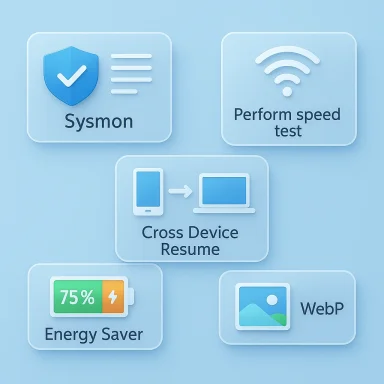
Microsoft’s 2026 Windows 11 update cycle has been quietly more meaningful than the flashy AI era marketing would suggest. Instead of a single headline-grabbing redesign, the operating system has picked up a series of practical changes that affect security, continuity, visibility, and everyday convenience. The five features that stand out most are built-in Sysmon, the taskbar speed test shortcut, Cross Device Resume, battery percentage and improved battery iconography, and WebP wallpaper support. Together, they show Microsoft leaning into the parts of Windows people actually touch every day, rather than treating usefulness as an afterthought.
Windows 11 has spent much of its life trying to balance two different identities. On one hand, Microsoft wants it to be a cleaner, more secure, more modern desktop platform. On the other, longtime users still expect the operating system to behave like a flexible workhorse with deep knobs, shortcuts, and admin-grade utilities. That tension has shaped nearly every major update since launch, and it is especially visible in 2026, when Microsoft appears to be shifting from cosmetic polish toward small but consequential workflow improvements.
The first quarter of 2026 brought a noticeable change in tone. Microsoft’s quality updates and preview builds began surfacing features that are less about experimentation and more about removing friction. The March 2026 cumulative update introduced native Sysmon support, a taskbar internet speed test shortcut, and WebP wallpaper support. The February 2026 update broadened battery status improvements and made percentage display available to a wider set of users. Then the latest Insider and Release Preview work extended the same theme into cross-device behavior and system visibility.
That matters because the center of gravity in Windows has changed. For years, Microsoft’s update strategy often looked like a mix of feature accumulation and interface simplification. But many users do not want Windows to be “lighter” in the sense of stripped down; they want it to be more useful without becoming more annoying. The 2026 crop of features fits that description. They do not reinvent how you use a PC. They remove small barriers that repeatedly interrupt work.
There is also a broader competitive backdrop. Apple has long marketed continuity between iPhone and Mac as a core ecosystem advantage. Linux desktops have traditionally offered deep configurability and granular control. Windows has often won by sheer reach, but reach alone is no longer enough. When Microsoft makes built-in tools easier to discover and easier to use, it strengthens the argument that Windows can still feel modern without making users relearn the basics.
In other words, the 2026 Windows 11 story is not about dramatic spectacle. It is about the accumulation of small defaults that change the daily feel of the system. That is exactly why these five features matter more than they may appear to at first glance. Each one touches a separate part of the workflow: security telemetry, connectivity, phone-to-PC continuity, battery awareness, and background personalization. Those are mundane categories, but they define the real user experience.
What changes now is not just convenience, but deployment posture. When a capability moves from a separately installed Sysinternals component into the operating system itself, it becomes easier to standardize across fleets. Microsoft also says the built-in Sysmon binaries are serviced through standard Windows quality updates, with the transition handled seamlessly when enabled. That means organizations can benefit from the tool without maintaining a parallel distribution path for the core binaries.
The upside is clear. A built-in security sensor can reduce friction for smaller IT teams, improve consistency across mixed device pools, and make it easier to validate that logging is actually happening. That is the kind of feature that saves time long before it saves money. It does not look dramatic on a product page, but it changes the economics of observability.
The more important strategic implication is that Microsoft is treating observability as a first-class Windows feature. That suggests the company sees visibility not as a niche IT concern, but as part of the normal maintenance model for a modern desktop. That is a significant philosophical shift, and it fits the broader 2026 push toward quality and transparency.
That limitation matters, but so does the intent. Microsoft knows many users check internet performance only when something feels wrong: a meeting stutters, a stream buffers, or a download crawls. The shortcut removes the hunt for a browser tab, search engine, and speed-test site. In that sense, it is a workflow shortcut disguised as a search trick.
There is also a subtle product lesson here. Microsoft could have ignored the request, or it could have buried the action somewhere in Settings. Instead, it put the shortcut exactly where people look when connectivity fails. That is smart UX, even if the implementation still depends on a web search. Better than nothing is not a glamorous headline, but it is often how real productivity improvements start.
The broader significance is that Windows is increasingly trying to surface useful actions at the point of need. That pattern is visible elsewhere in 2026 updates too, and it suggests Microsoft understands that discoverability is a product feature, not an afterthought. Users do not want more menus; they want fewer detours.
At the moment, this is still limited. Microsoft’s documentation positions Resume as part of the Continuity SDK, and it is explicitly a limited access feature for app developers who want to interoperate with Link to Windows. That means this is not yet a universal Android-to-Windows handoff. It is a framework, not a finished consumer feature. Still, frameworks matter because they establish what the platform will support next.
The big strategic difference is interoperability. Microsoft does not need to replicate Apple’s closed loop exactly; it needs to reduce the gap enough that mixed-device users feel less friction between their phone and PC. That is especially important for Android-heavy households and workplaces, where the desktop is still the center of serious productivity even when the phone starts the task.
That shift has obvious consumer appeal, but it also has enterprise implications. It hints at future workflow models where mobile and desktop are not separate islands. For Microsoft, that is strategically important because continuity features help make Windows feel indispensable in a world where people increasingly switch devices throughout the day.
This is one of those changes that seems small until you use it on a laptop, tablet, or handheld regularly. Precise battery visibility reduces uncertainty. Instead of guessing whether you have 38 percent or 58 percent left, you know immediately. That can change whether you plug in now, later, or not at all.
Microsoft’s rollout pattern is also telling. This was teased earlier in Insider builds, then made broadly visible in 2026 updates. That suggests the company is trying to land on a visual language that is both more informative and less cluttered than the old battery icon. That balance is harder than it looks. Too much information becomes visual noise; too little becomes guesswork.
The feature is also a good example of Microsoft improving a common status indicator without overcomplicating it. The icon now communicates state more effectively while keeping the taskbar clean. That is the sort of refinement users remember precisely because it saves mental effort over and over again.
This is a smart quality-of-life improvement because WebP is common on the web. The format is efficient, often smaller than traditional image types, and increasingly part of the normal image ecosystem. Windows supporting it natively for wallpaper means one less conversion step and one less reason to reach for a third-party utility.
There is also a broader compatibility message here. Microsoft has shown an increased willingness to expand native format support in the shell, not just in apps. That trend is useful because it reduces the number of situations where users need to ask, “Why doesn’t Windows just handle this already?” The answer is increasingly: it probably will.
The practical effect is modest but meaningful. It makes Windows feel a little less like a middleman and a little more like a native participant in the media formats people already use. That is exactly the kind of polish that improves perception without demanding a learning curve.
Microsoft has also continued broadening Windows Hello Enhanced Sign-in Security support and adding new camera options such as pan and tilt where supported hardware exists. Those changes strengthen the ongoing push toward passwordless and phishing-resistant sign-in, which has been a recurring Microsoft theme across Windows, Edge, and security documentation.
There is also a strategic pattern here. Microsoft appears to be building a more legible Windows, one where security, continuity, power state, and hardware identity are easier to discover without third-party tools. That is a subtle but important shift, and it gives the operating system a more confident feel.
The next test is whether Microsoft can keep this momentum going while making the features easier to find and more consistent across devices. If it does, Windows 11 could start to feel less like a platform that surprises users and more like one that quietly assists them. That is a much better reputation to have.
Source: How-To Geek Windows just got 5 features that actually change how you work
 Background
Windows 11 has spent much of its life trying to balance two different identities. On one hand, Microsoft wants it to be a cleaner, more secure, more modern desktop platform. On the other, longtime users still expect the operating system to behave like a flexible workhorse with deep knobs, shortcuts, and admin-grade utilities. That tension has shaped nearly every major update since launch, and it is especially visible in 2026, when Microsoft appears to be shifting from cosmetic polish toward small but consequential workflow improvements.The first quarter of 2026 brought a noticeable change in tone. Microsoft’s quality updates and preview builds began surfacing features that are less about experimentation and more about removing friction. The March 2026 cumulative update introduced native Sysmon support, a taskbar internet speed test shortcut, and WebP wallpaper support. The February 2026 update broadened battery status improvements and made percentage display available to a wider set of users. Then the latest Insider and Release Preview work extended the same theme into cross-device behavior and system visibility.
That matters because the center of gravity in Windows has changed. For years, Microsoft’s update strategy often looked like a mix of feature accumulation and interface simplification. But many users do not want Windows to be “lighter” in the sense of stripped down; they want it to be more useful without becoming more annoying. The 2026 crop of features fits that description. They do not reinvent how you use a PC. They remove small barriers that repeatedly interrupt work.
There is also a broader competitive backdrop. Apple has long marketed continuity between iPhone and Mac as a core ecosystem advantage. Linux desktops have traditionally offered deep configurability and granular control. Windows has often won by sheer reach, but reach alone is no longer enough. When Microsoft makes built-in tools easier to discover and easier to use, it strengthens the argument that Windows can still feel modern without making users relearn the basics.
In other words, the 2026 Windows 11 story is not about dramatic spectacle. It is about the accumulation of small defaults that change the daily feel of the system. That is exactly why these five features matter more than they may appear to at first glance. Each one touches a separate part of the workflow: security telemetry, connectivity, phone-to-PC continuity, battery awareness, and background personalization. Those are mundane categories, but they define the real user experience.
Native Sysmon Support
The most technically important of the new additions is Sysmon, now available as a built-in optional feature in Windows 11 starting in February 2026. Microsoft’s documentation describes Sysmon as a system service and driver that stays resident across reboots and logs activity into the Windows Event Log, including process creation, network connections, and file timestamp changes. For administrators, that is a big deal because Sysmon has long been valued as a security telemetry tool, but it used to require separate installation and management.What changes now is not just convenience, but deployment posture. When a capability moves from a separately installed Sysinternals component into the operating system itself, it becomes easier to standardize across fleets. Microsoft also says the built-in Sysmon binaries are serviced through standard Windows quality updates, with the transition handled seamlessly when enabled. That means organizations can benefit from the tool without maintaining a parallel distribution path for the core binaries.
Why this matters for enterprise security
Sysmon has always been most valuable where logging strategy matters. Endpoint detection and response tools can ingest its events to build stronger detection logic, and Microsoft explicitly frames the built-in version as part of a better visibility stack for security operations. In practice, this makes it easier to gather high-fidelity telemetry without layering on extra software as the first step.The upside is clear. A built-in security sensor can reduce friction for smaller IT teams, improve consistency across mixed device pools, and make it easier to validate that logging is actually happening. That is the kind of feature that saves time long before it saves money. It does not look dramatic on a product page, but it changes the economics of observability.
- Reduces the need for separate Sysmon packaging
- Simplifies standard deployment and update workflows
- Improves telemetry consistency across devices
- Makes security logging easier to validate
- Supports SOC and EDR pipelines more cleanly
Why power users should care
Even for enthusiasts and advanced home users, Sysmon being in-box matters because it lowers the barrier to experimentation. You no longer need to treat it as a separate project just to start learning how Windows really behaves under the hood. That makes it more likely that more users will actually investigate their own logs instead of assuming system telemetry is only for enterprise admins.The more important strategic implication is that Microsoft is treating observability as a first-class Windows feature. That suggests the company sees visibility not as a niche IT concern, but as part of the normal maintenance model for a modern desktop. That is a significant philosophical shift, and it fits the broader 2026 push toward quality and transparency.
A Taskbar Speed Test Shortcut That Cuts Friction
The internet speed test shortcut is a good example of Microsoft solving a problem in the smallest possible way. Windows 11 now lets users right-click the network icon in the taskbar and choose a “Perform speed test” action. The catch is that it launches a Bing search result for “internet speed test” in the default browser rather than running a fully native diagnostic app.That limitation matters, but so does the intent. Microsoft knows many users check internet performance only when something feels wrong: a meeting stutters, a stream buffers, or a download crawls. The shortcut removes the hunt for a browser tab, search engine, and speed-test site. In that sense, it is a workflow shortcut disguised as a search trick.
Convenience over completeness
This is not the same as a built-in diagnostics stack. It does not replace command-line network testing, router checks, or ISP troubleshooting tools. But it does lower the activation energy for the most common first step: “Is my connection actually slow?” That makes it useful for ordinary users who do not want to become network engineers just to answer a simple question.There is also a subtle product lesson here. Microsoft could have ignored the request, or it could have buried the action somewhere in Settings. Instead, it put the shortcut exactly where people look when connectivity fails. That is smart UX, even if the implementation still depends on a web search. Better than nothing is not a glamorous headline, but it is often how real productivity improvements start.
- Available directly from the taskbar network icon
- Reduces the number of steps to start a speed check
- Works from the user’s default browser
- Is most useful for quick triage, not deep diagnostics
- Feels like a bridge toward a future native tool
Why it may be a placeholder, not an endpoint
A native speed test tool would be more elegant, and Microsoft may eventually build one. For now, the taskbar shortcut feels like a pragmatic half-step: enough to be useful, not enough to claim completion. That makes it easy to criticize, but also easy to appreciate for what it actually does.The broader significance is that Windows is increasingly trying to surface useful actions at the point of need. That pattern is visible elsewhere in 2026 updates too, and it suggests Microsoft understands that discoverability is a product feature, not an afterthought. Users do not want more menus; they want fewer detours.
Cross Device Resume
Microsoft’s Cross Device Resume work is one of the clearest signs that Windows 11 is trying to become more continuity-driven. The feature lets supported Android apps surface on a Windows PC so you can continue what you were doing on your phone. If a supported app is open on the phone while it is connected through Link to Windows, its icon can appear on the taskbar, allowing you to jump back into the session on the desktop.At the moment, this is still limited. Microsoft’s documentation positions Resume as part of the Continuity SDK, and it is explicitly a limited access feature for app developers who want to interoperate with Link to Windows. That means this is not yet a universal Android-to-Windows handoff. It is a framework, not a finished consumer feature. Still, frameworks matter because they establish what the platform will support next.
The Apple Continuity comparison
It is hard not to compare this with Apple’s Continuity model. Apple’s advantage has always been the tight coupling of hardware, software, and services. Microsoft operates in a more fragmented world, where Android device makers, app developers, Windows services, and user settings all have to line up. That makes the challenge harder, but it also makes the potential audience broader.The big strategic difference is interoperability. Microsoft does not need to replicate Apple’s closed loop exactly; it needs to reduce the gap enough that mixed-device users feel less friction between their phone and PC. That is especially important for Android-heavy households and workplaces, where the desktop is still the center of serious productivity even when the phone starts the task.
- Lets supported phone activity surface on the PC taskbar
- Depends on Link to Windows and supported app behavior
- Is currently limited in app coverage
- Moves Windows closer to continuity-style workflows
- Helps reduce the phone-to-PC context switch penalty
Why this matters for productivity
The strongest argument for Cross Device Resume is not novelty; it is momentum. If you can begin a task on your phone during a commute and then continue it on your PC without manually reconstructing the state, Windows becomes more than a machine you sit in front of. It becomes part of a workflow that follows you.That shift has obvious consumer appeal, but it also has enterprise implications. It hints at future workflow models where mobile and desktop are not separate islands. For Microsoft, that is strategically important because continuity features help make Windows feel indispensable in a world where people increasingly switch devices throughout the day.
Battery Percentage and New Battery Iconography
The battery percentage toggle and improved battery icon design are deceptively simple additions that have an outsized effect on usability. Microsoft’s February 2026 update made the percentage display broadly available to more Windows 11 users, and the updated battery icons now use color cues to show charging and Energy Saver states. Green indicates charging, while orange signals Energy Saver mode.This is one of those changes that seems small until you use it on a laptop, tablet, or handheld regularly. Precise battery visibility reduces uncertainty. Instead of guessing whether you have 38 percent or 58 percent left, you know immediately. That can change whether you plug in now, later, or not at all.
Why battery clarity matters on modern devices
Battery percentage in the taskbar is not just about convenience. It is about decision quality. The more portable Windows devices become, the more users need at-a-glance power information that is easy to interpret during meetings, travel, or long work sessions. The new icon treatment also makes status more legible for users who do not want to hover for details every time.Microsoft’s rollout pattern is also telling. This was teased earlier in Insider builds, then made broadly visible in 2026 updates. That suggests the company is trying to land on a visual language that is both more informative and less cluttered than the old battery icon. That balance is harder than it looks. Too much information becomes visual noise; too little becomes guesswork.
- Shows exact battery percentage in the taskbar
- Uses green while charging
- Uses orange when Energy Saver is active
- Helps on laptops, tablets, and handheld PCs
- Reduces the need to open Settings for a basic check
Consumer and enterprise value are both real
For consumers, this is an easy win. It makes laptop life more predictable and helps handheld users understand power state instantly. For IT teams, it can reduce help-desk style confusion around “Why is my battery draining so fast?” because the answer is easier to see before a user turns it into a ticket.The feature is also a good example of Microsoft improving a common status indicator without overcomplicating it. The icon now communicates state more effectively while keeping the taskbar clean. That is the sort of refinement users remember precisely because it saves mental effort over and over again.
WebP Desktop Background Support
Windows 11 now supports setting WebP images as desktop backgrounds, provided you install the WebP Image Extension from the Microsoft Store. That may sound minor, but it removes a surprisingly common annoyance: converting a wallpaper image into JPG or PNG just so Windows will accept it. With the extension installed, you can right-click a WebP image and set it as your background directly.This is a smart quality-of-life improvement because WebP is common on the web. The format is efficient, often smaller than traditional image types, and increasingly part of the normal image ecosystem. Windows supporting it natively for wallpaper means one less conversion step and one less reason to reach for a third-party utility.
Why image format support matters
Desktop background support is not glamorous, but it touches an area of personal computing that many users care about more than they admit. Wallpaper is part of the desktop’s identity, and Windows has always been a platform where customization signals ownership. Letting more formats work without conversion means less friction for the simplest form of personalization.There is also a broader compatibility message here. Microsoft has shown an increased willingness to expand native format support in the shell, not just in apps. That trend is useful because it reduces the number of situations where users need to ask, “Why doesn’t Windows just handle this already?” The answer is increasingly: it probably will.
- Eliminates the need to convert WebP files for wallpaper use
- Requires the WebP Image Extension from Microsoft Store
- Works through standard right-click background setting
- Improves personalization with less friction
- Signals broader shell-format modernization
The AVIF question
The obvious next step is AVIF support, and many users will expect Microsoft to move there too. That would be consistent with the direction of travel: supporting modern web-friendly formats in everyday Windows flows. For now, WebP is the win, but AVIF would make the message stronger.The practical effect is modest but meaningful. It makes Windows feel a little less like a middleman and a little more like a native participant in the media formats people already use. That is exactly the kind of polish that improves perception without demanding a learning curve.
Other Notable Improvements in 2026
The five features above are the most consequential, but they are not the only useful Windows 11 changes this year. Microsoft’s 2026 updates also surfaced PC specs in the Settings Home tab, which helps users and support helpers quickly identify device capabilities without digging through system panels. That is especially helpful in family support scenarios, small business troubleshooting, and quick compatibility checks.Microsoft has also continued broadening Windows Hello Enhanced Sign-in Security support and adding new camera options such as pan and tilt where supported hardware exists. Those changes strengthen the ongoing push toward passwordless and phishing-resistant sign-in, which has been a recurring Microsoft theme across Windows, Edge, and security documentation.
Why these extras still matter
These features are not as immediately visible as the taskbar shortcut or battery icon, but they reinforce the same idea: Windows is becoming more self-describing. The more the OS can explain its own state and capabilities, the less users need to rely on guesswork or support forums. That is good for consumers and even better for IT admins who need consistent answers.There is also a strategic pattern here. Microsoft appears to be building a more legible Windows, one where security, continuity, power state, and hardware identity are easier to discover without third-party tools. That is a subtle but important shift, and it gives the operating system a more confident feel.
Strengths and Opportunities
The strength of these 2026 Windows 11 additions is that they are practical rather than performative. They target high-frequency annoyances, reduce friction in common workflows, and improve the system’s ability to explain itself. More importantly, they do so without demanding a new hardware platform or a steep learning curve.- Sysmon improves built-in security visibility
- The speed test shortcut saves time during connectivity troubleshooting
- Cross Device Resume moves Windows toward continuity-first workflows
- Battery percentage makes portable use more predictable
- WebP wallpaper support removes a pointless conversion step
- PC specs in Settings help support and compatibility checks
- Windows Hello improvements reinforce passwordless sign-in
- New hardware-aware refinements make Windows feel more modern
Risks and Concerns
The main risk with this wave of features is inconsistency. Some are broadly available, others are limited, and a few still depend on optional components, partner hardware, or selective app support. That can make the Windows 11 experience feel uneven, especially for users who read about a feature and then discover it is not actually available on their machine.- Sysmon still requires proper configuration to be useful
- The speed test shortcut is still just a browser launch, not a native diagnostic tool
- Cross Device Resume has limited app support
- Battery icon changes can be overlooked if users never open Settings
- WebP wallpaper support depends on installing an extra extension
- Hardware-specific sign-in features may confuse users with older devices
- Discoverability remains uneven across Windows settings and shell features
Looking Ahead
What happens next will determine whether these changes feel like a meaningful product direction or just a good month of updates. The strongest signal so far is that Microsoft has started emphasizing quality, clarity, and workflow relevance in a way that feels more grounded than earlier Windows 11 messaging. That does not guarantee perfection, but it does suggest the company has heard the criticism that the OS sometimes felt more polished in theory than helpful in practice.The next test is whether Microsoft can keep this momentum going while making the features easier to find and more consistent across devices. If it does, Windows 11 could start to feel less like a platform that surprises users and more like one that quietly assists them. That is a much better reputation to have.
- Broader rollout of Cross Device Resume support
- More native utility features that reduce browser detours
- Further improvements to battery, status, and hardware visibility
- Continued expansion of built-in security telemetry like Sysmon
- Stronger integration of modern media formats across the shell
Source: How-To Geek Windows just got 5 features that actually change how you work
